Skip to Main Content
Sam's Club
Sam's Club
All Departments
All Services
Customer reviews for SAMSUNG 65" Class CU7000-Series Crystal UHD 4K Smart TV with HDR - UN65CU7000DXZA for
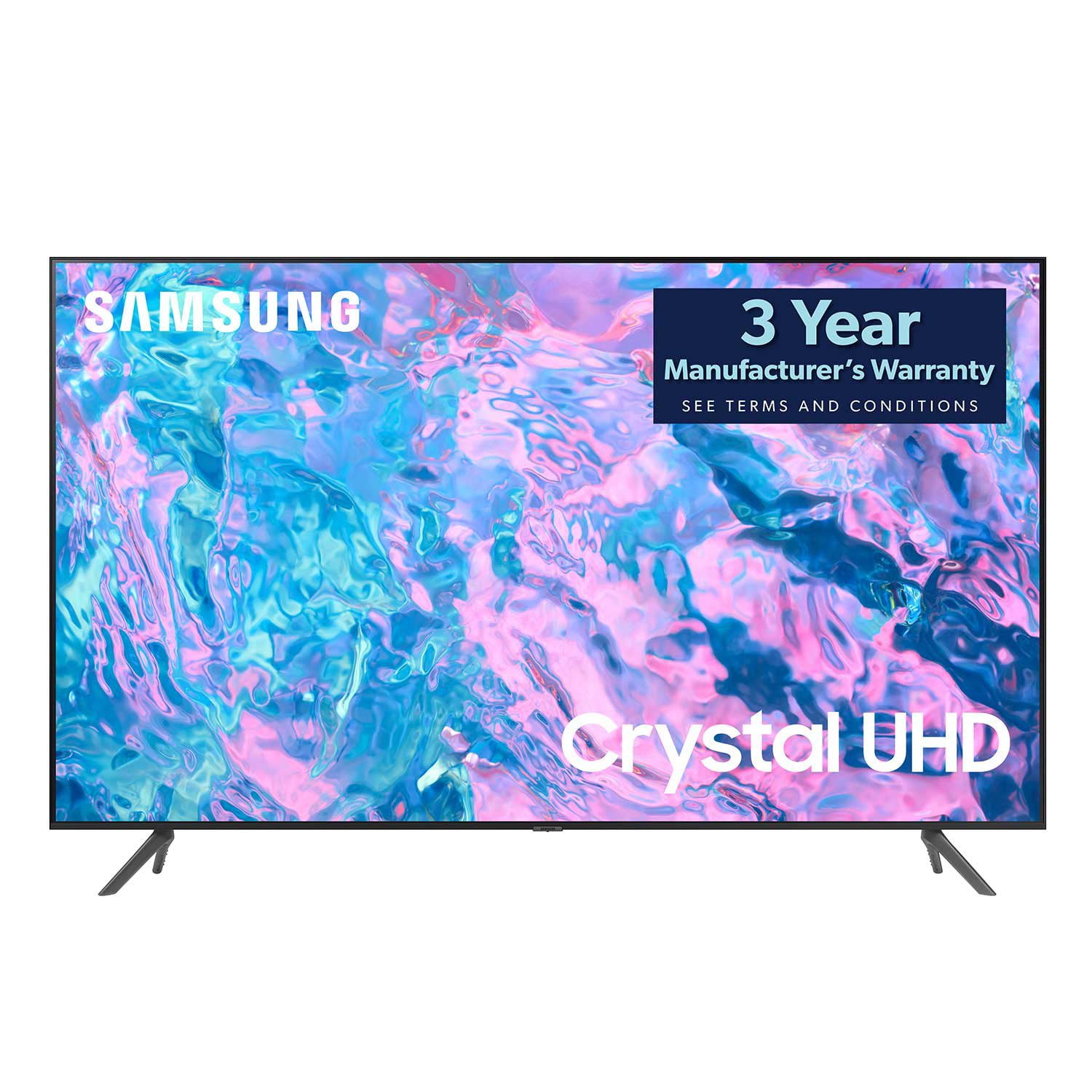
SAMSUNG 65" Class CU7000-Series Crystal UHD 4K Smart TV with HDR - UN65CU7000DXZA
4.6 out of 5 stars
stars
1,820 ratings1,412 reviews
  1. 5 stars74% (1,339)
  2. 4 stars17% (309)
  3. 3 stars4% (76)
  4. 2 stars2% (29)
  5. 1 star4% (67)

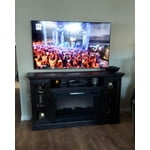
Member photos

  • +319 images
Sort by |
Showing 1,341-1,350 of 1,412 reviews
Aug 3, 2023
Prophatman
3 out of 5 stars review

Needs louder speakers

Same as my 50. Beautiful picture and terrible sound

Review from Samsung US
Helpful?6RZZK6GIRBUS13960862018
reply from Samsung Brand Ambassador

Hi Prophatman, Thank you for sharing your thoughts regarding the CU7000 TV’s sound quality. We recommend adjusting the Sound Settings to improve your experience. You can change the Sound Mode by going to Settings > All Settings> Sound > Sound Mode. You can also customize the sound with Expert Settings by going to Settings > All Settings> Sound > Expert Settings. To assist you with possible sound settings adjustments for a better audio experience or choosing a Samsung Soundbar to complement your viewing enjoyment, please reach out to us at 1-800-SAMSUNG, 8 AM - 12 AM EST, seven days a week. Our LiveChat agents are also available by clicking on the ‘Support’ link on our website. ~ Samsung Advisor

Dec 20, 2023
Lack
4 out of 5 stars review

My new tv

Excellent tv for the price Clear distinct picture. Remote could be more user friendly

Review from Samsung US
Helpful?6RZZK6GIRBUS13960862018
Feb 21, 2024
Nath
3 out of 5 stars review

N

You tube app not really good And this tv take WiFi slow.

Review from Samsung US
Helpful?6RZZK6GIRBUS13960862018
reply from Samsung Advisor

Hi Nath, We appreciate your feedback on the Samsung CU7000 TV. I'm sorry to hear you are experiencing issues with your Wi-Fi being slow and the YouTube app not performing well. Please try the below troubleshooting steps to help resolve these issues. First, let's ensure you are running the latest Firmware. Go to Settings> Support> Software Update. To ensure you do not miss any Firmware Updates, I recommend enabling Auto Updates. Go to Settings> Support> Software Update> then select Auto Update. Next, let's try running a cold boot on your TV. To do so, hold down the Power button on the Samsung TV remote until the TV turns off and then on again. This should take about 5 seconds. I hope these tips help resolve your concerns. If you need more help, Samsung is here for you. Please call us at 1-800-SAMSUNG, 8 AM - 12 AM EST, seven days a week. Our LiveChat agents are also available by clicking on the ‘Support’ link on our website. ~ Samsung Advisor

Dec 27, 2023
Irish
5 out of 5 stars review

Great picture!

Bought this TV a week ago and I am very happy with it👍.

Review from Samsung US
Helpful?6RZZK6GIRBUS13960862018
Jun 4, 2023
Jason
4 out of 5 stars review

Paramount app doesn't work.

I have to keep resetting the TV because the Paramount app keeps failing

Review from Samsung US
Helpful?6RZZK6GIRBUS13960862018
reply from Samsung Brand Ambassador

Hi Jason, To help resolve the issue with the Paramount Plus App, I recommend running a cold reboot on your TV. There are two ways to do this: 1) Using the Remote: For most people, the easiest way is to hold down the Power button on the Samsung TV remote until the TV turns off and then on again. This should take about 5 seconds. 2) Using the Plug: If you do not have the remote, unplug your TV from the wall outlet or surge protector, leave it unplugged for 30 seconds, and then plug it back in. Next, I recommend ensuring the Paramount Plus app is up to date by going to “Apps” on your Smart TV and selecting “Settings” from the top right corner. Next, select the Paramount Plus app and select "Update," if available. If the issue persists or if there is no Update available, we will try deleting and reinstalling the Paramount Plus app. To do so, navigate to “Apps” on your Smart TV and select “Settings” from the top right corner. Next, select the app. Finally, select Delete, and select Delete again to confirm. Then we will reinstall the app by returning to “Apps” on your Smart TV and selecting “Settings” from the top right corner. Click on “Paramount Plus” and then select “Reinstall.” Also, please ensure you are running the latest Firmware update. Go to Settings> Support> Software Update. If you need more help, Samsung is here for you. Please call us at 1-800-SAMSUNG, 8 AM - 12 AM EST, seven days a week. Our LiveChat agents are also available by clicking on the ‘Support’ link on our website. ~ Samsung Advisor

Sep 27, 2023
Great TV, love it
5 out of 5 stars review

Great picture

Been using this tv for a couple of months. Picture is great. No issues.

Review from Samsung Canada
Helpful?6RZZK6GIRBUS13960862018
May 25, 2024
Ellyty
5 out of 5 stars review

I absolutely love it, the colours are so vibrant. Easy to hook up…. Plug & play.

Review from Samsung Canada
Helpful?6RZZK6GIRBUS13960862018
Jan 29, 2024
Golfer25
3 out of 5 stars review

Just ok

Picture is ok. Not happy with sound. Remote is too small and hard to use.

Review from Samsung US
Helpful?6RZZK6GIRBUS13960862018
reply from Samsung Advisor

Hi Golfer25, We appreciate you sharing your experience with the CU7000 TV. Your feedback regarding image quality is essential to us and will be shared with our internal teams. Please try adjusting the below image settings to improve your picture. First, go to Home > Settings > All Settings > Picture > Picture Mode and select the mode that best fits your usage: 1) Standard: Default mode suitable for general viewing environments. 2) Natural: Reduces eye strain for a comfortable viewing experience. 3) Movie: Most suitable for watching TV or movies in a dark room. 4) Dynamic: Makes the picture brighter and clearer in bright viewing environments. 5) Filmmaker Mode: You can watch the source content (e.g., movie) as it is. If the image is defined as Filmmaker Mode, it will automatically switch to Filmmaker Mode while watching. You can also go to Settings > All Settings> Picture > Expert Settings > to manually fine-tune your image. For sound adjustments, go to Settings> All Settings> Sound. You can also learn how to use your remote directly from your TV. Just go to Home> (left directional button) Settings> Support> Remote Control Guide. If you’d like more help with settings, please know we’re here to help! Call us at 1-800-SAMSUNG, 8 AM - 12 AM EST, seven days a week. Or visit us on the Samsung website and click on the ‘Support’ link for: 1) LiveChat 2) Manuals, Software, & Warranty Info ~ Samsung Advisor

Sep 20, 2023
Knothead
5 out of 5 stars review

First Streaming TV

Nice tv. Work well streaming content. Nice picture and sound.

Review from Samsung US
Helpful?6RZZK6GIRBUS13960862018
Sep 27, 2023
Sebasvince
5 out of 5 stars review

Amazing product

I bought the tv at the bigining of the summer and I'm In love with this tv … the Color are amazing

Review from Samsung Canada
Helpful?6RZZK6GIRBUS13960862018