
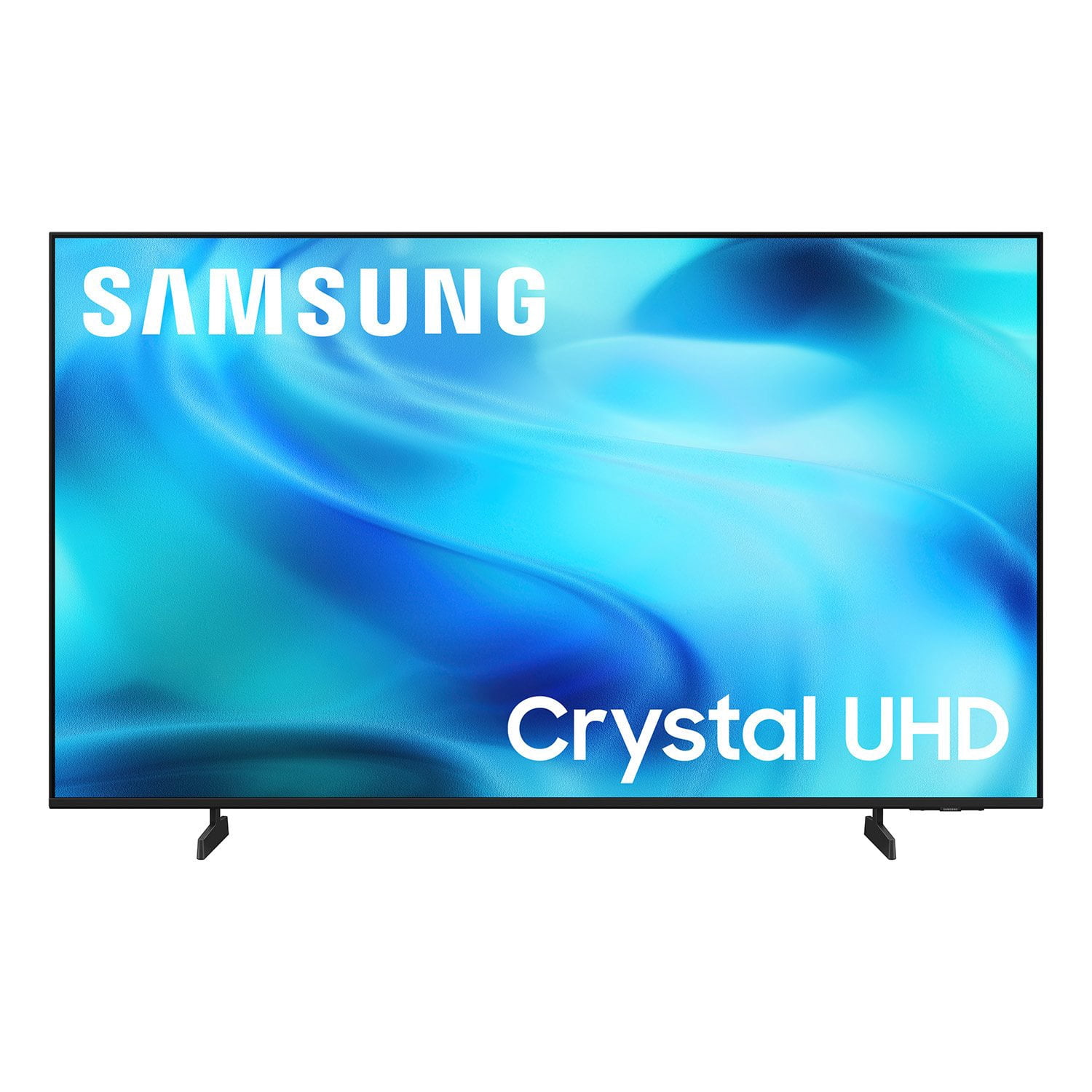
 Customer reviews for SAMSUNG 50” Class U8000H Series Crystal UHD 4K Vision AI Companion Smart Tizen TV for
SAMSUNG 50” Class U8000H Series Crystal UHD 4K Vision AI Companion Smart Tizen TV
Most helpful positive review
5 out of 5 stars review
Crystal Clear View and Sound!!!
TeeDaManager
Originally posted on
Samsung US
Most helpful negative review
1 out of 5 stars review
Can't add our cable provider, spectrum app
Elle
Originally posted on
Samsung US
Samsung Advisor
Hi Elle,
We appreciate your feedback. Please know the Spectrum Cable app is available for download in our built-in app stor...292 reviews
Filter by:
Sort by:
- 5 out of 5 stars review9/5/2026Outstanding television. The picture is crystal clear and the sound is great. Also, this television is simple to operate overall, and I am able to easily add many streaming services. In all, I am highly pleased with the particular television.
Great Television
AlexOriginally posted onSamsung US - 4 out of 5 stars review8/20/2026TV works well, does what it suppose to do. Setting up was easy. Brightness is really good. Sound is fine. Only problem is responsiveness. The UI is amazing but its just feels like there is a lag.
Good tv for its price
RameezOriginally posted onSamsung US - 3 out of 5 stars review8/21/2026i returned it. had trouble with channels on cable not being there all the time. had trouble with switching from tv plus to cable. DO NOT like the remote. still looking for a samsung with conventional remote.
tv
amt706Originally posted onSamsung USSamsung AdvisorHi amt706, We appreciate your feedback on the U8000HD TV. Should you give Samsung another look in the future, we’d be glad t... - 5 out of 5 stars review8/20/2026I have always been extremely happy with Samsung tvs. Now I have a Smart Samsung and I am a huge fan. I can operate and get to all my apps and devices with one remote. I could not be happier.
Smart Samsung TV
BdsmsOriginally posted onSamsung US - 5 out of 5 stars review9/6/2026My friend left me her Samsung TV after she moved I enjoyed the functionality of it but it went out with no warning so I went and bought my own I enjoyed the upgrades and the easy of all the comes with it the free apps
Love it so far
kbooOriginally posted onSamsung US - 5 out of 5 stars review8/20/2026Great visibility, easy navigation, crisp sound. Were a bit intimidated with all the apps to chose from, but easy to walk through instructions assisted in access. Really enjoy the watching experience.
Excellent picture and easy navigation.
KevbonOriginally posted onSamsung US - 5 out of 5 stars review8/20/2026I love my new Samsung 43-inch Crystal UHD 4K Smart TV! It’s the perfect size, and the picture quality and colors are beautiful. I’m very happy with my purchase and would definitely recommend it.
Very nice picture quality
vmarge1121Originally posted onSamsung US - 4 out of 5 stars review9/10/2026[This review was collected as part of a promotion.] could not find an easy way to turn on and watch + the voice telling me what I am watching and how loud it is needs to be muted and have not learned how yet
need "old people" user guide
sawdusterOriginally posted onSamsung US - 5 out of 5 stars review9/1/2026Tv has very beautiful graphics, my wife and kids love to have our movie nights and this TV has a great audio system and smooth responsiveness. The contrast color are amazing for the TV. I recommend this colorful and upscaling TV.
Amazing Graphics
CarniemanOriginally posted onSamsung US - 5 out of 5 stars review9/5/2026Flawless and great picture clarity. Remote control is intuitive and easy to operate. Samsung channel choices provide a whole new dimension of channels (free!) — in addition to whatever you pay for via subscription services.
Great picture and service
Amelia IslandOriginally posted onSamsung US - 5 out of 5 stars review6/27/2026[This review was collected as part of a promotion.] I love the brightness of the TV I wear glasses with glaucoma so it's a great tool for my eyes I love my TV. I dont really like the contrast i play with it light to dark and the interface is perfect I see everything instead of moving my head left to right the resolution is crystal clear and I'm partial deft so the volume is perfect I love the soundstage
Great accessories
Perfect pattyOriginally posted onSamsung US - 4 out of 5 stars review6/20/2026[This review was collected as part of a promotion.] I purchased this for my 89 year old Mother-in-Law. We installed it on her kitchen wall. Everything works fine, but the issue is getting the TV to go to her Xfinity service from turning the TV on. She doesn't know how to navigate the smart TV to the proper HDMI selection and then get to Xfinity. Otherwise the TV. works great and has great clarity.
Hard for Elderly
DannstuOriginally posted onSamsung USSamsung AdvisorHi Dannstu, Thank you for sharing your feedback with us. To help you and your mother get the most from your TV, you can down... - 3 out of 5 stars review6/5/2026[This review was collected as part of a promotion.] The tv is great in terms of picture but HORRIBLE in terms of sound quality. There is absolutely no setting at all that isn't far too loud on commercials and then you cannot hear the dialog when the show or movie is back on. And when music plays in the show?! It is beyond distorted. It is awful. I have no bought a soundbar almost as expensive as the tv itself hoping that helps because the tv picture is great. Very disappointed with sound, it is difficult to watch anything it is that bad.
Picture = Great / Sound = Awful
VickiOriginally posted onSamsung USSamsung AdvisorHi Vicki, Thank you for sharing your experience with volume fluctuations on your Samsung U8000HD TV. Sudden changes in volum... - 5 out of 5 stars review6/1/2026[This review was collected as part of a promotion.] Excellent Picture, Contrast, and Sound Quality I purchased the 43" Class Crystal UHD U8000HD 4K Smart TV for my mother, and it has exceeded our expectations. The 4k picture quality is stunning, with bright, vivid colors and excellent sharpness that make every program look detailed and lifelike. One feature that really stands out is the contrast. Dark scenes appear deep and rich, while bright areas remain clear and vibrant, creating a more realistic and immersive viewing experience. One feature that really stands out is the contrast and brightness. Dark scenes appear deep and rich, while bright areas remain clear and vibrant, creating a more realistic and immersive viewing experience. The ...
Excellent Picture Quality and Perfect for My Mom
SheiladirectoraOriginally posted onSamsung US - 5 out of 5 stars review6/19/2026[This review was collected as part of a promotion.] Love this TV. I don't make much money so I could never really afford a "nice" TV. I got my Samsung crystal UHD from Verizon when I s5artwd internet service for my home. The first time I turned it on I thought something was wrong because the picture clarity and sound were unlike anything I've ever seen and heard on a TV. Now i can't go anywhere n watch TV unless it's a Samsung. Truly excellent quality. Everything about this TV makes my viewing experiences perfect everything. Very easy to navigate.
Perfect sound a d picture clarity!!!!
Lilbit431982Originally posted onSamsung US - 3 out of 5 stars review7/5/2026[This review was collected as part of a promotion.] Not pleased that I need to pick one sound output. It has no additional audio out other than stripping the HDMI ARC connection. And if you do that, then the only option is the external audio vs. the ability to have audio from the TV AND extenal.
It's OK
DesignFarmerOriginally posted onSamsung USSamsung AdvisorHi DesignFarmer, Thank you for sharing your thoughts on the available inputs for the U8000HD. . If an Optical port is a cruc... - 2 out of 5 stars review7/13/2026[This review was collected as part of a promotion.] My first Samsung product. Not very happy. Setup much more difficult than previous purchases. Not connection for my sound bar. Bought the Audio adapter. Still not recognizing. No usb marked arc or earc. I was told it was #3. Obviously not, since there is still no recognition. Picture OK. Support legs not nearly as sturdy as my previous Vizio. Probably my last Samsung product.
Not Up to Expectation
DeeMOriginally posted onSamsung USSamsung AdvisorHi DeeM, Thank you for your feedback on the U8000HD. Please know your TV can connect to external sound via HDMI and Bluetoot... - 4 out of 5 stars review7/6/2026[This review was collected as part of a promotion.] For the price the UHD display is pretty decent. The only issue I find with it is it is slow to react to commands from the remote. Like really slow. Sound is good. Brightness, contrast was great out of the box.
Decent display for the money.
BeresondOriginally posted onSamsung US - 1 out of 5 stars review7/7/2026[This review was collected as part of a promotion.] I could not use the TV without making a Samsung Account. I do not want a samsung account. The menus are horribly nested. Over air TV broadcast is our primary usage and it is 3 or 4 clicks deep from turning on. The picture is decent, but only after turning off all of the enhancements that make it look like a soap opera.
No Account No TV
Ludite1976Originally posted onSamsung USSamsung AdvisorHi Ludite1976, Thank you for your review and for sharing your concerns. A Samsung Account is required to access Smart Hub, w... - 5 out of 5 stars review5/18/2026[This review was collected as part of a promotion.] To begin let me start by saying I've always been a SAMSUNG GIRL. Their products are not ridiculously priced and the quality is satisfactory. My main thing I love about Samsung products is that I could control all my devices from my phone. Yes 5have a Samsung phone! However, I just open my Smart Things app and handle business. My kids always try to sneak and watch TV late at night so all I do is open the application and it tells me if the TV is on or off and whats being watched. I can simply turn off the TV without losing my sweet spot in bed. The picture quality,the brightness, the contrast, resolution and soundstage (especially sound) is so crystal clear. I can hear the kids television fr...
Samsung #1
Samsung GirlOriginally posted onSamsung US