Skip to Main Content
Sam's Club
Sam's Club
All Departments
All Services
Customer reviews for SAMSUNG 55” Class M70H Series Mini LED 4K UHD Vision AI Companion Smart Tizen TV for
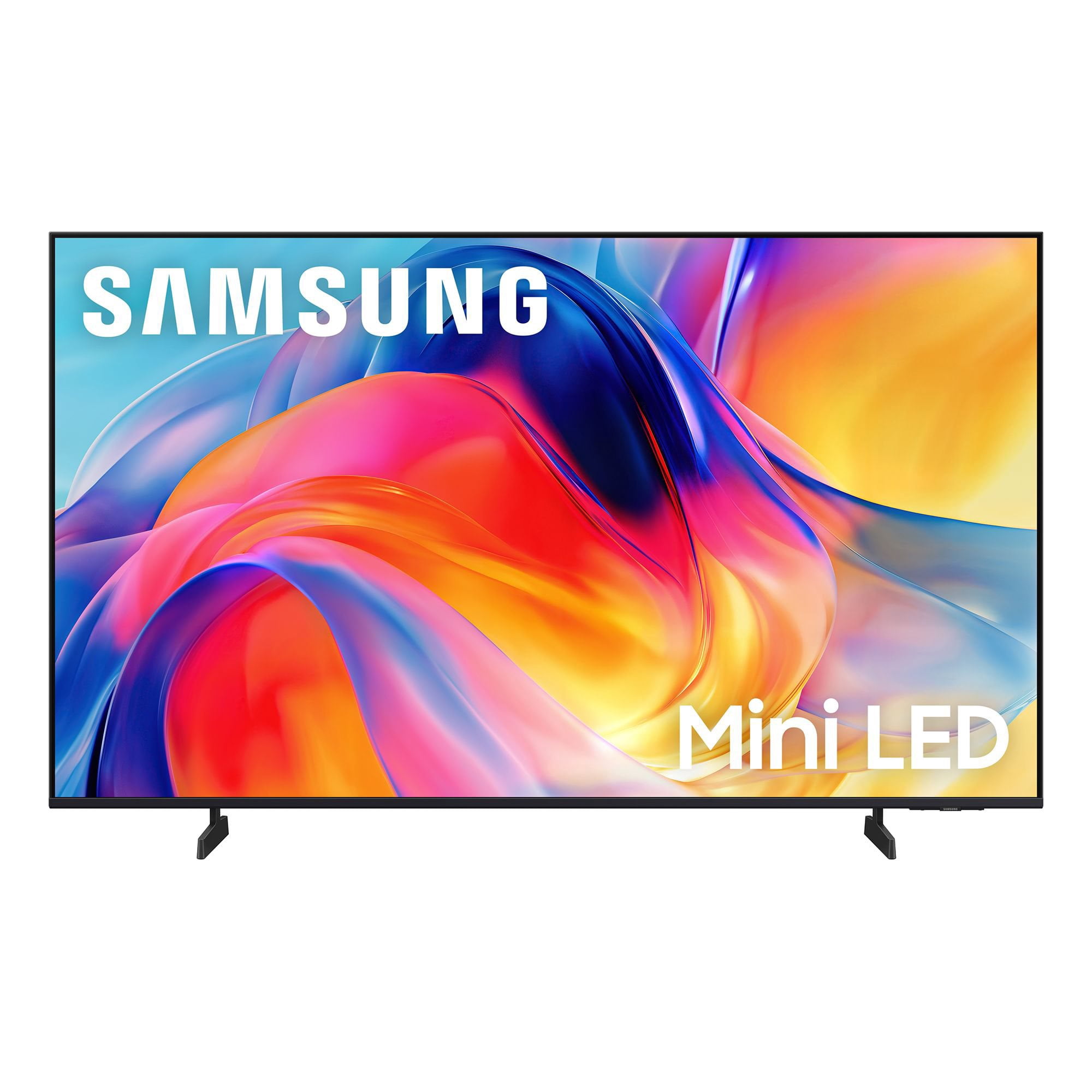
SAMSUNG 55” Class M70H Series Mini LED 4K UHD Vision AI Companion Smart Tizen TV
4.5 out of 5 stars
stars
163 ratings160 reviews
  1. 5 stars70% (114)
  2. 4 stars18% (30)
  3. 3 stars6% (10)
  4. 2 stars4% (7)
  5. 1 star1% (2)

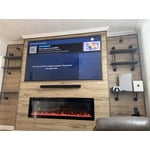
Member photos

  • +28 images
Sort by |
Showing 31-40 of 160 reviews
Jul 5, 2026
anonymous
1 out of 5 stars
1 out of 5 stars review

We bought this Samsung yesterday!!! The remote is a piece of crap! We have had tv's where the remotes were made with quality! This is a piece of junk. Sam's Club should have a salesman in that department that knows about TV's. There was no one there to help us. I am so sorry we bought it. My husband has tremors. There is no way he could work this junky remote! It's horrible!!!🤮🤮🤮

Helpful?38IP7LKS6PZ819847274541
reply from Samsung

Hi there, <br /><br />Thank you for your feedback. While the Samsung remote may appear minimal, many buttons offer multiple or long-press functions to help simplify the design without sacrificing functionality. For example:<br /><br />• Settings/Number/Color: Allows you to easily access your TV&#39;s Quick Settings and input channel numbers.<br />• Volume rocker: Push up/down to adjust volume. Press and release quickly to mute.<br />• Long-press Volume button: Hold for more than 1 second to open Accessibility Shortcuts.<br />• RETURN button: Press to go back to the previous menu or screen. While watching TV, it takes you back to the previous channel.<br /><br />These functions allow for a more streamlined experience without adding extra buttons.<br /><br />Learn TV Remote is a feature designed to help users become familiar with the layout and function of each button on the Samsung remote. When enabled, pressing any button (except the Power button, which will still turn off the TV) will prompt the TV to announce the button’s name and its purpose – without affecting TV operation.<br /><br />This teaching mode is especially useful for users who are visually impaired or new to Samsung remotes. To enable this feature, go to: Settings &gt; All Settings &gt; General &amp; Privacy &gt; Accessibility &gt; Learn TV Remote. To exit, simply press the Return key twice.<br /><br />If you’d like more assistance with this feature, please reach Samsung Support at 1-800-SAMSUNG (8AM – 9PM EST Mon – Fri, 8AM – 6PM Sat – Sun). LiveChat agents are also available through the ‘Support’ link on our website.<br /><br />~ Samsung Advisor

Jul 5, 2026
Fred
4 out of 5 stars
4 out of 5 stars review

Changes??

[This review was collected as part of a promotion.] I previously had another 50 inch Samsung tv and loved it! The picture got smaller and smaller, so I replaced it with another Samsung 50 inch tv. I had my tv mounted on a swing out wall mount. The mounting holes on the new tv are 3 inches lower that the previous tv!! Considerable modifications were made to ensure proper placement in cabinet. The power plug in is UNDER the swing arm mounting plate ?? I previously used a BOSE external speaker which utilized an optical cable. No optical plugin on new tv!!!!! I was able to connect with Bluetooth , but have yet to get it functioning properly! Minor issues, but combined they were very time consuming and frustrating! But I am looking forward to watching my new Samsung!! Thank you!

Review from Samsung US
Helpful?38IP7LKS6PZ819847274541
Jun 14, 2026
EvilLabs15
5 out of 5 stars
5 out of 5 stars review

Great TV!!!

[This review was collected as part of a promotion.] This TV is great!!! The color, brightness, and clarity are amazing. The contrast and resolution are amazing as well. The only problem I had was setting up SmartThings, but that could've been user error

Review from Samsung US
Helpful?38IP7LKS6PZ819847274541
Aug 5, 2026
Opsman
3 out of 5 stars
3 out of 5 stars review

Just OK

[This review was collected as part of a promotion.] Took me forever to figure out how to turn off the voice assist function. Very dark picture with Amazon Prime movies.

Review from Samsung US
Helpful?38IP7LKS6PZ819847274541
reply from Samsung Advisor

Hi Opsman, We’re sorry to hear you’re not fully satisfied with the picture quality on your Samsung M70HD TV. If the image appears too dark, we suggest disabling certain energy-saving features, which can automatically adjust brightness and affect how the screen looks. Go to: Settings > All Settings > General & Privacy > Power and Energy Saving, then turn off Brightness Optimization, Energy Saving Solution, Motion Lighting, and/or Contrast Enhancer. You can also adjust the Picture Mode to better suit your environment: Settings > All Settings > Picture > Picture Mode • Standard – Default mode for general viewing • Dynamic – Brighter and clearer, ideal for well-lit rooms • Movie – Best for dark room viewing • Eco – Energy-saving mode • Filmmaker Mode – Preserves content as intended by creators To fine-tune brightness, go to: Home > left directional key > Settings > All Settings > Picture > Expert Settings, then adjust the Brightness level (0–50) to your preference. Lastly, please make sure your TV is running the latest firmware: Home > Home > left directional key > Settings > Support > Software Update > Update Now We hope these tips help improve your viewing experience. If you need further support, feel free to contact us at 1-800-SAMSUNG (8AM – 9PM EST Mon – Fri, 8AM – 6PM Sat – Sun). LiveChat is also available via the ‘Support’ link on our website. ~ Samsung Advisor

Jul 23, 2026
mini
4 out of 5 stars
4 out of 5 stars review

dream machine

[This review was collected as part of a promotion.] TV has great color and picture quality the volume is ok.have not had time to play with different frequency's the only problem is does not have optical/audio connection

Review from Samsung US
Helpful?38IP7LKS6PZ819847274541
Jul 20, 2026
Yolande
4 out of 5 stars
4 out of 5 stars review

Great product

[This review was collected as part of a promotion.] The TV is great. I bought Samsung because I have another Samsung that is older but still works great. I just wish I didn't have to use two remotes

Review from Samsung US
Helpful?38IP7LKS6PZ819847274541
Jul 20, 2026
FeRanger
2 out of 5 stars
2 out of 5 stars review

This Samsung misses the mark.

[This review was collected as part of a promotion.] Quality is just not there in the sound lor color. Sound is hard to get clear and audio thru the onboard speakers. Color is either to pale and washed out or so intense its looks clownish.

Review from Samsung US
Helpful?38IP7LKS6PZ819847274541
reply from Samsung Advisor

Hi FeRanger, Thank you for purchasing Samsung’s M70H TV and for sharing your feedback on the sound quality. To ensure you’re experiencing the best possible audio, we first recommend checking that your TV is running the latest firmware. To do this, navigate to: Home > left directional key > Settings > Support > Software Update If the sound still doesn’t meet your expectations, there are a few settings you can try adjusting: Go to: Settings > All Settings > Sound > Sound Mode • Standard: Balanced sound without emphasis on any one range • Optimized: Enhanced effects and spacious sound • Amplify: Boosts mid and high tones to make dialogue clearer You can also explore Expert Settings to fine-tune options such as Balance, Equalizer, Auto Volume, and more to match your personal preferences. If the picture appears unclear, dull, or lacks definition, there are several settings you can adjust to improve clarity and overall image quality. Go to: Settings > All Settings > Picture > Expert Settings, and review these key settings: Picture Clarity Settings: While originally intended for motion handling, these can also impact overall clarity • Off: Disables motion enhancements • Auto: Automatically adjusts based on content • Custom: Lets you fine-tune: o Judder Reduction – Helps smooth out uneven motion o LED Clear Motion – Boosts sharpness in fast-moving content o Noise Reduction – Reduces distortion and enhances detail in lower-resolution sources Core Picture Settings • Brightness – Controls overall screen brightness • Contrast – Enhances the difference between bright and dark areas • Sharpness – Adjusts edge definition; closer to 20 increases detail • Color – Enhances depth and intensity of colors These adjustments can make a noticeable difference in overall clarity. If you need further help tailoring the settings to your preferences or environment, please contact Samsung Support at 1-800-SAMSUNG (8AM – 9PM EST Mon – Fri, 8AM – 6PM Sat – Sun). LiveChat is also available via the ‘Support’ link on our website. ~Samsung Advisor

Jul 20, 2026
Patty
5 out of 5 stars
5 out of 5 stars review

Beautiful tv

[This review was collected as part of a promotion.] My Samsung 50 inch mini LED tv is beautiful! The picture is vibrant and the price was phenomenaI! Love it!

Review from Samsung US
Helpful?38IP7LKS6PZ819847274541
Aug 5, 2026
Charlie
5 out of 5 stars
5 out of 5 stars review

Samsung

I didn't want this big of a TV when we went to look! My husband saw this one and loved it! So we purchased it; got it home and we both LOVE it! The color is outstanding! Much better than our old one that died. The brightness is great!

Review from Samsung US
Helpful?38IP7LKS6PZ819847274541
Aug 7, 2026
Anonymous
4 out of 5 stars
4 out of 5 stars review

Big and Beautiful!

The TV is great ! Unfortunately the sound bar is not Working . I've plugged it in but can't seem to Sync the TV and the sound bar . I guess I'll eventually figure it out.

Review from Samsung US
Helpful?38IP7LKS6PZ819847274541