Skip to Main Content
Sam's Club
Sam's Club
All Departments
All Services
Customer reviews for SAMSUNG 60" Class DU7200 Series 4K Smart TV for
SAMSUNG 60" Class DU7200 Series 4K Smart TV
4.2 out of 5 stars
stars
1,028 ratings965 reviews
  1. 5 stars61% (626)
  2. 4 stars20% (201)
  3. 3 stars9% (92)
  4. 2 stars5% (49)
  5. 1 star6% (60)

Member photos

  • +150 images
Sort by |
Showing 811-820 of 965 reviews
Mar 5, 2025
Reviewer name: Rayz
5 out of 5 stars
5 out of 5 stars review

Tv

Great TV. No issues si far. Remote is not that great.

Review from Samsung US
Helpful?39HMRPI2C1I113892053645
Apr 21, 2025
Reviewer name: Vida Vida
5 out of 5 stars
5 out of 5 stars review

Picture is beautiful

I like it because the firestick is built in the remote so I only have to use one Love it

Review from Samsung US
Helpful?39HMRPI2C1I113892053645
Feb 20, 2025
Reviewer name: Dule
3 out of 5 stars
3 out of 5 stars review

No good tv

I bought tv around Christmas time. Picture are not that clear.

Review from Samsung US
Helpful?39HMRPI2C1I113892053645
reply from Samsung Advisor

Hi Dule, Thank you for sharing your thoughts on your DU7200 TV’s image quality. The TV will upscale any content sent to it as best as possible. The closer your content is to 4K, the better the image will look on the screen. Here are some tips to help improve picture clarity: 1) HDMI cables are recommended for optimal HD viewing. 2) If you have an analog cable box or satellite box, upgrade to a digital cable box or satellite box. 3) Change the output resolution of your devices, such as digital broadcast receivers, IPTV, and set-top boxes, to UHD or HD. 4) You can further adjust your sharpness, brightness, contrast, color, and more by going to Settings > All Settings> Picture > Expert Settings 5) Choose a Picture Mode by going to Settings > All Settings> Picture > Picture Mode and choose from Dynamic, Standard, Natural, Movie, or Filmmaker Mode. 6) For optimal motion image performance, you may want to adjust the picture clarity setting by going to Settings > All Settings> Picture > Expert Settings > Picture Clarity Settings. Should you ever have questions or need help with TV features, specs, or operations, we are here to help. You can call us at 1-800-SAMSUNG, 8 AM - 12 AM EST, seven days a week. Our LiveChat agents are also available by clicking on the ‘Support’ link on our website. ~ Samsung Advisor

Feb 5, 2025
Reviewer name: Cali
5 out of 5 stars
5 out of 5 stars review

😁

I bought about 2 months ago and love it so far. Definitely made the right choice

Review from Samsung US
Helpful?39HMRPI2C1I113892053645
Feb 20, 2025
Reviewer name: FLYBRI72
5 out of 5 stars
5 out of 5 stars review

Amazing picture and sound
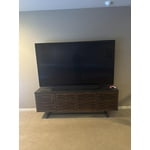
Beautiful picture and great user interface.. absolutely love this tv

Review from Samsung US
Helpful?39HMRPI2C1I113892053645
Apr 20, 2025
Reviewer name: Billy
5 out of 5 stars
5 out of 5 stars review

4th TV

On my 4th one. Love how the price is getting better. Great picture.

Review from Samsung US
Helpful?39HMRPI2C1I113892053645
Feb 5, 2025
Reviewer name: tpack
5 out of 5 stars
5 out of 5 stars review

😍😍

Amazing upgrade for me. My old tv was 10 years old. Easy to set up and use.

Review from Samsung US
Helpful?39HMRPI2C1I113892053645
Feb 6, 2025
Reviewer name: Implumber
5 out of 5 stars
5 out of 5 stars review

Great TV

Very happy with this tv. It's a great size, easy to use.

Review from Samsung US
Helpful?39HMRPI2C1I113892053645
Mar 5, 2025
Reviewer name: Randall
5 out of 5 stars
5 out of 5 stars review

Greatest color of them all

We've had this about 2 years and love it. Wonderful picture quality. The best.

Review from Samsung US
Helpful?39HMRPI2C1I113892053645
Mar 5, 2025
Reviewer name: CAM M
3 out of 5 stars
3 out of 5 stars review

TV is adequate for price

Volume varies on channels. Remote control is not easy to use.

Review from Samsung US
Helpful?39HMRPI2C1I113892053645
reply from Samsung Advisor

Hi CAM M, Thank you for your purchase and feedback. Please try adjusting the following Settings to improve your experience. The Auto Volume function automatically adjusts the sound to a certain level when changing channels or switching to another external input. Go to Settings > All Settings> Sound > Expert Settings > Auto Volume = On. For ease of use, you can learn how to use your Samsung Remote by going to Home> (left directional button) Settings> Support> Remote Control Guide. If you need more help, Samsung is here for you. Please call us at 1-800-SAMSUNG, 8 AM - 12 AM EST, seven days a week. Our LiveChat agents are also available by clicking on the ‘Support’ link on our website. ~Samsung Advisor