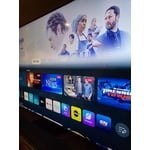
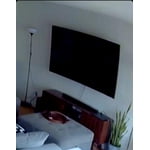
Not so great
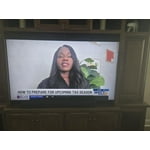
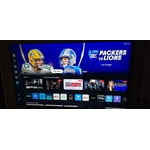
Not happy, picture blurry, Can’t identify people during game, no picture size, voice and mouth movements don’t match, on the picture side movement are to fast or to slow, watching Netflix or Amazon movies picture is perfect. Reason didn’t return to store to heavy to take down. My 75” also a Samsung was better. What happens with the 4k system? I’m paying extra to you tube tv for this. I’m giving all this information to make your product better.
reply from Samsung Specialist
Willy,
We appreciate your thoughts on the picture quality of Samsung’s Q80D TV. If the image you’re seeing isn’t to your liking, there are several picture settings you may want to adjust.
Go to Home > left direction button > Settings > All Settings > Picture > Picture Mode
...and select the mode that best fits your usage:
1. Standard: Is the default mode suitable for general viewing environments
2. Dynamic: Makes the picture brighter and clearer in bright viewing environments
3. Eco: Provided to save energy
4. Movie: Suitable for watching TV or movies in a dark room
5. Filmmaker Mode: Provides source content just as the creators intended. If the image is defined as Filmmaker Mode, it’ll automatically switch to Filmmaker Mode while watching.
You can also fine-tune your picture with expert settings such as brightness, contrast, sharpness and more (All Settings > Picture > Expert Settings).
If you’re hearing an audio delay across all sources/channels and you have a receiver, soundbar, or other speakers connected to your TV, you can access the Audio Delay settings to increase the audio delay. Go to: Menu > Settings > All Settings > Sound > Expert Settings > Digital Output Audio Delay
Our TVs have an audio Pass-Through feature, which allows the audio signal to be sent out unprocessed to an external soundbar or receiver connected to the TV. The external device then processes the audio, thereby eliminating the added step of processing by the TV, which adds delay.
On your TV, go to: Menu > Settings > All Settings > Sound > Expert Settings > Digital Audio Output Format > Pass-Through
Please also be sure you’re running the latest firmware. You can check to see what software version your TV is using and if there is an available update through the settings on your TV. Go to: Menu > Settings > Support > Software Update.
If you’ve tried these steps and your issue persists, please contact us for troubleshooting and a Support agent will gladly assist. You can reach us at 1-800-SAMSUNG, 8AM - 12AM EST, 7 days a week. Or visit us on the Samsung website and click on the ‘Support’ link for:
• LiveChat
• Manuals, Software, & Warranty Info
~ Samsung Specialist

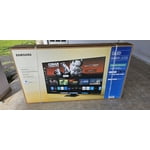
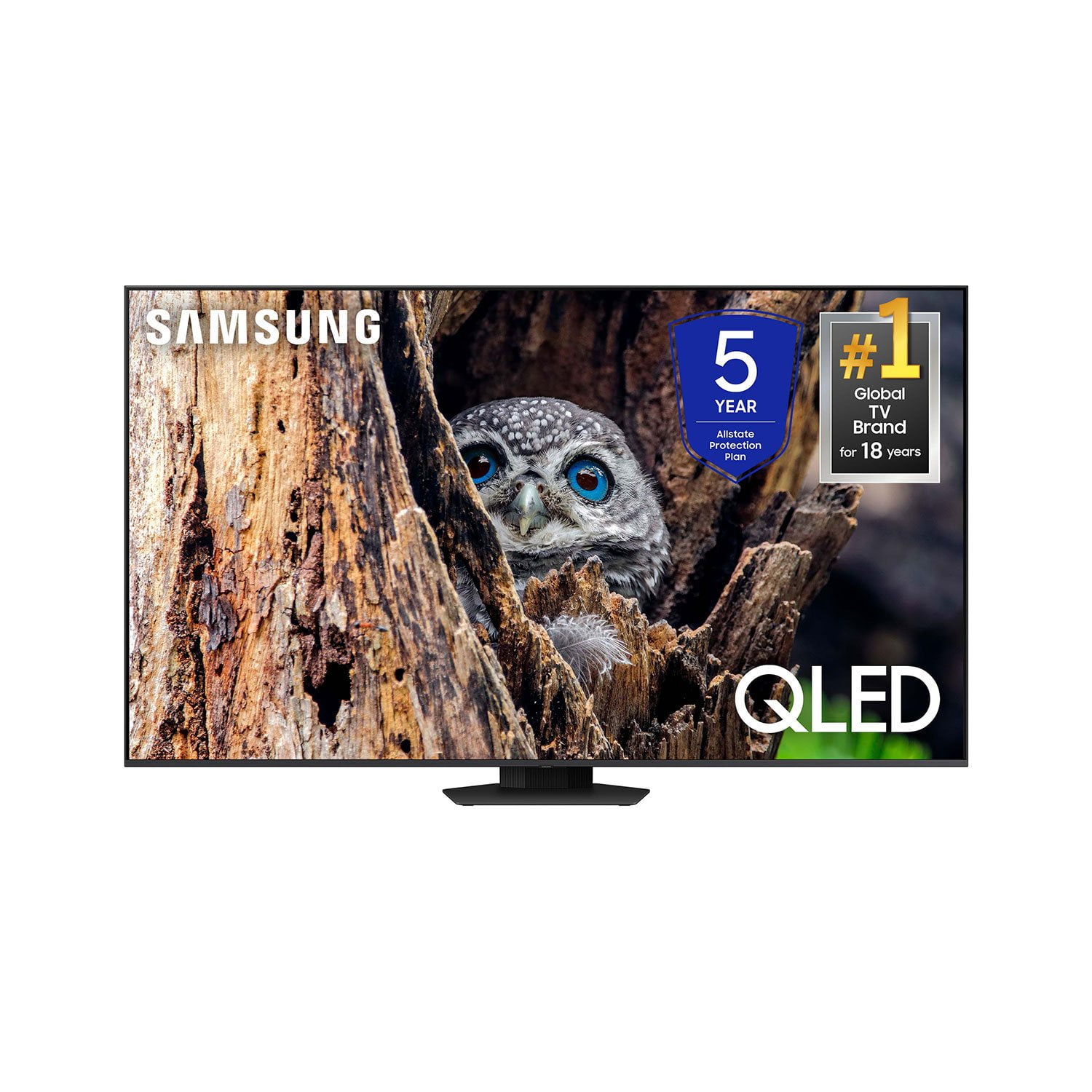 Customer reviews for SAMSUNG 65” Class Q80D Series QLED Smart TV for