Skip to Main Content
Sam's Club
Sam's Club
All Departments
All Services
Customer reviews for SAMSUNG 65" Class QN85BD-Series Neo QLED 4K Smart TV - QN65QN85BDFXZA for
SAMSUNG 65" Class QN85BD-Series Neo QLED 4K Smart TV - QN65QN85BDFXZA
4.7 out of 5 stars
stars
736 ratings672 reviews
  1. 5 stars82% (604)
  2. 4 stars13% (93)
  3. 3 stars3% (19)
  4. 2 stars1% (6)
  5. 1 star2% (14)

Member photos

  • +187 images
Sort by |
Showing 61-70 of 672 reviews
Dec 13, 2022
Reviewer name: Michael Adams
5 out of 5 stars
5 out of 5 stars review

Verified Purchase

Neo QLED worth the money

Great color and sound

Helpful?6MSFCO3SMOG113868809341
Dec 20, 2022
Reviewer name: Kool kev
5 out of 5 stars
5 out of 5 stars review

Verified Purchase

Outstanding Picture

Love It

Helpful?6MSFCO3SMOG113868809341
Jul 27, 2022
Reviewer name: JCBstuckonch5
3 out of 5 stars
3 out of 5 stars review

My experiences with my Samsung Smart TV

[This review was collected as part of a promotion.] I have enjoyed the quality of the picture, but the remote is beyond terrible. I am unable to navigate channels on my Xfinity stream. Samsung & Xfinity both blame one another. The Samsung remote is the worst TV remote I have ever owned. I am also unable to pause programming on any platform. The remote is VERY user unfriendly!

Review from Samsung US
Helpful?6MSFCO3SMOG113868809341
reply from Samsung Brand Ambassador

JCBstuckonch5, Please know you can control your connected devices using your TV remote by following these set-up steps: 1) Connect an external device to the HDMI port of the TV, and then power on the external device. Your TV will automatically recognize the device when connected through HDMI and will switch the output. If it doesn't automatically detect it, then keep following the steps to set up Universal Remote. 2) Go to Home > Menu > Connected Devices > Universal Remote. When you select a connected external device, the output of the selected device is displayed on the TV's screen. 3) Select Universal Remote on the Home screen. Next, select Start and make sure the device you want to connect is turned on. When your desired device displays, select it. Follow the on-screen instructions to complete the setup and register the device. The instructions may vary, depending on the device type selected. 4) Your TV and remote will memorize the external device and its connection port (HDMI 1, HDMI 2, etc.) to make controlling everything even easier. Occasionally, the device may not respond after it's registered. To make sure the connection is made, you may need to re-register the device or adjust the position of your external device. If you need more help, Samsung is here for you. Please call us at 1-800-SAMSUNG, 8AM - 12AM EST, 7 days a week. Our LiveChat agents are also available by clicking on the ‘Support’ link on our website. ~ Samsung Specialist

Oct 25, 2022
Reviewer name: scrhoads
4 out of 5 stars
4 out of 5 stars review

Great picture, sound not as great as I expected
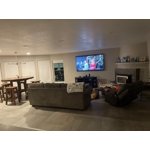
[This review was collected as part of a promotion.] This is a nice TV and the picture quality is excellent. I expected the sound to be better for the price. It isn't bad, but I will need to add a soundbar or other sound system for a better experience.

Review from Samsung US
Helpful?6MSFCO3SMOG113868809341
reply from Samsung Brand Ambassador

scrhoads, We appreciate your feedback on the sound quality of Samsung's QN85B TV. Your new TV features Intelligent Mode to optimize sound tailored to your environment, which includes features like Active Voice Amplifier (AVA) which further detects disturbances and enhances the on-screen voices for clear dialogue. Go to Home > Menu > Settings > All Settings > General & Privacy > Intelligent Mode Settings. Turn the options on or off to meet your needs: - Active Voice Amplifier is available only when the sound sensor of the TV is active and the sound output is set to TV Speaker, or a Samsung Soundbar interlinked with Adaptive Picture is connected. - Adaptive Sound+ provides optimized sound quality by analyzing the viewing space and the acoustic components of the content. - Adaptive Volume Automatically adjusts to a specific volume level while you are watching TV. Several Sound Modes are likewise available to meet your personal preferences: Settings > All Settings > Sound > Sound Mode You can also customize sound by going to: Settings > All Settings > Sound > Expert Settings To assist you with possible sound settings adjustments for a better audio experience, or choosing a Samsung Soundbar to complement your viewing enjoyment, please reach out to us at 1-800-SAMSUNG, 8AM - 12AM EST, 7 days a week. Our LiveChat agents are also available by clicking on the ‘Support’ link on our website. ~ Samsung Specialist

Oct 25, 2022
Reviewer name: Lala26
5 out of 5 stars
5 out of 5 stars review

The bomb TV

[This review was collected as part of a promotion.] This TV is totally wrong the money! I am not a technology girl and had my old TV for 15 years! I love the picture quality and the sound is great too. The remote is easy to use and all of the apps I need are already programmable. Peace out Roku. I love the background pictures to choose from too which set the mood in the home. It was simple to hang and super easy to set up. Go for it!

Review from Samsung US
Helpful?6MSFCO3SMOG113868809341
Oct 25, 2022
Reviewer name: Ozzy4ever
5 out of 5 stars
5 out of 5 stars review

Theater worthy!
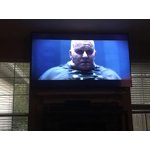
[This review was collected as part of a promotion.] I feel like I'm at the movie theater all the time! It has such a fantastic picture and easy to control features. The picture resolution is stunning after coming off a 12 year old tv in 1080p. Super fine details and breathtaking views in nature programs just really jump right out at you. Highly recommended!

Review from Samsung US
Helpful?6MSFCO3SMOG113868809341
Jan 3, 2023
Reviewer name: mrz80
3 out of 5 stars
3 out of 5 stars review

Gorgeous screen, flawed audio implementation

There is no analog audio out, and the SPDIF digital audio out is fixed. I regard that as a nearly irredeemable flaw in an otherwise wonderful TV. I have an older but very high end audio system and I would like be able to disable the internal speakers and feed the audio from the TV (via a DAC) to my stereo and still have the TV's remote control the TV audio's volume. Surely this would be a comparatively minor software tweak, given as the audio is still a data stream as it exits the set over the optical interface.

Review from Samsung US
Helpful?6MSFCO3SMOG113868809341
reply from Samsung Brand Ambassador

mrz80, Thank you for choosing Samsung's QN85B TV and for your review. Your feedback on the supported audio outputs is appreciated and will be shared with our internal teams. Should you ever have questions or need help, Samsung is here for you. Just give us a call at 1-800-SAMSUNG, 8AM - 12AM EST, 7 days a week. Our LiveChat agents are also available by clicking on the ‘Support’ link on our website. ~ Samsung Specialist

Oct 6, 2022
Reviewer name: booboo
2 out of 5 stars
2 out of 5 stars review

Good picture but!

[This review was collected as part of a promotion.] A little weird on the lighting and getting it right. sometimes too dark, sometimes too light. Minor issue. Overall love the picture. However, big problem with Content Protection Governor. This comes on and just drive me crazy. Murphy's law of course it only happens when it's a live game or something I really care about. Don't watch much TV, and just not sure why this ever comes on or is even in there. I purchased an HDMI TV and I'm only going to use HDMI cables. Why is there a message in there to switch to component cables?? Please let me know how to remove the restricting parameter!

Review from Samsung US
Helpful?6MSFCO3SMOG113868809341
reply from Samsung Brand Ambassador

BooBoo, I’m sorry to hear you’re not fully satisfied with the QN85B TV’s picture quality. If the image is too dim, please try disabling some of the TV's energy efficiency functions, as these will automatically adjust your picture and may cause your screen to appear brighter or darker than preferred. Go to: Home > Menu > Settings > All Settings > General & Privacy > Power and Energy Saving > turn off Brightness Optimization, Brightness Reduction, and Motion Lighting You may also want to try adjusting image settings to improve your picture. Go to Home > Menu > Settings > All Settings > Picture > Picture Mode 1) Standard: Is the default mode suitable for general viewing environments. 2) Movie: Is suitable for watching TV or movies in a dark room. 3) Dynamic: Makes the picture brighter and clearer in bright viewing environments. 4) Filmmaker Mode: You can watch the source content (e.g., movie) as it is. If the image is defined as Filmmaker Mode, it will automatically switch to Filmmaker Mode while watching. You can also customize the brightness level of your screen between 0 – 50 to your preference. Go to: Home > Menu > Settings > All Settings > Picture > Expert Settings Please also make sure you’ve got the latest firmware version installed on your TV. You can check this by going to: Home > Menu > Settings > Support > Software Update > Update Now So that we can better understand and assist with the HDMI connection issue you're experiencing, please call Samsung Support at 1-800-SAMSUNG, 8AM - 12AM EST, 7 days a week. Or visit us on the Samsung website and click on the ‘Support’ link for: • LiveChat • Manuals, Software, & Warranty Info ~ Samsung Specialist

Aug 23, 2022
Reviewer name: doglover
1 out of 5 stars
1 out of 5 stars review

Disappointed

[This review was collected as part of a promotion.] TV does not automatically connect my bluetooth headphones, I have to go to Settings every time. It takes a couple minutes to completely load at startup. The remote is useless unless you turn on a light, the buttons are black and can not be seen. I am very very disappointed in this TV. I purchased it because I have had many Samsung Cell phones, Currently I have 2 S22.

Review from Samsung US
Helpful?6MSFCO3SMOG113868809341
reply from Samsung Brand Ambassador

Hi doglover, We are sorry to hear that you are having issues with your QN85B TV not connecting via Bluetooth and taking too long to startup. Samsung prides itself on high-quality products and a great customer experience; please know we are here to help you. Please try the following troubleshooting tips to try and resolve your issues. First, let's ensure you are running the latest firmware. To do so, go to Settings> Support> Software Update, and you can easily update from there if needed. Next, Please try repairing your Bluetooth headphone with your TV. Go to Settings > All Settings > Sound > Sound Output > Bluetooth Speaker List. When using Bluetooth headphones, please keep in mind you will not be able to use Bluetooth devices and the Wi-Fi Speaker Surround Setup feature simultaneously. If you continue to have issues, please call us so we can make this right! Please contact us at 1-800-SAMSUNG, 8 AM - 12 AM EST, seven days a week. LiveChat with an agent, as well as manuals, software, and warranty info, can be found at the ‘Support’ link on our Samsung website. ~ Samsung Advisor

Aug 5, 2022
Reviewer name: Alca
3 out of 5 stars
3 out of 5 stars review

Sound quality poor, disappointing.

Not as good as i thought, LG has better sound quality

Review from Samsung UK
Helpful?6MSFCO3SMOG113868809341