
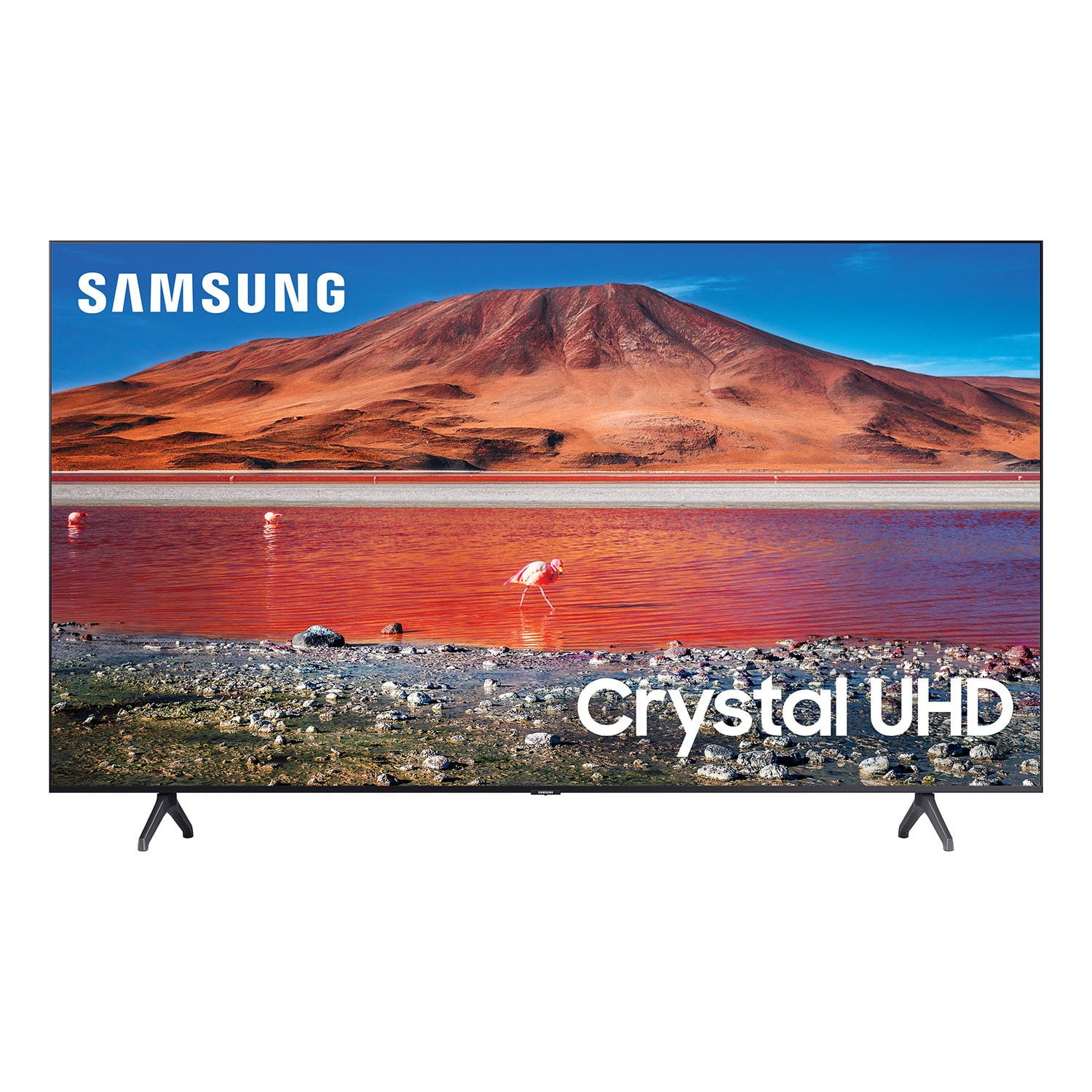
 Customer reviews for SAMSUNG 70" Class TU700D-Series Crystal Ultra HD 4K Smart TV UN70TU700DFXZA for
ALOT of features and tech for a great price!
i found this tv while looking for a basic tv. i was able to purchase this tv, which was way more advanced and had more features for less, than the “cheap” tv's! i have a much more expensive tv hanging in our family room that doesn't do half of what this samsung does. i will be ordering another for our family room and replace whats currently there.
Great tv ...But
this tv is great as far as what im able to view ..graphics and things like that but the tv itself at tikes can just be irritating. i noticed if im gone for too long it will unconnect from the wifi and i have to unplug the tv for it to connect again and i know its not my wifi. its getting to the point where every single time i come home i have to unplug to tv and plug it back in for it to work and im over it , its only been three months that ive had it . ive also noticed the picture is a but grainy at times when i turn it on and so again i have to fo and unplug the tv for a clear picture. my tv is only a couple steps away but for the money my boyfriend paid for this tv we expect it to work properly.
domi: Thank you for purchasing the TU7000 TV. I am sorry to hear that you are experiencing issues with your Wi-Fi connection and occasionally seeing a grainy picture. You may want to go through these steps to check your connection: 1) Check the distance between the TV and your modem or access point. The distance should not exceed 50 ft. (15.2 m). 2) Minimize interference by not using or turning off wireless devices. Also, verify that there are no obstacles between the TV and the modem or access point. (Wi-Fi strength can be decreased by appliances, cordless phones, stone walls/fireplaces, etc.) 3) Perform a network test to check if there is a network problem. Press the Home button on your remote. Navigate to Settings > Support > Device Care > Self Diagnosis> Smart Hub Connection Test 4) Try a cold reboot of your TV by pressing and holding the power button for 5+ seconds until the TV turns off and on again. 5) Please also be sure you have the latest firmware update. You may want to enable automatic updates for convenience. Select Settings > Support > Software Update, then select Auto Update. For further assistance or service, please contact us via any of the following options: 1-800-SAMSUNG (ask for TVs), available 8AM -12AM EST, 7 days a week Or visit us on the Samsung website and click on the ‘Support’ link in the upper right corner of the homepage for: 1) Contact Us Options (LiveChat, Remote Support, Facebook, Twitter) 2) Product Support 3) Manuals and Downloads 4) Warranty Info 5) Product Registration: Registering your product gives you access to easy warranty support, convenient opt-in to special promos and offers, faster troubleshooting and service, and quick notification of system updates 6) Samsung Community: A great resource for getting help from Samsung moderators and customers and more 7) …and more product, repair, order, and care options ~ Samsung Solutions
Super product
[This review was collected as part of a promotion.] The 43 inch tv has a great picture. There are so many apps already downloaded that I don't know where to start first. If you need to "cut the chord" this model makes it very easy. I ordered online and picked it up in store. Really easy .
Why didn't I do this before
[This review was collected as part of a promotion.] So, for years I have looked at televisions in the showroom and did not see a big enough difference to pay for a Samsung. I finally broke down and bought one (not top of the line) a few years ago. From now on, it's Samsung for me. You do notice the better picture once you get it home and start watching your regular shows. In addition, you have free Samsung TV channels, a real bonus. There also a number of bonuses in program apps and other features. If you are trying to justify the extra few bucks, I would definitely recommend you do it.
Nice TV, but not a very bright picture
everything works on the tv, but the picture is dimmer than my last samsung. i even turned the brightness all the way up, and it still has a dim look. if you are going to buy make sure you see how it looks in the store first. that was my mistake. wont make it next time
Hi Clay, Thank you for purchasing the TU7000 TV and for your review. I am sorry to hear that you are not happy with the brightness levels of your picture. If the colors on your TV are correct but just a little too dark or bright you can try the different Picture Modes or manually adjust the Brightness settings to your liking. Dynamic Picture Mode will make pictures brighter and clearer in bright viewing environments. Go to: Settings > Picture > Picture Mode > Dynamic Or manually adjust the Brightness and other settings to your liking. Press the HOME button on your remote, then navigate to: Settings > Picture > Expert Settings You may also want to disable Power Saving Mode which automatically adjusts the brightness to reduce the TV’s power consumption. Go to Settings> General> Eco Solution> Power Saving Mode. Ambient Light Detection will also automatically adjust the brightness level of the TV, according to the ambient light level, to reduce power consumption. If Ambient Light Detection has adjusted the screen brightness to a too bright or dark level, you can select Minimum Brightness to manually adjust the minimum screen brightness. Go to Settings> General> Eco Solution> Ambient Light Detection Please also be sure you are running the latest firmware. You can check to see what software version your TV is using and if there is an available update through the settings on your TV. Go to: Settings>Support>Software Update. I hope this helps to improve your picture. Should you need further assistance, please contact Samsung Customer Support at 1-800-SAMSUNG (ask for TVs), available 8AM - 12AM EST, 7 days a week. For additional support resources, visit us on the Samsung website and click on the ‘Support’ link in the upper right corner of the homepage for: 1) Chat with Us/Product Help: To begin a chat or find solutions, choose ‘TVs & Home Theater’ and select your model & topic. 2) Register a Product: For access to easy warranty support, convenient opt-in to special promos and offers, faster troubleshooting and service, and quick notification of system updates. 3) Manuals & Software 4) Warranty Info 5) Contact Us ~ Samsung Solutions
rsamsung s20 ultra no third party apps.
[This review was collected as part of a promotion.] 4k hdr to dark when dark picture ruins hole move even after adjusting picture options. ruins some movies completely. 1080p has no problems picture is great on every thing else just a bummer on 4k hdr. another unfortunate item that the tv guide doesn't work right some things 6 hours off after checking settings to verify day light savings and proper time no change.
Jim70: Thank you for purchasing the Samsung TU7000 and for your review. I am very sorry you are viewing scenes that appear too dark. Samsung is aware of the problem, and a new firmware update will be released soon to address this issue. Using your TV's remote, navigate to Settings, and select Support. Select Software Update, and then select Update Now. New updates will be downloaded and installed on your TV. Updates usually take a few minutes; please do not turn off the TV until the update is complete. When the update is finished, the TV will restart automatically. If there aren't any new updates, select OK to exit. You may want to enable automatic updates for conveniences. Select Settings > Support > Software Update, then select Auto Update. If you would like to update your software using USB, please check for the latest version at: https://www.samsung.com/us/support/owners/product/crystal-uhd-tvs-tu7000-2020 Instructions for how to update firmware are detailed here: samsung.com/us/support/answer/ANS00062224/ If you need further assistance or have any questions, please contact Samsung Customer Support. 1) Phone: 1-800-SAMSUNG, Available 8AM -12AM EST (7 Days a Week) 2) LiveChat: https://www.samsung.com/us/support/#contact_us_for_support 3) Facebook Messenger: https://www.facebook.com/samsungsupport 4) Twitter: https://twitter.com/SamsungSupport 5) The Samsung Members Community is also a great resource for getting help from Samsung moderators and customers: https://us.community.samsung.com If you have not already done so, we invite you to register your new Samsung product at: https://www.samsung.com/us/account/signin/?redirect=https%3A%2F%2Fwww.samsung.com%2Fus%2Fsupport%2Fregister%2F Registering your product gives you access to easy warranty support, convenient opt-in to special promos and offers, faster troubleshooting and service, and quick notification of system updates. ~ Samsung Solutions
Grateful owner
[This review was collected as part of a promotion.] We use our Samsung quite offend for gaming for the teens, live streaming our church services as well as zoom bible study. You can actually connect your phone to TV and see everyone on your zoom meeting. Talk about mind blowing. And let's not talk about Cromecast. My husband loved this. My TV has the Facebook watch app on it. My God today. I'm still learning my 5v and all of its features. I could be here all day learning all the feature. But one more thing I'm a zumba instructor and this TV has been a life saver. Why? I'm glad you ask. I can take this TV one the go with me. Love, love, love this .
NO Digital Tuner!! Why??
I have had two of these TV for 9 months. Hooked up my digital antenna today and was very disappointed that it does not have a digital tuner or any tuner for that matter. Samsung you saved a couple dollars but have disappointed a long time Samsung customer. Why include a coax connector but no tuner?
Hi Kevin, Thank you for reaching out to us. Please know that the TU700D does have a built-in tuner. To set up your local channels, please follow these steps: 1) Make sure your Antenna or Cable box is set up, and then connect it to the TV via the ANT IN. 2) Go to Source> TV 3) Press Setting> Broadcasting> Auto Program 4) Start to begin Auto-Programming, and then select either Air, Cable, or Both 5) Your TV will begin to scan for channels. After it's done, select Close to finish I hope this helps! If you need more help, please call us at 1-800-SAMSUNG, 8 AM - 12 AM EST, seven days a week. Our LiveChat agents are also available by clicking on the ‘Support’ link on our website. ~ Samsung Advisor
I got this Tv but I have started to notice that Samsung is paying too much attention to overall picture quality that your lacking in other areas. Such as sound quality. The speakers are not very good and I have to use a sound at just to hear most programs good.
Hi Shane, Thank you for sharing your thoughts regarding the TU7000 TV’s sound quality. To tune the sound, please try adjusting the sound settings to suit your personal sound preferences. You can change the Sound Mode by going to Settings > Sound > Sound Mode. You can also customize the sound with Expert Settings by going to Settings > Sound > Expert Settings. To assist you with possible sound settings adjustments for a better audio experience, please reach out to us at 1-800-SAMSUNG, 8 AM - 12 AM EST, seven days a week. Our LiveChat agents are also available by clicking on the ‘Support’ link on our website. ~ Samsung Advisor
Great TV
[This review was collected as part of a promotion.] The picture is sharp and colors are realistic. There is also a depth to the picture. The sound is excellent. The homepage set I up is clear. I love the Netflix and Amazon buttons on the remote. Also is comes with Samsung tv which has a wide variety of channels. The set up was easy too