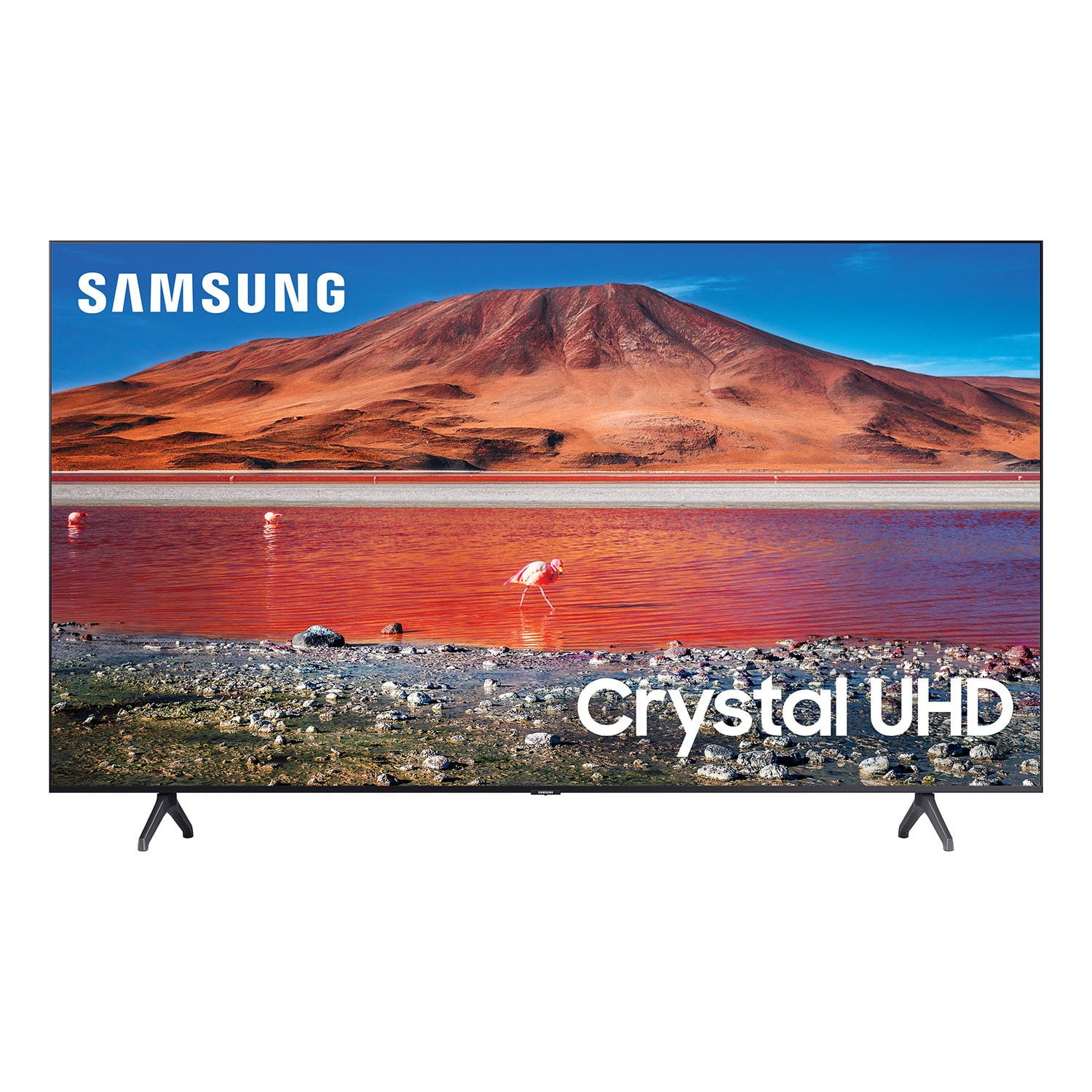
Customer reviews for SAMSUNG 70" Class TU700D-Series Crystal Ultra HD 4K Smart TV UN70TU700DFXZA forGreat TV for the Price
[This review was collected as part of a promotion.] Aside from one problem, this TV is great! The picture looks great, navigation is easy, and the price can't be beat. The one issue we had was flickering, but after turning off the auto-brightness and adjusting a few other display settings, it hasn't been a problem.
Ease of use
[This review was collected as part of a promotion.] For an economical TV or lower priced TV it is a steal, alot if TV for a very resonable price. The features are easy to navigate the pre installed apps are great and finding new apps is a breeze. If one is looking for a good TV on a budget then this would be just what your looking for.
This TV has been great after a year after using
[This review was collected as part of a promotion.] This TV is very good since I got it. The apps on here are great like YouTube, Netflix, Apple Music and Disney+. You also can download apps from the Galaxy Store built in. The 4K is amazing with so much detail with HDR10+. The speakers are also great with a lot of bass and clarity unlike other TV's. The Apple AirPlay and Google Cast are very fast and easy to connect to, I use my Mac to connect to AirPlay and it is very high quality streaming on iPhone as well, for Google Cast I use my phone to connect to the TV and it is the same as AirPlay. When the TV is connected to a Samsung Account it us very easy to sync things across your other Samsung devices like photos. I like how the remote is smaller than some other TV remotes i've used in the past and still do basic things you need. The connections on the back are useful like USB and HDMI if you have any media devices, game consoles, storage devices that you want to connect to your TV or if you want to connect an antenna to watch traditional TV without apps you can do that or if you want to connect an optical cable for your speaker like I have connected to my Samsung speakers. The button on the bottom of the TV is useful uf you can't find the remote and want to do something on the TV you could use the button to perform an action on the TV. I like how you can connect bluetooth devices for audio on the TV if you want to connect headphones to listen by yourself you can connect bluetooth to listen to audio coming from the TV there.
Glitchy
wow. nothing but disappointed in this product i have to constantly unplug the tv just for the tv to switch apps for example spectrum i've gone through all the self diagnostics this happened right out of the box should not have thrown the box away i would've returned the tv right back to the store the same day
Hi Crashstory, Thank you for your review of the Samsung TU7000 TV. We appreciate your feedback on the issues you are experiencing with your apps not functioning as expected. If you haven't tried already, we recommend optimizing the smart TV performance with the Device Care option under the Support Menu. Go to Settings > Support> Device Care > Start Device Care. This improves your apps performance as it frees up unused cached memory and closes background apps. We also suggest you check your internet connection: 1. Use 5G Wi-Fi if possible 2. Try wired LAN if available 3. Try repositioning the router so there are no obstacles between your TV and the router Resetting your TV's SmartHub can also help resolve app issues you are experiencing. To reset your SmartHub, please try the following steps: 1) Gather the login information for all of your apps: When you reset Smart Hub, you will sign you out of your Samsung Account and all of your apps, not just the one you're having trouble with. Make sure you have the current login information for all of your accounts before you proceed. If you need this information, visit the app developer's website. If you need your Samsung account information, visit Samsung Account Support. 2) Reset Smart Hub. - Navigate to Settings > Support > Self Diagnosis > Reset Smart Hub. - (or) Navigate to Settings > Support > Device Care > Self Diagnosis > Reset Smart Hub. 3) Enter your TV's PIN: The default PIN is 0000. If you have ever changed the PIN on your TV, enter your PIN to start the reset. 4) After the initial setup process, try the app again. Note: You may need to download the app again after the reset. If you are still having an issue with the app after completing the Smart Hub reset, reach out to the app developer to see if they are aware of the issue. Many times a fix is likely to be available soon. Should you ever have any questions or need help with settings or features, please call us at 1-800-SAMSUNG (ask for TVs), available 8AM -12AM EST, 7 days a week. Or text HELP to 62913. For additional support resources, visit us on the Samsung website and click on the ‘Support’ link in the upper right corner of the homepage for: 1) More ‘Contact Us’ options – LiveChat, Facebook, Twitter, Samsung Community, Samsung Members app 2) Manuals & Software 3) Warranty Info 4) Product Registration: For access to easy warranty support, convenient opt-in to special promos and offers, faster troubleshooting and service, and quick notification of system updates. We look forward to hearing from you. ~ Samsung Specialist
OK Budget TV
[This review was collected as part of a promotion.] The TV is an OK budget TV. I'm not a fan of the Samsung OS for starters. I've seen a lot of Samsung TVs that the picture looks amazing on but this isn't one of those TVs. The picture is pretty average for UHD 4k. I'd also say that it does this auto dimming when it is showing dark scenes on the TV making it hard to see anything. Maybe it is a setting issue but it's annoying. Overall the TV is fine for the price and size.
Hi Shaunp45, Thank you for sharing your experience with the Samsung TU7000 TV and feedback on the picture quality and auto-dimming. Please know we are here to help you. First, let's make sure you are running the latest software. To do so, head to Settings>Support>Software Update, and you can easily update from there if needed. Next, to adjust the picture: Next, go to Home > Settings > Picture > Picture Mode and select the mode that best fits your usage: 1) Standard: This is the default mode suitable for general viewing environments. 2) Natural: Reduces eye strain for a comfortable viewing experience. 3) Movie: It is suitable for watching TV or movies in a dark room. 4) Dynamic: Makes the picture brighter and clearer in bright viewing environments. 5) Filmmaker Mode: You can watch the source content (e.g., movie) as it is. If the image is defined as Filmmaker Mode, it will automatically switch to Filmmaker Mode while watching. You can also go to Settings > Picture > Expert Settings > to manually fine-tune your image. For Auto Dimming, please try these steps: Dynamic Picture Mode will make pictures brighter and clearer in bright viewing environments. Go to: Settings > Picture > Picture Mode > Dynamic/ You may also want to disable Power Saving Mode, which automatically adjusts the brightness to reduce the TV’s power consumption. Go to: Settings > General > Eco Solution> Power Saving Mode Ambient Light Detection will also automatically adjust the brightness level of the TV according to the ambient light level to reduce power consumption. If Ambient Light Detection has adjusted the screen brightness to a too bright or dark level, you can manually select Minimum Brightness to adjust the minimum screen brightness. Go to: Settings > General > Eco Solution > Ambient Light Detection If you need more help, Samsung is here for you. Please call us at 1-800-SAMSUNG, 8 AM - 12 AM EST, seven days a week. Our LiveChat agents are also available by clicking on the ‘Support’ link on our website. ~ Samsung Advisor
SmartTV with great picture and sound
[This review was collected as part of a promotion.] Bought the 55" TU7000 last month for the game room. The quality is what we have come to expect from Samsung, which is to say EXCEPTIONAL. Picture quality is consistent from every angle in the room, it's vibrant, and the audio can get plenty loud enough, even for the elderly parents. This isn't our first Samsung, nor is it our first Samsung 4K big screen. In the face of other choices all hanging on the wall in the store, it really wasn't a hard decision. Other brands have let us down hard, but Samsung's TVs have withstood the test of time in our houses.
Samsung is always Worth It!
[This review was collected as part of a promotion.] The face that you get a huge 4k crystal clear TV that also has a smart menu that allows you to down apps and also connect your Samsung phone to the TV very easy.. The web browser is probably the best thing about this TV let me say that again.. It's amazing
This tv is AMAZING!
[This review was collected as part of a promotion.] Because of COVID-19, I've taken up gaming. Basically as a way to do stuff together still lol. I bought a PS5 and this tv looks AMAZING WITH IT! The picture is epic as Samsung screens tend to be. It has a ton of features too.
Love my Crystal UHD 70”
[This review was collected as part of a promotion.] Love the great features... beautiful clear display... it has multiple APP options.This TV model was recommended to me by a hone theater employee who installs many different brands of smart TVs and they HIGHLY recommend this tv.
Crystal Clear Picture
[This review was collected as part of a promotion.] I purchased the 43 inch Samsung Tizen TV for my RV camper, and it has a crystal clear picture. The smart tv applications load very quickly. I have a 65 inch Samsung in my living room and I like the remote control of that one better. It is the simple remote with the one circle. The remote control that came with the 43 inch has too many buttons, and are too close together. Other than that, I love this television!