
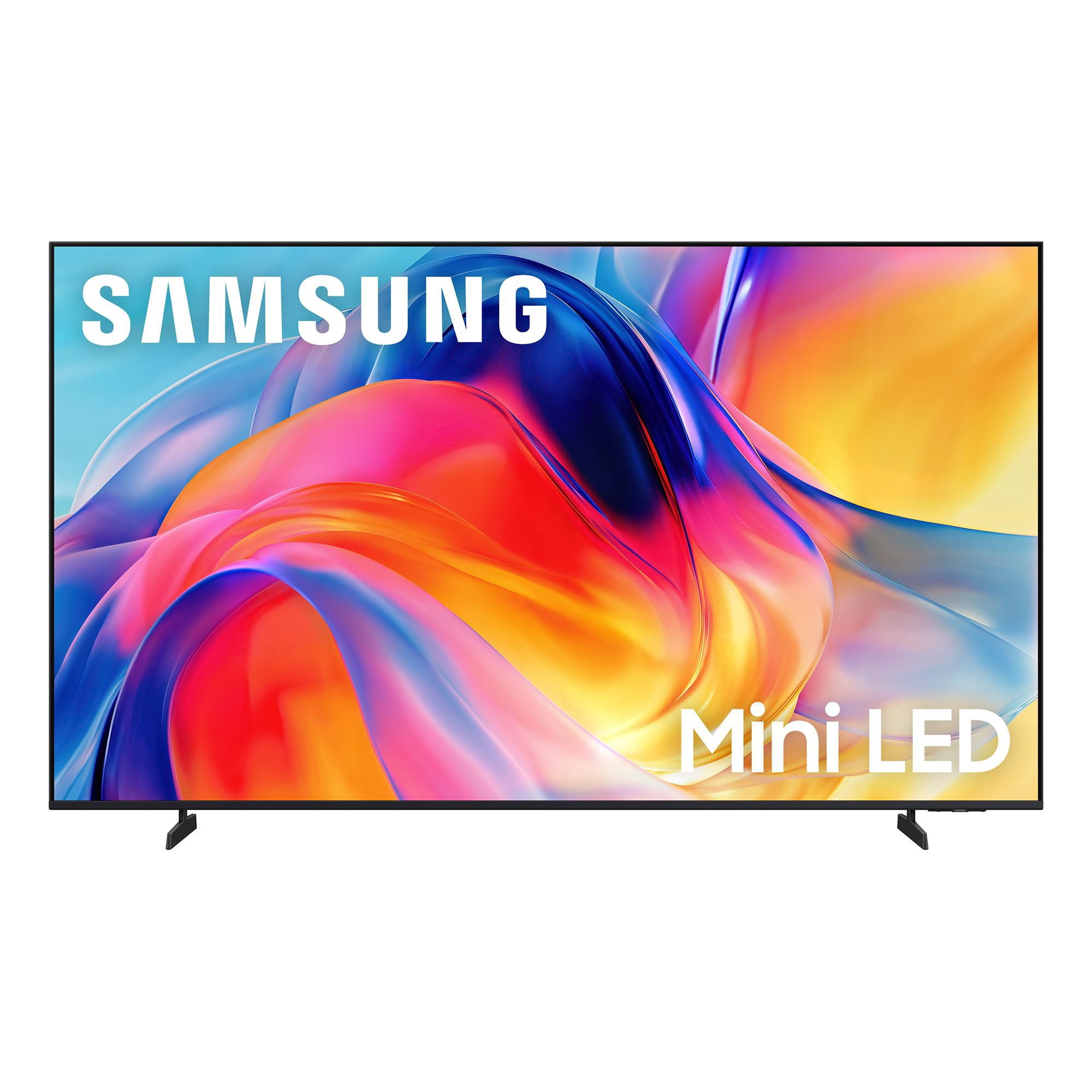
 Customer reviews for SAMSUNG 85” Class M70H Series Mini LED 4K UHD Vision AI Companion Smart Tizen TV for
Member photos
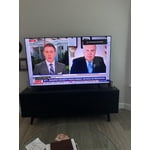
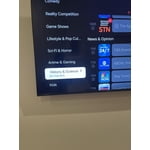
 +55 images
Tv
[This review was collected as part of a promotion.] So what I wanted was the qd led but they didn’t have it but the mini led is like the same to it and the color and the brightness plus the contrast and the responsiveness when playing on a console connected to the tv was little to no delay and uniformity is good too !!
Very Pleased With Purchase
[This review was collected as part of a promotion.] We love our new television! It was very easy to set up. The picture has excellent clarity; it looks like you could jump into the picture! The color is spot on and the sound quality is also excellent.
Initial results
[This review was collected as part of a promotion.] I recently bought my tv and believe I need to return it under the warranty. The screen blacks out at random times, very annoying, the sound continues to work, but the screen goes black for - one second.
Hi Mark, Thanks for sharing your experience with your screen displaying a black screen and “No Signal” message. This typically indicates a connection or source issue. Let’s walk through a few steps to help get things working again. 1. Check Source & Connections • Confirm the source: Use the remote to make sure the TV is set to the correct input. Go to: Home > Left directional key > Connected Devices > Sources • Verify connections: Ensure all external devices (like a cable box or Blu-ray player) are powered on and securely connected via HDMI. Try switching to a different HDMI port or using another cable to rule out a faulty connection. For best results, use a High Speed HDMI cable with Ethernet (HEAC) – this supports stable 4K video and audio signals for most external devices. • Using a soundbar or A/V receiver? If you're connected through the TV’s HDMI eARC port, be sure to use a certified Ultra High Speed HDMI cable to enable lossless audio formats like Dolby Atmos and maintain proper eARC functionality. • Power cycle the TV: Unplug it from the wall for at least 60 seconds, then plug it back in. 2. Update Your TV Software • Make sure your TV is running the latest firmware: Home > Left directional key > Settings > Support > Software Update 3. Signal & Broadcast Checks (Especially important if you're using a cable box or antenna.) • Check signal strength: Home > Left directional key > Settings > Support > Device Care > Self Diagnosis > Broadcast Signal • Run Auto Program: Home > Left directional key > Settings > All Settings > General & Privacy > Broadcasting > Auto Program 4. Advanced Troubleshooting • HDMI Test: Home > Left directional key > Settings > Support > Device Care > Self Diagnosis > HDMI Test • Try a different device: Connect another external device to the same port to help identify whether the issue lies with the original device or the TV. • Check the power source: Make sure the TV is plugged into a working outlet. If using a surge protector, try plugging directly into the wall. • Factory reset (if needed): As a last resort, you can reset the TV to its default settings. (Note: this will erase your personal preferences.) If none of these steps resolve the issue, contact Samsung Support for further assistance at 1-800-SAMSUNG (8AM – 9PM EST Mon – Fri, 8AM – 6PM Sat – Sun), or reach us via text anytime. You can also visit ‘Support’ on our website for: • Live Chat • Manuals, Software, & Warranty Info ~ Samsung Advisor
Best Bang-for-your-buck Top Tier 4k TV! (Debatable
[This review was collected as part of a promotion.] Stepping up to this 75-inch Samsung Mini-LED TV is a game-changer, delivering striking brightness and deep contrast that make high-quality movies like *Puss in Boots* truly pop. It's the ultimate bang-for-your-buck option, providing premium 4K quality that gets you incredibly close to OLED performance without the premium price tag.
Not living up to your advertising
[This review was collected as part of a promotion.] the TV is nothing but a huge disappointment. the remote is super janky . the Samsung TV app is glitchy and not user-friendly. it is very difficult to get unsupported apps. the apps that it does have is a short list. had to get a firestick to compensate for the massive short comings of this unit. never going to purchase any Samsung products again
Hi, Thank you for sharing your experience. For optimal performance on your M70HD TV, please ensure you are running the latest Firmware update. Go to Settings> Support> Software Update. Please know that you can customize your Home screens by installing, removing or adding your favorite apps to Apps Home and/or For You Home screen. Here's how: Searching for & Installing Apps 1. From the Home screen, press up on the remote’s directional pad. 2. Navigate to and select Search. 3. Using the search bar, enter the content or app you’d like to find. 4. Navigate to and select the app you’d like to install, then select Install. Note: Previously installed apps can be accessed on the Settings screen. Adding & Managing Apps on Home Screen 1. Go to App Settings (these can be found at the bottom of the Apps screen) and select the app you want to move. The following options will be available: a. Add to Home: Move the app to your desired location on the Home screen. b. Delete: Delete app. c. Lock/Unlock: Lock the app with a PIN so only you can use it. When the app is selected again, you will be prompted to enter the PIN to unlock it. d. Reinstall: Reinstall the app. e. View Details: View the app’s information and details. If you need additional support, Samsung is here to help. Please call us at 1-800-SAMSUNG (8AM – 9PM EST Mon – Fri, 8AM – 6 PM Sat – Sun), or reach us via text 24/7. You can also visit ‘Support’ on our website for: • Live Chat • Manuals, Software, & Warranty Info ~ Samsung Advisor
What a bright and sharp screen!
[This review was collected as part of a promotion.] What a bright and sharp screen! The mini-LED's were well worth the extra money. Very dark in areas supposed to be dark. Sharp across the entire screen. I do wish it would boot up faster, and have an optical sound output.
Needs a better sleep timer setting
[This review was collected as part of a promotion.] This TV is the only Samsung that I have in my home. We have a TV in every bedroom so whenever we have family/ guests visit, they will have a TV in their personal space. Of all the TV’s we have the Samsung is by far the least responsive to commands. I enjoy falling asleep to the TV in the background, but don’t like to wake to it at 3:00 AM, so I use the sleep timer every night. Some of our TV’s have the convenience of a verbal command setting that allows you to verbally set the timer. Samsung should look into this and add it.
Hi SB52, We appreciate your feedback on the M70HD TV. For optimal performance, please ensure your TV is running the latest firmware. You can check this by going to: Home > left directional key > Settings > Support > Software Update To further optimize performance, try running Device Care, which checks memory, clears unused cached data, and closes background apps: Home > left directional key > Settings > Support > Device Care > Start Device Care. Please know that although your TV does not have a built-in voice assistant, it does work With Alexa, meaning you’ll need to connect a standalone Alexa device such as an Echo speaker, to control compatible smart home devices and some experiences on your TV. You can also use the Samsung SmartThings app on your mobile device to set up a daily routine, such as turning off the TV at a certain time each night. To set up a routine, please follow the below instructions: Step 1. On your phone, navigate to and open the SmartThings app. Tap the Home icon and select the location with the device you want to use in the Routine. Step 2. Tap Add (the plus sign), and then tap Routine. Step 3. Tap + under "If" to set your desired conditions for the routine, such as the time it will trigger. After tapping +, follow the on-screen instructions for your chosen condition. Step 4. Tap + under "Then" to add an action to the routine. If needed, you can assign an offline device to an routine. If the device says (Offline) next to it, you can still select it and then choose your desired action. Step 5. Read the on-screen instructions to finish the setup, and then tap Save. Step 6. Assign a name to the routine, and then tap OK. When the conditions are met, the device will automatically perform that action! We hope these tips are helpful. If you need any further assistance, please don’t hesitate to call us at 1-800-SAMSUNG (8AM – 9PM EST Mon – Fri, 8AM – 6PM Sat – Sun), or reach us via text anytime. You can also visit ‘Support’ on our website for:. You can also chat with one of our agents by clicking the ‘Support’ link on our website for: • Live Chat • Manuals, Software, & Warranty Info ~ Samsung Advisor
Changes??
[This review was collected as part of a promotion.] I previously had another 50 inch Samsung tv and loved it! The picture got smaller and smaller, so I replaced it with another Samsung 50 inch tv. I had my tv mounted on a swing out wall mount. The mounting holes on the new tv are 3 inches lower that the previous tv!! Considerable modifications were made to ensure proper placement in cabinet. The power plug in is UNDER the swing arm mounting plate ?? I previously used a BOSE external speaker which utilized an optical cable. No optical plugin on new tv!!!!! I was able to connect with Bluetooth , but have yet to get it functioning properly! Minor issues, but combined they were very time consuming and frustrating! But I am looking forward to watching my new Samsung!! Thank you!
Amazing Hi-Def and Ultra Color TV
[This review was collected as part of a promotion.] My new 55’ Samsung television is so enjoyable with top of the art high definition, contrast, resolution and color along with an incredibly responsive and user friendly Smart TV app (SmartThings) for your phone that allows you to control your TV from anywhere and has an on demand remote if you’ve lost yours or have your phone on you and simply don’t want to get up from the couch to grab the physical remote. I would recommend this TV to anyone, 5-star rating all the way!
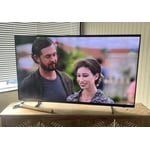
Sharp details, and vibrant colors.
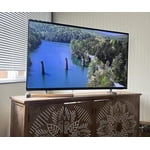
[This review was collected as part of a promotion.] I recently purchased two Samsung 65-Inch Class Mini LED M70HD 4K TVs, and I couldn't be happier with them. The picture quality is outstanding, with sharp details, vibrant colors, and impressive brightness that makes movies, sports, and streaming content look fantastic. The Mini LED technology really enhances contrast, making dark scenes look much more realistic. Setup was quick and easy, and the smart TV interface is intuitive and responsive. I also appreciate the sleek design, which looks great in my living room. This TV offers excellent performance and value for the price. I would highly recommend it to anyone looking for a high-quality 4K television.