Skip to Main Content
Sam's Club
Sam's Club
All Departments
All Services
Customer reviews for SAMSUNG 85” Class M70H Series Mini LED 4K UHD Vision AI Companion Smart Tizen TV for
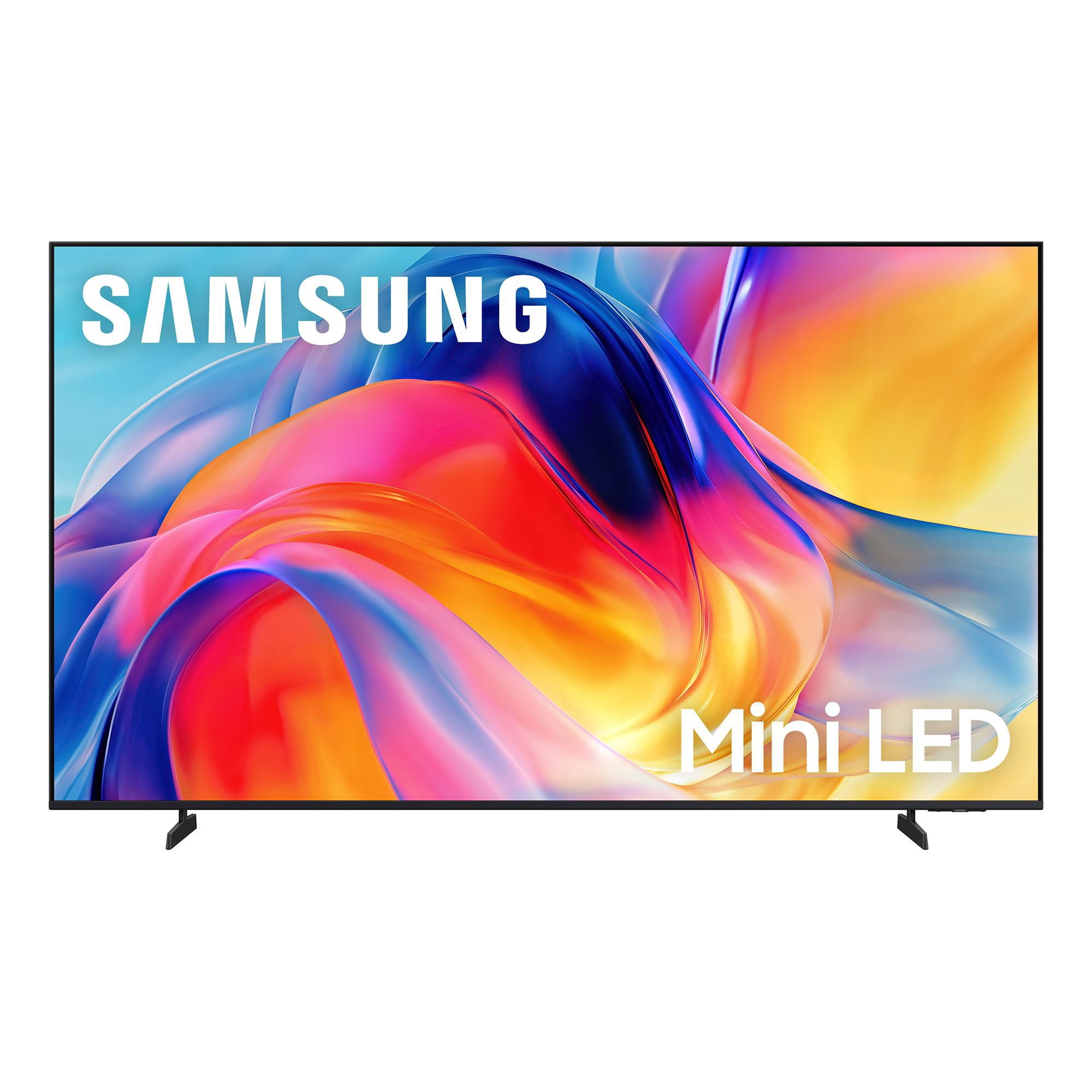
SAMSUNG 85” Class M70H Series Mini LED 4K UHD Vision AI Companion Smart Tizen TV
4.4 out of 5 stars
stars
262 ratings261 reviews
  1. 5 stars69% (182)
  2. 4 stars15% (40)
  3. 3 stars8% (21)
  4. 2 stars4% (11)
  5. 1 star3% (8)

Member photos

  • +55 images
Sort by |
Showing 91-100 of 261 reviews
Aug 13, 2026
Reviewer name: Unclejesse420
5 out of 5 stars
5 out of 5 stars review

Amazing quality tv

Picture quality both movie and game console is amazing. The Amazon app luma tha tcan be downloaded is absolutely awesome so you don't have to physically have any console connected to play games. Sound is amazing as well.

Review from Samsung US
Helpful?5B1TBKY04O0L19900257824
Aug 5, 2026
Reviewer name: blueracer
3 out of 5 stars
3 out of 5 stars review

its ok - priced right

TV looks good however i don't like the fact i have to register with my email and all my info to get the tv up and running. I'd also expect the navigation to be faster on a 2026 model.

Review from Samsung US
Helpful?5B1TBKY04O0L19900257824
reply from Samsung Advisor

Hi blueracer, Thank you for your review and for sharing your concerns. A Samsung Account is required to access Smart Hub, which powers the core smart features of your TV - including app access (like Netflix and YouTube), service updates, and content personalization. Without signing in and accepting the Terms and Conditions, your TV will function in a basic mode - supporting external devices (such as HDMI and over-the-air antenna), but streaming apps and Smart Hub services will be unavailable. We understand this requirement may not be ideal for all users, but it’s necessary for full access to Samsung’s smart features and connected services. If you need assistance creating or logging into a Samsung Account, we’re here to help. Please contact Samsung Support at 1-800-SAMSUNG (8AM – 9PM EST Mon – Fri, 8AM – 6PM Sat – Sun). LiveChat and additional support resources are also available through the Support link on our website. ~ Samsung Advisor

Aug 5, 2026
Reviewer name: Bebe
5 out of 5 stars
5 out of 5 stars review

Great viewing

Color,clarity, and contrast is excellent. It was easy to install and integrate into my internet system. I’m still learning all the free benefits that came with it but I’m very satisfied.c

Review from Samsung US
Helpful?5B1TBKY04O0L19900257824
Aug 20, 2026
Reviewer name: Emiske
3 out of 5 stars
3 out of 5 stars review

Color and tone

Had problems adjusting color and tone. I finally found the soccer view which corrected some issues, but it’s still dark when there’s poor lighting in the background I can’t see the details.

Review from Samsung US
Helpful?5B1TBKY04O0L19900257824
reply from Samsung Advisor

Hi Emiske, We appreciate your feedback on the color and tone of the M70HD TV. If the image doesn’t quite match your preferences, there are several adjustments you can make to better suit your viewing environment and content type. First, please ensure your TV is running the latest firmware, as updates may include important picture quality enhancements. Go to: Home > Left directional button > Settings > Support > Software Update > Update Now To explore picture mode options, navigate to: Home > Left directional button > Settings > All Settings > Picture > Picture Mode. Options include: • Standard – Ideal for general viewing • Dynamic – Brighter and more vibrant for well-lit spaces • Eco – Optimized for energy efficiency • Movie – Best for viewing in low light • Filmmaker Mode – Preserves the content creator’s intent and disables motion smoothing for supported content You can further customize your image by going to: Settings > All Settings > Picture > Expert Settings, where you can adjust Brightness, Contrast, Color Tone, Sharpness, Contrast Enhancer and more. If you’d like help finding the best picture settings for your preferences, please don’t hesitate to contact Samsung Support at 1-800-SAMSUNG (8AM – 9PM EST Mon – Fri, 8AM – 6PM Sat – Sun). You can also LiveChat with an agent or explore additional resources on our website by clicking the ‘Support’ link. ~ Samsung Advisor

Aug 20, 2026
Reviewer name: Topguns66
4 out of 5 stars
4 out of 5 stars review

Soccer mode is pretty cool
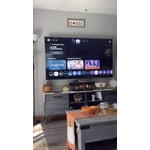
Great looking picture trying to understand some of the features so many of them to adjust the Picture starting to get to hang of it, but it does look amazing

Review from Samsung US
Helpful?5B1TBKY04O0L19900257824
Jul 28, 2026
Reviewer name: Kathey
5 out of 5 stars
5 out of 5 stars review

Great tv

[This review was collected as part of a promotion.] Very pleased with this tv. Picture quality is good and easy to watch. Sound quality is good. The TV was eay to set up and use.

Review from Samsung US
Helpful?5B1TBKY04O0L19900257824
Aug 21, 2026
Reviewer name: Iris
5 out of 5 stars
5 out of 5 stars review

Terrific Replacement

I bought this TV to replace my 10-year-old Samsung. The color and contrast is much better. It’s easy to navigate. I wish my remote had a voice icon that I could use.

Review from Samsung US
Helpful?5B1TBKY04O0L19900257824
Aug 20, 2026
Reviewer name: Marty5223
3 out of 5 stars
3 out of 5 stars review

TV great! Remote is the worse!

Great picture and sound! Remote is horrible! No microphone button! Can't use Alexa which is shown on box! I have no cell! I can't use my outdoor cameras because I can't use Alexa or Bixby without cell! Warranty great on tv.

Review from Samsung US
Helpful?5B1TBKY04O0L19900257824
reply from Samsung Advisor

Hi Marty5223, Thank you for sharing your review. Your TV Works With Alexa, meaning you’ll need to connect a standalone Alexa device such as an Echo speaker, to control compatible smart home devices and some experiences on your TV. Here are the steps: 1. Download both the Amazon Alexa and Samsung SmartThings apps, if you don't already have them. Both are available for iOS or Android devices. 2. Make sure your Alexa device and TV are both connected to the same Wi-Fi network. 3. Your TV must be enabled within the SmartThings app. If not, make sure you are signed in with your Samsung account on the TV: Settings > All Settings > Samsung Account 4. Log in to the SmartThings app with the same Samsung account. Tap Devices, and if your TV isn’t already shown, tap + to add it to the app. 5. In the Alexa app, enable the SmartThings skill and sign into your Samsung account. This will automatically connect your Samsung TV to Alexa and let you use voice commands to control your television. If you need more help, we’re here. Give us a call at 1-800-SAMSUNG (8AM – 9PM EST Mon – Fri, 8AM – 6PM Sat – Sun). You can also connect with a LiveChat agent through the Support link on our website. ~ Samsung Advisor

Aug 5, 2026
Reviewer name: Ambrose
5 out of 5 stars
5 out of 5 stars review

Always a great picture. Always buy Samsung

I have two Samsung televisions. I had a much older Samsung that I just replaced and they are all easy to use especially the new ones and I like the color and the picture.

Review from Samsung US
Helpful?5B1TBKY04O0L19900257824
Aug 20, 2026
Reviewer name: Deesdeuce
5 out of 5 stars
5 out of 5 stars review

Great screen & features

This mini-LED 55" TV is a wonderful value with beautiful screen quality & features. The brightness and color are top notch. Only negative is Samsung's log-on process to receive free Samsung Plus channels as it was very cumbersome.

Review from Samsung US
Helpful?5B1TBKY04O0L19900257824