Skip to Main Content
Sams Club
Sams Club
Customer reviews for SAMSUNG 65" Class U7900F Series 4K Crystal UHD Smart TV for
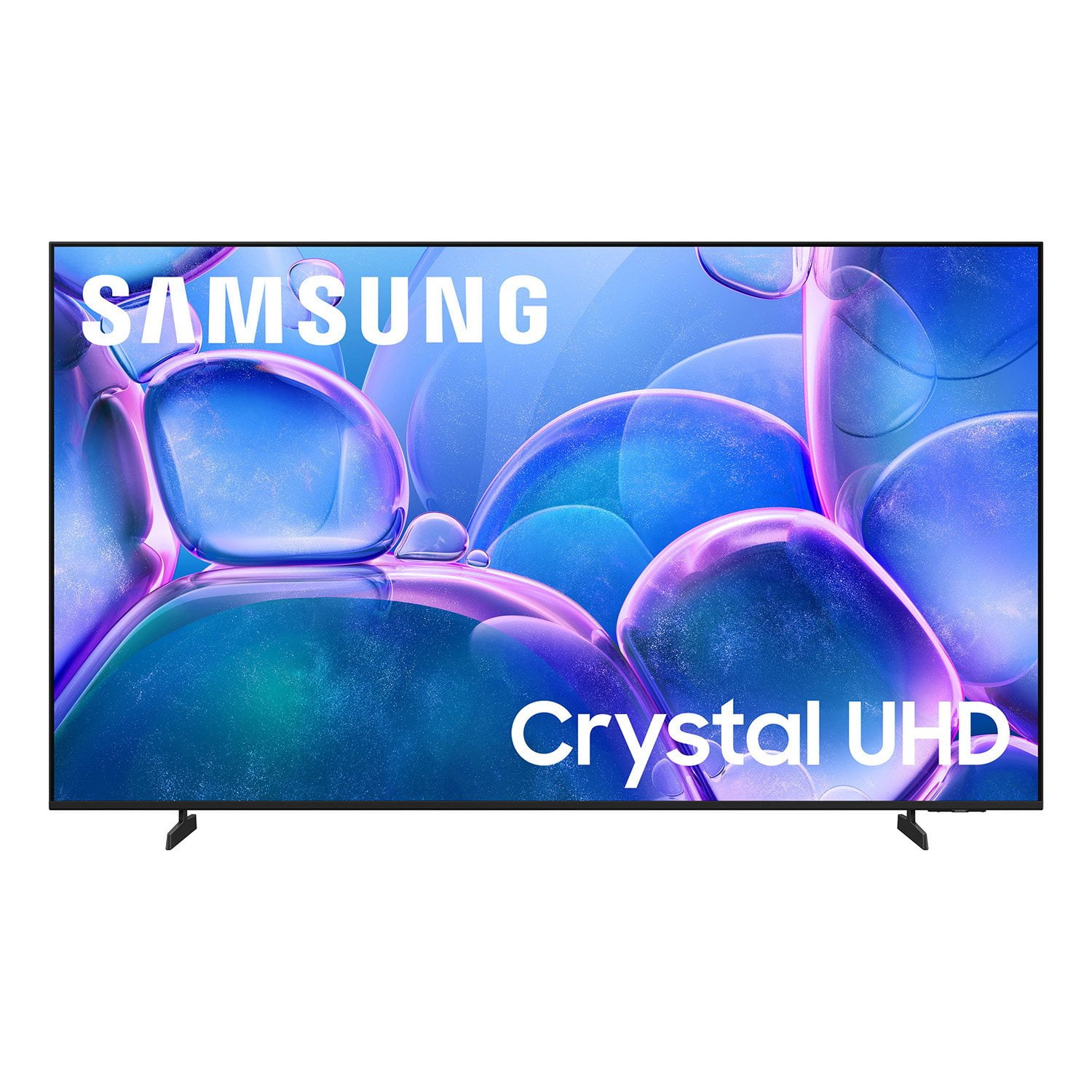
SAMSUNG 65" Class U7900F Series 4K Crystal UHD Smart TV
4.6 out of 5 stars
stars2,026 ratings1,951 reviews
  1. 5 stars77% (1,565)
  2. 4 stars14% (283)
  3. 3 stars5% (94)
  4. 2 stars2% (35)
  5. 1 star2% (49)

Member photos

  • +752 images
Sort by |
Showing 321-330 of 1,951 reviews
May 21, 2026
Teamus
1 out of 5 stars review

Not what i expected

[This review was collected as part of a promotion.] The tv glitches a lot where the tv is stuck but the words are still going. The remote control stopped working the 2nd week I got the tv. Very poorly made. Don't recommend at all.

Review from Samsung US
Helpful?7052JBFI9KAV17348165019
reply from Samsung Advisor

Hi Teamus, We appreciate your feedback regarding your U7900F TV’s performance. If you're experiencing slow apps, freezing, or lag in general response time, try the following steps: 1. Check for firmware updates – Keeping your TV up to date can resolve many performance issues: Home > left directional key > Settings > Support > Software Update > Update Now 2. Run Device Care – This tool checks system memory, frees up cached data, and closes background apps that could be slowing things down: Home > left directional key > Settings > Support > Device Care > Start Device Care 3. Cold boot your TV – With the TV powered on, press and hold the Power button on your remote for 5+ seconds until the TV restarts. This helps refresh the system. If your remote isn't working properly, here are a few steps that may help resolve the issue: 1. Check the TV's sensor: Look at the remote-control sensor at the bottom of the TV and see if it blinks when you press a button on the remote. If there's no blink, it may be an issue with the remote. 2. Position the remote correctly: Try pointing the remote directly at the TV from about 5 to 6 feet (1.5-1.8 meters) away. This distance helps ensure a better signal. 3. Recharge the remote's battery: If the remote uses a rechargeable battery, plug it into the USB charging port (C-type) or turn the remote over to expose the solar cell to light to recharge it. 4. Pair the remote with the TV (for Samsung Smart Remote): If you have a Samsung Smart Remote (Bluetooth Remote), ensure it is paired with the TV. To do this, press and hold the Home and Back buttons together for 3 seconds to initiate pairing. I hope these suggestions help. If you have any other questions, feel free to call us at 1-800-SAMSUNG between 8AM – 9PM EST Mon – Fri, 8AM – 6PM Sat – Sun. You can also reach our LiveChat team by selecting the ‘Support’ link on our website. ~ Samsung Advisor

May 22, 2026
GolferGal
5 out of 5 stars review

Love our TV

[This review was collected as part of a promotion.] We are loving the Samsung TV. The picture and clarity is great. Absolutely no complaints and what a great buy!

Review from Samsung US
Helpful?7052JBFI9KAV17348165019
May 20, 2026
Stuffy19
5 out of 5 stars review

Great features!

[This review was collected as part of a promotion.] I love the clear, colorful screen! Everything is so vibrant and bright when I'm watching movies. Also the resolution is great! Best choice ever to purchase my 75" Samsung TV!

Review from Samsung US
Helpful?7052JBFI9KAV17348165019
May 20, 2026
Timothy
3 out of 5 stars review

3 out of 5

[This review was collected as part of a promotion.] Pictures aren't isn't very sharp And the brightness never good volume is terrible Three out of fiveI haven't been

Review from Samsung US
Helpful?7052JBFI9KAV17348165019
reply from Samsung Advisor

Hi Timothy, We’re sorry to hear that the picture on your Samsung U7900F TV appears too dark. If this isn’t meeting your expectations, there are several settings you can adjust to improve the overall brightness and clarity of your screen. First, try disabling certain energy-saving features that may be dimming the screen automatically. Go to: Settings > All Settings > General & Privacy > Power and Energy Saving, then turn off Brightness Optimization, Energy Saving Solution, Motion Lighting, and/or Contrast Enhancer. Next, adjust the Picture Mode to better match your viewing environment: Settings > All Settings > Picture > Picture Mode and choose from the following: • Dynamic – Brighter and clearer for well-lit rooms • Standard – Balanced for most environments • Movie – Ideal for watching in a dark room • Eco – Designed for energy savings • Filmmaker Mode – Preserves the creator’s original intent You can also manually adjust brightness by going to: Settings > All Settings > Picture > Expert Settings > Brightness. Use the slider to set a level that suits your preferences (0–50). Finally, we recommend making sure your TV has the latest software installed: Settings > Support > Software Update > Update Now We hope these tips help improve your viewing experience. If you need further assistance with setup or adjustments, feel free to contact Samsung Customer Support at 1-800-SAMSUNG, available daily from 8AM – 9PM EST Mon – Fri, 8AM – 6PM Sat – Sun. You can also visit the Samsung website and click on ‘Support’ for: • Live Chat • Manuals, Software, & Warranty Info ~ Samsung Advisor

May 22, 2026
Adurable
5 out of 5 stars review

Very dependable for great viewing experience

[This review was collected as part of a promotion.] Samsung TV is the best. I've had only Samsung for decades. They are reliable and excel in every way way you could want for a great viewing experience.

Review from Samsung US
Helpful?7052JBFI9KAV17348165019
May 20, 2026
JM23phx
1 out of 5 stars review

Poor performance

[This review was collected as part of a promotion.] It doesn't interact with console gaming well. It flashes black very often regardless of which hdmi cable is used, the issue occurs on PS5 and Xbox

Review from Samsung US
Helpful?7052JBFI9KAV17348165019
reply from Samsung Advisor

Hi JM23phx, Thank you for sharing your experience. If your TV powers on but you're not seeing a picture while using an external device (like a cable box, streaming device, or gaming console), here are a few things to try: 1. Check the HDMI cable and connection – Make sure the HDMI cable is securely connected to both the TV and the external device. Try unplugging and reconnecting the cable at both ends. 2. Switch HDMI ports or cables – Try using a different HDMI port on the TV or swapping out the HDMI cable to rule out a faulty connection. 3. Confirm the correct source – Press the Home or Source button on your remote and make sure the TV is set to the input that matches the port your device is connected to (e.g., HDMI 1, HDMI 2). 4. Restart your devices – Power off your external device, unplug it briefly, then plug it back in and power it on. Do the same for your TV if needed. 5. Update your TV’s software – If the screen stays on long enough, we recommend checking for a firmware update, which may help resolve the issue: Go to: Home > left directional key > Settings > Support > Software Update > Update Now If the issue persists after trying these steps, please give us a call at 1-800-SAMSUNG, 8AM – 9PM EST Mon – Fri, 8AM – 6PM Sat – Sun. You can also chat with a LiveChat agent by clicking the ‘Support’ link on our website. ~ Samsung Advisor

May 21, 2026
Anonymous
5 out of 5 stars review

Great control options

[This review was collected as part of a promotion.] Great resolution and lots of great options to select best viewing especially for sports. Great colors. Grateful for options to options out of data feeds.

Review from Samsung US
Helpful?7052JBFI9KAV17348165019
May 20, 2026
Couch potato
5 out of 5 stars review

Free channels on Samsung TV

[This review was collected as part of a promotion.] We really enjoy all the channels that came with the television good picture good sound good value for the price.

Review from Samsung US
Helpful?7052JBFI9KAV17348165019
May 11, 2026
Jbrown156
5 out of 5 stars review

Great picture quality

[This review was collected as part of a promotion.] Very beautiful color production and brightness in low light . However it becomes a little less visible when its brighter.. overall a good panel

Review from Samsung US
Helpful?7052JBFI9KAV17348165019
May 20, 2026
Golfnut
5 out of 5 stars review

Excellent TV

[This review was collected as part of a promotion.] I have thoroughly enjoyed this 65-in Samsung TV. The TV was easy to set up plus being very user friendly. In my opinion, the contrast and colors are excellent!

Review from Samsung US
Helpful?7052JBFI9KAV17348165019