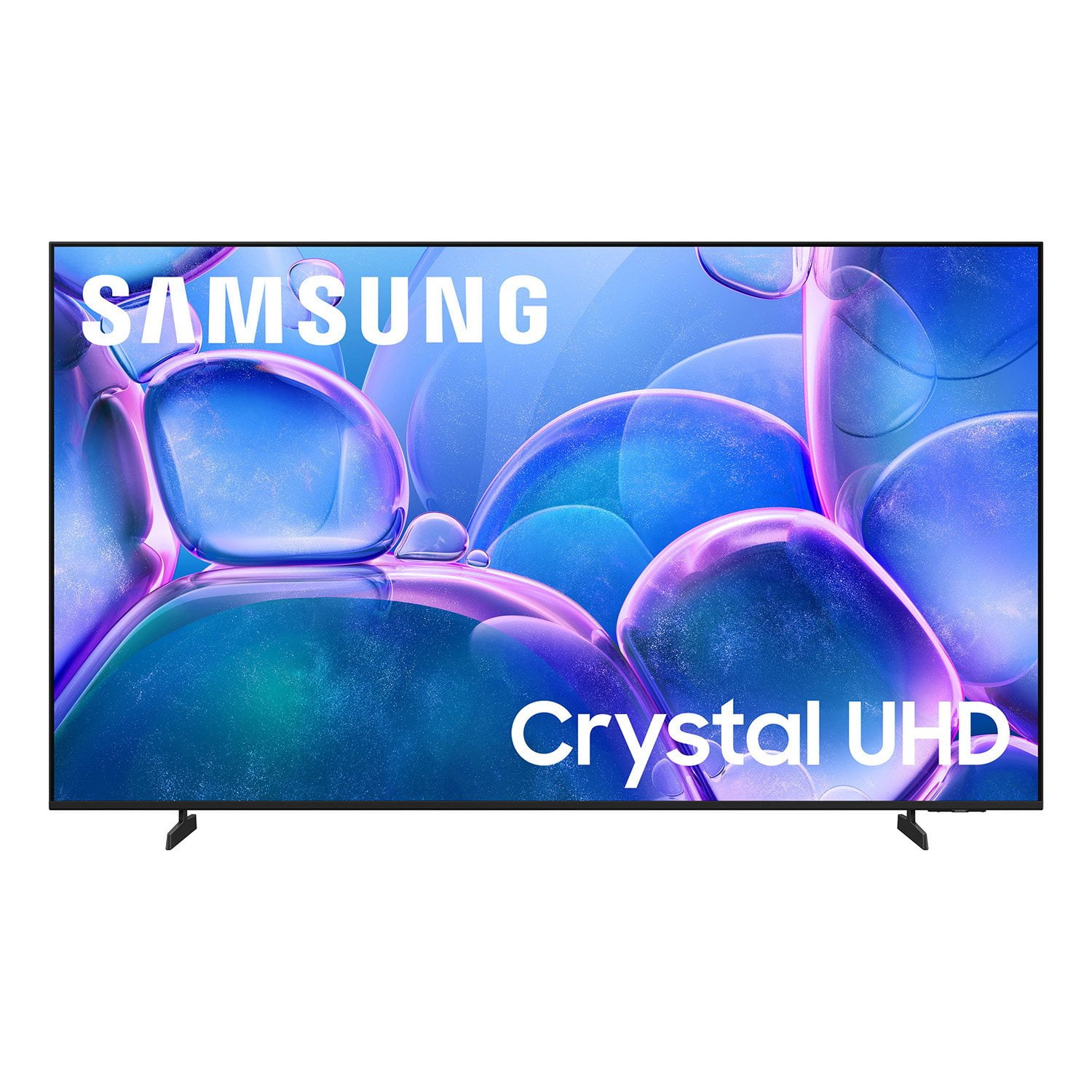
Customer reviews for SAMSUNG 65" Class U7900F Series 4K Crystal UHD Smart TV forMember photos


+895 images
Picture Skips
[This review was collected as part of a promotion.] Just bought the tv a couple weeks ago, and sometimes while watching tv, the picture skips, repeatedly sometimes. It’ll look like a person is going forward and backwards multiple times. Very annoying.
Hi ANTreu90, Thank you for sharing your experience. Buffering during streaming is typically related to internet speed or signal strength. This can happen when your connection isn’t able to deliver data quickly enough for smooth playback. We recommend the following steps to help improve streaming performance: 1. Use a 5GHz Wi-Fi connection, if available 2. Try a wired LAN connection for more stability 3. Reposition your router to minimize obstacles between it and the TV 4. Make sure your TV is running the latest firmware (Settings > Support > Software Update) 5. Run Device Care to optimize performance: Home > left directional key > Settings > Support > Device Care > Start Device Care If buffering continues, you may want to contact your internet service provider to check your current speed or explore upgrade options. If we can assist further, please call us at 1-800-SAMSUNG, available daily from 8AM - 12AM EST. You can also chat with a LiveChat agent by clicking the ‘Support’ link on our website for: • Live Chat • Manuals, Software, & Warranty Info • Creating a Service ticket ~ Samsung Advisor
Constant Image Twitching “Critical Flaws”
[This review was collected as part of a promotion.] I love Samsung products but this tv isn't the best Constant Image Twitching Ruins the Experience The Samsung U7900F is a disappointing TV overall. It’s best suited for watching shows in a light-controlled room, yet it still struggles there. It isn’t bright enough to handle glare, and its black levels are sub-par with no local dimming, so it also performs poorly in dark rooms. Color performance is limited, as it can’t display a wide color gamut, though its SDR accuracy out of the box is decent. Gamers may appreciate the low input lag, which allows for responsive gameplay, but motion handling is weak, with noticeable blur behind fast-moving objects. On the plus side, its image processing is acceptable, meaning low-resolution and low-quality content is upscaled reasonably well. Unfortunately, this isn’t enough to compensate for its major flaws, making the overall viewing experience underwhelming.
Hi Carter, Thank you for your feedback regarding the twitching you're seeing on your TV. To help determine if the issue is related to the panel itself, we recommend starting with a Picture Test, which displays a high-definition image you can examine for flaws: Settings > Support > Device Care > Self Diagnosis > Picture Test If the issue appears during the test and across all sources (built-in apps, HDMI devices, etc.), it may indicate a panel-related concern. You can also try displaying solid-color test videos (red, green, blue, black, white) from a USB drive or YouTube. This can help you identify whether any pixels are stuck or not functioning properly. In some cases, unplugging the TV for a few minutes and rebooting it can help resolve stuck pixels caused by temporary display behavior. Please also ensure you are running the latest Firmware, version 1132.0. Go to Settings> Support> Software Update. If this firmware version is not yet available on your TV, you can download the update on a USB drive and manually update your TV: 1. On Samsung's website (upper right corner), go to: Support > Manual & Software > Find your TV model, and click on the Firmware – Upgrade File. 2. When the file has finished downloading, locate it and then unzip it. There is normally one folder inside but there may be multiple files. 3. Copy or move all of the files that were included in the zip file to a USB flash drive, but do not place them inside any other folders. If you place the software folders inside a folder on the USB flash drive, the TV or monitor will not find them. 4. Connect the USB drive containing the software upgrade into a USB port on your device. 5. Using your device's remote, navigate to and select Settings, then select All Settings, and then select Support. Select Software Update, select Update Now, and then select Yes if prompted. Your device will search the USB drive for update files. Follow the on-screen instructions to install the updated software. Updates usually take a few minutes; please do not turn off the TV until the update is complete. When the update is finished, it will restart automatically. If you need additional support, Samsung is here to help. Please call us at 1-800-SAMSUNG, available daily from 8AM - 12AM EST. You can also chat with a LiveChat agent by clicking the ‘Support’ link on our website. ~ Samsung Advisor
My only gripe is...
[This review was collected as part of a promotion.] I miss the minimalist take on the menu from the previous years model but other than that everything else is great. Especially brightness. The colors aren't washed out by errant lights and the picture quality is A1.
Perfectly priced Tv!
[This review was collected as part of a promotion.] For a TV at this price you would expect a low budget low spec TV. That’s not what you are getting. You are getting a 4k 75 inch tv with a snappy operating system and great picture quality! Amazing deal on an amazing TV!
Great Model
[This review was collected as part of a promotion.] We have really enjoyed this TV model; we have over 7 different properties and have stopped using projectors for our meeting rooms and use this model to help project information straight from our devices. This is perfect for anyone who wants to cast from their device onto this TV. During breaks, there is a screensaver option that casts jazz music along with panoramic views of areas from all over the world that really helps the crowd feel less overwhelmed after a day of convention seminars. Thanks Samsung!
Terrible for streaming
We purchased this TV on a Black Friday deal and have regretted it ever since. If you are looking for a TV for streaming, this isn't the one. If the people in the show are doing any more than just sitting there, the picture gets very pixelated. I've contact samsung for help and was told the show was just old. However, it happens on even shows that are just released. So frustrating for what uses to be a great brand name.
Hi SamanthaF, Thank you for sharing your experience. Buffering during streaming is typically related to internet speed or signal strength. This can happen when your connection isn’t able to deliver data quickly enough for smooth playback. We recommend the following steps to help improve streaming performance: 1. Use a 5GHz Wi-Fi connection, if available 2. Try a wired LAN connection for more stability 3. Reposition your router to minimize obstacles between it and the TV 4. Make sure your TV is running the latest firmware (Settings > Support > Software Update) 5. Run Device Care to optimize performance: Home > left directional key > Settings > Support > Device Care > Start Device Care If buffering continues, you may want to contact your internet service provider to check your current speed or explore upgrade options. There are also several settings you can adjust to improve motion clarity. Go to: Home > left directional key > Settings > All Settings > Picture > Expert Settings, and review these key settings: Picture Clarity Settings • Off: Disables all motion enhancement • Auto: Automatically adjusts motion clarity based on content • Custom: Enables manual control of: o Judder Reduction: Smooths motion in film-based content o LED Clear Motion: Increases sharpness during fast movement o Noise Reduction: Helps reduce distortion in lower-quality sources We hope these settings help improve your viewing experience, especially with fast-moving content. If you'd like further assistance, feel free to reach out to Samsung Support at 1-800-SAMSUNG, 8AM – 12AM EST, 7 days a week. LiveChat is also available via the ‘Support’ link on our website. ~ Samsung Advisor
Great features
[This review was collected as part of a promotion.] It has a great resolution, Connects to all HDMI, Remote can be universal so you can use the Samsung remote for most devices, The picture quality is very vibrant, and you can see bright backgrounds like a night scene and it does auto focus for gaming and the sound quality is absolutely amazing. We have the 75in and honestly im happy with it. You dont have to break the bank to have a nice samsung TV and we love our Samsung especially with our sound systems and if you lose your remote very easy to use with your Samsung phone.
My Review 70" Class Crystal UHD U7900FD 4K Smart
[This review was collected as part of a promotion.] The brightness levels on the TV are amazing and perfectly fitting to the eye. Color and resolution are also extremely amazing. It has top notch security preferences and sittings in your tvs settings. Also to be completely honest with you, I could ask for any better anesthetics on a tv...
Amazing picture quality for a cheaper Tv
[This review was collected as part of a promotion.] Amazing picture quality for a cheaper tv the name Crystal really suits it because when I first saw one it looked like the screen must be made of Crystal it was such a beautiful picture. I fell in love with Samsung Crystal UHD tv's from my first viewing of one in a home and not in a bright store. Would recommend highly if on a budget and cant afford more expensive Oled Samsung tv's.
Need more hdmi ports
[This review was collected as part of a promotion.] It doesn't have the connection for optical to conect your soround system and only has 2 port for HDMI that was unexpected but has the option to connect your sound bar via Bluetooth but when you turn off the TV the bar stays on in search for Bluetooth device to conect. Bummer
Hi Yougetwhatyoupayfor, We appreciate your feedback regarding the available inputs on the U7900F TV. Please know your feedback is important to us and will be shared with our internal teams. If you ever have questions or need support, we’re here to help. Call us at 1-800-SAMSUNG, available from 8AM - 12AM EST, seven days a week. You can also connect with a LiveChat agent by clicking the ‘Support’ link on our website. ~ Samsung Advisor