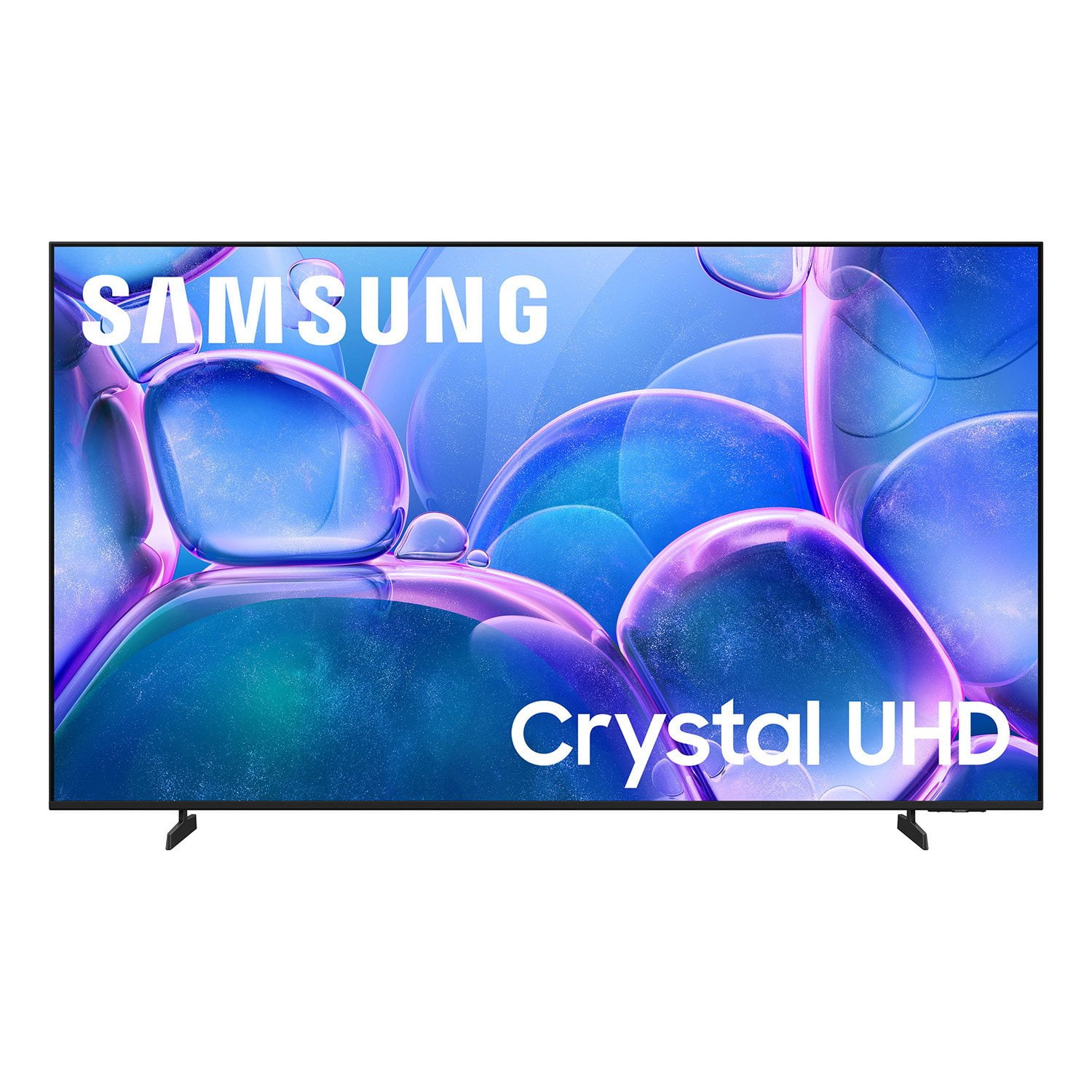
 Customer reviews for SAMSUNG 75” Class U7900F Series 4K Crystal UHD Smart TV for
Member photos
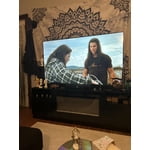
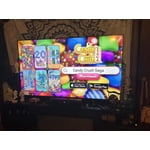
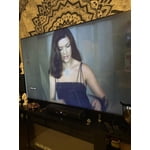
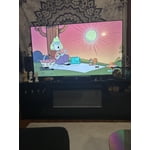
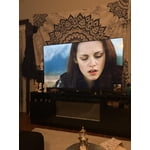
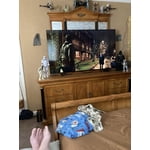
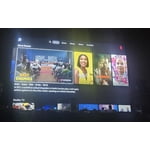 +1528 images
Ease of operating
[This review was collected as part of a promotion.] the brightness of the TV is I could adjust it it's like beautiful contrast I can see everything good and clear the resolution pictures so beautiful the smoothies of operation evening and elegant in the Privacy is just smooth did you set up the vibrancy is so smooth I just love it I love everything about my Samsung TV the pictures are really like you like to talk to the TV and it'll do what I want to do
Poor resolution and response time.
TV is not great. Resolution is bad. Whenever something on TV is dark in color, the TV can't provide the correct resolution, so it shows up like black blob. The TV and remote have extremely delayed reactions at times. Sometimes it take up to 30 seconds for the TV to respond to the remote command. Samsung TV interface, not related to the TV, is also poorly designed. I'd love to be able to put my most used apps on the home screen, rather than scrolling over to a screen where I've saved my favorites. Would likely not purchase a Samsung TV again.
Hi JBK16, We appreciate your feedback regarding the picture quality, remote performance, and user interface on Samsung's U7900FD TV. If the image doesn't quite match your preferences, there are several adjustments you can make to better suit your viewing environment and content type. First, please ensure your TV is running the latest firmware, as updates may include important picture quality and performance enhancements. Go to: Home > Left directional button > Settings > Support > Software Update > Update Now To explore picture mode options, navigate to: Home > Left directional button > Settings > All Settings > Picture > Picture Mode. Options include: -Standard – Ideal for general viewing -Dynamic – Brighter and more vibrant for well-lit spaces -Eco – Optimized for energy efficiency -Movie – Best for viewing in low light -Filmmaker Mode – Preserves the content creator's intent and disables motion smoothing for supported content You can further customize the image by going to Settings > All Settings > Picture > Expert Settings, where you can adjust Brightness, Contrast, Color Tone, Sharpness, Contrast Enhancer, and more. If your TV is responding slowly or inconsistently to the remote, please try the following: -Re-pair the remote by standing within 1 foot of the TV and pressing -Return and Play/Pause simultaneously for at least 5 seconds. A confirmation message should appear once it's connected. -Replace the remote batteries. -Run Device Care to clear memory and close background apps that may slow performance: Settings > Support > Device Care > Start Device Care. Regarding the Smart TV interface, you can add your favorite apps directly to the Home screen. Go to Apps > App Settings (located at the bottom of the Apps screen), select the app you want, and choose Add to Home to place it in your preferred location. From this menu, you can also delete, lock, reinstall, or view details for installed apps. We hope these suggestions help improve your experience. Thank you for taking the time to share your feedback. For further assistance with settings adjustments, please contact Samsung Customer Support at 1-800-SAMSUNG (8AM – 9PM EST Mon – Fri, 8AM – 6PM Sat – Sun). LiveChat agents are also available on the ‘Support’ link at samsung.com. ~Samsung Advisor
Great Tv
[This review was collected as part of a promotion.] ⭐⭐⭐⭐⭐ I’m extremely happy with my 65” Samsung TV! The picture quality is absolutely amazing—crisp, clear, and the colors really stand out. The screen size is perfect for movies, sports, and gaming, and the smart features make it incredibly easy to stream all my favorite apps. Samsung really nailed the combination of picture quality, sound, and ease of use. It looks great in the room and feels like a true upgrade to the home entertainment experience. If you’re looking for a great 65” TV, I highly recommend Samsung. Great quality and definitely worth the money!
can't believe samsung made a tv this bad
This is a TV for people who have never had a better TV or don't know/don't care about TV. I own a QLED, this U series was given as a house warming gift and it is quite possibly the worst TV I've ever owned. The software is slow as molasses - always a 2 second delay after any button press. The software is constantly shoving certain content in your face (why is Fox News a permanent tile on the home page?). Twitch app can only be used from the asinine gaming page, and cannot be added to the list of apps on the home page. So every time I want to watch Twitch the quickest way is to go to recent searches and open it there. Horrid UX. Absolutely hate this TV and can't wait to replace it. So in short, if you're looking for an absolute piece of trash then look no further.
Hi Frosty68, Thank you for sharing your experience. Please know that you can customize your Home screens by installing, removing or adding your favorite apps to Apps Home and/or For You Home screen. Here's how: Searching for & Installing Apps 1. From the Home screen, press left on the remote’s directional pad. 2. Navigate to and select Search. 3. Using the search bar, enter the content or app you’d like to find. 4. Navigate to and select the app you’d like to install, then select Install. Note: Previously installed apps can be accessed on the Settings screen. Adding & Managing Apps on Home Screen 1. Go to App Settings (these can be found at the bottom of the Apps screen) and select the app you want to move. The following options will be available: a. Add to Home: Move the app to your desired location on the Home screen. b. Delete: Delete app. c. Lock/Unlock: Lock the app with a PIN so only you can use it. When the app is selected again, you will be prompted to enter the PIN to unlock it. d. Reinstall: Reinstall the app. e. View Details: View the app’s information and details. If you need more help with app management, please don’t hesitate to reach Samsung Support at 1-800-SAMSUNG (8AM – 9PM EST Mon – Fri, 8AM – 6PM Sat – Sun). LiveChat agents are also available through the ‘Support’ link on our website. ~ Samsung Advisor
Great price
[This review was collected as part of a promotion.] Picture is just ok. I didn't do my homework on the TV and bought for the price. Great tv just not as good as my others. But it was the lower end model. I would still recommend if your on a budget and want a large 75in tv
Hi 2manytvs, We appreciate your feedback on the picture quality of Samsung’s U7900F TV. If the image doesn’t quite match your preferences, there are several adjustments you can make to better suit your viewing environment and content type. First, please ensure your TV is running the latest firmware, as updates may include important picture quality enhancements. Go to: Home > Settings > Support > Software Update > Update Now To explore picture mode options, navigate to: Home > Settings > All Settings > Picture > Picture Mode. Options include: • Standard – Ideal for general viewing • Dynamic – Brighter and more vibrant for well-lit spaces • Eco – Optimized for energy efficiency • Movie – Best for viewing in low light • Filmmaker Mode – Preserves the content creator’s intent and disables motion smoothing for supported content You can further customize your image by going to: Settings > All Settings > Picture > Expert Settings, where you can adjust Brightness, Contrast, Color Tone, Sharpness, Contrast Enhancer and more. If you’d like help finding the best picture settings for your preferences, please don’t hesitate to contact Samsung Support at 1-800-SAMSUNG (8AM – 9PM EST Mon – Fri, 8AM – 6PM Sat – Sun). You can also LiveChat with an agent or explore additional resources on our website by clicking the ‘Support’ link. ~ Samsung Advisor
Perfect for the bedroom
So far this TV lives in my bedroom and I love it. When I first got it I was amazed to find out I could play Grand theft Auto on it on cloud gaming and it worked fantastic several times I've used it to play other cloud gaming and my partner has used the Xbox and we can play together. It has great color and picture and sound and I love it




Fantastic Tv for the price
⭐⭐⭐⭐⭐ I’m very happy with this Samsung TV! The picture quality is crisp and vibrant, the sound is great, and it was easy to set up. The smart features are simple to use, and everything streams smoothly. It’s been a great purchase and I would definitely recommend it to anyone looking for a reliable, high-quality TV.
Good quality
[This review was collected as part of a promotion.] Pickup in store and the display had a good quality resolution and the picture was clear and the sound was clear. Was able to look at the television right out the box and just had to connect internet everything updated was good. Television response was good with no lag.
Pic and sound quality terrible
So this tv is brand new last November 2025. There has been a few times when turning on it does not come on picture or volume to the point where I actually have to unplug from wall and wait and then plug back in which prompts me to never buy another Samsung again. With this being said after this tv actually does go coput I will be purchasing different brand. Do you have any suggestions as you are in the tv business on what is a good brand.
Hi Ms Armon, It’s unfortunate to hear you’re having trouble powering on your U7900F TV. Please try these steps: 1. Power cord check: Ensure the TV’s power cord is securely connected at both ends and not visibly damaged. 2. Wall outlet check: Plug the TV directly into a working wall outlet (not a surge protector or power strip) and look for the red standby light near the bottom edge of the TV. o Solid red light: Press the power button on the TV (underneath the Samsung logo) or use the remote. o No light: The TV isn’t getting power. o Blinking light: The TV may require service. 3. Test the remote: If the standby light is on but the TV won’t power on with the remote, try using the power button on the TV itself. 4. If the TV turns on but there’s no picture, try pressing the Home button. If the menu appears, check for correct source selection or potential external device issues. If the issue continues, please reach out so we can help with further diagnostics or service. Call Samsung Support at 1-800-SAMSUNG (8AM – 9PM EST Mon – Fri, 8AM – 6PM Sat – Sun), or chat with us online via the ‘Support’ link on our website. ~ Samsung Advisor
Very happy customer
Navigating the tv itself is user friendly. The clarity, color, all about the picture quality is crisp to the eye. The sound couldn't be better. Have to keep the volume at a lower level than other tvs because it is plenty audible at say level 9 where others need to be at 25 or 30.