Skip to Main Content
Sams Club
Sams Club
Customer reviews for SAMSUNG 58” Class U8000F Series 4K Crystal UHD Smart TV for
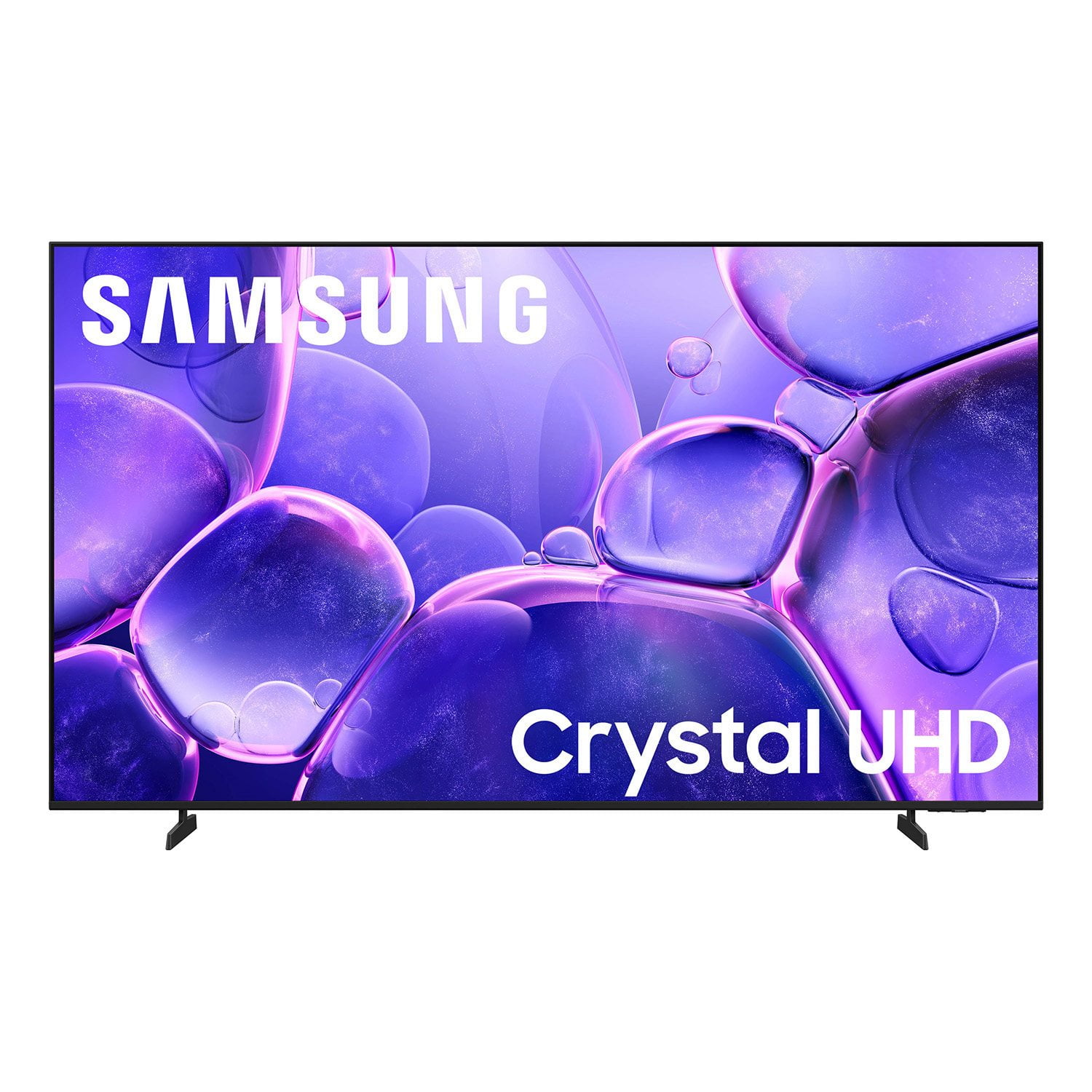
SAMSUNG 58” Class U8000F Series 4K Crystal UHD Smart TV
4.6 out of 5 stars
stars1,258 ratings1,252 reviews
  1. 5 stars77% (966)
  2. 4 stars14% (178)
  3. 3 stars4% (54)
  4. 2 stars2% (28)
  5. 1 star3% (32)

Member photos

  • +361 images
Sort by |
Showing 371-380 of 1,252 reviews
Apr 6, 2026
TVguyfromwayback
5 out of 5 stars review

Mother-in-law approved!

[This review was collected as part of a promotion.] The new TV was just what I needed! Bought it for my elderly Mother-in-law and the vibrant picture and audio quality make her very happy.

Review from Samsung US
Helpful?1U5QA8D4IAB615677157353
Apr 20, 2026
Krissy10
5 out of 5 stars review

Great TV overall

[This review was collected as part of a promotion.] My Samsung TV is very user friendly . The colors are very vibrant. The menu is easily accessible and connect quickly if losing connection to internet of choice .

Review from Samsung US
Helpful?1U5QA8D4IAB615677157353
Apr 21, 2026
DanVan
5 out of 5 stars review

Very pleased

[This review was collected as part of a promotion.] This is a replacement for my bedroom TV. I'm very happy with the picture, and I love the apps that Samsung provides.

Review from Samsung US
Helpful?1U5QA8D4IAB615677157353
Apr 9, 2026
Big Nate
3 out of 5 stars review

Ok tv

[This review was collected as part of a promotion.] The brightness is not as good as it should be, and the blacks are not very crisp. Dark scenes and movies are very muddled.

Review from Samsung US
Helpful?1U5QA8D4IAB615677157353
reply from Samsung Advisor

Hi Big Nate, We’re sorry to hear you’re not fully satisfied with the picture quality on your Samsung U8000F TV. If the image appears too dark, we suggest disabling certain energy-saving features, which can automatically adjust brightness and affect how the screen looks. Go to: Settings > All Settings > General & Privacy > Power and Energy Saving, then turn off Brightness Optimization, Energy Saving Solution, Motion Lighting, and/or Contrast Enhancer. You can also adjust the Picture Mode to better suit your environment: Settings > All Settings > Picture > Picture Mode • Standard – Default mode for general viewing • Dynamic – Brighter and clearer, ideal for well-lit rooms • Movie – Best for dark room viewing • Eco – Energy-saving mode • Filmmaker Mode – Preserves content as intended by creators To fine-tune brightness, go to: Home > left directional key > Settings > All Settings > Picture > Expert Settings, then adjust the Brightness level (0–50) to your preference. Lastly, please make sure your TV is running the latest firmware: Home > Home > left directional key > Settings > Support > Software Update > Update Now We hope these tips help improve your viewing experience. If you need further support, feel free to contact us at 1-800-SAMSUNG, 8AM – 9PM EST Mon – Fri, 8AM – 6PM Sat – Sun. LiveChat is also available via the ‘Support’ link on our website. ~Samsung Advisor

Apr 20, 2026
NO BOX GUY
5 out of 5 stars review

Smart Tv

[This review was collected as part of a promotion.] this was my first TV Smart TV loved all the Samsung channels I got benefit and so easy to switch from to YouTube first TV I've had without a converter box Smart TV

Review from Samsung US
Helpful?1U5QA8D4IAB615677157353
Apr 5, 2026
treypok
3 out of 5 stars review

Great Picture Quality

[This review was collected as part of a promotion.] The TV has great picture quality, however, it's missing the Google Play Store to download more apps.

Review from Samsung US
Helpful?1U5QA8D4IAB615677157353
reply from Samsung Advisor

Hi treypok, Thank you for sharing your experience. Please know that you can customize your Home screen by installing, removing or adding your favorite apps to the Home screen. Here's how: Searching for & Installing Apps 1. From the Home screen, press left on the remote’s directional pad. 2. Navigate to and select Search. 3. Using the search bar, enter the content or app you’d like to find. 4. Navigate to and select the app you’d like to install, then select Install. Note: Previously installed apps can be accessed on the Settings screen. Adding & Managing Apps on Home Screen 1. Go to App Settings (these can be found at the bottom of the Apps screen) and select the app you want to move. The following options will be available: a. Add to Home: Move the app to your desired location on the Home screen. b. Delete: Delete app. c. Lock/Unlock: Lock the app with a PIN so only you can use it. When the app is selected again, you will be prompted to enter the PIN to unlock it. d. Reinstall: Reinstall the app. e. View Details: View the app’s information and details. If you need more help with app management, please don’t hesitate to reach Samsung Support at -800-SAMSUNG, available daily 8AM – 9PM EST Mon – Fri, 8AM – 6PM Sat – Sun. You can also chat with a LiveChat agent by clicking the ‘Support’ link on our website. ~ Samsung Advisor

Apr 20, 2026
Sean
4 out of 5 stars review

Really good for the price

[This review was collected as part of a promotion.] Size is great, sometimes true black gives off a grayish tint. Resolution isn't bad, sometimes clarity is a bit dull but I noticed it depends on what streaming service I'm using.

Review from Samsung US
Helpful?1U5QA8D4IAB615677157353
Apr 20, 2026
JoJa
5 out of 5 stars review

Good value TV

[This review was collected as part of a promotion.] Good value tv with descent audio capabilities and a good resolution. Apps are just the right kind of features needed. Also, very easy setup.

Review from Samsung US
Helpful?1U5QA8D4IAB615677157353
Apr 20, 2026
Birdman
5 out of 5 stars review

Great Tv, features are all top of the line, A+

[This review was collected as part of a promotion.] I enjoy the brightness options, and the colors to adjust, resolutions to perfection wide range of contrast options, and a first for me the refresh option.

Review from Samsung US
Helpful?1U5QA8D4IAB615677157353
Apr 11, 2026
Cuban nymph
5 out of 5 stars review

Great picture quality.

[This review was collected as part of a promotion.] I absolutely love my Samsung TV. It looks great and you cant beat the price. Would definitely buy this TV again. I even got one for my mom. Great product

Review from Samsung US
Helpful?1U5QA8D4IAB615677157353