Skip to Main Content
Sam's Club
Sam's Club
All Departments
All Services
Customer reviews for SAMSUNG 55" Class U8000F Series 4K Crystal UHD Smart TV for
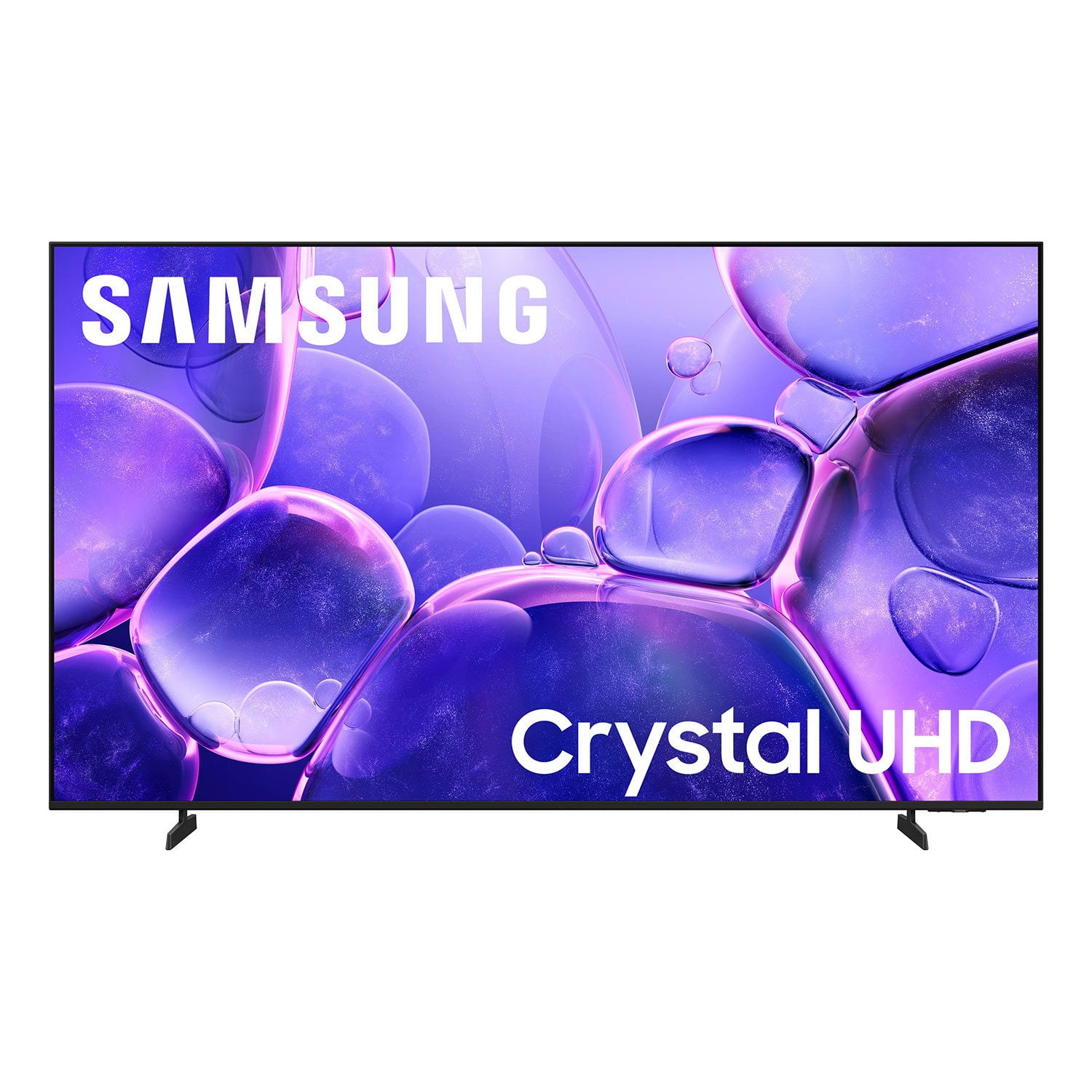
SAMSUNG 55" Class U8000F Series 4K Crystal UHD Smart TV
4.5 out of 5 stars
stars
2,032 ratings1,963 reviews
  1. 5 stars72% (1,460)
  2. 4 stars15% (311)
  3. 3 stars6% (118)
  4. 2 stars3% (69)
  5. 1 star4% (74)

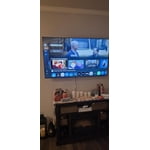
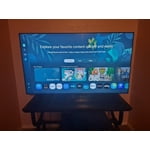
Member photos

  • +590 images
Sort by |
Showing 931-940 of 1,963 reviews
Jun 1, 2026
Reviewer name: Jrbug
5 out of 5 stars
5 out of 5 stars review

Great tv

[This review was collected as part of a promotion.] Amazing TV with a super clear picture and amazing sound quality. Can be controlled with the remote it comes with or with you samsung phone.

Review from Samsung US
Helpful?43WYLKDSIONN15546751433
May 20, 2026
Reviewer name: Jabes
4 out of 5 stars
4 out of 5 stars review

Volume control

[This review was collected as part of a promotion.] The volume control is not very likeable because you have to continue to click to change volume. Instead of a sliding volumes control. Otherwise, all is good.

Review from Samsung US
Helpful?43WYLKDSIONN15546751433
Jun 1, 2026
Reviewer name: JCS7
5 out of 5 stars
5 out of 5 stars review

Excellent features

[This review was collected as part of a promotion.] This tv is huge, my husband watches it every night, the resolution n color is great beyond comparison, the surround sound helps him transform it unto a movie theater 🎦

Review from Samsung US
Helpful?43WYLKDSIONN15546751433
Jul 5, 2026
Reviewer name: Rugger
5 out of 5 stars
5 out of 5 stars review

Only Buy Samsung

[This review was collected as part of a promotion.] I have only owned Samsung TVs since my first plasma. Always have had great pictures and I appreciate the ease of use.

Review from Samsung US
Helpful?43WYLKDSIONN15546751433
Jul 5, 2026
Reviewer name: jtadj8
1 out of 5 stars
1 out of 5 stars review

Poor Tv

[This review was collected as part of a promotion.] This tv has a line across the middle of the screen all the way across the screen. I have had this same issue with two other Samsung TVs! No happy at all with Samsung quality anymore!

Review from Samsung US
Helpful?43WYLKDSIONN15546751433
Jun 26, 2026
Reviewer name: Chap
1 out of 5 stars
1 out of 5 stars review

Unfortunately, the TV is trash.

[This review was collected as part of a promotion.] The lightweight TV tilted over and the screen became damaged Will never by a TV product. However, love your cell phones

Review from Samsung US
Helpful?43WYLKDSIONN15546751433
reply from Samsung Advisor

Hi Chap, We are very sorry to hear about your experience. If there’s anything we can assist with, please don’t hesitate to call us at 1-800-SAMSUNG (8AM – 9PM EST Mon – Fri, 8AM – 6PM Sat – Sun), or reach us via text anytime. You can also visit ‘Support’ on our website for: • Live Chat • Manuals, Software, & Warranty Info ~ Samsung Advisor

May 21, 2026
Reviewer name: Rowdy
2 out of 5 stars
2 out of 5 stars review

NNOT IMPRESSED

[This review was collected as part of a promotion.] Not at all impressed. Mostly due to the high cost for an average TV that could be bought for much less money on another brand.

Review from Samsung US
Helpful?43WYLKDSIONN15546751433
reply from Samsung Advisor

Hi Rowdy, We appreciate your feedback on the quality of Samsung’s U8000F TV. If the image you’re seeing isn’t to your liking, there are several picture settings you may want to adjust. First, make sure your TV is up to date. To check for the latest version, go to: Home > Left directional button > Settings > Support > Software Update > Update Now. If the image doesn’t quite match your preferences after updating/checking for updates, there are several settings you can adjust to better suit your viewing environment. To explore picture mode options, go to: Home > Left directional button > Settings > All Settings > Picture > Picture Mode. Available modes include: 1. Standard – Default mode for general viewing 2. Dynamic – Brighter and sharper for well-lit rooms 3. Eco – Optimized for energy saving 4. Movie – Best for dark room viewing 5. Filmmaker Mode – Preserves the director’s intended look and feel (automatically enabled for supported content) You can also fine-tune settings like brightness, contrast, sharpness, and more by navigating to: All Settings > Picture > Expert Settings If you’d like help finding the best setup for your preferences or if there are other features that are leaving you unsatisfied, please don’t hesitate to contact Samsung Customer Support at 1-800-SAMSUNG, available from 8AM – 9PM EST Mon – Fri, 8AM – 6PM Sat – Sun. You can also visit the Samsung website and click on ‘Support’ for: • Live Chat • Manuals, Software, & Warranty Info ~ Samsung Advisor

May 25, 2026
Reviewer name: MISTER11
5 out of 5 stars
5 out of 5 stars review

Like all features!

[This review was collected as part of a promotion.] This TV brought a beautiful world to our kitchen! We spend a lot of time to watch news, You tube and entertainment, so we hade been connected to the world !

Review from Samsung US
Helpful?43WYLKDSIONN15546751433
Jun 20, 2026
Reviewer name: Bill
5 out of 5 stars
5 out of 5 stars review

Easy Setup!

[This review was collected as part of a promotion.] TV was easy to unpack through setup. Selling point was the audio output because we use a receiver for surround sound. This is our third Samsung and they all have been great.

Review from Samsung US
Helpful?43WYLKDSIONN15546751433
Jun 6, 2026
Reviewer name: Vall
2 out of 5 stars
2 out of 5 stars review

Tv

[This review was collected as part of a promotion.] It's a television. The picture is rather flat and no matter how I adjust the picture it's to dark. But what am I gonna do about it. And I detest AI!

Review from Samsung US
Helpful?43WYLKDSIONN15546751433
reply from Samsung Advisor

Hi Vall, We’re sorry to hear you’re not fully satisfied with the picture quality on your Samsung U8000F TV. If the image appears too dark, we suggest disabling certain energy-saving features, which can automatically adjust brightness and affect how the screen looks. Go to: Settings > All Settings > General & Privacy > Power and Energy Saving, then turn off Brightness Optimization, Energy Saving Solution, Motion Lighting, and/or Contrast Enhancer. You can also adjust the Picture Mode to better suit your environment: Settings > All Settings > Picture > Picture Mode • Standard – Default mode for general viewing • Dynamic – Brighter and clearer, ideal for well-lit rooms • Movie – Best for dark room viewing • Eco – Energy-saving mode • Filmmaker Mode – Preserves content as intended by creators To fine-tune brightness, go to: Home > left directional key > Settings > All Settings > Picture > Expert Settings, then adjust the Brightness level (0–50) to your preference. Lastly, please make sure your TV is running the latest firmware: Home > Home > left directional key > Settings > Support > Software Update > Update Now We hope these tips help improve your viewing experience. If you need further support, feel free to contact us at 1-800-SAMSUNG (8AM – 9PM EST Mon – Fri, 8AM – 6PM Sat – Sun). LiveChat is also available via the ‘Support’ link on our website. ~ Samsung Advisor