Skip to Main Content
Sam's Club
Sam's Club
All Departments
All Services
Customer reviews for SAMSUNG 55" Class U8000F Series 4K Crystal UHD Smart TV for
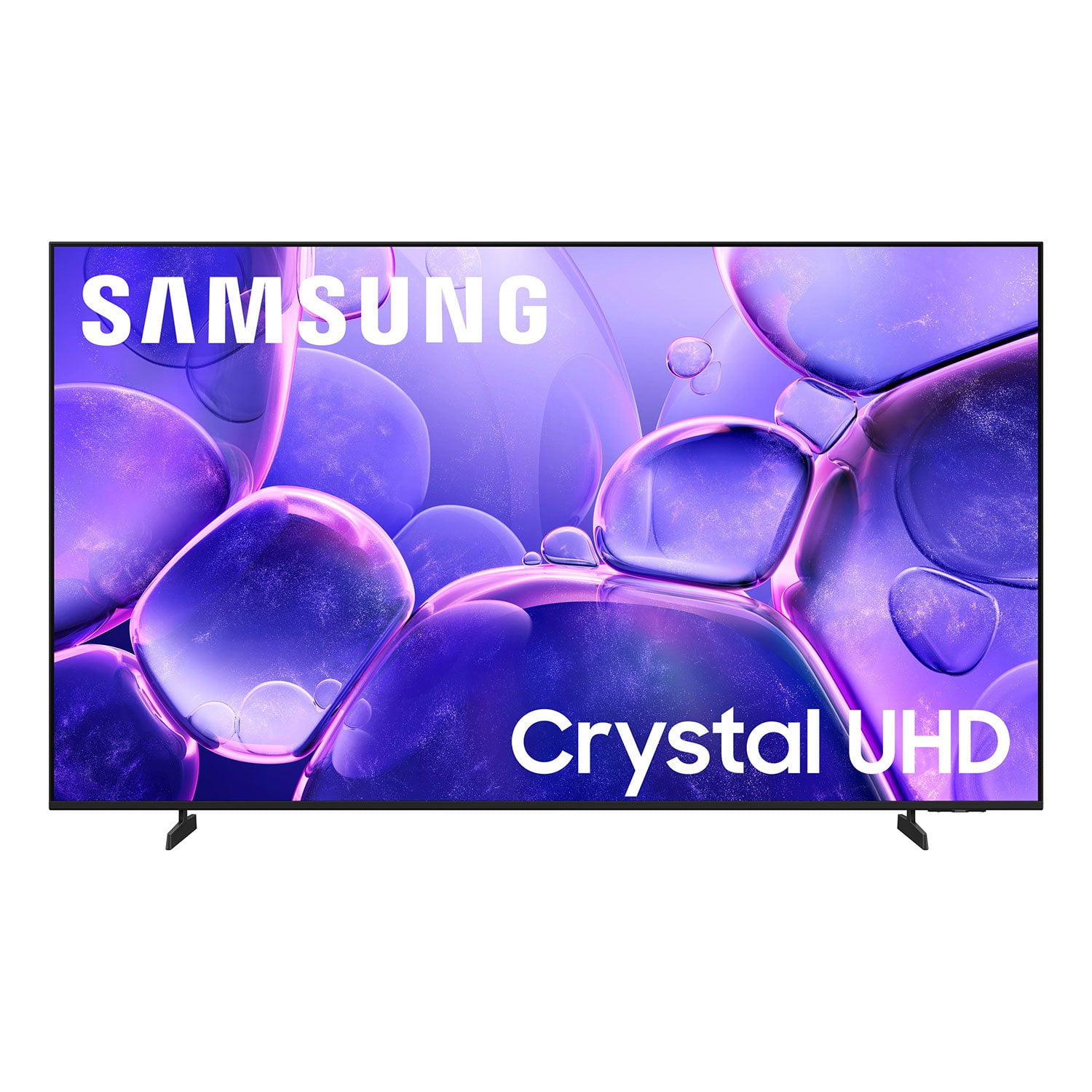
SAMSUNG 55" Class U8000F Series 4K Crystal UHD Smart TV
4.5 out of 5 stars
stars
1,786 ratings1,717 reviews
  1. 5 stars72% (1,292)
  2. 4 stars15% (271)
  3. 3 stars6% (108)
  4. 2 stars3% (51)
  5. 1 star4% (64)

Member photos

  • +494 images
Sort by |
Showing 591-600 of 1,717 reviews
Jun 5, 2026
Reviewer name: Artsydo
3 out of 5 stars
3 out of 5 stars review

No Rich Color or Depth

[This review was collected as part of a promotion.] I wish I had bought a better quality Samsung TV. The price is what convinced me to buy, but now that I've watched them, I realize the quality is just not there in every category.

Review from Samsung US
Helpful?43WYLKDSIONN15546751433
reply from Samsung Advisor

Hi Artsydo, Thank you for your feedback on the U8000F TV. Please know your opinion is important to us and will be shared with our internal teams. If you have any questions or need help, call 1-800-SAMSUNG (8AM – 9PM EST Mon – Fri, 8AM – 6PM Sat – Sun), or reach us via text 24/7. You can also visit ‘Support’ on our website for: • Live Chat • Manuals, Software, & Warranty Info ~ Samsung Advisor

Jun 1, 2026
Reviewer name: Izzy
4 out of 5 stars
4 out of 5 stars review

Decent

[This review was collected as part of a promotion.] Not as good as my QLED 4K TV, but it recently broke outside ot warranty and I needed a fast replacement. It will do, but I definitely notice the differences

Review from Samsung US
Helpful?43WYLKDSIONN15546751433
Jun 13, 2026
Reviewer name: Pmartinez
5 out of 5 stars
5 out of 5 stars review

Great product

[This review was collected as part of a promotion.] Great picture and even the sound quality from being the TV speaker are good the brightness is amazing the resolution is great but you have to remember the programming matters

Review from Samsung US
Helpful?43WYLKDSIONN15546751433
Jul 20, 2026
Reviewer name: Tommy
3 out of 5 stars
3 out of 5 stars review

Meh...

[This review was collected as part of a promotion.] The picture is good on all channels. However, on Netflix there is a buzzing sound. I didn't have that issue on my previous TV.

Review from Samsung US
Helpful?43WYLKDSIONN15546751433
Jun 5, 2026
Reviewer name: Big Daddy
5 out of 5 stars
5 out of 5 stars review

It's So Big

[This review was collected as part of a promotion.] I have this 85" Samsung TV and just love it. I bought the Samsung surround sound to go along with it. It is like I'm in a movie theater in my living room. It was an exceptional value also.

Review from Samsung US
Helpful?43WYLKDSIONN15546751433
Jun 6, 2026
Reviewer name: Vall
2 out of 5 stars
2 out of 5 stars review

Tv

[This review was collected as part of a promotion.] It's a television. The picture is rather flat and no matter how I adjust the picture it's to dark. But what am I gonna do about it. And I detest AI!

Review from Samsung US
Helpful?43WYLKDSIONN15546751433
reply from Samsung Advisor

Hi Vall, We’re sorry to hear you’re not fully satisfied with the picture quality on your Samsung U8000F TV. If the image appears too dark, we suggest disabling certain energy-saving features, which can automatically adjust brightness and affect how the screen looks. Go to: Settings > All Settings > General & Privacy > Power and Energy Saving, then turn off Brightness Optimization, Energy Saving Solution, Motion Lighting, and/or Contrast Enhancer. You can also adjust the Picture Mode to better suit your environment: Settings > All Settings > Picture > Picture Mode • Standard – Default mode for general viewing • Dynamic – Brighter and clearer, ideal for well-lit rooms • Movie – Best for dark room viewing • Eco – Energy-saving mode • Filmmaker Mode – Preserves content as intended by creators To fine-tune brightness, go to: Home > left directional key > Settings > All Settings > Picture > Expert Settings, then adjust the Brightness level (0–50) to your preference. Lastly, please make sure your TV is running the latest firmware: Home > Home > left directional key > Settings > Support > Software Update > Update Now We hope these tips help improve your viewing experience. If you need further support, feel free to contact us at 1-800-SAMSUNG (8AM – 9PM EST Mon – Fri, 8AM – 6PM Sat – Sun). LiveChat is also available via the ‘Support’ link on our website. ~ Samsung Advisor

Jun 20, 2026
Reviewer name: Fredo
5 out of 5 stars
5 out of 5 stars review

Still Looking good

[This review was collected as part of a promotion.] The screen and function, continue to b as new. Brightness responsiveness, a d contrast all seem to b uniform.

Review from Samsung US
Helpful?43WYLKDSIONN15546751433
Jun 13, 2026
Reviewer name: UptownRtk
5 out of 5 stars
5 out of 5 stars review

Great product samsung always is...

[This review was collected as part of a promotion.] Samsung always has beautiful picture and perfect tv functions...only lack in sound department (Speaker brand could be better)...

Review from Samsung US
Helpful?43WYLKDSIONN15546751433
Jun 7, 2026
Reviewer name: Andi
1 out of 5 stars
1 out of 5 stars review

Does NOT Hold WiFi Connection

[This review was collected as part of a promotion.] It does not hold my WiFi connection while every other computer and device in my house does. And while I understand the difference between Samsung and Apple, does not stream AppleTV well.

Review from Samsung US
Helpful?43WYLKDSIONN15546751433
reply from Samsung Advisor

Hi Andi, Thank you for your feedback. For optimal performance, please ensure your TV is running the latest firmware Update Version 1269.9. You can check this by going to: Home > left directional key > Settings > Support > Software Update If this firmware version is not yet available on your TV, you can download the update on a USB drive and manually update your TV: 1. On Samsung's website (upper right corner), go to: Support > Manual & Software > Find your TV model, and click on the Firmware – Upgrade File. 2. When the file has finished downloading, locate it and then unzip it. There is normally one folder inside but there may be multiple files. 3. Copy or move all of the files that were included in the zip file to a USB flash drive, but do not place them inside any other folders. If you place the software folders inside a folder on the USB flash drive, the TV or monitor will not find them. 4. Connect the USB drive containing the software upgrade into a USB port on your device. 5. Using your device's remote, navigate to and select Settings, then select All Settings, and then select Support. Select Software Update, select Update Now, and then select Yes if prompted. Your device will search the USB drive for update files. Follow the on-screen instructions to install the updated software. Updates usually take a few minutes; please do not turn off the TV until the update is complete. When the update is finished, it will restart automatically. If you continue to have issues, please call us at -800-SAMSUNG (8AM – 9PM EST Mon – Fri, 8AM – 6PM Sat – Sun). LiveChat support and additional help are available at the ‘Support’ link on our website. ~ Samsung Advisor

Jun 5, 2026
Reviewer name: Stace
3 out of 5 stars
3 out of 5 stars review

Good for price

[This review was collected as part of a promotion.] Sound isn't great. Loses connection to Samsung channels and sometimes drops internet. But good for price paid!!

Review from Samsung US
Helpful?43WYLKDSIONN15546751433
reply from Samsung Advisor

Hi Stace, Thank you for your feedback. If your TV is having trouble maintaining a wireless connection, please try the following: 1. Distance matters – Keep your TV within 50 feet of your router. Avoid placing the router behind walls, furniture, or electronic devices. 2. Minimize interference – Turn off nearby wireless devices that may disrupt the signal. 3. Power cycle both devices – Unplug the TV and router for 30 seconds, then plug them back in. 4. Run diagnostics: o Settings > Support > Device Care > Self Diagnosis > Smart Hub Connection Test o Settings > Support > Device Care > Self Diagnosis > Wi-Fi 5. Update firmware: Settings > Support > Software Update > Update Now 6. Factory reset (if needed): Settings > All Settings > General & Privacy > Reset > Factory Data Reset If you continue to experience issues, please contact Samsung Support at 1-800-SAMSUNG (8AM – 9PM EST Mon – Fri, 8AM – 6PM Sat – Sun). LiveChat support and additional help are available at the ‘Support’ link on our website. ~ Samsung Advisor