
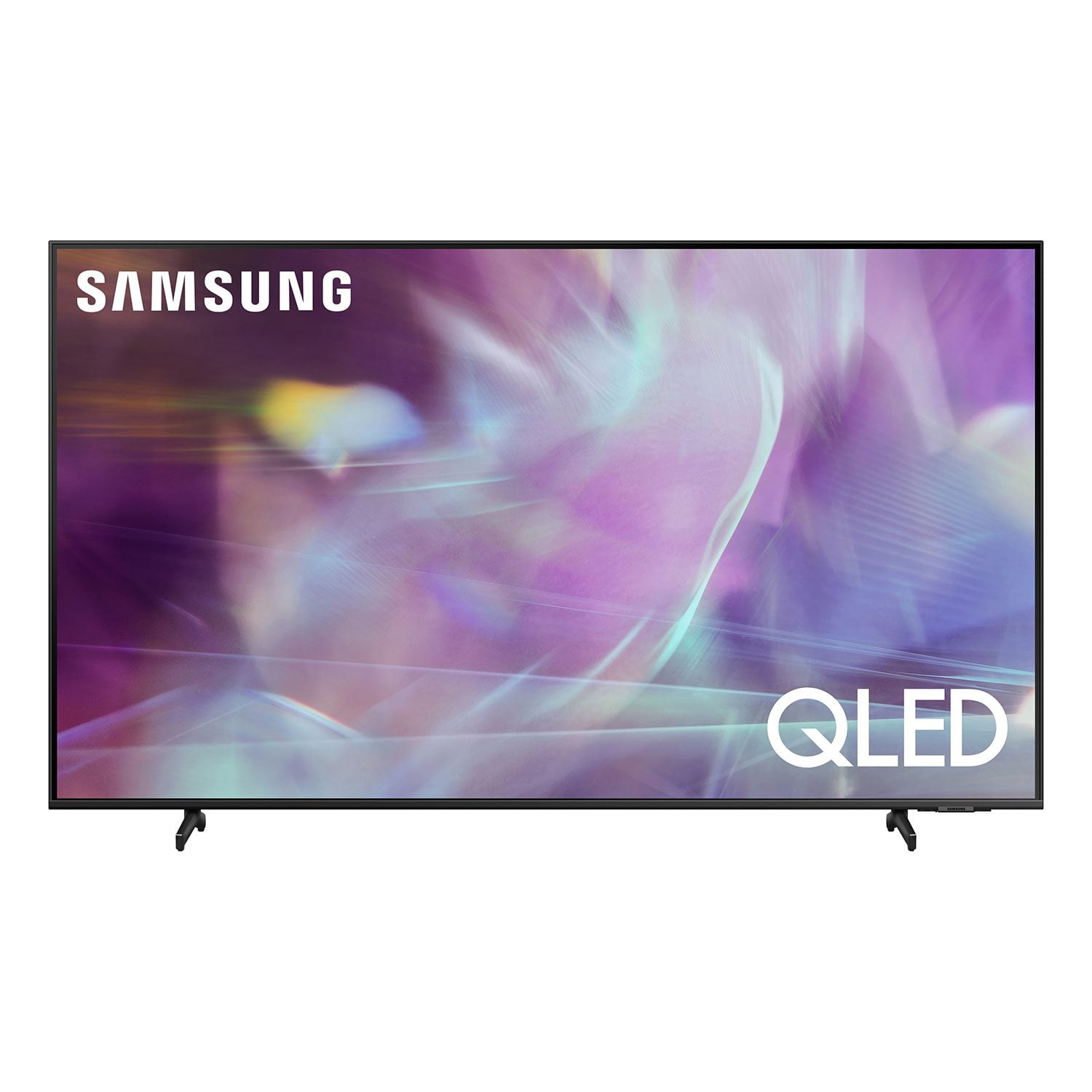
 Customer reviews for SAMSUNG 75" Class Q6-Series 4K Ultra HD Smart QLED TV - QN75Q6DAAFXZA for
Great TV
Happy with the TV, but only one problem. I have a Bose 48 lifestyle system that is hooked into the optical outlet of the tv. The optical goes directly to my lifestyle system. My smart tv will broadcast in 5.1, however, any of my HDMI cables will not. Why?
Hi XX, thanks for reaching out. We regret that you had this issue but we're confident we can help! Please get in touch with us at 1-800-SAMSUNG or via live chat on our website (http://www.samsung.com/ca/support/)
60 inch Spectrum TV Great Feature
[This review was collected as part of a promotion.] The one thing that I love about my 60 inch Spectrum TV is that you can get Amazon Prime Netflix YouTube and many more my kids enjoy what you guys offer and that excites me also one more relaxed day for me when they say 60 in Spectrum TV is turned on in my house kids sit down and be good that's one thing I do like about my television that I purchased from you all at Walmart if something happened to this one I will go purchase because I know how great they are. My husband even enjoys playing video games on his 60-inch Spectrum TV he is such a big kid haha LOL
Great experience
[This review was collected as part of a promotion.] After trying Sony for several years, I believe I made the best decision and switched to Samsung. The picture quality is awesome and sound, even without any soundbar, is great. I like t idea of smart things because now I can easily project my phone on screen.
Love my new Samsung Qled
[This review was collected as part of a promotion.] I did a lot of researching when I was looking to replace my 12 year old Samsung TV. I was torn between the Qled and a regular 4k tv... the more researching that I did the more I learned towards the Qled. I went ahead and went for it, brought my 75 inch Qled home! We loved it from the start and we still do. The picture quality is awesome and the volume of the speakers is just fine for us. Yes, you may want to get a sound bar for movies etc but for watching regular TV they're just fine. We have had no issues with it so far and would definitely recommend this TV to our friends and family.
Hi GRendon7, Thank you for choosing Samsung’s 2021 Q60A TV. I’m happy to hear that the 4K experience is the best you’ve ever had. Our Quantum Processor 4K Lite transforms what you’re watching into stunning 4K. Additionally, Object Tracking Sound Lite (OTS Lite) gives you immersive 3D surround sound with strategically places dynamic speakers that move the sound around you. Should you ever have questions or need help, please call us at 1-800-SAMSUNG (ask for TVs), available 8AM -12AM EST M-F (9AM – 6PM EST Sat). Or text HELP to 62913. For additional support resources, visit us on the Samsung website and click on the ‘Support’ link in the upper right corner of the homepage for: 1) More ‘Contact Us’ options – LiveChat, Facebook, Twitter, Samsung Community, Samsung Members app 2) Manuals & Software 3) Warranty Info 4) Product Registration: For access to easy warranty support, convenient opt-in to special promos and offers, faster troubleshooting and service, and quick notification of system updates. Thank you for choosing Samsung! ~ Samsung Specialist
Product with great features and style
[This review was collected as part of a promotion.] This TV is mounted over my fireplace perfectly in the living room. I purchased the full motion wall mount separately from the popular online retailer, which gave extra dynamic aspect for this TV. I stream and webcast the videos from my Samsung Galaxy phone to this with single click. TV Supports variety of ports which makes the device connect to items like firestick and xbox devices easily. The slick remote is also a Universal remote and works with the firestick. Got free tv apps, where you can watch sports, tv shows and movies. As a deal from retailer, I got extra warranty coverage at no cost, which made this even a more sweeter purchase. I recommend this one for my family and friends.
All-around great TV, with only minor complaints!
[This review was collected as part of a promotion.] This is my first 4k TV. I wanted a 60" tv for the living room that I will use for streaming tv and movies, and video games. I like the options to disable features like LED Clear Motion, because those give my wife a headache. The picture is bright, the colors look good, and the contract is great. Setting up the TV was very easy. The HDMI ports are easy to get to, and it is easy to mount on the wall. Downloading apps and signing in was easy as well. There is a huge selection of apps to choose from! I wish I could delete more of these pre-installed apps, simply because I do not want to use them. I like that the remote has a solar panel. I hope it helps the battery stay alive longer. The remote is simple and easy to use. I wish it did not have dedicated buttons for streaming services that I do not use, they are easy to press accidentally. I have had to re-pair the remote 3 or 4 times in 5 months. I have had little success using voice commands Ok Google on the remote. We really enjoy using Ambient Mode, especially the Cinemagraphs. They are great to put on in the background when company comes over. I have had some issues using the other modes though. The design of the TV is great. The very narrow frame blends into the wall nicely. It is also very thin so it doesn't stick out too far from the wall. This does make it difficult to reach the wall mount behind it to tighten the brackets. The speakers are good enough. I am not impressed with the bass, but they get the job done.
Traptin85, Thank you for sharing your user experience with the 2021 Q60A QLED Smart TV. Your TV has 3 Voice Assistants to choose from: Bixby, Amazon Alexa, or Google Assistant. You will first need to select which Voice Assistant you would like to help control your TV. You will also need to be connected to the internet. After selecting your Voice Assistant, you can change the settings by going to: Settings > General > Voice > Voice Assistant. Once your Voice Assistant is selected, you can press the Microphone button on your remote to help navigate the settings menu, change the volume, or even search for content. When utilizing the hands-free Voice Assistant feature, please know this is supported with Alexa and Bixby Voice Assistants. To use Google Assistant, simply press the Microphone button on the remote and then state your command. When in Ambient Mode, please know you will need to use the SmartThings app on your phone or tablet to add your own photos to your TV (My Album feature). If you haven't set up your TV in the SmartThings app, please follow the below steps to do so: 1. Navigate to and open the SmartThings app, and then tap Add (the plus sign). 2. Tap ‘Device’, tap the ‘By brand’ tab, and then tap Samsung. 3. Tap ‘TV’, and then select your TV. Tap ‘Start’, and then follow the on-screen instructions to finish connecting your TV. 4. Next, tap ‘Menu’ (the three horizontal lines) in the SmartThings app, and then tap the Location-drop down menu to find the location with your TV. Tap your TV’s card to view its options. 5. Tap Ambient Mode, and then swipe through the introduction. Tap ‘Start now’. I hope these tips help. For further assistance with this feature, please contact Samsung Customer Support at 1-800-SAMSUNG (ask for TVs), available 8AM - 12AM EST, 7 days a week. For additional support resources, visit us on the Samsung website and click on the ‘Support’ link in the upper right corner of the homepage for: 1) Contact Us: For additional Chat & Text options, choose ‘TVs & Home Theater’ and select your model & topic. 2) Manuals & Software 3) Warranty Info 4) Register a Product: For access to easy warranty support, convenient opt-in to special promos and offers, faster troubleshooting and service, and quick notification of system updates. ~ Samsung Specialist
Great quality picture and good for 4k gaming
[This review was collected as part of a promotion.] I use it to watch series and gaming sounds are really good. Really easy to control have alexa and bixby built in that helps you how to connect the tv. Controller is really cool solar charge no more battery and is rechargeable.
Great TV for the Price
[This review was collected as part of a promotion.] I got this Samsung Q60A during July 21'. Reading some of the reviews, it was a very mixed opinion on what this was being used for. Personally I use this tv in my bedroom. I have Apple TV 4K, Switch, and PS5 connected. Everything connected well. Make sure to go to each device and make sure all the right settings are selected, it's a little bit more than just the resolution being 4K. The tv itself easy to setup, connected easily, and it was able to pull the login for streaming services from my other Samsung TVs on the account. The remote is really neat, had it for a few months and I've yet to charge it. With the remote being solar, I have led strips around my room so it has the ability to charge from those. Sound could be better, but I mostly use the homepods connected to my Apple TV , I have a matchsing soundbar but once setting it up it was overkill. The standard sound on “amplify” is just fine for most people. Picture quality is great, no complaints there
Style over function
[This review was collected as part of a promotion.] The picture looks good, but got a dead pixel within days of getting the tv. The remote layout is not very functional. The os is not intuitive. There is no Home Screen, just the home menu. Tv tends to default to live tv.
Hi there, Thank you for choosing Samsung's Q60A TV and for sharing your experience. We appreciate your thoughts on the remote and interface of your new TV. To assist you in various functions and settings on your new TV, you can download the Q60A TV's User Manual, e-Manual, Remote Control Leaflet, and Quick Setup Guide on Samsung's website by clicking "Support" > "Manuals & Software" > "TVs & Home Theater" > "TVs". From there, you can select the Q60A TV under "4K QLED TVs” > “A Model Lineup" and download the guides you would like. The e-Manual is also embedded into the TV itself under Settings > Support > Open e-Manual. Please know that you can choose what your TV does when you turn it on by going to Settings > General > Smart Features 1) When you set Autorun Smart Hub to on, the TV displays the Home Screen automatically when you turn the TV on. 2) If Autorun Last App is set to on, the last used app is automatically run when you turn on the TV. Please know that the Last App Used function may not work with all apps. I hope these tips help. If there is anything we can do to further assist and improve your user experience, please do let us know by contacting Samsung Customer Support at 1-800-SAMSUNG (ask for TVs), available 8AM -12AM EST M-F (9AM – 6PM EST Sat). Or text HELP to 62913. For additional support resources, visit us on the Samsung website and click on the ‘Support’ link in the upper right corner of the homepage for: 1) More ‘Contact Us’ options – LiveChat, Facebook, Twitter, Samsung Community, Samsung Members app 2) Manuals & Software 3) Warranty Info 4) Product Registration: For access to easy warranty support, convenient opt-in to special promos and offers, faster troubleshooting and service, and quick notification of system updates. ~ Samsung Specialist
This Samsung is excellent
[This review was collected as part of a promotion.] My Samsung is very easy to use and very self explanatory. I can get to what I want without issue or confusion. The remote has features that make finding what my son wants to watch easily. The TV is super quick and we never have issues. Finding all the apps and shows are with one button. Changing sources is quick and easy and the picture is crystal clear. We love it.