Skip to Main Content
Sam's Club
Sam's Club
Customer reviews for Samsung 55" Class TU700D-Series Crystal Ultra HD 4K Smart TV UN55TU700DFXZA for
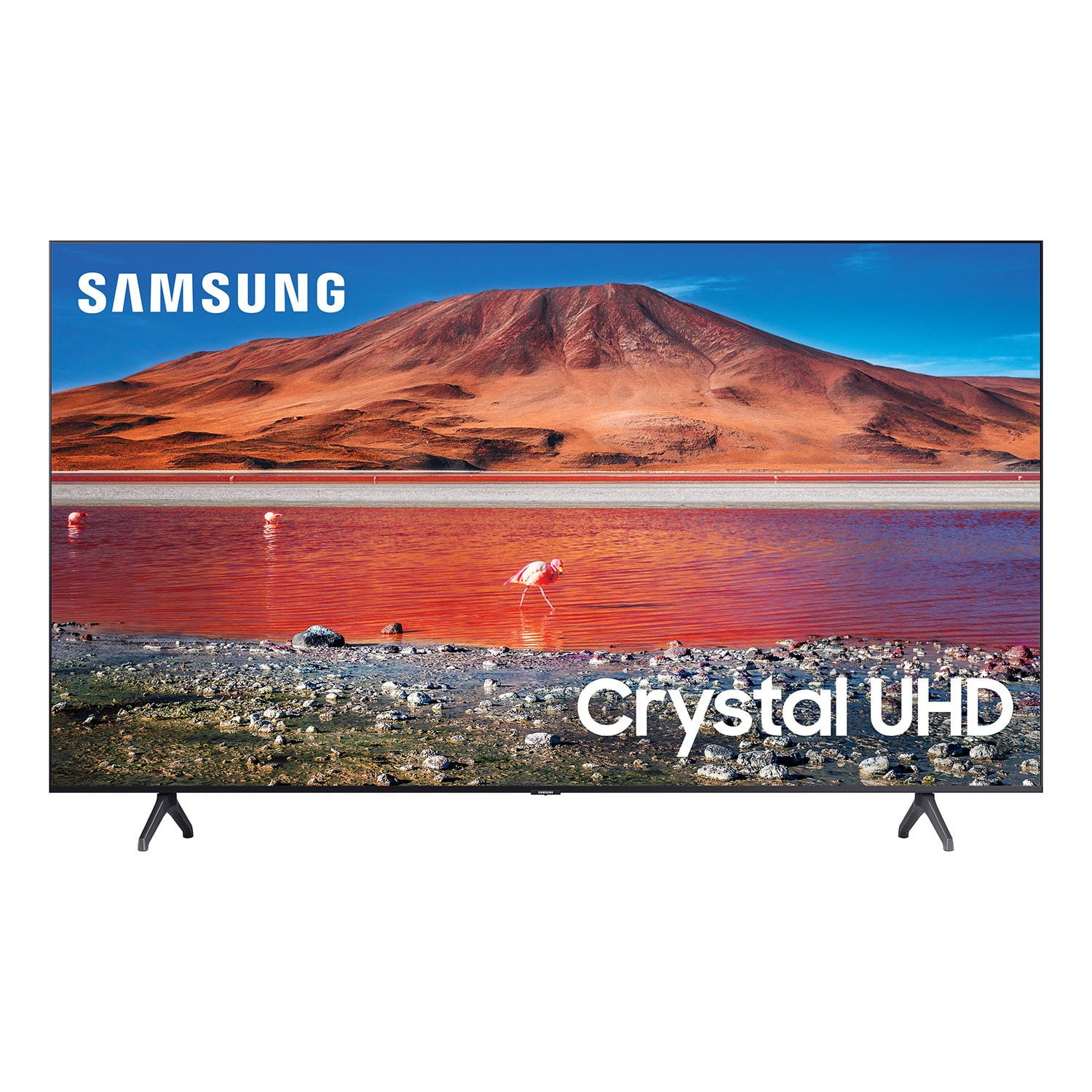
Samsung 55" Class TU700D-Series Crystal Ultra HD 4K Smart TV UN55TU700DFXZA
Sort by |
Showing 9,791-9,800 of 10,249 reviews
Oct 29, 2021
MamaMo
5 out of 5 stars review

Great TV, picture so clear

this samsung smart tv is such a great buy for the price, easy to use and clear picture!

Review from Samsung US
Helpful?6KHJPPFCOCQU13901857028
May 26, 2023
Jlopez
3 out of 5 stars review

The clarity is not what I was specting is not that

I bought this tv about 10 day ,the Claritin is not that great

Review from Samsung US
Helpful?6KHJPPFCOCQU13901857028
Nov 1, 2022
lauretta80
5 out of 5 stars review

Gift

I was given this TV for my birthday and it has changed my life. I really enjoy it.

Review from Samsung Canada
Helpful?6KHJPPFCOCQU13901857028
reply from Operations

Thank you, Lauretta80! We love to hear positive feedback and we’re delighted you’re enjoying your new Samsung TV. 

Jun 30, 2021
Dick95
5 out of 5 stars review

Great TV

awesome tv, easily setup and working with tv provider. great pictures, and very good price.

Review from Samsung US
Helpful?6KHJPPFCOCQU13901857028
Sep 27, 2023
Murph69
4 out of 5 stars review

My Review for 65" Crystal UHD 4K TV

Excellent picture and life like picture quality . Very happy with this tv

Review from Samsung Canada
Helpful?6KHJPPFCOCQU13901857028
Oct 9, 2022
Zman
3 out of 5 stars review

Okay for the price.

The tv looks good at times. But it tends to stutter a lot. Especially while streaming.

Review from Samsung US
Helpful?6KHJPPFCOCQU13901857028
reply from Samsung Brand Ambassador

Hi Zman, Thank you for your purchase and review of the Samsung TU7000 TV. We appreciate your feedback on the image quality of the TV screen while streaming. We have a few tips which may help. First, let's ensure your TV is running the latest Firmware. Go to Settings> Support> Software Update. You can update from there. Next, if your TV is buffering while streaming, it may have to do with your internet connection. Buffering usually occurs when your internet connection provided by your ISP cannot supply data fast enough for the playback device. We suggest you try the following: Use 5G Wi-Fi if possible Try wired LAN if available Try repositioning the router so there are no obstacles between your TV and the router. There are also several settings available that allow you to adjust your image. Go to Home > Settings > Picture > Picture Mode and select the mode that best fits your usage: 1) Standard: Default mode suitable for general viewing environments. 2) Natural: Reduces eye strain for a comfortable viewing experience. 3) Movie: Suitable for watching TV or movies in a dark room. 4) Dynamic: Makes the picture brighter and clearer in bright viewing environments. 5) Filmmaker Mode: You can watch the source content (e.g., movie) as it is. If the image is defined as Filmmaker Mode, it will automatically switch to Filmmaker Mode while watching. You can also go to Settings > Picture > Expert Settings > to manually fine-tune your image. If you need more help, Samsung is here for you. Call us at 1-800-SAMSUNG, 8 AM - 12 AM EST, seven days a week. LiveChat with an agent, as well as manuals, software, and warranty info, can be found at the ‘Support’ link on our Samsung website. ~ Samsung Advisor

Oct 6, 2023
Justjusty14
5 out of 5 stars review

Good Picture

This is a great tv, Clear picture good sound and easy to set up.

Review from Samsung Canada
Helpful?6KHJPPFCOCQU13901857028
reply from Samsung Support Team

Hello, thank you for your 5 star review and feedback. We will pass your comments along to our store staff and hope you visit us again someday soon.

May 24, 2023
Gwshino
1 out of 5 stars review

Didn't last very long

2.5 years old and has dark spots on screen. Will have to get it repaired.

Review from Samsung US
Helpful?6KHJPPFCOCQU13901857028
Jan 7, 2021
James
3 out of 5 stars review

Picture

not any direction on how to connect to homes wifi

Review from Samsung US
Helpful?6KHJPPFCOCQU13901857028
reply from OBA

James: Thank you for purchasing Samsung’s TU7000 TV. In order to connect your TV to your home’s WiFi network, please go to: Settings > General > Network > Open Network Settings. From there, you can connect to the available wireless network. Should you need further assistance, please contact Samsung Customer Support. 1-800-SAMSUNG (ask for TVs), available 8AM -12AM EST, 7 days a week Or visit us on the Samsung website and click on the ‘Support’ link in the upper right corner of the homepage for: 1) Contact Us Options (LiveChat, Remote Support, Facebook, Twitter) 2) Product Support 3) Manuals and Downloads 4) Warranty Info 5) Product Registration: Registering your product gives you access to easy warranty support, convenient opt-in to special promos and offers, faster troubleshooting and service, and quick notification of system updates 6) Samsung Community: A great resource for getting help from Samsung moderators and customers and more 7) …and more product, repair, order, and care options ~ Samsung Solutions

Jan 25, 2023
harry needs lite
3 out of 5 stars review

poor remote

tv is nice remote is very poor needs to be light lit so you can see the buttons

Review from Samsung US
Helpful?6KHJPPFCOCQU13901857028
reply from Samsung Brand Ambassador

Hi, Thank you for taking the time to provide feedback on your TU7000 TV. Please know your feedback will be shared with our internal product teams. We take pride in our products and are sorry to hear that your experience was not up to our high standards. If there’s anything we can ever help with, please call us at 1-800-SAMSUNG, 8 AM - 12 AM EST, seven days a week. Or visit us on the Samsung website and click on the ‘Support’ link for: 1) LiveChat 2) Manuals, Software, & Warranty Info ~ Samsung Advisor