Skip to Main Content
Sam's Club
Sam's Club
All Departments
All Services
Customer reviews for Samsung 55" Class TU700D-Series Crystal Ultra HD 4K Smart TV UN55TU700DFXZA for
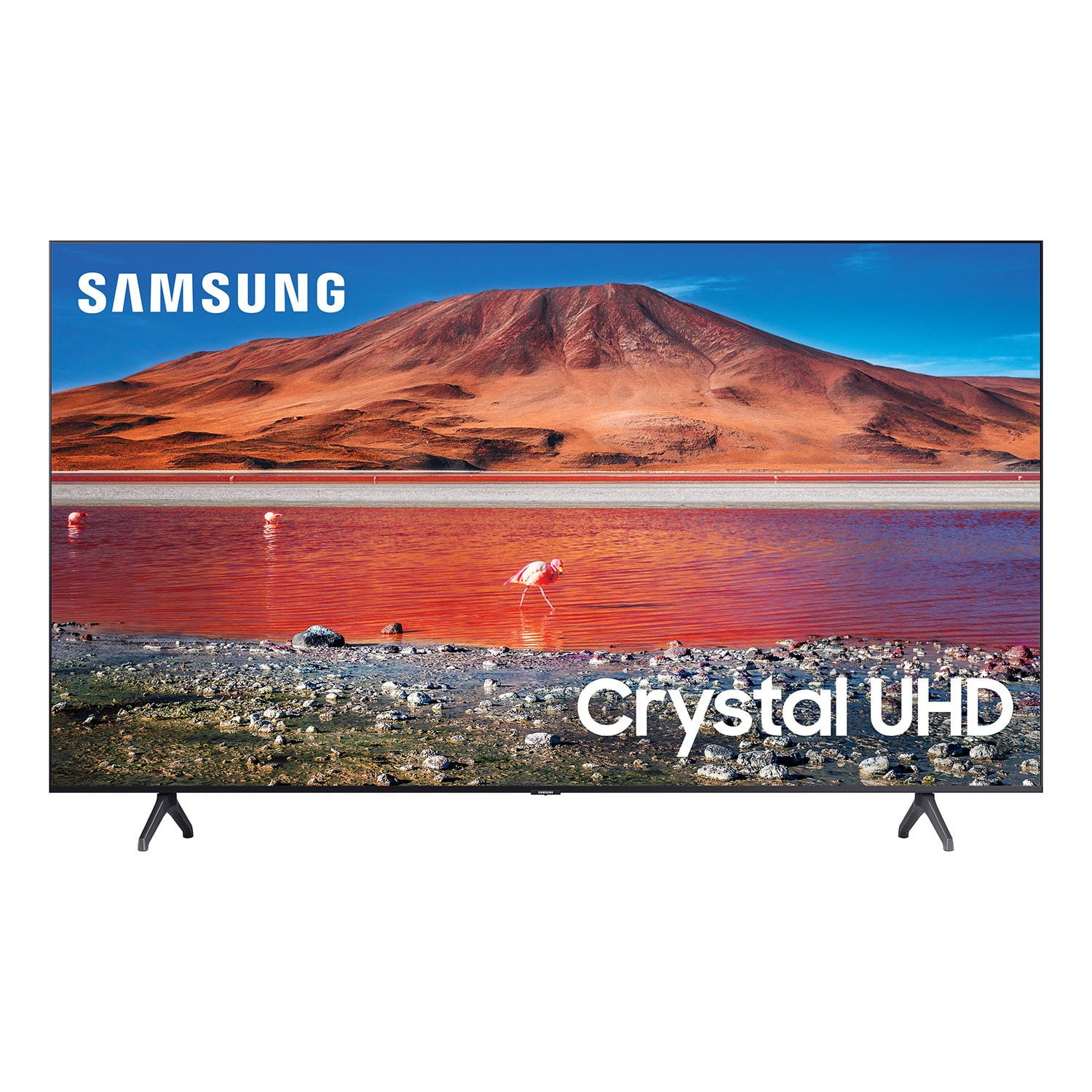
Samsung 55" Class TU700D-Series Crystal Ultra HD 4K Smart TV UN55TU700DFXZA
Sort by |
Showing 2,361-2,370 of 10,251 reviews
May 25, 2022
RayHaj
5 out of 5 stars review

Amazing Picture!!!!

[This review was collected as part of a promotion.] I love this television!!! The picture is so clear and the hi def is incredible!!! Even old movies look 100% better on this unit. 58" just happened to be the perfect size for my space. If I had more room I would have gone with the same set in a larger screen size. You won't regret buying one of these television sets. The streaming built in is great too. Don't need hulu or netflix among other streaming services external devices.

Review from Samsung US
Helpful?6KHJPPFCOCQU13901857028
Sep 22, 2020
potterTRON
2 out of 5 stars review

Issues

[This review was collected as part of a promotion.] Since i got the TV for Fathers day, i been having issues. The TV is slow. The color contrast changes randomly. I had to reset it twice to put it back to its original form because turning off the TV does not do anything.

Review from Samsung US
Helpful?6KHJPPFCOCQU13901857028
reply from OBA

potterTRON: Thank you for sharing your experience with the TU7000 TV. I am sorry that you are experiencing some delay and image issues with your unit. To optimize the smart TV performance, please try Device Care option under the Support Menu. Go to Settings > Support> Device Care > Start Device Care This service checks memory and frees up unused cached memory and closes background apps. You may also want to run a diagnostic test. Go to: Home > Settings > Support > Device Care > Self Diagnosis > Picture Test I hope this helps to solve your concerns. Should you need further assistance, please contact Samsung Customer Support. 1-800-SAMSUNG (available 8AM -12AM EST, 7 days a week) Or visit us on the Samsung website and click on the ‘Support’ link in the upper right corner of the homepage for: 1) Contact Us Options (LiveChat, Remote Support, Facebook, Twitter) 2) Product Support 3) Manuals and Downloads 4) Warranty Info 5) Product Registration: Registering your product gives you access to easy warranty support, convenient opt-in to special promos and offers, faster troubleshooting and service, and quick notification of system updates 6) Samsung Community: A great resource for getting help from Samsung moderators and customers and more 7) …and more product, repair, order, and care options - Samsung Solutions

Jun 16, 2022
aquakittie
3 out of 5 stars review

great size and clear picture - some draw backs

[This review was collected as part of a promotion.] issues: It doesn't appear that I can link it up to wifi earbuds the sound is all over the place, doesn't pic up conversation well but blasts you out on the sound effects and music the screen is incredibly dark. the rep I bought it from warned me but I didn't believe him. Its dark and I've tried adjusting what little I can in the display settings but its a lost cause. I can't watch darker themed things during the day with blinds open on my windows. pairs well with firestick is thin and very lightweight reasonably priced

Review from Samsung US
Helpful?6KHJPPFCOCQU13901857028
reply from Samsung Brand Ambassador

Hi there aquakittie, We appreciate you sharing your experience when connecting your wifi earbuds to the TU7000 TV. Please try re-pairing your wifi earbuds with your TV. Go to Settings > Sound > Sound Output > Bluetooth Speaker List Some things to keep in mind when using Bluetooth headphones: - You can only pair one Bluetooth audio device at a time. - You can't use Bluetooth devices and the Wi-Fi Speaker Surround Setup feature (also called Surround), or TV SoundConnect simultaneously. To adjust your TV's sound, you may want to try adjusting the settings to suit your personal sound preferences. You can change the Sound Mode by going to Settings > Sound > Sound Mode You can also customize the sound with Expert Settings by going to Settings > Sound > Expert Settings I see that you’ve already tried adjusting your image, please try the below instructions: Go to Home > Settings > Picture > Picture Mode and select the mode that best fits your usage: 1) Standard: Is the default mode suitable for general viewing environments. 2) Natural: Reduces eye strain for a comfortable viewing experience. 3) Movie: Is suitable for watching TV or movies in a dark room. 4) Dynamic: Makes the picture brighter and clearer in bright viewing environments. 5) Filmmaker Mode: You can watch the source content (e.g., movie) as it is. If the image is defined as Filmmaker Mode, it will automatically switch to Filmmaker Mode while watching. You can also go to: Settings > Picture > Expert Settings > to manually fine-tune your image. If you need more help, Samsung is here for you. Call us at 1-800-SAMSUNG, 8 AM - 12 AM EST, 7 days a week. LiveChat with an agent as well as manuals, software, and warranty info can be found at the ‘Support’ link on our Samsung website. ~ Samsung Advisor

Oct 25, 2022
Treyday88
5 out of 5 stars review

I love it!

[This review was collected as part of a promotion.] Recently purchased this T.V. and have enjoyed it since day one! Crystal clear picture, sound is clear and gets super loud! The surround sound is so good that I have to make sure no one is in my house sometimes! That's especially great watching scary movies! Not one bad thing to say about it! Thank you Samsung

Review from Samsung US
Helpful?6KHJPPFCOCQU13901857028
Oct 6, 2020
JoeySauce
5 out of 5 stars review

Immediately exceeded my expectations

[This review was collected as part of a promotion.] In the search for a new bedroom 4K television, the Crystal UHD TU7000 took the prize. As soon as I turned it on, I was greeted by a sleek and fast set up process that took no longer than 3 minutes - connecting my cable and WiFi capabilities. As soon as set up was finished, I changed inputs to where my Nintendo Switch was already running - and was IMMEDIATELY blown away by the vibrant colors and the clear picture. I couldn't believe how good it looked and had to see how video would look. The TV comes with most standard video streaming apps installed, which is great - with pretty fast launch times. Upon trying some video on both Netflix and Hulu, I was confident I made the right choice buying this TV.With the fast and sleek menu/load speeds, the breathtaking picture, wide selection of apps on the Samsung HUB (Steam Link being my favorite so far), I can say that I am sold on any and all Samsung products. Highly recommend this product as your next 4K TV.

Review from Samsung US
Helpful?6KHJPPFCOCQU13901857028
Feb 23, 2021
Marlin
3 out of 5 stars review

It's "OK" I guess

the product worked ok out of the box. everyone that talks about how unresponsive or slow the remote is - spot on... worse i've had at lagging behind your remote clicks. also it's several times lost all connection with my wifi which my computers or phones have not, so i know there's nothing wrong with my wifi router. it's as if the tv just loses all idea that it was connected to wifi and starts over with setup. very annoying.... we'll see if and for how long it stays on and connected this time. i really don't like the way that the tv comes on with samsungtv crap - just want to be able to customize the buttons on startup and haven't found a way so far. the picture/color etc. - meh, it's ok too. maybe i can't expect much from a cheap tv, right?

Review from Samsung US
Helpful?6KHJPPFCOCQU13901857028
reply from Samsung Brand Ambassador

Marlin: Thank you for purchasing the Samsung TU7000 TV and for your review. I am very sorry that you are experiencing Wi-Fi connection issues. You may want to go through these steps to check your network connection: 1) Check the distance between the TV and your modem or access point. The distance should not exceed 50 ft. (15.2 m). 2) Minimize interference by not using or turning off wireless devices. Also, verify that there are no obstacles between the TV and the modem or access point. (Wi-Fi strength can be decreased by appliances, cordless phones, stone walls/fireplaces, etc.) 3) Perform a network test to check if there is a network problem. Press the Home button on your remote. Navigate to Settings > Support > Device Care > Self Diagnosis> Smart Hub Connection Test 4) Try a cold reboot of your TV by pressing and holding the power button for 5+ seconds until the TV turns off and on again. 5) Please also be sure you have the latest firmware update. You may want to enable automatic updates for convenience. Select Settings > Support > Software Update, then select Auto Update. You may also want to optimize the smart TV performance and address your issue with remote response time. This service checks memory and frees up unused cached memory and closes background apps. Go to Settings > Support> Device Care > Start Device Care Lastly, you can choose what your TV does when you turn it on by going to Settings > General > Smart Features When you set Autorun Smart Hub to on, the TV displays the Home Screen automatically when you turn the TV on. If Autorun Last App is set to on, the last used app is automatically run when you turn on the TV. You can turn this function on or off. I hope this tip helps. If there is anything we can do to further assist and improve your user experience, please do let us know by contacting Samsung Customer Support. 1-800-SAMSUNG (ask for TVs), available 8AM -12AM EST, 7 days a week Or visit us on the Samsung website and click on the ‘Support’ link in the upper right corner of the homepage for: 1) Contact Us Options (LiveChat, Remote Support, Facebook, Twitter) 2) Product Support 3) Manuals and Downloads 4) Warranty Info 5) Product Registration: Registering your product gives you access to easy warranty support, convenient opt-in to special promos and offers, faster troubleshooting and service, and quick notification of system updates 6) Samsung Community: A great resource for getting help from Samsung moderators and customers and more 7) …and more product, repair, order, and care options ~ Samsung Solutions

Sep 21, 2021
Deedee
5 out of 5 stars review

Samsung televisionare the best money can buy!!!

[This review was collected as part of a promotion.] I use my television with my phone, work, gaming and music. It's so easy to manage all of these connections. You don't have to be a electronic expert to work these beautiful televisions. The picture is so crystal clear and the colors are just right. I love Samsung televisions, I will never buy any other brand!! Thank you Samsung!! I love all your products!!

Review from Samsung US
Helpful?6KHJPPFCOCQU13901857028
Sep 8, 2021
Nateisic
5 out of 5 stars review

Great picture and UI interface

[This review was collected as part of a promotion.] So I bought this TV to take advantage of new gaming systems. I mostly game and stream videos with this and it's easy to set up. The smart things app is a God send in my opinion. I can even use my phone to turn it on and change the channel for my dog when I'm at work! Over all I'm really happy with this purchase it's a great tv for gameing and it automatically ajusts the settings if you go between a game or streaming a movie. I would definitely recommend and have!

Review from Samsung US
Helpful?6KHJPPFCOCQU13901857028
Oct 21, 2020
Patt
5 out of 5 stars review

Jasper's Review

[This review was collected as part of a promotion.] It completely eliminates the Firestick and the picture is absolutely amazing. Before I bought this television I completely underestimated the joy of home entertainment and now I have a new appreciation for staying home and watching tv. I give this TV a 10 out of 10 because it's a complete and utter bad a**

Review from Samsung US
Helpful?6KHJPPFCOCQU13901857028
Jan 28, 2021
Bamalina
1 out of 5 stars review

DYSFUNCTIONAL ALEXA PAIRING SOFTWARE

if i were rating this tv solely on pic quality & remote use, i would give 4-5 stars. however, the sole purpose of this purchase was based on the advertised pairing of alexa & samsung to achieve voice command operation. my elderly father is homebound & legally blind. the alexa capabilities stamped all over the box was an exciting enticement over any other brand. i spent hours trying to set up & pair. when i looked at reviews for the smartthings app, the software link to pair samsung & alexa, it was a flood of 1 star reviews of same issue with no tech support resolutions. it was very tough telling my father that the tv he just splurged on will not do what i had explained it would due to technical issues which i couldn't get resolved.

Review from Samsung US
Helpful?6KHJPPFCOCQU13901857028
reply from Samsung Brand Ambassador

Bamalina: I am very sorry you are experiencing issues setting up Alexa with your TU7000 TV. Your model does not have Alexa built-in so you will need to pair it with an Alexa enabled device. You will need to download both the SmartThings app and the Amazon Alexa app. 1) Discover your TV in the SmartThings app by selecting the Add Device option. 2) Also, be sure that your Alexa device has been discovered in your Alexa app. 3) From the Alexa app, enable SmartThings Skill for a TV. Once this skill is added, go to Discover Devices, and your TV will be automatically discovered. For more information about the usage and settings of Amazon Alexa, run Amazon Alexa Settings Go to Settings > General > Voice > Amazon Alexa Settings Should you need assistance with setting this up, please contact Samsung Customer Support. 1-800-SAMSUNG (ask for TVs), available 8AM -12AM EST, 7 days a week Or visit us on the Samsung website and click on the ‘Support’ link in the upper right corner of the homepage for: 1) Contact Us Options (LiveChat, Remote Support, Facebook, Twitter) 2) Product Support 3) Manuals and Downloads 4) Warranty Info 5) Product Registration: Registering your product gives you access to easy warranty support, convenient opt-in to special promos and offers, faster troubleshooting and service, and quick notification of system updates 6) Samsung Community: A great resource for getting help from Samsung moderators and customers and more 7) …and more product, repair, order, and care options ~ Samsung Solutions