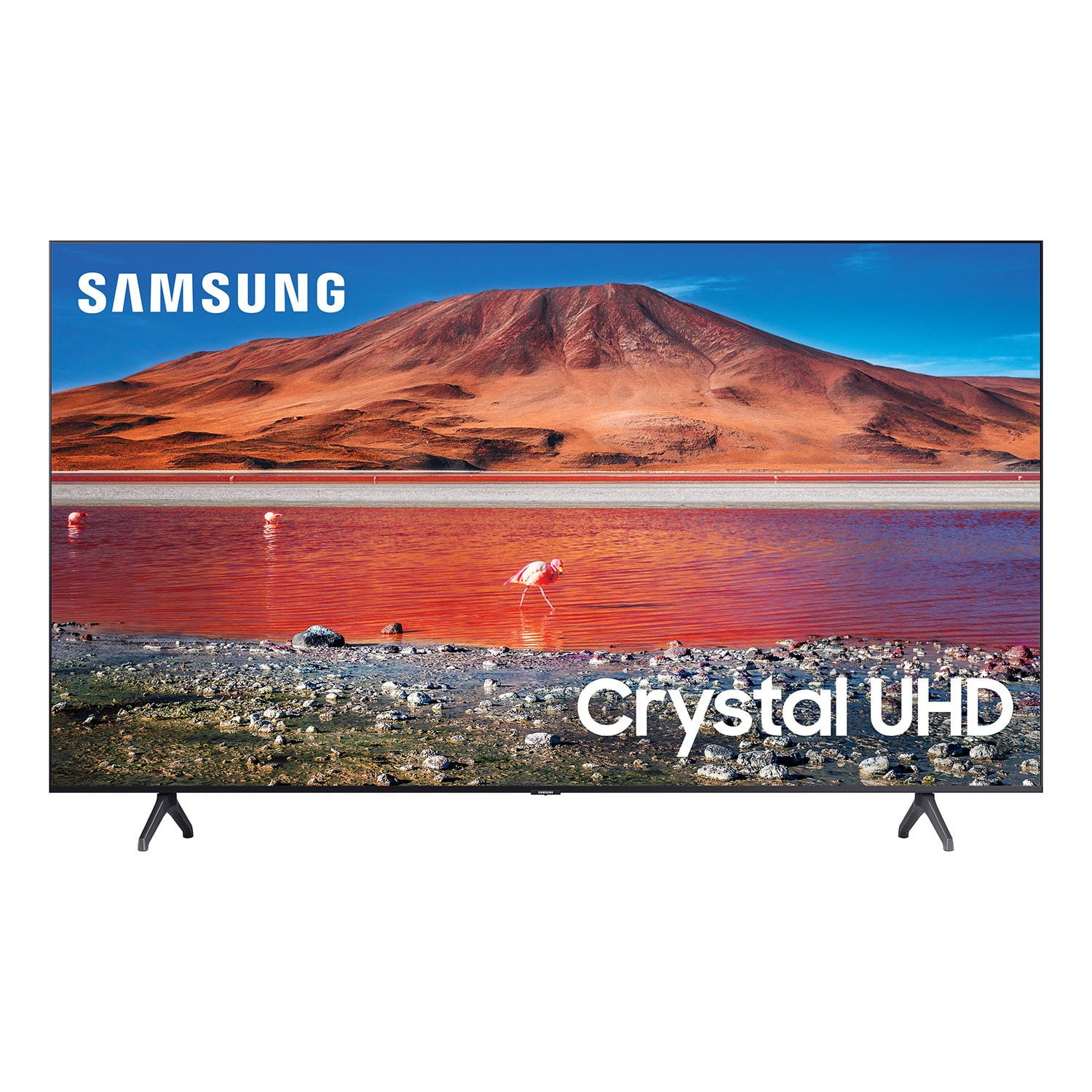
Customer reviews for Samsung 55" Class TU700D-Series Crystal Ultra HD 4K Smart TV UN55TU700DFXZA forGreat first TV, sleek &affordable
[This review was collected as part of a promotion.] For a first affordable mid range tv the uhd tvs are great you have two hdmi ports one being an E-Arc port for newer devices like AV amplifier,sound bar, or gaming console. It also features digital optical for your sound bar and various sound modes for the TV & soundbar.
Enjoying the quality at a fair price
[This review was collected as part of a promotion.] I haven't owned a TV since 2007. I decided to invest in one during the pandemic times because I watch shows and such on Netflix often and might as well enjoy it on a larger screen. Setting up the TV to connect with all my streaming apps was really easy. Navigating the TV's remote also super easy. Impressed and happy with my purchase.
The Gift
i seen the vibrant color and detail on this tv and i fell in love. so my kids surprised me for christmas. well, the picture is the only thing good about this tv. the tv continuously loses connection with the internet and starts to buffer and the message, “something occurred while streaming samsung plus tv”. the only way to correct the problem is to unplug the tv. i feel awful that my kids spent their hard earned money on this gift. i hate to tell them they wasted their money. at this point, i would be happy with my old tv, at least i would be able to actually watch the tv shows.
Monica22: Thank you for choosing the TU7000 Crystal UHD TV and taking the time to share your experience with the connection to your internet network. If you are experiencing issues with the WiFi connection, we suggest you try the following: 1. Use 5Ghz Wi-Fi if possible 2. Try wired LAN if available 3. Try repositioning the router so there are no obstacles between your TV and the router Please also be sure you are running the latest firmware. You can check to see what software version your TV is using and if there is an available update through the settings on your TV. Go to: Settings > Support > Software Update. You may want to enable automatic updates for conveniences. Go to Settings > Support > Software Update, then select Auto Update. I hope these tips help resolve your concerns. If there is anything we can do to further assist and improve your user experience, please do let us know by contacting Samsung Customer Support. Call us at 1-800-SAMSUNG (ask for TVs), available 8AM - 12AM EST, 7 days a week. For additional support resources, visit us on the Samsung website and click on the ‘Support’ link in the upper right corner of the homepage for: 1) Chat with Us/Product Help: To begin a chat or find solutions, choose ‘TVs & Home Theater’ and select your model & topic. 2) Manuals, Software, & Warranty Info - Samsung Advisor
Great tv for the price
this television has a very nice clear picture the only thing that needs to be changed from the factory settings is the screen brightness it is very dim out of the box to fix this go to eco settings and turn the screen brightness up then go to expert settings and try cool it will make a huge difference i would also recommend getting a soundbar.
Looks great but doesn't always work
this is my first 4k and first smart tv. picture quality is great but my apps crash constantly. i have good, fast internet connection so i know that's not the issue. i was using a roku stick on my old tv and it worked perfect. i figured having the apps installed on a brand new tv would be even better but boy was i wrong. every single day i have to reboot the tv and/or the apps to get them to work. and then sometimes they will stop working again in the middle of a show. it's very frustrating to never be able to turn on a brand new tv and have it work the way it's supposed to. i expected more from samsung.
EazyE: I am sorry that you are experiencing issues with your TU7000 4K Smart TV. Your TV has several self-diagnosis tools built in that can help solve problems with signal, network, picture, or sound. Go to Settings > Support> Device Care > Start Device Care You may also want to clear out your TV's temporary storage space by pressing and holding the Power button for 6 seconds until your TV turns off and back on again. Please also be sure you are running the latest firmware. You can check to see what software version your TV is using and if there is an available update through the settings on your TV. Go to: Settings > Support > Software Update. I hope this helps. Should you need further assistance, please contact Samsung Customer Support. 1-800-SAMSUNG (ask for TVs), available 8AM -12AM EST, 7 days a week Or visit us on the Samsung website and click on the ‘Support’ link in the upper right corner of the homepage for: 1) Contact Us Options (LiveChat, Remote Support, Facebook, Twitter) 2) Product Support 3) Manuals and Downloads 4) Warranty Info 5) Product Registration: Registering your product gives you access to easy warranty support, convenient opt-in to special promos and offers, faster troubleshooting and service, and quick notification of system updates 6) Samsung Community: A great resource for getting help from Samsung moderators and customers and more 7) …and more product, repair, order, and care options ~ Samsung Solutions
First time owning a Smart TV
I bought this TV over a month ago and generally speaking I am pleased with it. I have never owned a Smart TV and it took longer than I thought it would to set it up and getting it working with my Cable Provider. After I finally got it straight and was enjoying the TV, about two weeks later several strange things happened and the TV stopped working except for running old TV series. It kept bouncing back to some blank screen except for an icon in the upper left hand corner. Tried to unplug from the converter, that did not work. Tried unplugging the TV that did not work. Wanted to reset it back to Factory settings but that did not work. So I left the TV alone for two days and when I went back to it voilà it was back. Has not happened since but if it does I still do it know how to correct the issue.
Love it!
[This review was collected as part of a promotion.] Love my new Samsung Smart TV! Great picture & sound quality. It's also very easy to use & offers access to a ton of apps, including Samsung TV, which is a great bonus! I couldn't be happier with the purchase and have zero complaints. Definitely recommend.
Decent low-end 4K TV
[This review was collected as part of a promotion.] First off I use my TV for mostly gaming and multimedia streaming. 4K resolution at 60htz is solid for the most part but the HDR is barely noticeable if there are all. It's an LED the blacks are pretty bad at times during 4k movies and games also. The sound quality was surprisingly nice, crisp and can get pretty loud on the right setting. UI is pretty slow once you connect it to the internet so I highly advise against that and just use a gaming console or streaming device of choice. My last critique of this TV is how inconsistent it is with game mode for the PS5. Auto game mode just doesn't work. You have to switch back and fourth if you want to leave game mode while streaming anything, and you'd definitely want to do that with how bad the sound quality because when in game mode. This TV just gets the job done if you want to watch and play things at 4K with little latency. There are many annoyances that keep me from recommending this to other people.
Hi Blue90, We are sorry to hear about your internet and gaming issues with your TU7000 TV. Optimize performance and address your issue with gaming response time with the self-diagnostic tool. This service checks memory and frees up unused cached memory and closes background apps. Go to: Settings > Support > Device Care > Start Device Care If you are having issues with game mode, Game Mode is turned on automatically when the selected source is identified as a game console, like Xbox One X / S or Xbox Series X, but it must be turned on manually if the selected source is identified as PC. We recommend enabling Anynet+ as well as Input Signal Plus (HDMI UHD Color) on your TV. To enable Anynet+, go to: Settings > General > External Device Manager > Anynet+ (HDMI-CEC) = On. Next, connect your gaming console using an HDMI cable, and then turn it on - it will automatically connect to the TV. To enable Input Signal Plus, go to: Settings > General > External Device Manager > Input Signal Plus. From there, select the HDMI port that is connected to your gaming console. Also please be sure your TV is up to date with firmware version 2201.0, as this includes various performance updates. You can check this by going to: Settings > Support > Software Update. Should you ever have questions or need help, Samsung is here for you! Just give us a call at 1-800-SAMSUNG, 8 AM - 12 AM EST, 7 days a week. Our LiveChat agents are also available by clicking on the ‘Support’ link on our website. ~ Samsung Advisor
Very Good TV
[This review was collected as part of a promotion.] We purchased this TV recently and it has been working great for last 7 months. Absolutely no issue. Picture quality is great. Very easy to setup. I am able to Airplay from Macbook and iPhone. Also may apps are available on the store so no need to purchase any additional dongle or hardware to watch on this Smart TV. I am very happy that we made our choice and brought this home.
Super sharp and colorful image smart tv!
[This review was collected as part of a promotion.] This Crystal UHD 4k tv has such brightness and sharpness to its image. I'm amazed! Pictures don't do this tv justice. It has good speakers too. The sound is loud enough and very clear. Comes with control and batteries. I love that it's already a smart tv, so you don't need any extra equipment to be able to watch your favorite apps. It was also very easy to set up. Pretty much self explanatory. Just plugged it in, guided me through connecting to wifi and that was pretty much it. It took less than 5min. Overall, I'm super happy with my smart tv.