Skip to Main Content
Sams Club
Sams Club
Customer reviews for SAMSUNG 60" Class DU7200 Series 4K Smart TV for
SAMSUNG 60" Class DU7200 Series 4K Smart TV
4.2 out of 5 stars
stars1,054 ratings991 reviews
  1. 5 stars61% (641)
  2. 4 stars19% (203)
  3. 3 stars9% (95)
  4. 2 stars5% (55)
  5. 1 star6% (60)
Write a review

Customer photos

  • +155 images
Sort by |
Showing 671-680 of 991 reviews
May 3, 2025
Tim S
5 out of 5 stars review

Best picture and sound for the value.

Great picture and features for the price. All of my TVs in my house are Samsung now.. total of 9 now.

Review from Samsung US
Helpful?39HMRPI2C1I113892053645
Dec 27, 2024
MauriceSr
5 out of 5 stars review

Great TV Superb Picture Quality

[This review was collected as part of a promotion.] This is a great TV I use it for streaming from my computer and my xbox, the picture is wonderful.

Review from Samsung US
Helpful?39HMRPI2C1I113892053645
Mar 5, 2025
Zeke2p9
5 out of 5 stars review

Reliable Product.

Its a good TV. The only issue ive ever had was not being able to tuck HDMI cables in the slots behind the tv.

Review from Samsung US
Helpful?39HMRPI2C1I113892053645
Feb 6, 2025
Arianna
4 out of 5 stars review

Good

Good picture quality. Over all great quality, the only thing I will like for the TV to have higher volume and sound.

Review from Samsung US
Helpful?39HMRPI2C1I113892053645
Apr 21, 2025
None
1 out of 5 stars review

Picture

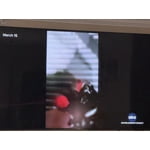
I’m not happy at all. After just 6 months there is a black, sometimes colorful stripe about 6” wide from top to bottom of the picture.

Review from Samsung US
Helpful?39HMRPI2C1I113892053645
reply from Samsung Advisor

Hi None, We are glad that you reached out to us regarding the display issues you are seeing on your Samsung DU7200 TV. I have a few recommendations that may resolve the line you are seeing on your screen. First, let's ensure you are running the latest Firmware. Go to Settings> Support> Software Update. Next, run a diagnostic test. Go to Home > Settings > Support > Device Care > Self Diagnosis > Picture Test. If there are no issues during the Picture Test, this means your TV is working fine. To identify and fix the issue, first, try replacing the cable of the external device that is showing lines. - If the lines still appear after replacing the cable, troubleshoot the external device. - If lines appear during the Picture Test, proceed to the next step. If lines appear during your test, the TV will need service. Please reach out to us so we can schedule a warranty appointment. 1-800-SAMSUNG, 8 AM - 12 AM EST, seven days a week. LiveChat with an agent, as well as manuals, software, and warranty info, can be found at the ‘Support’ link on our Samsung website. ~ Samsung Advisor

Jul 5, 2024
Harry399
4 out of 5 stars review

Great picture

[This review was collected as part of a promotion.] Great quality for picture and sounds. Vibrant and colorful .

Review from Samsung US
Helpful?39HMRPI2C1I113892053645
Apr 19, 2025
Super Happy
5 out of 5 stars review

Super Happy!

Totally Happy Samsung Tv owner! Great picture, great clarity and sound! You just can’t go wrong with this product! 😎👍

Review from Samsung US
Helpful?39HMRPI2C1I113892053645
Mar 29, 2024
PapanPeanut
5 out of 5 stars review

Product has fantastic colors

[This review was collected as part of a promotion.] I would recommend it to friends and family. It is a fantastic tv

Review from Samsung US
Helpful?39HMRPI2C1I113892053645
May 5, 2025
steve f
5 out of 5 stars review

Great Deal

Awesome deal although it isn't uhd it still has a great picture and sound.It fills up my wall perfectly.

Review from Samsung US
Helpful?39HMRPI2C1I113892053645
Mar 5, 2025
Big D
3 out of 5 stars review

Not very happy

Picture quality is not very clear. Remote control works intermittently. Difficult to operate. TV is going back.

Review from Samsung US
Helpful?39HMRPI2C1I113892053645
reply from Samsung Advisor

Hi Big D, Thank you for sharing your thoughts on your DU7200 TV. The TV will upscale any content sent to it as best as possible. The closer your content is to 4K, the better the image will look on the screen. Here are some tips to help improve picture clarity: 1) HDMI cables are recommended for optimal HD viewing. 2) If you have an analog cable box or satellite box, upgrade to a digital cable box or satellite box. 3) Change the output resolution of your devices, such as digital broadcast receivers, IPTV, and set-top boxes, to UHD or HD. 4) You can further adjust your sharpness, brightness, contrast, color, and more by going to Settings > All Settings> Picture > Expert Settings 5) Choose a Picture Mode by going to Settings > All Settings> Picture > Picture Mode and choose from Dynamic, Standard, Natural, Movie, or Filmmaker Mode. 6) For optimal motion image performance, you may want to adjust the picture clarity setting by going to Settings > All Settings> Picture > Expert Settings > Picture Clarity Settings. Regarding your remote, first, please remove the batteries from your remote, and then hold the Power button for eight seconds to reset the remote. Then, reinsert the batteries and try to use the remote again. Next, Check if the remote is sending an IR signal. Take either a digital camera or use the camera on your phone or tablet. Point the remote at the camera, and then press and hold the Power button on the remote. As you hold the button down, look at the camera's screen. If the remote is sending an IR signal, you will see a colored light coming from the remote control. If you do not see the IR light, replace the batteries with fresh ones and try again. If you still do not see the IR light, then replace the remote. Should you ever have questions or need help with TV features, specs, or operations, we are here to help. You can call us at 1-800-SAMSUNG, 8 AM - 12 AM EST, seven days a week. Our LiveChat agents are also available by clicking on the ‘Support’ link on our website. ~Samsung Advisor