Skip to Main Content
Sam's Club
Sam's Club
Customer reviews for SAMSUNG 55" Class Q60B-Series QLED 4K Smart TV - QN55Q60BDFXZA for
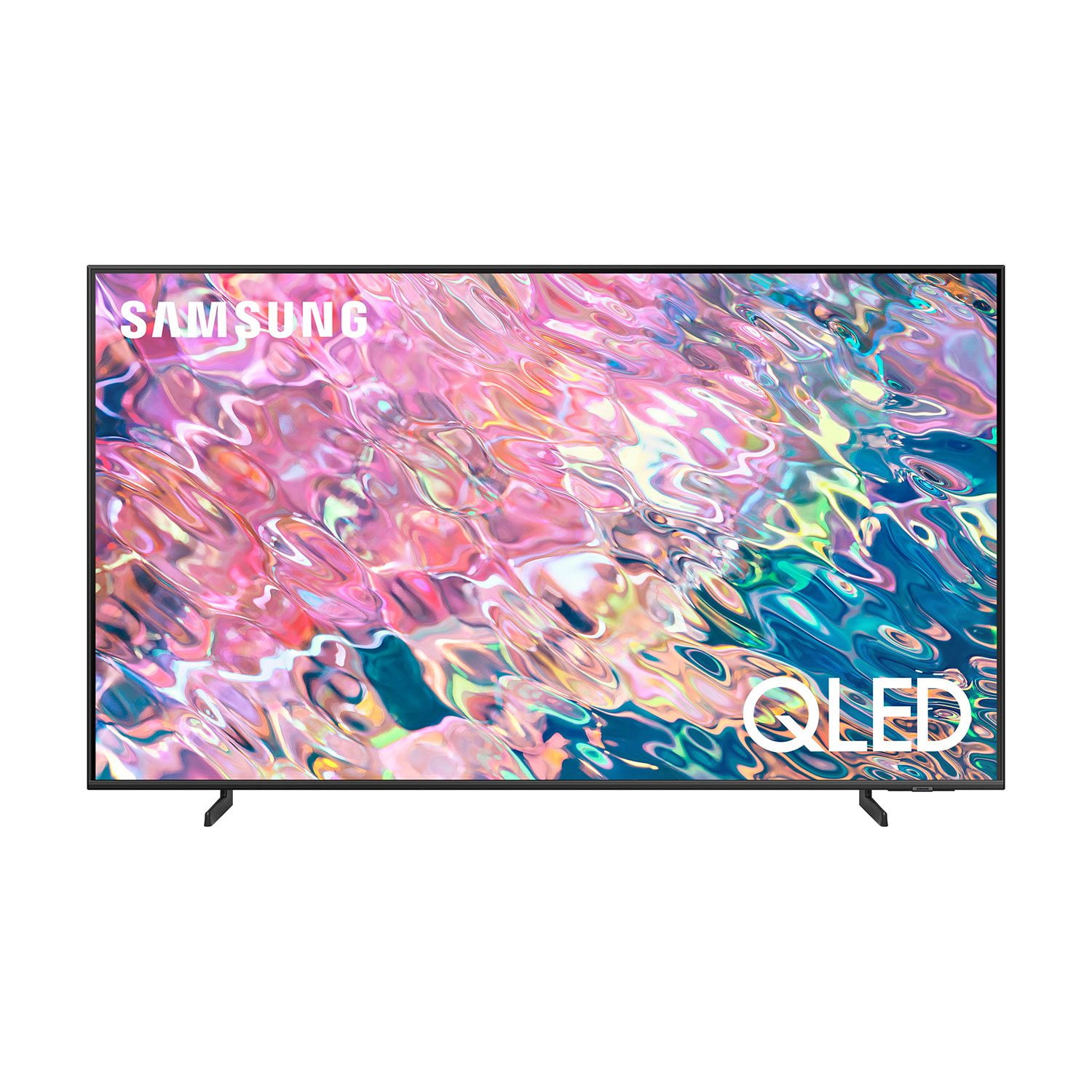
SAMSUNG 55" Class Q60B-Series QLED 4K Smart TV - QN55Q60BDFXZA
4.6 out of 5 stars
stars514 ratings498 reviews
  1. 5 stars77% (396)
  2. 4 stars16% (81)
  3. 3 stars3% (15)
  4. 2 stars1% (5)
  5. 1 star3% (17)
Sort by |
Showing 11-20 of 498 reviews
May 31, 2022
Princessounet
5 out of 5 stars review

This product has good features

[This review was collected as part of a promotion.] I use my Samsung TV for almost every thing I'm streaming, connect my camera to monitor my house great quality TV. I play my ps5 sometimes.

Review from Samsung US
Helpful?12GRF2340KB613891106699
Sep 1, 2022
Summer
1 out of 5 stars review

Arrived broken

The tv screen is full of white looking clouds when the screen is dark. I've tried to get a replacement but 1 1/2 month later I'm still stuck with a broken screen. Absolutely stay away from buying this tv.

Review from Samsung US
Helpful?12GRF2340KB613891106699
reply from Samsung Brand Ambassador

Summer, Thank you for choosing Samsung’s Q60B TV and for sharing details of your image quality. To optimize your picture quality, please be sure your TV is running the latest firmware update. You can check this by going to: Settings > Support > Software Update. If the picture you’re seeing is still not to your liking after updating firmware, there are several picture settings you may want to try adjusting. Go to Home > Menu > Settings > All Settings > Picture > Picture Mode ...and select the mode that best fits your usage: 1) Standard: Is the default mode suitable for general viewing environments. 2) Movie: Is suitable for watching TV or movies in a dark room. 3) Dynamic: Makes the picture brighter and clearer in bright viewing environments. 4) Filmmaker Mode: You can watch the source content (e.g., movie) as it is. If the image is defined as Filmmaker Mode, it will automatically switch to Filmmaker Mode while watching. You can also go to: Home > Menu > Settings > All Settings > Picture > Expert Settings to manually fine tune your image. For further assistance with settings adjustments, please contact Samsung Customer Support at 1-800-SAMSUNG, 8AM - 12AM EST, 7 days a week. Or visit us on the Samsung website and click on the ‘Support’ link for: • LiveChat • Manuals, Software, & Warranty Info ~ Samsung Specialist

Nov 10, 2024
Not A Fan of QLED
1 out of 5 stars review

DO NOT BUY

I've had this TV for just over two years and it no longer works. I've always had Samsung TVs and they've always lasted me 5+ years. I will never buy another Samsung TV considering I went with the better quality QLED and it's now useless. Compared to my UHD Samsung TV that I've had for almost 5 years and ZERO issues. First, this is a bedroom TV and isn't used as often as the UHD living room TV. But, there started to be faint lines towards the bottom of the screen on the QLED TV. They didn't obscure the picture but more of an annoyance. Then the lines kept increasing towards the middle of the screen. But, still, wasn't a huge issue for more since I could still see whatever I was watching. However, now, the TV cycles through the startup process over and over and over and over. Sometimes never turning on. Sometimes it takes 5 minutes to finally turn on. There will be a faint backlight and the sound of it turning on but then it turns off. Tries to turn itself on again. Nope. Repeat. Repeat. Repeat. The red indicator light on the TV just keeps flashing. I've tried troubleshooting. I've tried unplugging, holding the power button down, etc. Tried to see if there was an update however mysteriously, that option is now greyed out in settings. It has never been greyed out before and I've always had automatic updates on. There is ZERO way to fix this TV and of course it's outside of its warranty. I guess that's what I get for buying the more expensive model. Never again.

Review from Samsung US
Helpful?12GRF2340KB613891106699
Sep 16, 2023
Liz
5 out of 5 stars review

Verified Purchase

I like this TV works great!

Review from walmart.com
Helpful?12GRF2340KB613891106699
Dec 19, 2022
AH
5 out of 5 stars review

Verified Purchase

Great smart tv

Great picture quality, easy to use

Helpful?12GRF2340KB613891106699
Sep 25, 2022
Sue
5 out of 5 stars review

Verified Purchase

Great!

Great tv, easy to set up, beautiful rich colors, pure sound.

Helpful?12GRF2340KB613891106699
Dec 15, 2022
albow
5 out of 5 stars review

Verified Purchase

Thumbs Up!

Love the TV. but the owners manual is awful

Helpful?12GRF2340KB613891106699
Oct 2, 2022
Abe
5 out of 5 stars review

Verified Purchase

Best Tv Ever

Good Tv and Very clear picture

Helpful?12GRF2340KB613891106699
Oct 11, 2022
John Daniel
5 out of 5 stars review

Verified Purchase

Great buy

Very good TV easy set up … great picture !

Helpful?12GRF2340KB613891106699
Oct 25, 2022
FrustratedChris
2 out of 5 stars review

Nice big screen

[This review was collected as part of a promotion.] This tv has a nice big crisp picture but it occasionally puts up a message that there is no internet connection. I have fiber optic internet with 500/300 speed and I have never had an issue with my other Samsung 65 inch tv. Sometimes the volume will just take off up to maximum and when I try to lower it the different apps that came with it will rapidly scroll back and forth. It is like it is being remotely being controlled and played with. It gets quite frustrating when trying to watch a movie and it starts acting up. I am not too happy with it at all.

Review from Samsung US
Helpful?12GRF2340KB613891106699
reply from Samsung Brand Ambassador

FrustratedChris, It's unfortunate to hear of the issues you're having with your Q60B TV's Solar Cell Remote. You may first want to reset your remote by pressing and holding Return and Enter (the center of the navigation pad) for more than 10 seconds. After performing this reset, you will need to pair the remote to the TV again. To pair, stand within 1 foot of your TV, and press the Return and Play/Pause buttons simultaneously for at least 5 seconds or until a message appears on your TV indicating that the remote is now connected. If the issue persists after resetting and re-pairing: 1. Unplug the TV for 30 seconds, and plug it back in. 2. Try moving closer to the TV and re-pairing. 3. Check to see if your remote is charged. You can check remaining battery by going to: Settings > All Settings > General & Privacy > Power and Energy Saving > Available Remote Battery. 4. Check for available firmware updates on your TV. Go to: Home > Menu > Settings > Support > Software Update > Update Now If you've tried the above steps and you're still experiencing issues, please contact Samsung Support at 1-800-SAMSUNG, 8AM - 12AM EST, 7 days a week. Or visit us on the Samsung website and click on the ‘Support’ link for: • LiveChat • Manuals, Software, & Warranty Info ~ Samsung Specialist