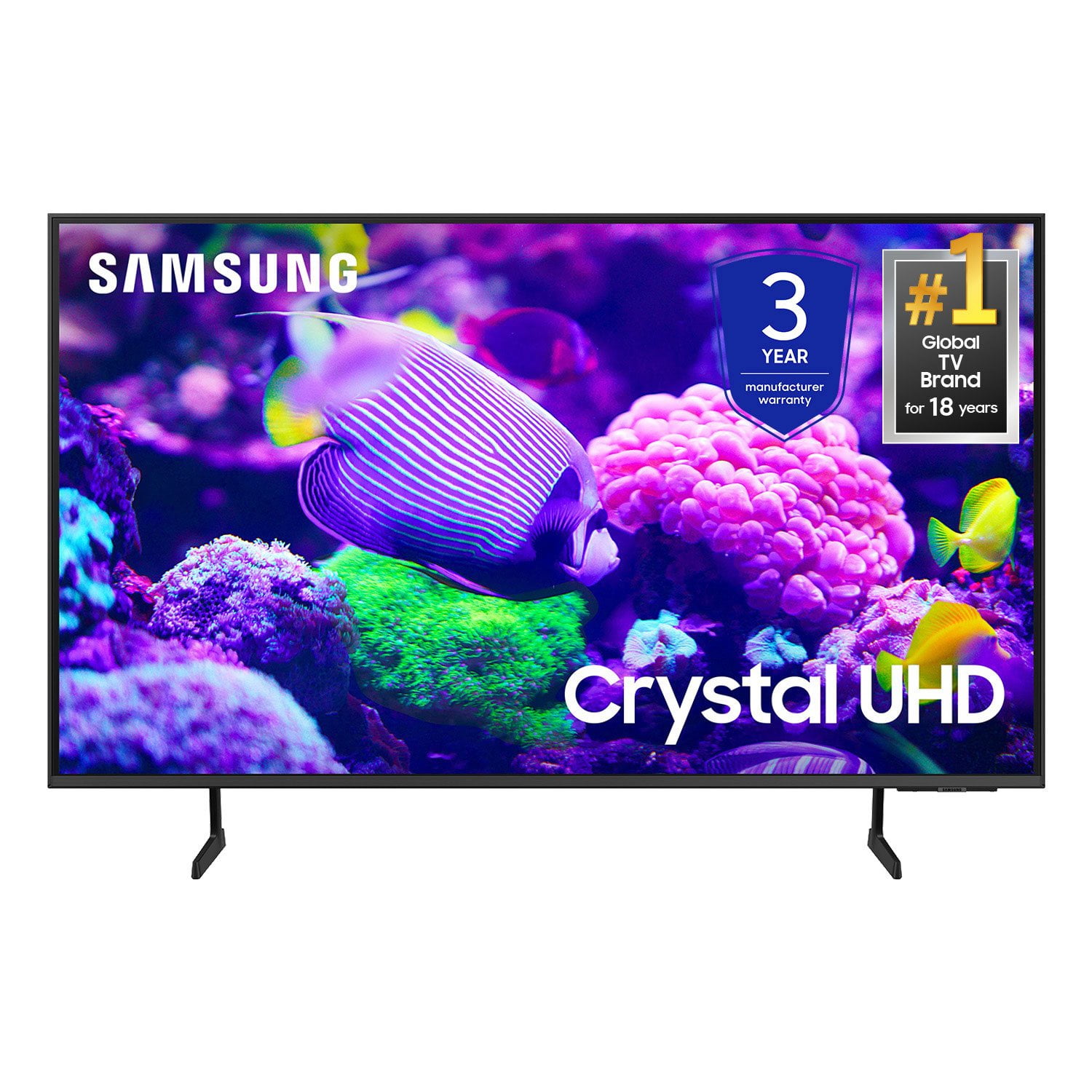
Customer reviews for SAMSUNG 50" Class DU7200 Series 4K Smart TV forMember photos


+160 images
Just OK
Like my old Samsung much better. Speaker in this new one is really bad. Have to turn the volume up to 80-90 on some programs to even hear it.
Hi Cjb74, Thank you for purchasing Samsung’s DU7200 TV and for sharing your feedback regarding low volume. To start, we recommend making sure your TV is running the latest firmware, as updates can include improvements to sound performance: Home > left directional key > Settings > Support > Software Update If volume levels still seem too low, you can improve sound performance by adjusting a few key settings: Sound Mode: Navigate to: Settings > All Settings > Sound > Sound Mode Auto Volume: This feature helps maintain consistent volume levels across content and input sources. Turn it on under: Settings > All Settings > Sound > Expert Settings > Auto Volume = On You can also explore Expert Settings to fine-tune sound output with adjustments for Balance, Equalizer, and more. If you’re considering enhancing your setup, Samsung’s Q- and S-Series Soundbars (like the HW-xxx) feature Q-Symphony, which syncs your TV and soundbar speakers for a fuller, more immersive sound experience. For personalized support with these settings or selecting a soundbar to complement your setup, contact Samsung Support at 1-800-SAMSUNG (8AM – 12AM EST, 7 days a week) or use LiveChat via the ‘Support’ link on our website. ~ Samsung Advisor
Quality over quantity
I have had about 15 Samsung TVs in my life. Not that I have had to replace them but just need more of them,
poor quality
this tv is worthless. can not get the pic to get lighter. the answer from samsung is get a more expensive one.
Hi there, It’s unfortunate to hear you’re not fully satisfied with the brightness of your DU7200 TV’s picture. Please know that we are here to help you. First, let’s ensure you are running the latest Firmware Update. Go to Settings> Support> Software Update. Next, If the colors on your TV are correct but just a little too dark or bright, you can try adjusting Picture Modes, Contrast, Brightness, or Sharpness settings. For darker scenes, I recommend Dynamic Picture Mode, which makes pictures brighter and clearer in bright viewing environments. Go to Settings > All Settings> Picture > Picture Mode > Dynamic. Or you can manually adjust the Brightness by pressing the HOME button on your remote, then navigating to Settings > All Settings> Picture > Expert Settings. You may also want to disable Power Saving Mode, which automatically adjusts the brightness to reduce the TV’s power consumption. Go to Settings > All Settings> General > Eco Solution> Power Saving Mode. I hope this helps to improve your picture. Should you need further assistance, please contact us at 1-800-SAMSUNG, 8 AM - 12 AM EST, seven days a week. Or visit us on the Samsung website and click on the ‘Support’ link for: 1) LiveChat 2) Manuals, Software, & Warranty Info ~ Samsung Advisor
Amazing performance. Like a movie theater
Son-in-law purchased smart tv for me and it is amazing. Clear picture. Lifelike images. Perfect sound
no title
The controller, and the ability to get certain stations is totally frustrating. You need a new controller with more functions
Hi, So that we can better troubleshoot this issue and provide steps towards a solution, please contact Samsung Support at 1-800-SAMSUNG, 8AM - 12AM EST, 7 days a week. Or visit us on the Samsung website and click on the ‘Support’ link for: • LiveChat • Manuals, Software, & Warranty Info ~ Samsung Advisor
Nice TV
Very nice little TV. I found the compatibility with my existing remote control makes the TV easy to control.
Great features but I expected more
I like the TV and everything, but it does not have the feature where I can ask a push-up button and ask for what I want to play Something like Alexa
Samsung TV-Owned before, not again
great picture but after 3 months of use, sound is terrible. Crackles and gets louder at times. Will not buy again
Hi Mich, Thank you for sharing your experience with us. We recommend you try a Sound Test under Support > Self Diagnosis > Start Sound Test. Another way to check the source volume is to test an internal streaming source like Netflix or YouTube to compare. If you are hearing a loud static noise, it could be caused by electrical feedback. I recommend the following: 1. Arranging the cables and making sure the TV has good ventilation will keep it quiet. 2. Check the cables. Make sure all cables are connected firmly to the proper, color-coded inputs on the TV and on the external devices. 3. Replace the audio connection cable. Replace the audio connection cable, even if it is an HDMI or RF coaxial cable. Then test again to see if the issue still occurs. 4. Try connecting a different external device to the same input on the TV. Connect a different device to the same input on the TV using the same connection cables. For example, if a cable box is connected using the component connections, try connecting a DVD player to the same input with the same cables. If there is no buzzing, crackling, or humming with the second external device connected, the original device (the cable box in this example) is the source of the noise. If you need more help, Samsung is here for you! Please call us at 1-800-SAMSUNG, 8 AM - 12 AM EST, seven days a week. Our LiveChat agents are also available by clicking on the ‘Support’ link on our website. ~ Samsung Advisor
GREAT PRODUCT
[This review was collected as part of a promotion.] Great TV with great price. Pictures are clear and Sound are great.
Won’t work
Tv won’t turn on after 2 weeks of use. The screen won’t work and it’s glitching and making weird noises and is now black
Hi Samsungno, Thank you for reaching out to us regarding the issues you are having with your TV. If your TV has a black screen even when it's on, it's quite possible it could actually be your external device and not your TV. Please try these troubleshooting steps for your blank screen issue: 1. Press the Home button on the remote. If the menu appears, the TV is powered on but is either not on the correct source or not receiving a signal. If the menu does not appear, the TV may be having power issues. Check the red standby light, a little red light at the edge of the TV that you aim the remote at. In normal use, the red standby light is on when the TV is off (indicating the TV is on standby), and the red standby light is off when the TV is in use (or doesn't have power). 2. Confirm that the TV is set to the same source as the external device. For instance, if your cable box is connected to HDMI 1, set the TV source to HDMI 1. If the TV is set to the correct source, but there is still no image, unplug and reconnect the AV connections one cable at a time from both ends of each cable. If there's any damage to the cable, it will need to be replaced. After reconnecting the external device, please turn it off and back on. 3. Test the HDMI cable. The test is designed for HDMI cords less than 6 feet long and may not give accurate results on longer cords. To perform the test, make sure the TV's source is still on the HDMI setting for the cable you want to test, and then navigate to Settings > Support > Self Diagnosis > Signal Information > HDMI Cable Test > Start Test. If the test says the cable is bad, replace the cable. Service is not required. 4. Test different external devices. The final thing to rule out is the external device you're using. Try connecting a different device or using a different source port. If the TV can display a picture in any other setup, then you've ruled the TV out as the cause of the issue. Keep trying various setups until you identify the device or cable that is not working and troubleshoot or replace it. The TV will need service if the issue persists after these steps. Please contact us so that we can better investigate your issue and assist you with a solution or replacement. If you need more help, Samsung is here for you! Please call us at 1-800-SAMSUNG, 8 AM - 12 AM EST, seven days a week. Our LiveChat agents are also available by clicking on the ‘Support’ link on our website. ~ Samsung Advisor