
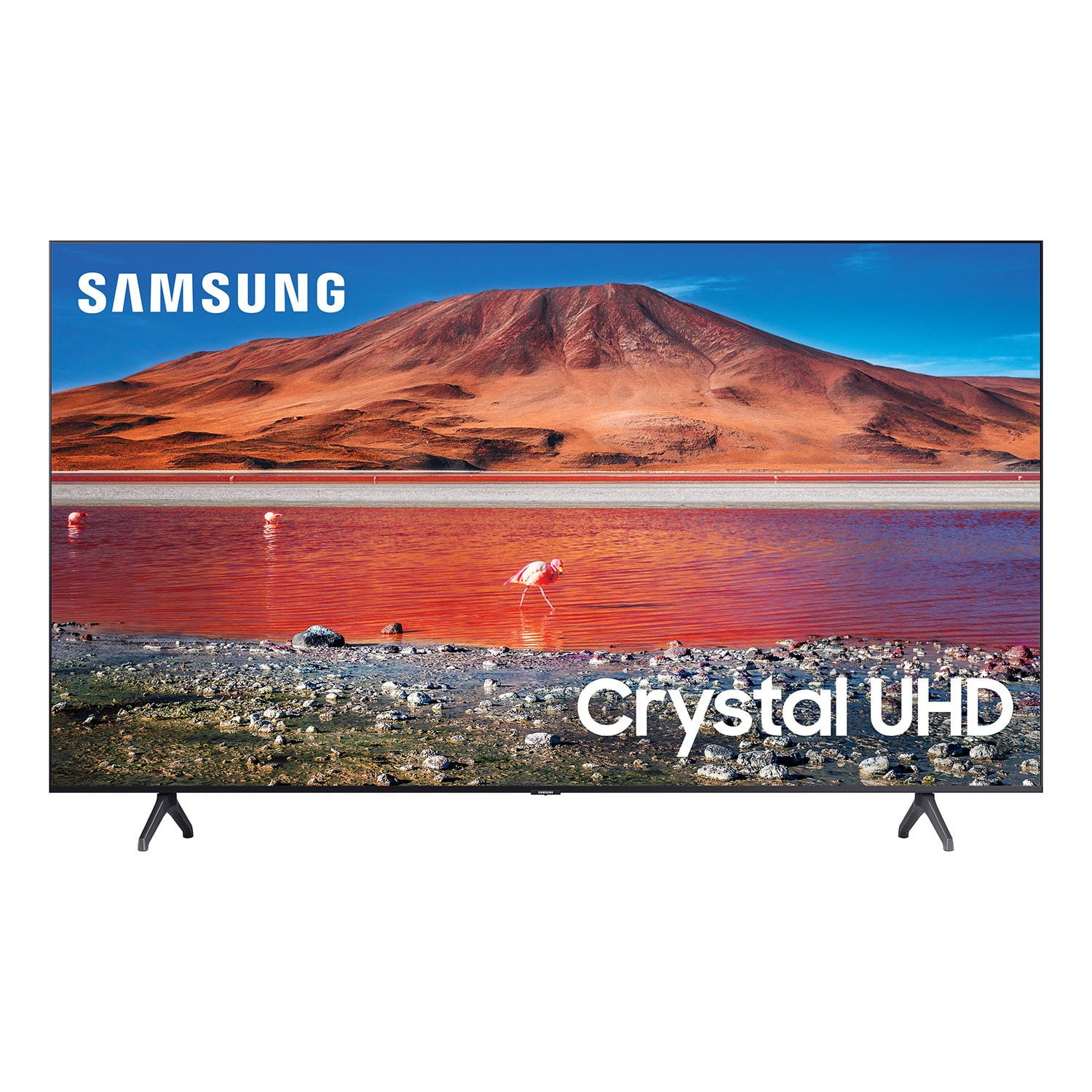
 Customer reviews for SAMSUNG 75" Class TU700D-Series Crystal Ultra HD 4K Smart TV UN75TU700DFXZA for
Member photos


 +1523 images
Great product!
[This review was collected as part of a promotion.] I am in love with this product. The video quality is amazing, and looks even better in game mode! I love the the sensory lighting adjustments. Makes it so you get perfect picture. The user interface is easy to navigate. Only thing that is lacking for me is the sound when watching tv comes through low so volume has to be at a higher setting, but a sound bar would be an easy fix. In game mode sound quality come through louder and allows for the player to get a decent gaming experience. Would definitely recommend this product. Great value for your money. Very easy setup.
Fine TV, Lousy Remote
tv has met expectation aside form the occasional network communication issue a poorly designed remote. every one has different preferences but it feels like this remote was designed to put the least used buttons at your fingertips and the most used out of the way. often need to turn on the light to use. antithesis of intuitive...
Ross: Thank you for your feedback regarding the TU7000 Standard remote. We appreciate you sharing your experience with using it and will share your thoughts with our design teams. A firmware update is available which may help improve your network connection. Using your TV's remote, navigate to Settings, and select Support. Select Software Update, and then select Update Now. New updates will be downloaded and installed on your TV. Updates usually take a few minutes; please do not turn off the TV until the update is complete. When the update is finished, the TV will restart automatically. You may also want to enable automatic updates for future convenience. Select Settings > Support > Software Update, then select Auto Update. Should your problem persist, please contact Samsung Customer Support: 1-800-SAMSUNG (ask for TVs), available 8AM -12AM EST, 7 days a week Or visit us on the Samsung website and click on the ‘Support’ link in the upper right corner of the homepage for: 1) Contact Us Options (LiveChat, Remote Support, Facebook, Twitter) 2) Product Support 3) Manuals and Downloads 4) Warranty Info 5) Product Registration: Registering your product gives you access to easy warranty support, convenient opt-in to special promos and offers, faster troubleshooting and service, and quick notification of system updates 6) Samsung Community: A great resource for getting help from Samsung moderators and customers and more 7) …and more product, repair, order, and care options ~ Samsung Solutions
4k, 55", Samsung at a good price!
replacing my 10 year old samsung 55" led 1080p tv that was in my bedroom. that tv rocked, nothing wrong with it, passing it down to the kids so they can game. i wanted to take advantage of the 4k content. the bad: the remote control. seriously! it's 2020 and you kept the same remote from 15 years ago! no voice control, same old school remote! i'd pay an extra $30 on this tv for a better remote. yes, you have an app, but it wants me to have my location to always on, i don't think so!
HATE HATE HATE the teeny poorly designed remote!!!
absolutely hate the remote control but i seriously love the tv but the remote leaves a lot to be desired. it either needs to be 3” longer or the main direction arrows need to be more mid location. it's extremely difficult to hang onto!!! in fact, i can honestly say i really really hate it!! hate hate hate hate hate hate the remote control!!!!!
Good upgrade from previous model.
[This review was collected as part of a promotion.] I had to get a new TV because my previous Samsung no longer supported IMDb TV. This Crystal TU7000 60" model was very easy to set up, has terrific resolution, and supports IMDb! The remote control has some convenient quick-access buttons to go directly to Amazon and Netflix. However, the fast-forward, pause, etc., buttons are inconveniently located near the bottom of the control. I would like to have seen this TV come with a swivel base, instead of two fixed feet, but I guess the size prevents that. All-in-all, I am very happy with this TV!
Fantastic TV, terrible remote
i've had this smart tv for over a year now and i love the features and ease of setup. however, the remote control is a disappointing inferior version of the one that came with my last samsung tv, a 50" mu6300. the lack of a voice search feature is sorely missing and would enhance the experience of this tv, even if it had to cost a bit more as this unit is an entry level and a great value for the price. another irritating feature of the remote is the pre-installed netflix and prime buttons which get pressed unintentionally all the time. come on mr. samsung, give us the better remote and i'll give you two more stars. thanks for all
Hi Norm F, We appreciate your feedback on the TU7000 TV remote; please know it will be shared with our internal teams. If there’s anything we can ever help with, please call us at 1-800-SAMSUNG, 8 AM - 12 AM EST, seven days a week. Or visit us on the Samsung website and click on the ‘Support’ link for: 1) LiveChat 2) Manuals, Software, & Warranty Info ~ Samsung Advisor
Slim profile with great picture
[This review was collected as part of a promotion.] I bought this mostly for the looks and the fact it fit well in the space I have for it. The built in speakers are OK although to do movie content justice you do need a sound bar. I was surprised I needed a Samsung account (along with all the inherent privacy sales) in order to load apps on it. It was a cumbersome and disconcerting way to install your TV. Overall the video quality is good and sound quality OK although the built in speakers have very little bass. The remote is bluetooth which is great and can be used from a decent distance. The TV has a cell phone app but it only controls the audio, not the channel guide, etc. I'm not sure why they didn't include that function, it would be nice to control the TV fully. Also it is unfortunate you cannot use the optical audio out at the same time as the TV speakers. If I could use both then I could use other speakers and not need a soundbar, but due to their software it isn't possible. It seems inevitable I will need one, or maybe even win one.
Picture skips / difficult remote
we have had this tv for about 2 weeks. the picture quality looks good generally. however, we have noticed an issue where the picture seems to skip frequently while watching certain programs. we never had this issue with our previous tv. the remote control is also very difficult to master and is not intuitive, especially when switching between input sources or apps. even though it's a smart tv and has apps, we may have to go out and get a roku streaming stick in order to have a more user friendly remote control.
Steve K: Thank you for purchasing the TU7000 TV and for your review. Your thoughts regarding the remote design is important to us and will be shared with our internal teams. If your TV is flickering or dimming sporadically, you may need to disable some of the energy efficiency features. Disable Ambient Light Detection, Power Saving Mode, Motion Lighting, or Contrast Enhancer. Settings > General> Eco Solution> Ambient Light Detection Settings > General> Eco Solution> Power Saving Mode Settings > General> Eco Solution> Motion Lighting Settings > Picture > Expert Settings > Contrast Enhancer Run Picture Test. When the tested image quality is normal, check the signal of the connected device. Settings > Support > Device Care > Self Diagnosis > Picture Test I hope this helps. If your issue persists, please reach out to Samsung Customer Support, and a representative will gladly assist you. 1-800-SAMSUNG (8AM -12AM EST, 7 days a week) Or visit us on the Samsung website and click on the SUPPORT link in the upper right corner for: 1) Contact Us Options (LiveChat, Remote Support, Facebook, Twitter) 2) Product Support 3) Manuals and Downloads 4) Warranty Info 5) Product Registration: Registering your product gives you access to easy warranty support, convenient opt-in to special promos and offers, faster troubleshooting and service, and quick notification of system updates 6) Samsung Community: A great resource for getting help from Samsung moderators and customers and more 7) …and more product, repair, order, and care options Again, thank you for taking the time to share your thoughts on this product. Your feedback helps us continuously deliver best-in-class products and service. ~ Samsung Solutions
Does the job
[This review was collected as part of a promotion.] This replaced a working LG tv, although it is much bigger. I find the color is a bit off. The Power and Energy Saving is a nice feature, but it does not get to a low enough brightness. I find it is still too bright especially for night viewing. The biggest issue I have is the remote control. I always have to turn on a lamp to push the correct buttons because it has no light. How do you spend that much money for a mediocre remote control? I have hit the wrong button many times, partly because the buttons at the bottom of the remote are too small. The special buttons for Netflix and Prime and Samsung TV are useless and take up too much room on the remote.
btsworldwide: Thank you for purchasing the TU7000 TV and for your review. I am sorry to hear that you are not happy with the brightness levels of your picture. If the colors on your TV are correct but just a little too dark or bright you can try the different Picture Modes or manually adjust the Brightness settings to your liking. Dynamic Picture Mode will make pictures brighter and clearer in bright viewing environments. Go to: Settings > Picture > Picture Mode > Dynamic Or manually adjust the Brightness and other settings to your liking. Press the HOME button on your remote, then navigate to: Settings > Picture > Expert Settings You may also want to disable Power Saving Mode which automatically adjusts the brightness to reduce the TV’s power consumption. Go to Settings> General> Eco Solution> Power Saving Mode. Ambient Light Detection will also automatically adjust the brightness level of the TV, according to the ambient light level, to reduce power consumption. If Ambient Light Detection has adjusted the screen brightness to a too bright or dark level, you can select Minimum Brightness to manually adjust the minimum screen brightness. Go to Settings> General> Eco Solution> Ambient Light Detection Please also be sure you are running the latest firmware. You can check to see what software version your TV is using and if there is an available update through the settings on your TV. Go to: Settings>Support>Software Update. You may want to enable automatic updates for convenience. Select Settings > Support > Software Update, then select Auto Update. I hope this helps to improve your picture. Should you need further assistance, please contact Samsung Customer Support. Call us at 1-800-SAMSUNG (ask for TVs), available 8AM - 12AM EST, 7 days a week. For additional support resources, visit us on the Samsung website and click on the ‘Support’ link in the upper right corner of the homepage for: 1) Chat with Us/Product Help: To begin a chat or find solutions, choose ‘TVs & Home Theater’ and select your model & topic. 2) Manuals, Software, & Warranty Info Samsung is committed to providing the best possible product experience, quality, and value, and we are always here to help with any of your questions or concerns. ~ Samsung Advisor
Tv is ok, remote is a challenge
[This review was collected as part of a promotion.] the overall tv for the price is tine. sound isn't great but not bad. the challenges are the remote control is a problem. and it does not integrate well with my cable (fios) so when you hit the guide, no information is given. and if you have any glare, forget it. you can not see anything. and it wil not allow you to change the size of your picture (no zoom etc). what you see is it and it will not change. again for the proce it is fine, but far from ideal.
Clay: I’m sorry for the difficulties with your TV remote. We understand your frustrations, and are here to help. Please know, With Anynet+, you can control external devices that are connected to your TV with HDMI using your TV remote. To turn on Anynet+ (HDMI-CEC), go to: Settings > General > External Device Manager > Anynet+ (HDMI-CEC). If your cable box does not support HDMI-CEC, you will not be able to use Anynet+. Additionally, you can use the Universal Remote feature to program your connected devices using your TV remote by following these set-up steps: 1) Connect an external device to the HDMI port of the TV, and then power on the external device. Your TV will automatically recognize the device when connected through HDMI and will switch the output. If it doesn't automatically detect it, then keep following the steps to set up Universal Remote. 2) Press the Home button on your TV remote to access the Home Screen. Using the directional pad on the remote, navigate to Source. When the selector is placed over Source, the Source menu will appear. Press UP on the directional pad to access Universal Remote. 3) Select Universal Remote on the Source screen. Next, select Start and make sure the device you want to connect is turned on. When your desired device displays, select it. Follow the on-screen instructions to complete the setup and register the device. The instructions may vary, depending on the device type selected. 4) Your TV and the remote will memorize the external device and its connection port (HDMI 1, HDMI 2, etc.) to make controlling everything even easier. I hope this tip helps. If there is anything we can do to further assist and improve your user experience, please do let us know by contacting Samsung Customer Support. Call us at 1-800-SAMSUNG (ask for TVs), available 8AM - 12AM EST, 7 days a week. For additional support resources, visit us on the Samsung website and click on the ‘Support’ link in the upper right corner of the homepage for: 1) Chat with Us/Product Help: To begin a chat or find solutions, choose ‘TVs & Home Theater’ and select your model & topic. 2) Manuals, Software, & Warranty Info Thank you for choosing Samsung, we hope to hear from you. - Samsung Advisor