Streaming Interface is weird and unpredictable
i cut the cable when i bought this tv. no direct cable connection for me to compare, but i have good idea of what it would have been and i also have an lg tv from when i subscribed to cable.
all that said, the samsung interface with streaming is unpredictable, at best. i suspect it's trying to inject unwanted channels at me that samsung gets a fee for supporting. even the main categories: library, home, and live get jumbled with no relation to the programs or channels i frequently watch. the algorithm doesn't learn from my viewing habits and prioritize familiar channels but keeps things in the mix i never have watched.
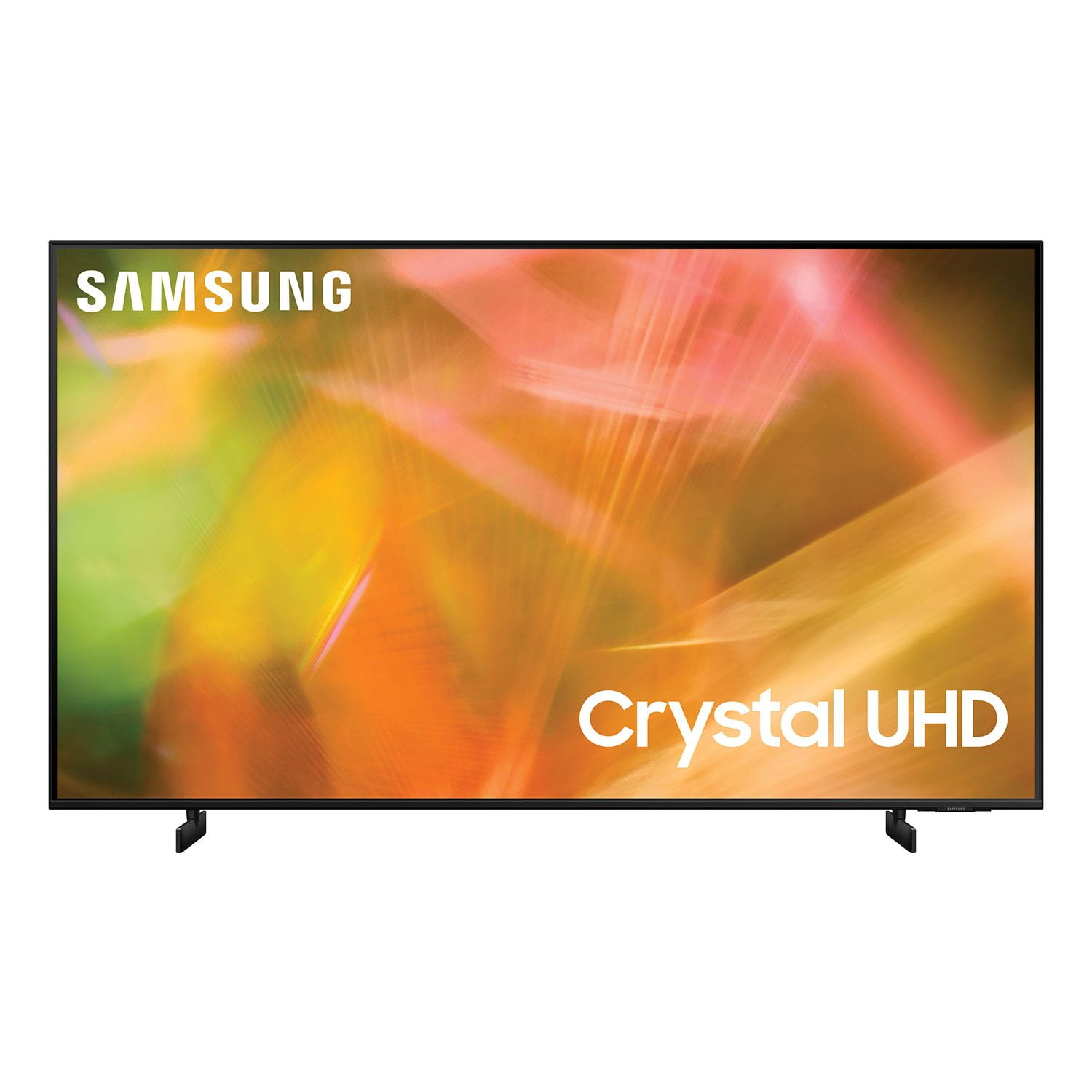
mechanically, or should i say electronically, the tv is great. great picture and decent sound from its own speakers. very thin depth makes it great to mount on the wall.
reply from Samsung Brand Ambassador
Hi RickNSB,
Thank you for your review of the Samsung AU8000 TV and feedback on the Samsung Interface. We are here to help and want you to know that if you do not enjoy Samsung TV Plus, you can easily disable it.
Samsung TV Plus can be disabled, which removes the channels from your default guide. Should you want to disable TV plus, follow the steps below:
1) Navigate to the Samsung TV Plus app and press and hold the enter or select button on the remote. This will bring up two options. ‘Move’ and ‘Remove.’
2) Navigate to ‘Remove’ and select. This option brings up the ability to remove the app icon or disable the service.
3) Navigate to ‘Disable’ and select. This will remove the service from the launcher bar and the channels from the TV Guide.
Alternatively, you can leave TV Plus enabled and utilize the Autorun Last App feature to automatically start the last app you used once the TV is turned on. To enable this feature, follow the steps below:
1) Navigate to Settings > General > Smart Features > Autorun Smart Hub
2) Enable the Autorun Smart Hub feature
3) Navigate to Settings > General > Smart Features > Autorun Last App
4) Enable the Autorun Last App feature
You can also designate frequently watched channels as favorite channels. Favorite channels are highlighted in the Edit Channels and Channel List screens with the heart symbol. You can create up to five favorites lists so that your family members can create their own personal favorites lists.
Go to Home > Live TV > Channel List > Edit Channels
1) Press the left directional button on the remote control to select the desired Favorites list.
2) Press the right directional button to select Add Channels.
3) Select the desired channel in the list on the screen.
4) Press Add Channels to add the selected channel to the Favorites list.
Select Favorites 1 - Favorites 5 on the Edit Channels screen and the following functions are available (Add Channels, Remove, Change Order, & Rename Favorites)
I hope this tip helps. If there is anything we can do to further assist and improve your user experience, please do let us know by contacting Samsung Customer Support.
Just call us at 1-800-SAMSUNG, 8 AM - 12 AM EST, 7 days a week. Or visit us on the Samsung website and click on the ‘Support’ link for:
1) LiveChat with an agent
2) Manuals, Software, & Warranty Info
~ Samsung Advisor

 Customer reviews for SAMSUNG 85" Class AU800D-Series Crystal Ultra HD 4K Smart TV - UN85AU800DFXZA for