Skip to Main Content
Sam's Club
Sam's Club
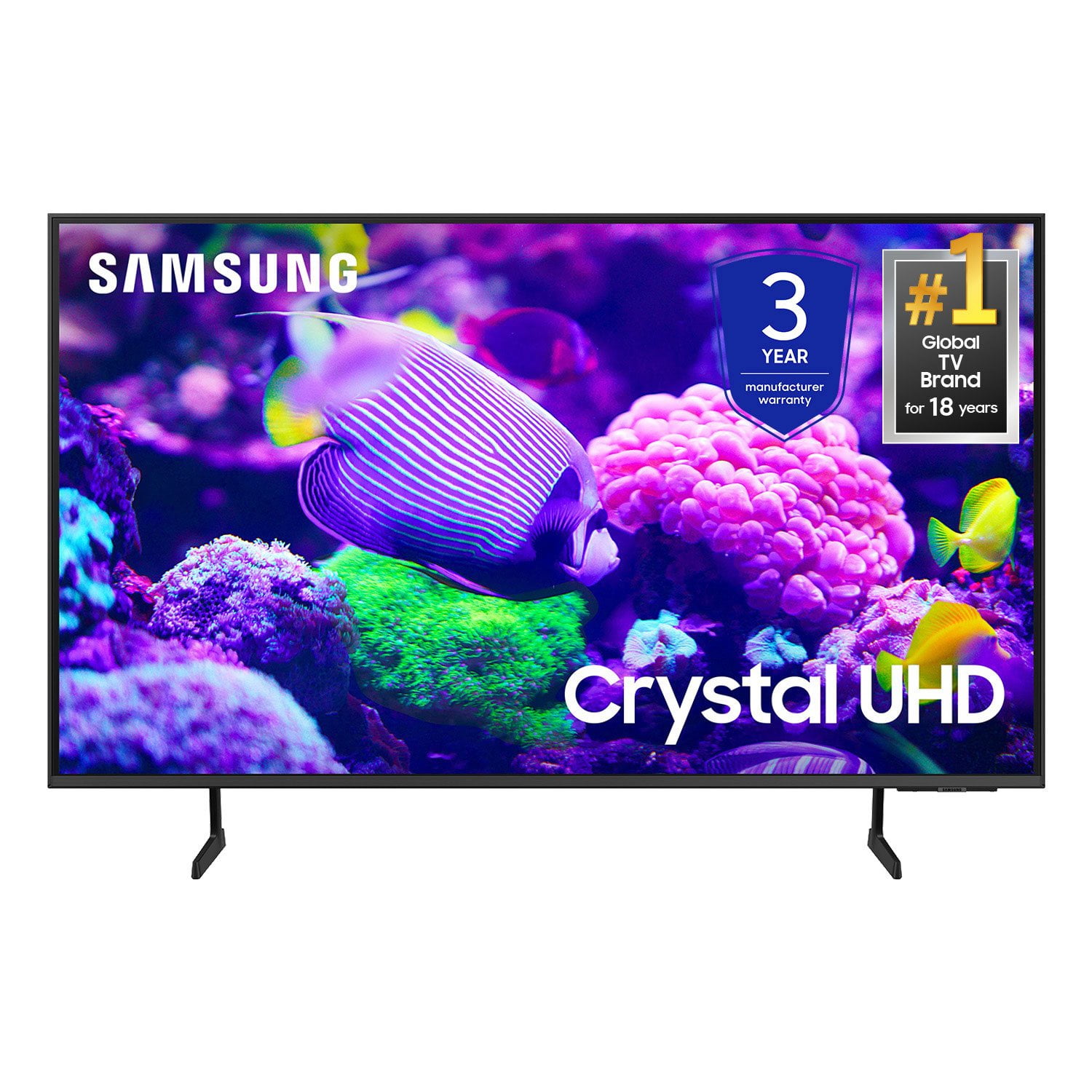
Customer reviews for SAMSUNG 65" Class DU7200 Series 4K Smart TV for
SAMSUNG 65" Class DU7200 Series 4K Smart TV
4.3 out of 5 stars
stars1,279 ratings1,091 reviews
  1. 5 stars64% (819)
  2. 4 stars18% (231)
  3. 3 stars8% (102)
  4. 2 stars5% (61)
  5. 1 star5% (66)

Member photos

  • +163 images
Sort by |
Showing 251-260 of 1,091 reviews
Mar 7, 2025
Ducati
1 out of 5 stars review

Very disappointed !! We have always bought Samsun

We bought this item 1/28/25 (received it 1/31/25) . As of today 3/6/25 it stopped working this afternoon!! We unplugged - waited awhile - then plugged in again, still did not work ! The screen was dimly lit (very dark blue, hard to notice in the daylight} We then notice the red led light on the bottom right side tv was not on, this is why the remote control does not work. We Tried pressing the button by the led with no results. disappointed

Review from Samsung US
Helpful?3BX78DZ2P7VO13854766773
reply from Samsung Advisor

Hi Ducati, Please give us a chance to make this right by calling us at 1-800-SAMSUNG, 8 AM - 12 AM EST, seven days a week. Or visit us on the Samsung website and click on the ‘Support’ link for: 1) LiveChat 2) Manuals, Software, & Warranty Info ~ Samsung Advisor

Feb 24, 2025
Like Good Products
2 out of 5 stars review

Size

We own several Samsung TV sets. Unfortunately, the build quality of this set is not what I am accustomed to in a Samsung TV. The 45" Samsung set we bought in 2008 and replaced with this one has better picture quality. The colors look washed out, the sound level is stuck at 15, and can be neither raised or lowered. And the flimsy back covering makes the set appear cheap. The price is great for a set this large, but build quality was substantially compromised.

Review from Samsung US
Helpful?3BX78DZ2P7VO13854766773
reply from Samsung Advisor

Hi Like Good Products, We appreciate you sharing your experience with the DU7200 TV. Your feedback regarding image quality is essential to us and will be shared with our internal teams. Please try adjusting the below image settings. Go to Home > Settings > All Settings > Picture > Picture Mode and select the mode that best fits your usage: 1) Standard: Default mode suitable for general viewing environments. 2) Natural: Reduces eye strain for a comfortable viewing experience. 3) Movie: Most suitable for watching TV or movies in a dark room. 4) Dynamic: Makes the picture brighter and clearer in bright viewing environments. 5) Filmmaker Mode: You can watch the source content (e.g., movie) as it is. If the image is defined as Filmmaker Mode, it will automatically switch to Filmmaker Mode while watching. You can also go to Settings > All Settings> Picture > Expert Settings > to manually fine-tune your image. For sound adjustments, go to Settings> All Settings> Sound. Should you ever have questions or need help with TV features, specs, or operations, we are here to help. You can call us at 1-800-SAMSUNG, 8 AM - 12 AM EST, seven days a week. Our LiveChat agents are also available by clicking on the ‘Support’ link on our website. ~ Samsung Advisor

Mar 5, 2025
Planetmiller
1 out of 5 stars review

What a struggle!

We bought this tv six weeks ago for my aging father and the setup and controls are crazy. Samsung wants everything to be proprietary which makes it impossible to simplify for a significant senior citizen with less than optimal eyesight and hearing. We are struggling to get it to where he can watch it pretty much on his own and are threatening to return it soon to our place of purchase (Costco).

Review from Samsung US
Helpful?3BX78DZ2P7VO13854766773
reply from Samsung Advisor

Hi Planetmiller, Thank you for choosing Samsung for your father. I appreciate your feedback and hope I can provide some tips that will make operating the TV easier for your father. First, to make it easier to see the Menu text on your screen, go to Settings> All Settings> General & Privacy> Accessibility> Zoom Menu and Text. In that same Menu, there are other Accessibility functions available that may make operating the TV more user-friendly as well. Next, you can choose what your TV does when you turn it on by going to Settings > All Settings> General > Smart Features. When you set Autorun Smart Hub to be on, the TV displays the Home Screen automatically when you turn the TV on. If Autorun Last App is set to on, the last used app automatically runs when you turn on the TV. You can turn this function on or off. There are also a few guides available that may make it easier to learn how to use the TV. You can learn how to use your Samsung Remote by going to Home> (left directional button) Settings> Support> Remote Control Guide. To learn about your TV go to https://www.samsung.com/us/support/answer/ANS00062199/. If you ever have questions or need help, Samsung is here for you! Give us a call at 1-800-SAMSUNG, 8 AM - 12 AM EST, seven days a week. Our LiveChat agents are also available by clicking on the ‘Support’ link on our website. Thanks for being a part of the Samsung family! ~ Samsung Advisor

Dec 27, 2024
Westvirginians
5 out of 5 stars review

The easiest TV to operate

[This review was collected as part of a promotion.] This is our second Samsung Smart TV. Had our previous TV for years. It was one of the first Smart TV's. So sorry to have to replace it but knew we wouldn't be happy with any brand other than Samsung. Best picture clarity and easiest to set up. Purchased a "cheaper" TV several years ago for bedroom because we only use TV in that room on rare occasions. Was talked into a Roko TV. Had a terrible time setting up and connecting with our TV provider. Several calls later finally set up. With Samsung it was so easy. Didn't have to make special calls at all.

Review from Samsung US
Helpful?3BX78DZ2P7VO13854766773
May 6, 2025
Connie
3 out of 5 stars review

Bad decision

It’s sometimes difficult to operate and the sound is not consistent. To goes up and down, appears that the volume increases excessively during commercials. I have had multiple Samsung TVs in the past that didn’t have this problem. I find it difficult to find the previous program I was watching if I changed to another app.

Review from Samsung US
Helpful?3BX78DZ2P7VO13854766773
reply from Samsung Brand Ambassador

Connie: Thank you for choosing Samsung and for your feedback on the DU7200 TV. We understand sometimes there is a learning curve when you get a new TV! This is why we created step-by-step guides, to make it easier for you. To learn about your TV go to https://www.samsung.com/us/support/answer/ANS00062199/. There are several volume features you can adjust, which may improve your audio experience. 1) Auto Volume automatically adjusts the sound to a certain level when changing channels or switching to another external input. Go to Settings > All Settings> Sound > Expert Settings > Auto Volume. 2) Adaptive Sound automatically adjusts to a specific volume level while watching TV. The TV analyzes your volume usage history by time period to automatically adjust the volume when you use an app or switch to an external input source. Go to Settings> All Settings> Sound> Sound Mode> Adaptive Sound. 3) Several Sound Modes are likewise available to meet your personal preferences: Home > Settings > All Settings> Sound > Sound Mode. Also, some sources have their own volume control, which might need to be set higher. Please check the volume control of the external device (cable box or satellite box, DVD, Blu-ray, etc.) connected to your TV. Also, check the cable connection between an external device and the TV and then try the cable connection again. We are also always available and happy to help you with any questions you may have. You can call us at 1-800-SAMSUNG, 8 AM - 12 AM EST, seven days a week. Our LiveChat agents are also available by clicking on the ‘Support’ link on our website. - Samsung Ambassador

Jan 16, 2025
Lynn
2 out of 5 stars review

Don't buy

Crappy remote. Why no Mic? No access to mic. What was the reason? A basic feature that has been around for a very long time. Can be used with Alexa, oh goody. A device that gets things wrong a large percentage of the time and conversations end with yelling, so yay, put two lacking devices together so a company can save a few pennies. Also nothing intuitive about this interface, regret purchase is a challenge everyday.

Review from Samsung US
Helpful?3BX78DZ2P7VO13854766773
reply from Samsung Advisor

Hi Lynn, We appreciate your purchase and understand your frustration. We are sorry for any confusion regarding voice assistants. You are correct, the DU7200 does not have voice assistants built in. However, they do work with Alexa. You can connect them to your existing Alexa device to ask them to turn on your TV, change channels, control volume, and more. Our DU8000 TV Series and above offer voice command and built-in voice assistants. We also understand there can be a learning curve when you get a new TV! This is why we have built a guide built into the TV that teaches you how to use your remote. You can learn how to use your Samsung Remote by going to Home> (left directional button) Settings> Support> Remote Control Guide. If you need assistance connecting your external Alexa device or if there’s anything we can ever help with, please call us at 1-800-SAMSUNG, 8 AM - 12 AM EST, seven days a week. Or visit us on the Samsung website and click on the ‘Support’ link for: 1) LiveChat 2) Manuals, Software, & Warranty Info ~ Samsung Advisor

Oct 14, 2024
Bobby35
5 out of 5 stars review

Simple and easy-to-use one stop shop television.

[This review was collected as part of a promotion.] I purchased my Samsung smart tv for leisurely viewing. It is perfect for movies, games and streaming services and requires very little setup once you take it out of the box. It is low-profile and fits perfect in any living room, with minimal wires and a sleek design that goes well with any room style. I cannot recommend this product enough.

Review from Samsung US
Helpful?3BX78DZ2P7VO13854766773
Dec 29, 2024
Starboy
5 out of 5 stars review

Great TV in the segment

[This review was collected as part of a promotion.] I recently purchased a Samsung 7200D 65" TV at an excellent price. After exploring various brands, I found this model to be the best in its segment. The user interface and software stand out, surpassing those of other TVs in the same category. Additionally, I paired it with my Samsung 5.1 sound system, which is Q-Symphony compatible. This combination has significantly enhanced the sound quality, making the viewing experience truly enjoyable.

Review from Samsung US
Helpful?3BX78DZ2P7VO13854766773
Feb 28, 2025
Pril
5 out of 5 stars review

Love this tv!

We love our new Samsung 55” tv. It’s the largest we could fit into the space available. The sound, and picture are great! We use YouTube, and it’s so easy to turn the tv on and off and find the shows we want to watch. We may buy another smaller Samsung tv for the bedroom.

Review from Samsung US
Helpful?3BX78DZ2P7VO13854766773
May 20, 2024
Greg321
4 out of 5 stars review

Beautiful picture

[This review was collected as part of a promotion.] Love everything about the television. Great price, picture, and slim profile. Knocked off one star because the volume is very low when connected to our TIVO. Volume is fine on our old TV though.

Review from Samsung US
Helpful?3BX78DZ2P7VO13854766773
reply from Samsung Advisor

Hi Greg321, Thank you for your purchase of the DU7200 and for sharing your experience with us. Thank you for sharing your experience with low volume. There are several volume features you can adjust, which may improve your audio experience. 1) Auto Volume automatically adjusts the sound to a certain level when changing channels or switching to another external input. Go to Settings > All Settings> Sound > Expert Settings > Auto Volume. 2) Adaptive Sound automatically adjusts to a specific volume level while watching TV. The TV analyzes your volume usage history by time period to automatically adjust the volume when you use an app or switch to an external input source. Go to Settings> All Settings> Sound> Sound Mode> Adaptive Sound. 3) Several Sound Modes are likewise available to meet your personal preferences: Home > Settings > All Settings> Sound > Sound Mode. Also, some sources have their own volume control, which might need to be set higher. Please check the volume control of the external device (cable box or satellite box, DVD, Blu-ray, etc.) connected to your TV. Also, check the cable connection between an external device and the TV and then try the cable connection again. I hope these tips help you enjoy your new product. You can contact us for further help at 1-800-SAMSUNG, 8 AM - 12 AM EST, seven days a week. Our LiveChat agents are also available by clicking on the ‘Support’ link on our website. ~ Samsung Advisor