Skip to Main Content
Sams Club
Sams Club
Customer reviews for SAMSUNG 85" Class Q7-Series 4K Ultra HD Smart QLED TV - QN85Q7DAAFXZA for
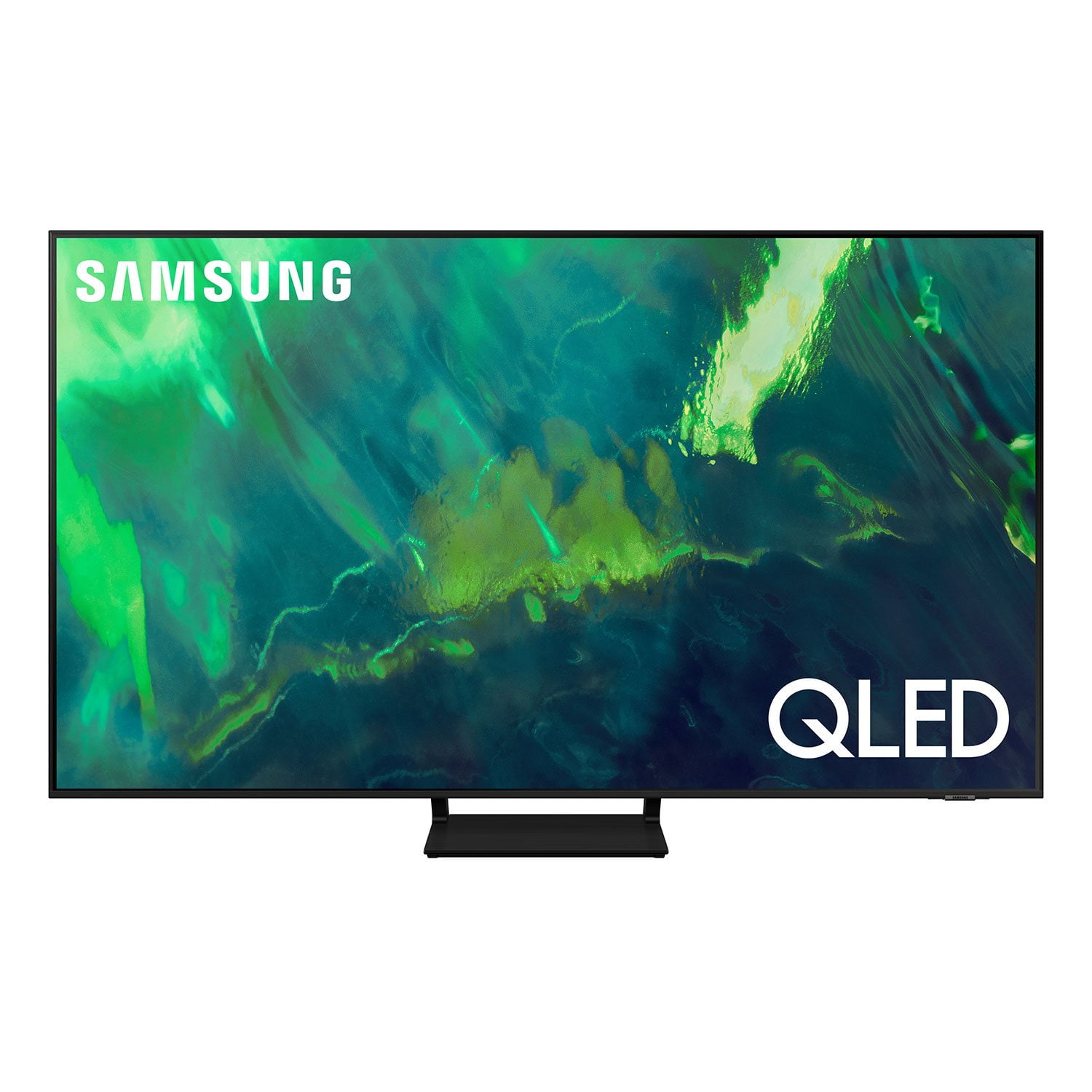
SAMSUNG 85" Class Q7-Series 4K Ultra HD Smart QLED TV - QN85Q7DAAFXZA
4.7 out of 5 stars
stars1,797 ratings1,775 reviews
  1. 5 stars80% (1,432)
  2. 4 stars15% (270)
  3. 3 stars3% (45)
  4. 2 stars1% (22)
  5. 1 star2% (28)
Write a review

Customer photos

  • +297 images
Sort by |
Showing 71-80 of 1,775 reviews
Oct 20, 2022
Samsungpro
4 out of 5 stars review

Samsung curve
[This review was collected as part of a promotion.] Streaming, gaming, movies, sound bar and woofer Included sixty five inch. I've been a Samsung client for years from appliances to phone.

Review from Samsung US
Helpful?6VT5DVUKIND213737353383
Oct 26, 2022
Brandon
5 out of 5 stars review

Excellent Tv

[This review was collected as part of a promotion.] Went from a 55” curved to this tv. Love this tv, so bright and vibrant. The apps are fast, the picture is perfect. Would buy again.

Review from Samsung US
Helpful?6VT5DVUKIND213737353383
Sep 7, 2021
Hit1
5 out of 5 stars review

Great viewing experience

[This review was collected as part of a promotion.] Very good for easy connections with smart phone, sounds quality is great, nice looking device, great pictures quality and many more great features.

Review from Samsung US
Helpful?6VT5DVUKIND213737353383
Jul 1, 2021
Royals1
3 out of 5 stars review

All in all this tv has great features

[This review was collected as part of a promotion.] Picture quality is ok not as sharp as the one we looked at in store disappointed by lack of sharpness on screen.would not recommend to friends

Review from Samsung US
Helpful?6VT5DVUKIND213737353383
reply from Samsung Brand Ambassador

Hi Royals1, Thank you for choosing the Samsung Q70A TV and for sharing your feedback regarding your image quality. For optimal clarity, you may want to adjust the picture clarity setting by going to: Settings > Picture > Expert Settings > Picture Clarity Settings - Off: Picture Clarity Settings will always be off - Auto: Picture Clarity Settings will automatically activate and deactivate based on the type of program being watched - Custom: Allows custom adjustments and settings to be used. By selecting the Custom option, you can access these advanced settings for Judder Reduction, LED Clear Motion, and Noise Reduction. Should you need further assistance with features or other product usage, please reach out to Samsung Support via any of the below options: 1-800-SAMSUNG (ask for TVs), available 8AM -12AM EST, 7 days a week. Or text HELP to 62913. For additional support resources, visit us on the Samsung website and click on the ‘Support’ link in the upper right corner of the homepage for: 1) More ‘Contact Us’ options – LiveChat, Facebook, Twitter, Samsung Community, Samsung Members app 2) Manuals & Software 3) Warranty Info 4) Product Registration: For access to easy warranty support, convenient opt-in to special promos and offers, faster troubleshooting and service, and quick notification of system updates. We hope to hear from you. ~ Samsung Specialist

Oct 13, 2022
Dissapointed shopper
3 out of 5 stars review

Very disappointed 😞

Very bad picture quality for the price. I was excited to receive it quickly and the delivery guys were ok. I am so dissatisfied with the TV quality. I want to return it. 😫

Helpful?6VT5DVUKIND213737353383
reply from Samsung

Happy shopper,Thank you for sharing your thoughts on the picture quality of your Q7DA TV. If the image you’re seeing is not to your liking, there are several picture settings you may want to try adjusting.Go to Home > Settings > Picture > Picture Mode...and select the mode that best fits your usage:1) Standard: Is the default mode suitable for general viewing environments. 2) Natural: Reduces eye strain for a comfortable viewing experience. 3) Movie: Is suitable for watching TV or movies in a dark room. 4) Dynamic: Makes the picture brighter and clearer in bright viewing environments.5) Filmmaker Mode: You can watch the source content (e.g., movie) as it is. If the image is defined as Filmmaker Mode, it will automatically switch to Filmmaker Mode while watching. You can also go to: Settings > Picture > Expert Settings > to manually fine tune your image.Intelligent Mode enables the TV to recognize and analyze the surroundings, noise, content, and your usage patterns to provide the best viewing experience. You can enable Intelligent Mode by going to Home > Settings > General > Intelligent Mode Settings. Adaptive Picture, which is among the options, optimizes brightness and provides the best picture quality in real time, based on the lighting condition and your content.If adjusting image settings does not improve your picture, please contact Samsung Customer Support at 1-800-SAMSUNG, 8AM - 12AM EST, 7 days a week. Or visit us on the Samsung website and click on the ‘Support’ link for:• LiveChat• Manuals, Software, & Warranty Info~ Samsung Specialist

May 1, 2021
Thatoneperson
4 out of 5 stars review

Display is good

[This review was collected as part of a promotion.] The display is good for gaming and great for watching TV. If you play the ps5 or Xbox series x then thus is a good TV for you because it brings out the colors more and has that great 4k resolution

Review from Samsung US
Helpful?6VT5DVUKIND213737353383
Mar 28, 2023
TeeVee
2 out of 5 stars review

Clouding

I was so excited to upgrade from a 7 year old vizio and thought i found the best bang for your buck until the horrible clouding set in. Unacceptable!!!!

Review from Samsung US
Helpful?6VT5DVUKIND213737353383
Jun 27, 2022
Clouding on dark Screens
1 out of 5 stars review

Clouding on dark screens

loved the tv until i went to watch a movie with dark scenes. there was clouding all over the screen, couldnt even focus on the movie. after googling, this seems to be a pretty common issue with this tv. dont waste your time.

Review from Samsung US
Helpful?6VT5DVUKIND213737353383
reply from Samsung Brand Ambassador

Hi there, Thank you for choosing Samsung’s Q70A TV and for sharing details of your image quality. To optimize your picture quality, please be sure your firmware is up to date with version 2001.3 which includes picture quality updates. You can check this by going to: Settings > Support > Software Update. You may also want to enable Auto Update for convenience. Should you need further assistance with image quality adjustments, please give us the opportunity to assist you. Just call us at 1-800-SAMSUNG, 8AM - 12AM EST, 7 days a week. Or visit us on the Samsung website and click on the ‘Support’ link for: 1) LiveChat with an agent 2) Manuals, Software, & Warranty Info ~ Samsung Specialist

Aug 23, 2022
Superdave
5 out of 5 stars review

Great picture

[This review was collected as part of a promotion.] This tv has a lot better picture than any of the other tv's I have purchased in the past. The only thing that you need to do is add more apps

Review from Samsung US
Helpful?6VT5DVUKIND213737353383
Oct 25, 2022
Anonymous
1 out of 5 stars review

Has white burn marks on the screen

[This review was collected as part of a promotion.] Got 2 TVs exactly the same. The blackest parts of the TVs have white burn marks. The deepest blacks look strange because of these spots.

Review from Samsung US
Helpful?6VT5DVUKIND213737353383
reply from Samsung Brand Ambassador

Hi, It’s unfortunate to hear of your experience with Samsung’s Q70A TV. Samsung is committed to providing the best possible product experience, quality, and value. We back this Samsung TV with a 1-year limited manufacturer's warranty, including authorized repair for manufacturer defect, if purchased brand-new directly from an authorized seller. Please give us the opportunity to assist you by contacting Samsung Customer Support at 1-800-SAMSUNG, 8AM - 12AM EST, 7 days a week. LiveChat with an agent as well as manuals, software, and warranty info can be found at the ‘Support’ link on our Samsung website. ~ Samsung Specialist