Join Now
Skip to Main Content
Sam's Club
Sam's Club
All Departments
All Services
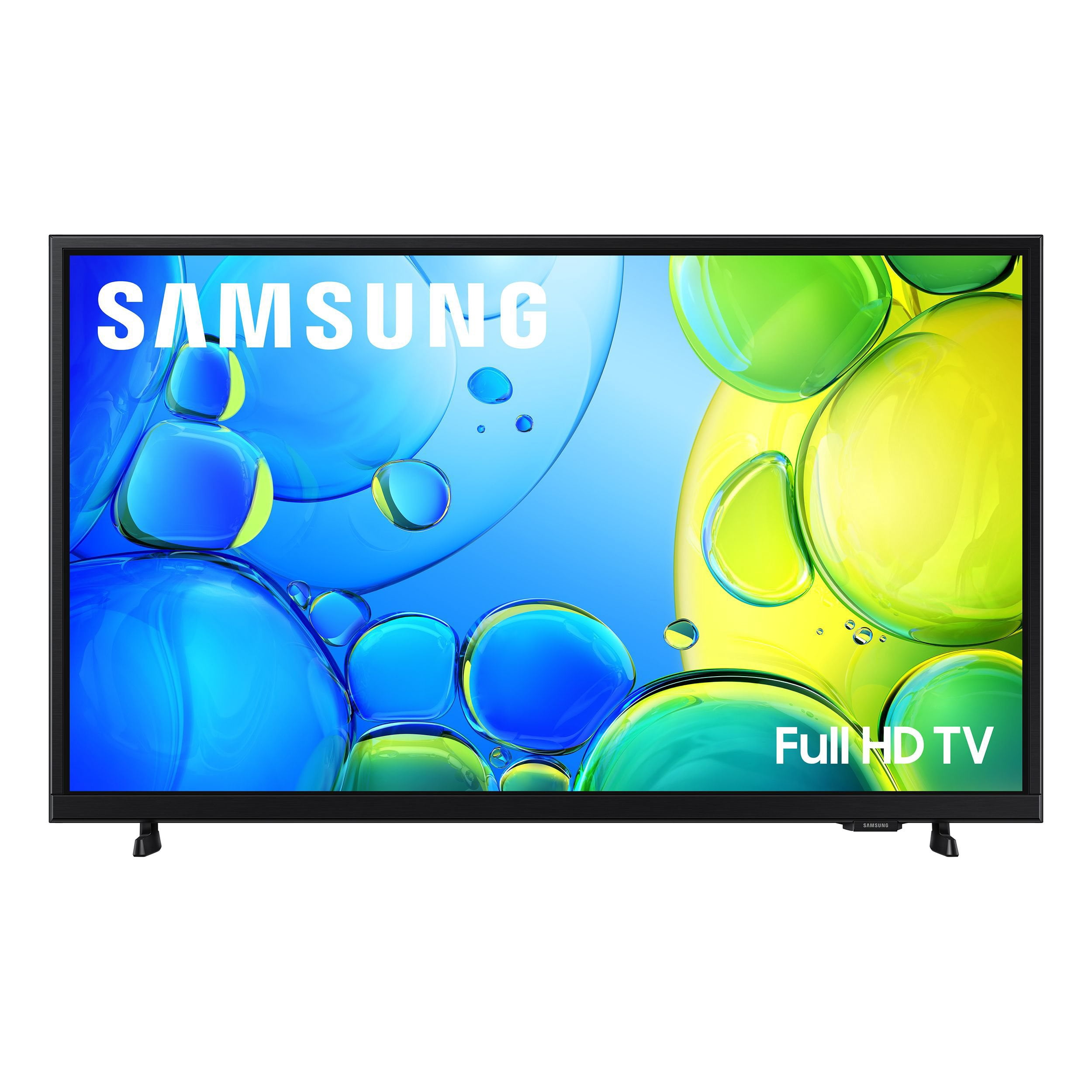
Customer reviews for SAMSUNG 40” Class F6000F Series LED FHD Smart Tizen TV for
SAMSUNG 40” Class F6000F Series LED FHD Smart Tizen TV
4.2 out of 5 stars
stars
1,040 ratings1,040 reviews
  1. 5 stars60% (629)
  2. 4 stars19% (194)
  3. 3 stars10% (101)
  4. 2 stars5% (56)
  5. 1 star6% (60)
Sort by |
Showing 561-570 of 1,040 reviews
Jun 8, 2026
Reviewer name: sonia
2 out of 5 stars
2 out of 5 stars review

poor quality

[This review was collected as part of a promotion.] T.V. sound goes in and out occasionally it says its rebooting, and sometimes it will say not connected to internet, which isn't true.

Review from Samsung US
Helpful?3TL2I40PL99420390767500
reply from Samsung Advisor

Hi Sonia, If your F6000F TV is not functioning properly, please try the below: 1. Reset Smart Hub – Home > left directional key > Settings > Support > Device Care > Self Diagnosis > Reset Smart Hub (This will sign you out of apps and reset Smart Hub to factory default.) 2. Update firmware – Home > left directional key > Settings > Support > Software Update > Update Now 3. Run Device Care – Home > left directional key > Settings > Support > Device Care > Start Device Care If the issue persists, contact Samsung Support at 1-800-SAMSUNG (8AM – 9PM EST Mon – Fri, 8AM – 6PM Sat – Sun). LiveChat is available under the ‘Support’ link on our website. ~ Samsung Advisor

May 2, 2026
Reviewer name: blunik
5 out of 5 stars
5 out of 5 stars review

Good quality TV

[This review was collected as part of a promotion.] Great picture quality with brightness and contrast to shadows, easy to use, good sound quality as well.

Review from Samsung US
Helpful?3TL2I40PL99420390767500
Jun 5, 2026
Reviewer name: Mjb2
4 out of 5 stars
4 out of 5 stars review

Loads of apps

[This review was collected as part of a promotion.] Really like that it has a lot of apps preloaded. Not a fan of how you can't easily get out of the functions and back to the channel you were watching.

Review from Samsung US
Helpful?3TL2I40PL99420390767500
Jun 10, 2026
Reviewer name: Fashon
5 out of 5 stars
5 out of 5 stars review

There are so many features!

[This review was collected as part of a promotion.] I will not watch any other TV except for Samsung, it has the best look and brightness. The quality overall is unmatched, great sound quality.

Review from Samsung US
Helpful?3TL2I40PL99420390767500
May 20, 2026
Reviewer name: RayG
5 out of 5 stars
5 out of 5 stars review

Great TV so far

[This review was collected as part of a promotion.] TV works great, has a nice picture, and the user interface is easy to use. Plus store promotion had a great price.

Review from Samsung US
Helpful?3TL2I40PL99420390767500
Jun 12, 2026
Reviewer name: JuanMac
5 out of 5 stars
5 out of 5 stars review

Quality

[This review was collected as part of a promotion.] I have more than one Samsung product, 3 tvs, 2 phones, have Samsung phones, since 2007, I love Samsung products,

Review from Samsung US
Helpful?3TL2I40PL99420390767500
May 21, 2026
Reviewer name: pws29526
2 out of 5 stars
2 out of 5 stars review

Poor sound

[This review was collected as part of a promotion.] Very disappointed in the quality of the sound. Need to run the volume up to 35 to 40 do get legible sound, and there is no adjustment function to be found.

Review from Samsung US
Helpful?3TL2I40PL99420390767500
reply from Samsung Advisor

Hi pws29526, Thank you for purchasing Samsung’s F6000F TV and for sharing your feedback regarding low volume. To start, we recommend making sure your TV is running the latest firmware, as updates can include improvements to sound performance: Home > left directional key > Settings > Support > Software Update If volume levels still seem too low, you can improve sound performance by adjusting a few key settings: Sound Mode: Navigate to: Settings > All Settings > Sound > Sound Mode Auto Volume: This feature helps maintain consistent volume levels across content and input sources. Turn it on under: Settings > All Settings > Sound > Expert Settings > Auto Volume = On You can also explore Expert Settings to fine-tune sound output with adjustments for Balance, Equalizer, and more. If you’re considering enhancing your setup, Samsung’s Q- and S-Series Soundbars feature Q-Symphony, which syncs your TV and soundbar speakers for a fuller, more immersive sound experience. For personalized support with these settings or selecting a soundbar to complement your setup, contact Samsung Support at 1-800-SAMSUNG (8AM – 9PM EST Mon – Fri, 8AM – 6PM Sat – Sun) or use LiveChat via the ‘Support’ link on our website. ~ Samsung Advisor

Jun 13, 2026
Reviewer name: Jake
5 out of 5 stars
5 out of 5 stars review

me and my kids love this product

[This review was collected as part of a promotion.] I have had this TV for a couple months and use it to watch movies with my kids, they love it just as much as I do.

Review from Samsung US
Helpful?3TL2I40PL99420390767500
May 20, 2026
Reviewer name: Flaco
5 out of 5 stars
5 out of 5 stars review

great size.

[This review was collected as part of a promotion.] My last two televisions have been Samson. My 40 in. TV is in my wifes room and she loves it so what am I to say.

Review from Samsung US
Helpful?3TL2I40PL99420390767500
Jun 6, 2026
Reviewer name: Buyer
3 out of 5 stars
3 out of 5 stars review

Contol

[This review was collected as part of a promotion.] Control have a problem on start up there is a delay when trying to use tge remote to switch channels on two of my models

Review from Samsung US
Helpful?3TL2I40PL99420390767500
reply from Samsung Advisor

Hi Buyer, Thank you for your feedback. If your remote isn’t responding, here are a few quick steps to help determine if it’s working correctly: 1. Check the batteries: Remove the back cover of your remote and replace the batteries with a fresh set, ensuring they are inserted in the correct direction. 2. Test for infrared signal: Point the front of the remote at your smartphone camera. While holding down any button, you should see a flashing light through the camera screen. (For iPhone users, the front-facing camera works best.) If you see the light, your remote is working and may need to be re-paired with your TV. 3. Point the remote correctly: Try pointing the remote directly at the TV from about 5-6 feet away. This can help ensure a clearer signal between the remote and the TV. If you still need assistance, please contact Samsung Support at 1-800-SAMSUNG (8AM – 9PM EST Mon – Fri, 8AM – 6PM Sat – Sun), or visit the ‘Support’ link on our website to start a LiveChat session. ~ Samsung Advisor