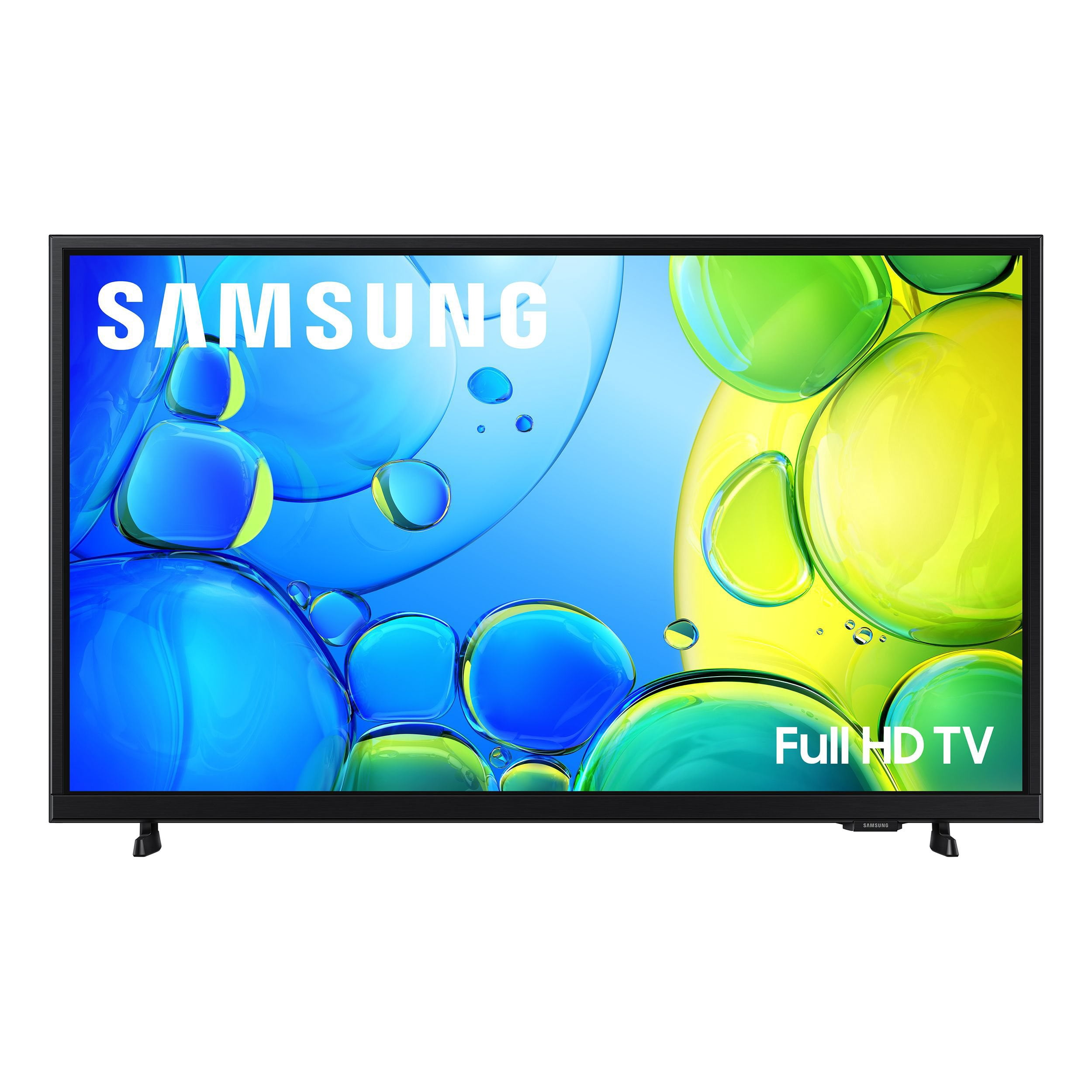
worked great at the beginning, really nice picture
[This review was collected as part of a promotion.] I was so pleased with this tv at the beginning. It's a snap to set up and the picture is really nice. After having for a few months, however, I'm starting to experience some rather upsetting issues. It turns on quickly but also quite quickly, the screen goes black and I have to wait a bit for the picture to come back on. My other issue is that I cannot consistently set a sleep timer. When I go into the settings, it often shows a sleep timer of 59 min and cannot be changed or it cannot be set at all. I think I've found a workaround by having the tv shut off at a particular time every night. Not ideal, but has been working for the past few nights.
I originally gave this a 5 star review but will no longer recommend even at this very low price.
reply from Samsung Advisor
Hi LoR497,
We appreciate your feedback on the F6000F TV. First, to ensure your TV's performance is fully optimized, please first check to see if there's a software update available. Go to Home > left directional key > Settings > Support > Software Update.
If you're not using any external devices and the TV randomly cuts to black, it’s usually related to settings, signal, or internal software. Here are a few steps to help narrow it down and get things stable again.
1. Start with Power & Source Checks
• Confirm the source: Even without external devices, it's worth confirming the TV is on the correct internal source (like TV/Live TV or a streaming app). Go to: Home > Left directional key > Connected Devices > Sources
• Power cycle the TV: Unplug the TV from the power outlet for at least 60 seconds, then plug it back in. This can help reset any temporary glitches.
• Check the power outlet: If you're using a power strip or surge protector, try plugging the TV directly into the wall to rule out inconsistent power delivery.
2. Run Built-In Diagnostics
• Perform a Picture Test: Home > Left directional key > Settings > Support > Device Care > Self Diagnosis > Picture Test. This helps determine if the issue is hardware- or software-related.
• Run the HDMI Test (optional): Even without HDMI devices connected, this can help verify that internal ports are functioning properly: Home > Left directional key > Settings > Support > Device Care > Self Diagnosis > HDMI Test
3. Review Energy & Picture Settings
• Turn off Power Saving Mode or Eco Solution settings—they can dim or turn off the screen during periods of inactivity: Settings > All Settings > General & Privacy > Power & Energy Saving
• Turn off Auto Power Off (if enabled): Settings > All Settings > General & Privacy > System Manager > Auto Power Off
• Adjust Picture Mode settings: If the current mode is overly dynamic (like “Dynamic” or “Vivid”), try switching to “Standard” or “Movie” and observe if the screen behavior changes.
4. Factory Reset (if needed): If the problem persists after all checks, consider resetting the TV to default settings.
(Heads-up: this will erase your installed apps and personal settings.)
If none of these steps resolve the intermittent blackout, please reach out to Samsung Support for further troubleshooting or possible service options at 1-800-SAMSUNG, available daily from 8AM - 12AM EST. You can also visit the Samsung website and click on ‘Support’ for:
• Live Chat
• Manuals, Software, & Warranty Info
~ Samsung Advisor