Skip to Main Content
Sam's Club
Sam's Club
All Departments
All Services
Customer reviews for SAMSUNG 32” Class H5000F Series LED HD Smart Tizen TV for
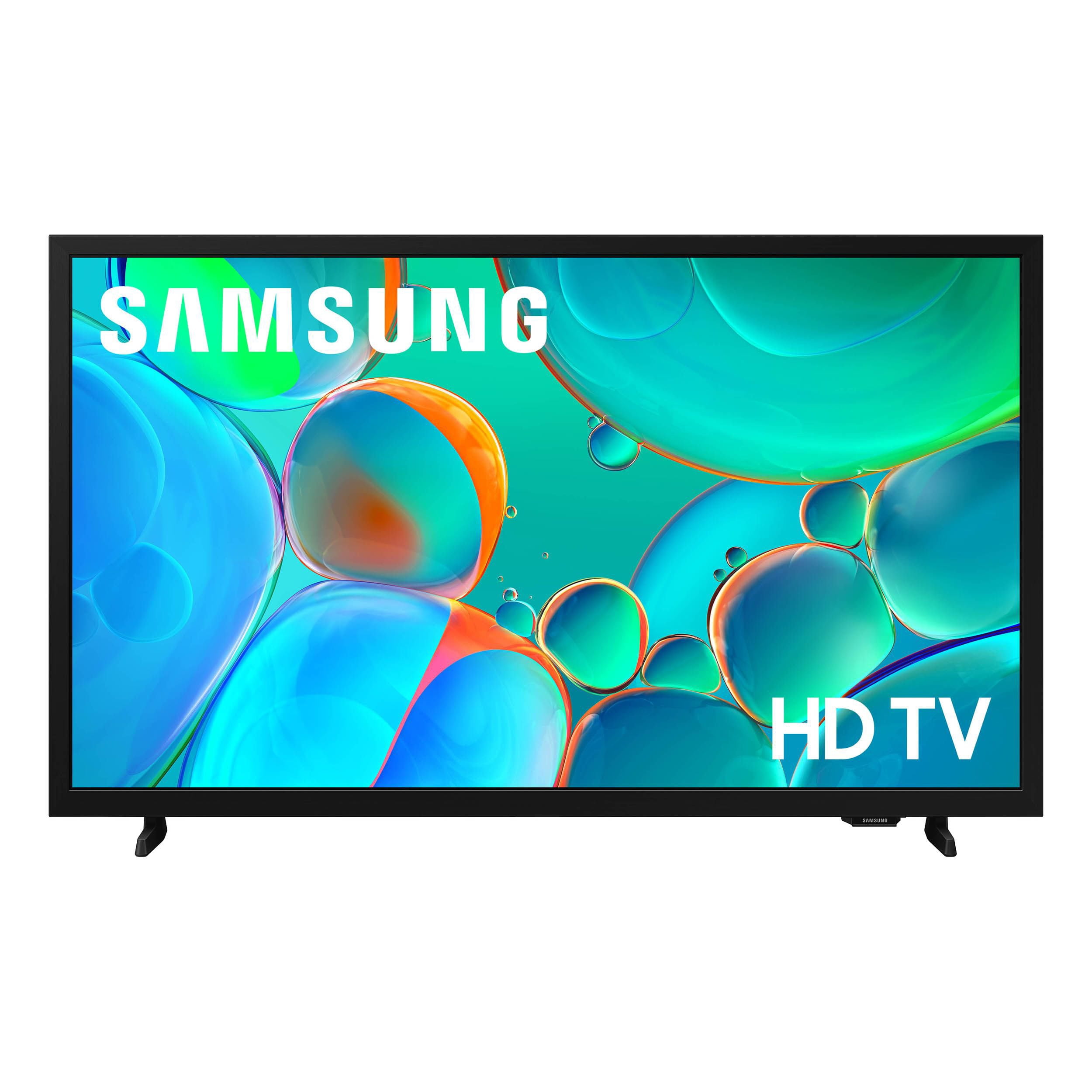
SAMSUNG 32” Class H5000F Series LED HD Smart Tizen TV
4.7 out of 5 stars
stars
2,249 ratings2,249 reviews
  1. 5 stars77% (1,730)
  2. 4 stars17% (373)
  3. 3 stars4% (82)
  4. 2 stars1% (30)
  5. 1 star2% (34)
Sort by |
Showing 891-900 of 2,249 reviews
Jun 5, 2026
rich
5 out of 5 stars review

picture clear

[This review was collected as part of a promotion.] easy to use and a lot of app. highly picture quality. affordable tv.

Review from Samsung US
Helpful?3BXE5P3J9PH420390161112
Jun 23, 2026
Hugo_82
4 out of 5 stars review

The best tv

[This review was collected as part of a promotion.] I like it. the best tv Good quality Everything is good

Review from Samsung US
Helpful?3BXE5P3J9PH420390161112
Jun 1, 2026
Tags
5 out of 5 stars review

Wow

[This review was collected as part of a promotion.] Amazed by how good the picture is Hard to look away

Review from Samsung US
Helpful?3BXE5P3J9PH420390161112
Jun 1, 2026
Bev1
5 out of 5 stars review

Great Product!

[This review was collected as part of a promotion.] This product hasa beautiful picture and is easy to use!

Review from Samsung US
Helpful?3BXE5P3J9PH420390161112
Jun 22, 2026
Goodie2shoe
5 out of 5 stars review

Great TV

[This review was collected as part of a promotion.] Very bright and colorful TV. High resolution and clear picture. I have enjoyed it.

Review from Samsung US
Helpful?3BXE5P3J9PH420390161112
Feb 12, 2026
Charliefrmykaz
5 out of 5 stars review

TV

[This review was collected as part of a promotion.] Good tv and how a good quality of TV and it's help is watch TV and his help the kids watching it it black

Review from Samsung US
Helpful?3BXE5P3J9PH420390161112
Mar 9, 2026
Obie
3 out of 5 stars review

All Apps Are Created Equal

[This review was collected as part of a promotion.] In its day, the H5000F was top of the line but now it's outdated. The remote as a mouse feature is still cool but I can't get a few apps like HBO MAX without a Firestick being connected

Review from Samsung US
Helpful?3BXE5P3J9PH420390161112
reply from Samsung Advisor

Hi Obie, Thank you for sharing your experience. Please know that you can customize your Home screen by installing, removing or adding your favorite apps to the Home screen. Here's how: Searching for & Installing Apps 1. From the Home screen, press left on the remote’s directional pad. 2. Navigate to and select Search. 3. Using the search bar, enter the content or app you’d like to find. 4. Navigate to and select the app you’d like to install, then select Install. Note: Previously installed apps can be accessed on the Settings screen. Adding & Managing Apps on Home Screen 1. Go to App Settings (these can be found at the bottom of the Apps screen) and select the app you want to move. The following options will be available: a. Add to Home: Move the app to your desired location on the Home screen. b. Delete: Delete app. c. Lock/Unlock: Lock the app with a PIN so only you can use it. When the app is selected again, you will be prompted to enter the PIN to unlock it. d. Reinstall: Reinstall the app. e. View Details: View the app’s information and details. If you need more help with app management, please don’t hesitate to reach Samsung Support at 1-800-SAMSUNG, available daily from 8AM - 12AM EST. You can also visit the Samsung website and click on ‘Support’ for: • Live Chat • Manuals, Software, & Warranty Info ~ Samsung Advisor

Feb 18, 2026
Humbugjo
5 out of 5 stars review

Great features full immersion

[This review was collected as part of a promotion.] Clear picture and sound..smart feature is a great advantage for managing my subscription. Made my Firetv obsolete.

Review from Samsung US
Helpful?3BXE5P3J9PH420390161112
Mar 23, 2026
Toro
5 out of 5 stars review

Happy now

[This review was collected as part of a promotion.] Perfect television for me and my hubby, we went from being homeless to finally getting out home. And this t.v is great

Review from Samsung US
Helpful?3BXE5P3J9PH420390161112
Feb 17, 2026
Mesh_04Card
3 out of 5 stars review

Subpar resolution/brightness

[This review was collected as part of a promotion.] Well gor the brightness at times it feels dim especially while watching certain movies who's color resolution is more grey tone.

Review from Samsung US
Helpful?3BXE5P3J9PH420390161112
reply from Samsung Advisor

Hi Mesh_04Card, We’re sorry to hear that the picture on your Samsung H5000F TV appears too dark. If this isn’t meeting your expectations, there are several settings you can adjust to improve the overall brightness and clarity of your screen. First, try disabling certain energy-saving features that may be dimming the screen automatically. Go to: Settings > All Settings > General & Privacy > Power and Energy Saving, then turn off Brightness Optimization, Energy Saving Solution, Motion Lighting, and/or Contrast Enhancer. Next, adjust the Picture Mode to better match your viewing environment: Settings > All Settings > Picture > Picture Mode and choose from the following: • Dynamic – Brighter and clearer for well-lit rooms • Standard – Balanced for most environments • Movie – Ideal for watching in a dark room • Eco – Designed for energy savings You can also manually adjust brightness by going to: Settings > All Settings > Picture > Expert Settings > Brightness. Use the slider to set a level that suits your preferences (0–50). Finally, we recommend making sure your TV has the latest software installed: Settings > Support > Software Update > Update Now We hope these tips help improve your viewing experience. If you need further assistance with setup or adjustments, feel free to contact Samsung Customer Support at 1-800-SAMSUNG, available daily from 8AM - 12AM EST. You can also visit the Samsung website and click on ‘Support’ for: • Live Chat • Manuals, Software, & Warranty Info ~ Samsung Advisor