Skip to Main Content
Sam's Club
Sam's Club
All Departments
All Services
Customer reviews for SAMSUNG 85” Class M70H Series Mini LED 4K UHD Vision AI Companion Smart Tizen TV for
SAMSUNG 85” Class M70H Series Mini LED 4K UHD Vision AI Companion Smart Tizen TV
4.5 out of 5 stars
stars
158 ratings158 reviews
  1. 5 stars69% (109)
  2. 4 stars18% (29)
  3. 3 stars6% (10)
  4. 2 stars4% (7)
  5. 1 star2% (3)

Member photos

  • +27 images
Sort by |
Showing 111-120 of 158 reviews
Jul 6, 2026
David
5 out of 5 stars
5 out of 5 stars review

Samsung tv

[This review was collected as part of a promotion.] Very nice picture and vivid colors. Easy to set up also.

Review from Samsung US
Helpful?5B1TBKY04O0L19900257824
Jul 5, 2026
Ehan
2 out of 5 stars
2 out of 5 stars review

Accessibility

[This review was collected as part of a promotion.] Remote control not a good design TV apps and download not easy to do

Review from Samsung US
Helpful?5B1TBKY04O0L19900257824
reply from Samsung Advisor

Hi Ehan, Thank you for your feedback on the M70HD TV. While the Solar Cell Remote may appear minimal, many buttons offer multiple or long-press functions to help simplify the design without sacrificing functionality. For example: • Settings/Number/Color: Allows you to easily access your TV's Quick Settings and input channel numbers. • Volume rocker: Push up/down to adjust volume. Press and release quickly to mute. • Long-press Volume button: Hold for more than 1 second to open Accessibility Shortcuts. • RETURN button: Press to go back to the previous menu or screen. While watching TV, it takes you back to the previous channel. These functions allow for a more streamlined experience without adding extra buttons. Regarding app management on your TV, please know that you can customize your Home screens by installing, removing or adding your favorite apps to Apps Home and/or For You Home screen. Here's how: Searching for & Installing Apps 1. From the Home screen, press up on the remote’s directional pad. 2. Navigate to and select Search. 3. Using the search bar, enter the content or app you’d like to find. 4. Navigate to and select the app you’d like to install, then select Install. Note: Previously installed apps can be accessed on the Settings screen. Adding & Managing Apps on Home Screen 1. Go to App Settings (these can be found at the bottom of the Apps screen) and select the app you want to move. The following options will be available: a. Add to Home: Move the app to your desired location on the Home screen. b. Delete: Delete app. c. Lock/Unlock: Lock the app with a PIN so only you can use it. When the app is selected again, you will be prompted to enter the PIN to unlock it. d. Reinstall: Reinstall the app. e. View Details: View the app’s information and details. If you need more help with app management, please don’t hesitate to reach Samsung Support at 1-800-SAMSUNG (8AM – 9PM EST Mon – Fri, 8AM – 6PM Sat – Sun), or reach us via text anytime. You can also visit ‘Support’ on our website for: • Live Chat • Manuals, Software, & Warranty Info ~ Samsung Advisor

Jun 22, 2026
DracArrow
5 out of 5 stars
5 out of 5 stars review

Great feature

[This review was collected as part of a promotion.] Great everything. New feature, hope it will help to guide

Review from Samsung US
Helpful?5B1TBKY04O0L19900257824
Jun 20, 2026
Dogs
5 out of 5 stars
5 out of 5 stars review

Great overall Tv

[This review was collected as part of a promotion.] Great product, picture is so clear, brightness and the colors are excellent.

Review from Samsung US
Helpful?5B1TBKY04O0L19900257824
Jun 20, 2026
None
5 out of 5 stars
5 out of 5 stars review

Works just as it should.

[This review was collected as part of a promotion.] Easy set up - even for this old lady. I like the 55” screen.

Review from Samsung US
Helpful?5B1TBKY04O0L19900257824
Jul 5, 2026
Rene9marine
5 out of 5 stars
5 out of 5 stars review

Great

[This review was collected as part of a promotion.] All the tv that I own are Samsung total of 5 I think that will said a lot. Very happy 😃

Review from Samsung US
Helpful?5B1TBKY04O0L19900257824
Jun 20, 2026
Rocko
5 out of 5 stars
5 out of 5 stars review

Great buy!

[This review was collected as part of a promotion.] Enjoying the colors! The right size for our area. Easy to manage control

Review from Samsung US
Helpful?5B1TBKY04O0L19900257824
Jul 5, 2026
Hila
5 out of 5 stars
5 out of 5 stars review

Good tv

[This review was collected as part of a promotion.] Very good no complaints good picture good brightness

Review from Samsung US
Helpful?5B1TBKY04O0L19900257824
Jul 5, 2026
BigMoose
5 out of 5 stars
5 out of 5 stars review

I traded in my LG for the equivalent size Samsung

[This review was collected as part of a promotion.] Only problem is the remote did not come with a Remote that had a MIC

Review from Samsung US
Helpful?5B1TBKY04O0L19900257824
Jul 5, 2026
Jafh
5 out of 5 stars
5 out of 5 stars review

Great features!
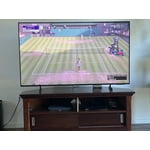
[This review was collected as part of a promotion.] Color and brightness are beautiful! I recommend this gizmo!

Review from Samsung US
Helpful?5B1TBKY04O0L19900257824