Skip to Main Content
Sam's Club
Sam's Club
All Departments
All Services
Customer reviews for SAMSUNG 43” Class U8000H Series Crystal UHD 4K Vision AI Companion Smart Tizen TV for
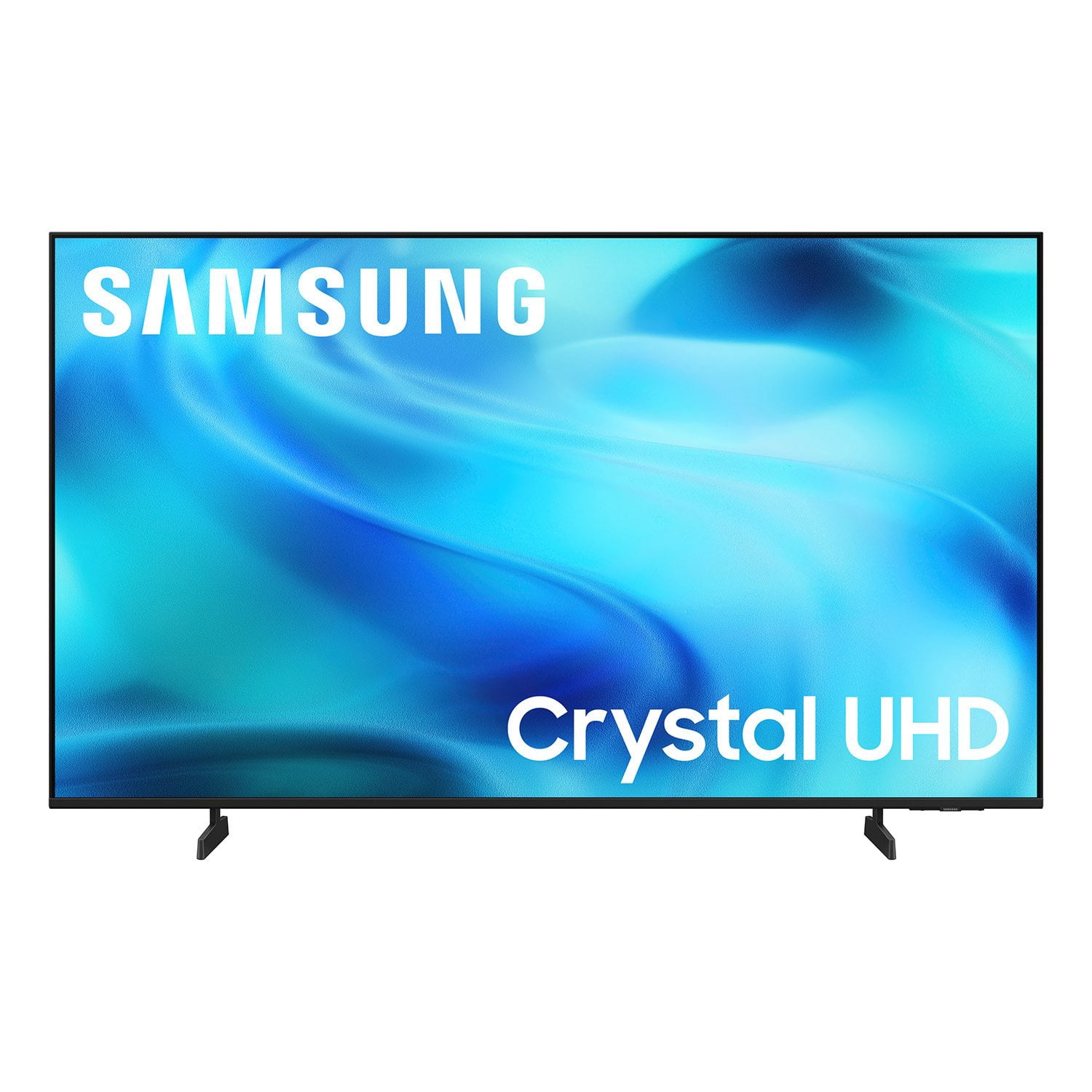
SAMSUNG 43” Class U8000H Series Crystal UHD 4K Vision AI Companion Smart Tizen TV
4.7 out of 5 stars
stars
190 ratings178 reviews
  1. 5 stars82% (155)
  2. 4 stars13% (25)
  3. 3 stars3% (5)
  4. 2 stars2% (4)
  5. 1 star1% (1)

Member photos

  • +34 images
Sort by |
Showing 21-30 of 178 reviews
Jun 20, 2026
Paul
3 out of 5 stars review

Nice TV if I was able to watch what I want

The TV and the price were fine. However, it forces me to use Samsung Plus TV vs being able to add my regular cable provider programs. I've tried to add the app (Spectrum) and it is simply not available. All I can do is use streaming services that they allow. I feel like returning it to get a TV that I can actually watch what I want to watch.

Review from Samsung US
Helpful?5DGA54WPGP8K19891552175
reply from Samsung Advisor

Hi Paul, Thank you for sharing your experience. Please know that the Spectrum app is available for download in our built-in app store and that you can customize your Home screens by installing, removing or adding your favorite apps to Apps Home and/or For You Home screen. Here's how: Searching for & Installing Apps 1. From the Home screen, press up on the remote’s directional pad. 2. Navigate to and select Search. 3. Using the search bar, enter the content or app you’d like to find. 4. Navigate to and select the app you’d like to install, then select Install. Note: Previously installed apps can be accessed on the Settings screen. Adding & Managing Apps on Home Screen 1. Go to App Settings (these can be found at the bottom of the Apps screen) and select the app you want to move. The following options will be available: a. Add to Home: Move the app to your desired location on the Home screen. b. Delete: Delete app. c. Lock/Unlock: Lock the app with a PIN so only you can use it. When the app is selected again, you will be prompted to enter the PIN to unlock it. d. Reinstall: Reinstall the app. e. View Details: View the app’s information and details. If you need more help with app management, please don’t hesitate to reach Samsung Support at 1-800-SAMSUNG (8AM – 9PM EST Mon – Fri, 8AM – 6PM Sat – Sun), or reach us via text anytime. You can also visit ‘Support’ on our website for: You can also chat with one of our agents by clicking the ‘Support’ link on our website for: • Live Chat • Manuals, Software, & Warranty Info ~ Samsung Advisor

Jun 22, 2026
RedwoodT
5 out of 5 stars review

Perfect main television

I'm really happy with my 50-inch Samsung smart TV — the picture is crisp, the colors pop, and the UI is smooth and easy to navigate. Everything from movies to sports look great. The smart features feel fast and thought out, switching between apps is quick and painless. It also looks great on the wall, very streamline rather and bulky and out of place. It delivers exactly what I wanted as my main TV.

Review from Samsung US
Helpful?5DGA54WPGP8K19891552175
Jun 5, 2026
Vicki
3 out of 5 stars review

Picture = Great / Sound = Awful

[This review was collected as part of a promotion.] The tv is great in terms of picture but HORRIBLE in terms of sound quality. There is absolutely no setting at all that isn't far too loud on commercials and then you cannot hear the dialog when the show or movie is back on. And when music plays in the show?! It is beyond distorted. It is awful. I have no bought a soundbar almost as expensive as the tv itself hoping that helps because the tv picture is great. Very disappointed with sound, it is difficult to watch anything it is that bad.

Review from Samsung US
Helpful?5DGA54WPGP8K19891552175
reply from Samsung Advisor

Hi Vicki, Thank you for sharing your experience with volume fluctuations on your Samsung U8000HD TV. Sudden changes in volume can often be related to audio settings or content differences between sources or apps. Please try the following adjustments to help stabilize your TV's audio: 1. Enable Auto Volume. Go to: Settings > All Settings > Sound > Expert Settings > Auto Volume. This feature helps maintain a consistent volume level when switching channels or apps. 2. Try a different sound mode to see if one offers a more stable output: Settings > All Settings > Sound > Sound Mode (We recommend Standard or Amplify for more even performance.) 3. Check External Devices. If you're using a soundbar, receiver, or other audio device, check that its volume leveling or dynamic range settings aren’t interfering with the TV’s audio. 4. Update Firmware. Ensure your TV is running the latest software, as updates may include audio improvements: Settings > Support > Software Update > Update Now If the issue persists after these steps, please don’t hesitate to reach Samsung Customer Support at 1-800-SAMSUNG (8AM – 9PM EST Mon – Fri, 8AM – 6PM Sat – Sun). LiveChat is also available via the ‘Support’ link on our website. ~ Samsung Advisor

Jun 20, 2026
Dannstu
4 out of 5 stars review

Hard for Elderly

I purchased this for my 89 year old Mother-in-Law. We installed it on her kitchen wall. Everything works fine, but the issue is getting the TV to go to her Xfinity service from turning the TV on. She doesn't know how to navigate the smart TV to the proper HDMI selection and then get to Xfinity. Otherwise the TV. works great and has great clarity.

Review from Samsung US
Helpful?5DGA54WPGP8K19891552175
reply from Samsung Advisor

Hi Dannstu, Thank you for sharing your feedback with us. To help you and your mother get the most from your TV, you can download the full e-Manual and more by visiting Samsung’s website, then navigating to: Support > Manual & Software > TVs & Home Theater. From there, you can search for and select your U8000H TV model to view or download the available guides. The e-Manual & User Guide are also conveniently built into your TV: Settings > Support > Tips and User Guides. Your TV includes Learn Menu Screen, an accessibility feature that provides audio guidance for on-screen menus. When enabled, your TV will announce the name and function of each menu item as you scroll, without making any changes. This feature is particularly helpful for users who are visually impaired or new to Smart TV menus. To enable, go to: Settings > All Settings > General & Privacy > Accessibility > Learn Menu Screen. To exit, press the Return key twice. If you’d like more assistance with this feature, please reach Samsung Support at 1-800-SAMSUNG (8AM – 9PM EST Mon – Fri, 8AM – 6PM Sat – Sun). LiveChat agents are also available through the ‘Support’ link on our website. ~ Samsung Advisor

Jun 5, 2026
nivek
5 out of 5 stars review

better than the set it replaced

[This review was collected as part of a promotion.] I purchased this tv recently to replace a 40" Vizio that no longer functioned properly. Samsung had a longer warrantee, and an excellent price for the features. My only hesitation was due to some negative comments I had read regarding the remote, but I purchased it anyway. I am happy to say that the remote, although very simple, works just fine, the picture overall is excellent, sound is very good, and the interface is intuitive and easy to master. I have only had this tv for a few weeks but so far I am liking it a lot and would strongly recommend.

Review from Samsung US
Helpful?5DGA54WPGP8K19891552175
Jul 20, 2026
J Man
5 out of 5 stars review

Great TV, we are a Samsung family.

Needed to replace a 20 year old 32" Samsung for the bedroom. It still worked great. the speakers were starting to fail. We bought a 42" QLED, very easy to setup with incredible picture and sound. Nice work Samsung.

Review from Samsung US
Helpful?5DGA54WPGP8K19891552175
Jul 20, 2026
Wizard
5 out of 5 stars review

Outstanding TV

Our new 43" Samsung TV is everything we hoped it would be. Easy to set up and use, brilliant display and common sense remote unit make it an outstanding purchase.

Review from Samsung US
Helpful?5DGA54WPGP8K19891552175
Jul 5, 2026
DesignFarmer
3 out of 5 stars review

It's OK

Not pleased that I need to pick one sound output. It has no additional audio out other than stripping the HDMI ARC connection. And if you do that, then the only option is the external audio vs. the ability to have audio from the TV AND extenal.

Review from Samsung US
Helpful?5DGA54WPGP8K19891552175
reply from Samsung Advisor

Hi DesignFarmer, Thank you for sharing your thoughts on the available inputs for the U8000HD. . If an Optical port is a crucial part of your setup needs, you’ll find that connection starting with our QN70F Series and above. For future purchases, we recommend double-checking the product specs on Samsung's site to ensure the model you choose has the ports you need. You can find this by clicking on “Specs” (just beneath the Product Title), then "See All Specs" for the full list of available inputs and more. Should you ever need assistance with your TV, Samsung is here for you. Reach out by calling 1-800-SAMSUNG (8AM – 9PM EST Mon – Fri, 8AM – 6PM Sat – Sun). You can also chat with us online by visiting the ‘Support’ section of our website. ~ Samsung Advisor

Jul 20, 2026
Shoalharbor
5 out of 5 stars review

Great Clarity & Sharpness

The 53 inch delivers exceptional sharpness and clarity. So many advances over just the last 2 years (own several older models). Would highly recommend without hesitation. Will be purchasing a 65 inch next month. Great product

Review from Samsung US
Helpful?5DGA54WPGP8K19891552175
Jul 20, 2026
Joan
2 out of 5 stars review

Disappointed!

I am very disappointed that it does not have an antenna connection! After many trips to stores and on line purchases after more expense we found an antenna and connector that works! Also this TVdoes not have the option to enlarge caption wording.

Review from Samsung US
Helpful?5DGA54WPGP8K19891552175