Skip to Main Content
Sam's Club
Sam's Club
All Departments
All Services
Customer reviews for SAMSUNG 55” Class M70H Series Mini LED 4K UHD Vision AI Companion Smart Tizen TV for
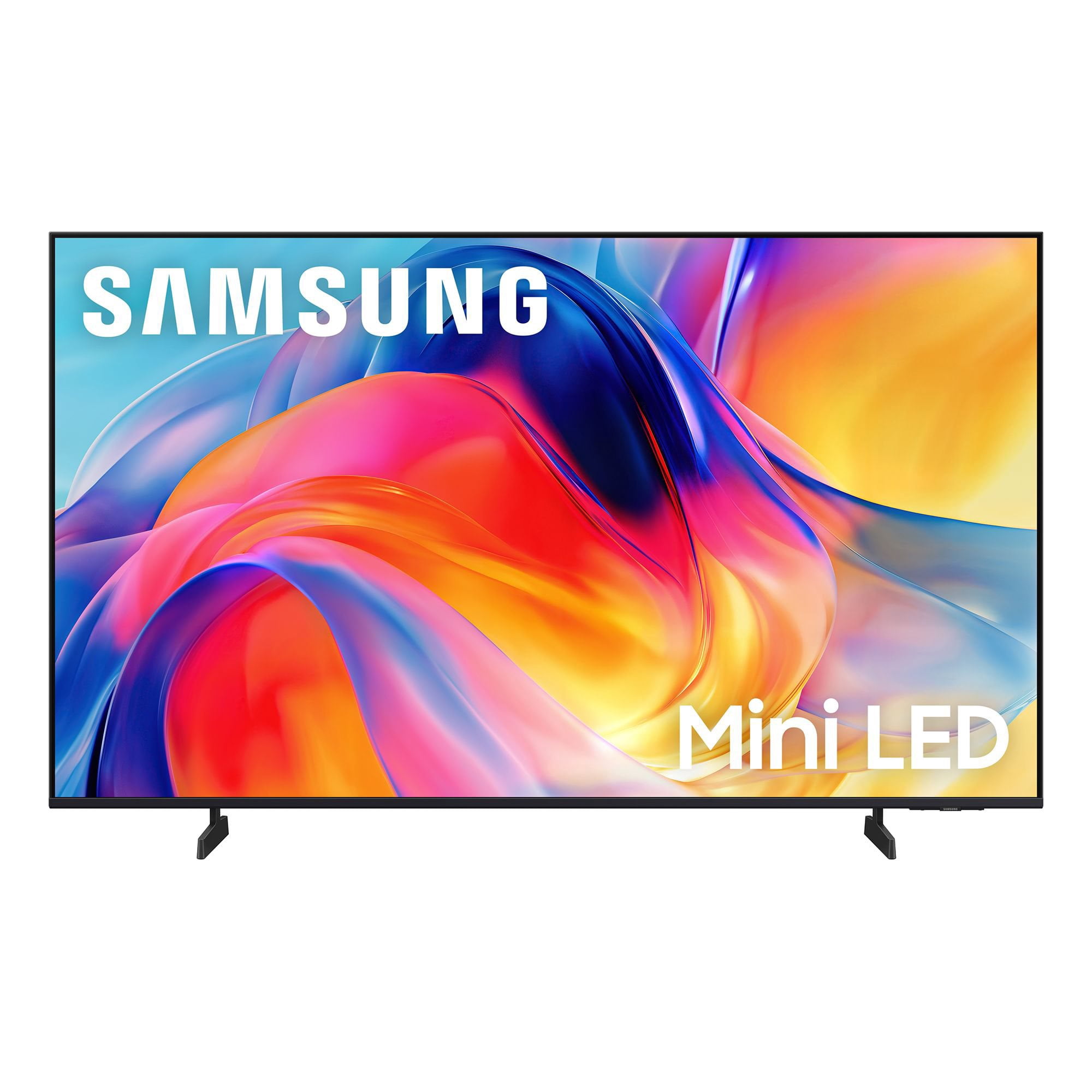
SAMSUNG 55” Class M70H Series Mini LED 4K UHD Vision AI Companion Smart Tizen TV
4.4 out of 5 stars
stars
330 ratings319 reviews
  1. 5 stars70% (230)
  2. 4 stars15% (50)
  3. 3 stars7% (24)
  4. 2 stars5% (17)
  5. 1 star3% (9)

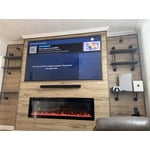
Member photos

  • +81 images
Sort by |
Showing 301-310 of 319 reviews
Jul 21, 2026
Reviewer name: Cristina
5 out of 5 stars
5 out of 5 stars review

movie

[This review was collected as part of a promotion.] great brightness, great contrast, great color, great uniformity, great responsiveness

Review from Samsung US
Helpful?38IP7LKS6PZ819847274541
Jul 31, 2026
Reviewer name: jball
5 out of 5 stars
5 out of 5 stars review

jblue

[This review was collected as part of a promotion.] best TV I've ever owned I would recommend this TV to. Everyone

Review from Samsung US
Helpful?38IP7LKS6PZ819847274541
Jul 5, 2026
Reviewer name: Spalls
4 out of 5 stars
4 out of 5 stars review

Nice upgrade

[This review was collected as part of a promotion.] I wish the tv reception was better it's way worse than my 2017 Samsung

Review from Samsung US
Helpful?38IP7LKS6PZ819847274541
Jul 5, 2026
Reviewer name: Shel
2 out of 5 stars
2 out of 5 stars review

Weird noises

[This review was collected as part of a promotion.] Brand new tv and already had to call for repairs . The speakers have a vibrating and echo noise.

Review from Samsung US
Helpful?38IP7LKS6PZ819847274541
reply from Samsung Advisor

Hi Shel, We appreciate you sharing your experience regarding an unusual sound coming from your TV. The cause may vary depending on where the sound is coming from and how your system is set up. • If the sound is coming from your TV speakers, or if you're using an external audio device like a soundbar, please double-check that the audio cable is securely connected to the correct audio output on the external device. • If you're using an antenna or cable connection, a weak signal may result in sound distortion. You can check your broadcast signal level by going to: Settings > Support > Device Care > Self Diagnosis > Broadcast Signal • If the sound seems to come from the back of the TV, it may be the result of thermal expansion or contraction of the outer casing. This can cause a soft popping noise and is considered normal - it does not indicate a malfunction, and your TV remains safe to use. We also recommend running a Sound Test to check for audio issues: Home > left directional key > Settings > Support > Device Care > Self Diagnosis > Sound Test If the issue continues or you’d like assistance, feel free to contact Samsung Support at 1-800-SAMSUNG (8AM – 9PM EST Mon – Fri, 8AM – 6PM Sat – Sun), or reach us via text anytime. You can also visit ‘Support’ on our website for: • Live Chat • Manuals, Software, & Warranty Info ~ Samsung Advisor

Jul 20, 2026
Reviewer name: jm11
5 out of 5 stars
5 out of 5 stars review

well done

[This review was collected as part of a promotion.] easy set up and very nice picture so far so good!

Review from Samsung US
Helpful?38IP7LKS6PZ819847274541
Aug 6, 2026
Reviewer name: Eschermom
3 out of 5 stars
3 out of 5 stars review

Just OK

[This review was collected as part of a promotion.] I had hoped for a brighter picture. Considered returning it, but too much trouble

Review from Samsung US
Helpful?38IP7LKS6PZ819847274541
reply from Samsung Advisor

Hi Eschermom, We’re sorry to hear you’re not fully satisfied with the picture quality on your Samsung M70HD TV. If the image appears too dark, we suggest disabling certain energy-saving features, which can automatically adjust brightness and affect how the screen looks. Go to: Settings > All Settings > General & Privacy > Power and Energy Saving, then turn off Brightness Optimization, Energy Saving Solution, Motion Lighting, and/or Contrast Enhancer. You can also adjust the Picture Mode to better suit your environment: Settings > All Settings > Picture > Picture Mode • Standard – Default mode for general viewing • Dynamic – Brighter and clearer, ideal for well-lit rooms • Movie – Best for dark room viewing • Eco – Energy-saving mode • Filmmaker Mode – Preserves content as intended by creators To fine-tune brightness, go to: Home > left directional key > Settings > All Settings > Picture > Expert Settings, then adjust the Brightness level (0–50) to your preference. Lastly, please make sure your TV is running the latest firmware: Home > Home > left directional key > Settings > Support > Software Update > Update Now We hope these tips help improve your viewing experience. If you need further support, feel free to contact us at 1-800-SAMSUNG (8AM – 9PM EST Mon – Fri, 8AM – 6PM Sat – Sun). LiveChat is also available via the ‘Support’ link on our website. ~ Samsung Advisor

Jun 21, 2026
Reviewer name: gcmdv
5 out of 5 stars
5 out of 5 stars review

Great tv

[This review was collected as part of a promotion.] Perfect picture and color. Tons of features, highly recommend

Review from Samsung US
Helpful?38IP7LKS6PZ819847274541
Aug 9, 2026
Reviewer name: Traveler
5 out of 5 stars
5 out of 5 stars review

Brightness

[This review was collected as part of a promotion.] Awesome screen views , love the vivid picture and the size of screen

Review from Samsung US
Helpful?38IP7LKS6PZ819847274541
May 20, 2026
Reviewer name: Charlo
4 out of 5 stars
4 out of 5 stars review

Picture

[This review was collected as part of a promotion.] Picture with regard to color and clarity isn't easy to adjust

Review from Samsung US
Helpful?38IP7LKS6PZ819847274541
Jun 1, 2026
Reviewer name: Espinoza7
4 out of 5 stars
4 out of 5 stars review

Great color

[This review was collected as part of a promotion.] Picture clarity excellent color! Great TV all together

Review from Samsung US
Helpful?38IP7LKS6PZ819847274541