Skip to Main Content
Sams Club
Sams Club
Customer reviews for SAMSUNG 65" Class U7900F Series 4K Crystal UHD Smart TV for
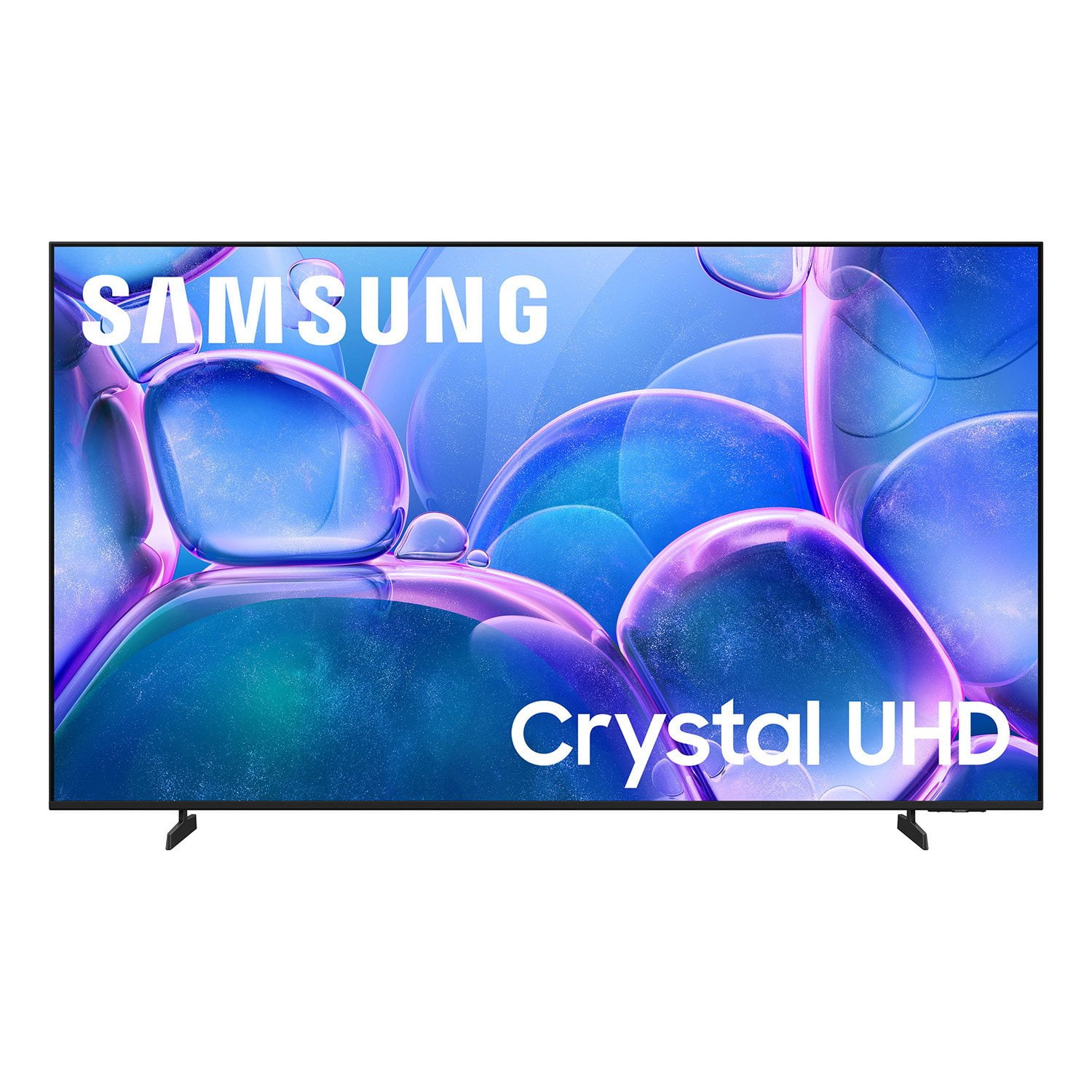
SAMSUNG 65" Class U7900F Series 4K Crystal UHD Smart TV
4.6 out of 5 stars
stars2,026 ratings1,951 reviews
  1. 5 stars77% (1,565)
  2. 4 stars14% (283)
  3. 3 stars5% (94)
  4. 2 stars2% (35)
  5. 1 star2% (49)

Member photos

  • +752 images
Sort by |
Showing 301-310 of 1,951 reviews
May 4, 2026
natnat1124
5 out of 5 stars review

great quality television!

[This review was collected as part of a promotion.] hands down my favorite TV I've ever owned. my Samsung ecosystem works seamlessly as expected. crisp watching experience with beautiful colors. snappy os with lots of features included.

Review from Samsung US
Helpful?7052JBFI9KAV17348165019
May 12, 2026
NelsonAle07
5 out of 5 stars review

Excellent performance

[This review was collected as part of a promotion.] Excellent performance, with daily usage exceeding 8 hours, excellent resolution and brightness and good speed when navigating the options menu.

Review from Samsung US
Helpful?7052JBFI9KAV17348165019
Mar 23, 2026
GMan
3 out of 5 stars review

Remote is hard to work when pushing buttons.

[This review was collected as part of a promotion.] the legs on my TV is not sturdy and the remote is hard to work when pushing buttons and the sound is not very loud, you have to turn the volume up too 24 +.

Review from Samsung US
Helpful?7052JBFI9KAV17348165019
reply from Samsung Advisor

Hi GMan, Thank you for sharing your concerns. Please know that the TV stand was solidly designed and extensively tested for stability. If your stand seems wobbly or looks crooked, please ensure the legs are installed correctly: “R” on the right, “L” on the left. The legs should slant outward toward the edges of the TV, and you should hear a “click” once they’re fully inserted. Also, make sure the TV is placed on a flat, level surface to avoid tilt or instability. For step-by-step setup, refer to the Installation Guide included in the box, or download it at: https://www.samsung.com/us/support/downloads/ If your TV volume is too low, please review the below troubleshooting steps. To start, we recommend making sure your TV is running the latest firmware, as updates can include improvements to sound performance: Home > left directional key > Settings > Support > Software Update If volume levels still seem too low, you can improve sound performance by adjusting a few key settings: Sound Mode: Navigate to: Settings > All Settings > Sound > Sound Mode Auto Volume: This feature helps maintain consistent volume levels across content and input sources. Turn it on under: Settings > All Settings > Sound > Expert Settings > Auto Volume = On You can also explore Expert Settings to fine-tune sound output with adjustments for Balance, Equalizer, and more. For personalized support with these settings or selecting a soundbar to complement your setup, contact Samsung Support at 1-800-SAMSUNG (8AM – 12AM EST, 7 days a week) or use LiveChat via the ‘Support’ link on our website. ~Samsung Advisor

May 12, 2026
Chichigreen
5 out of 5 stars review

Great feature and nice quality sound.

[This review was collected as part of a promotion.] the TV is very clear, everything about it is bright. it's a TV that I would like to buy again. I recommend this TV for everyone to buy it's a 75-in great feature and nice quality sound.

Review from Samsung US
Helpful?7052JBFI9KAV17348165019
May 11, 2026
Spanky
5 out of 5 stars review

It's easy to use and set up

[This review was collected as part of a promotion.] This is a great TV, I personally don't have cable, I use an inttena , the TV works great, I'm very impressed with the clarity. The sound is clear , just a great TV

Review from Samsung US
Helpful?7052JBFI9KAV17348165019
May 20, 2026
Dolores
3 out of 5 stars review

Log in

[This review was collected as part of a promotion.] Every day I have to log in to some of my apps, is ridiculous and if turn off TV same day need to log in. Is very unhappy

Review from Samsung US
Helpful?7052JBFI9KAV17348165019
reply from Samsung Advisor

Hi Dolores, Thank you for reaching out to us regarding the login issues you are experiencing. Please ensure you are running the latest Firmware. Go to Settings > Support > Software Update > Update Now. If you continue to have issues, please call us at 1-800-SAMSUNG, 8AM – 9PM EST Mon – Fri, 8AM – 6PM Sat – Sun. LiveChat is also available via the ‘Support’ link on our website. ~ Samsung Advisor

May 3, 2026
DaveZ
5 out of 5 stars review

You can't go wrong with this great TV!

[This review was collected as part of a promotion.] Tv is the ultimate upgrade for home media viewing. Integration with all apps and devices is seamless, and the picture is incredible. Best tv I have ever owned! Highly recommended.

Review from Samsung US
Helpful?7052JBFI9KAV17348165019
May 20, 2026
Tanny
2 out of 5 stars review

Very Dark colors and bad resolution

[This review was collected as part of a promotion.] The tv image is very dark and not a good resolution, even in Dynamic settings is very dark, with other settings is worst.

Review from Samsung US
Helpful?7052JBFI9KAV17348165019
reply from Samsung Advisor

Hi Tanny, We’re sorry to hear that the picture on your Samsung U7900F TV appears too dark. If this isn’t meeting your expectations, there are several settings you can adjust to improve the overall brightness and clarity of your screen. First, try disabling certain energy-saving features that may be dimming the screen automatically. Go to: Settings > All Settings > General & Privacy > Power and Energy Saving, then turn off Brightness Optimization, Energy Saving Solution, Motion Lighting, and/or Contrast Enhancer. Next, adjust the Picture Mode to better match your viewing environment: Settings > All Settings > Picture > Picture Mode and choose from the following: • Dynamic – Brighter and clearer for well-lit rooms • Standard – Balanced for most environments • Movie – Ideal for watching in a dark room • Eco – Designed for energy savings • Filmmaker Mode – Preserves the creator’s original intent You can also manually adjust brightness by going to: Settings > All Settings > Picture > Expert Settings > Brightness. Use the slider to set a level that suits your preferences (0–50). Finally, we recommend making sure your TV has the latest software installed: Settings > Support > Software Update > Update Now We hope these tips help improve your viewing experience. If you need further assistance with setup or adjustments, feel free to contact Samsung Customer Support at 1-800-SAMSUNG (8AM – 9PM EST Mon – Fri, 8AM – 6PM Sat – Sun), or reach us via text anytime. You can also visit ‘Support’ on our website for: • Live Chat • Manuals, Software, & Warranty Info ~Samsung Advisor

May 4, 2026
Wildwon
5 out of 5 stars review

Great Product

[This review was collected as part of a promotion.] Great screen size, great quality. Picture quality is clear and crisp. Movies come out bright and vivid as well. Easily add all the streaming platforms for all your watching needs.

Review from Samsung US
Helpful?7052JBFI9KAV17348165019
May 20, 2026
Bernie
5 out of 5 stars review

Great bang for the buck$. Exceeded expectations!

[This review was collected as part of a promotion.] Exceeded my expectations. I liked what I saw and the value before I bought it so much that I bought two.

Review from Samsung US
Helpful?7052JBFI9KAV17348165019