Skip to Main Content
Sam's Club
Sam's Club
All Departments
All Services
Customer reviews for SAMSUNG 65" Class U7900F Series 4K Crystal UHD Smart TV for
SAMSUNG 65" Class U7900F Series 4K Crystal UHD Smart TV
4.5 out of 5 stars
stars
4,222 ratings4,143 reviews
  1. 5 stars74% (3,105)
  2. 4 stars15% (631)
  3. 3 stars6% (256)
  4. 2 stars2% (103)
  5. 1 star3% (127)

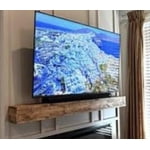
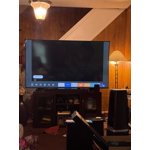
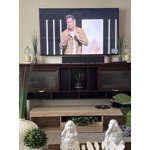
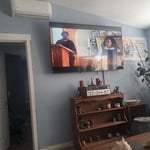
Member photos

  • +1590 images
Sort by |
Showing 2,951-2,960 of 4,143 reviews
Jun 20, 2026
Reviewer name: Maestro
5 out of 5 stars
5 out of 5 stars review

Great tv

[This review was collected as part of a promotion.] Great tv. I love it. Excellent product for the money KUDOS

Review from Samsung US
Helpful?7052JBFI9KAV17348165019
Jul 21, 2026
Reviewer name: Abraham
4 out of 5 stars
4 out of 5 stars review

Great view

[This review was collected as part of a promotion.] Yes there helpful great vibes and view it's great I like it to much vibes vie bright 🌞 ness

Review from Samsung US
Helpful?7052JBFI9KAV17348165019
Jul 5, 2026
Reviewer name: bell
2 out of 5 stars
2 out of 5 stars review

bad features

[This review was collected as part of a promotion.] The brightness and color are bad with this tv. Do not buy!

Review from Samsung US
Helpful?7052JBFI9KAV17348165019
reply from Samsung Advisor

Hi bell, We’re sorry to hear you’re not fully satisfied with the picture quality on your Samsung U7900F TV. If the image appears too dark, we suggest disabling certain energy-saving features, which can automatically adjust brightness and affect how the screen looks. Go to: Settings > All Settings > General & Privacy > Power and Energy Saving, then turn off Brightness Optimization, Energy Saving Solution, Motion Lighting, and/or Contrast Enhancer. You can also adjust the Picture Mode to better suit your environment: Settings > All Settings > Picture > Picture Mode • Standard – Default mode for general viewing • Dynamic – Brighter and clearer, ideal for well-lit rooms • Movie – Best for dark room viewing • Eco – Energy-saving mode • Filmmaker Mode – Preserves content as intended by creators To fine-tune brightness, go to: Home > left directional key > Settings > All Settings > Picture > Expert Settings, then adjust the Brightness level (0–50) to your preference. Lastly, please make sure your TV is running the latest firmware: Home > Home > left directional key > Settings > Support > Software Update > Update Now We hope these tips help improve your viewing experience. If you need further support, feel free to contact us at 1-800-SAMSUNG, 8AM – 12AM EST, 7 days a week. LiveChat is also available via the ‘Support’ link on our website. ~ Samsung Advisor

Jul 8, 2026
Reviewer name: Wade
4 out of 5 stars
4 out of 5 stars review

good features

[This review was collected as part of a promotion.] Purchased as a replacement for an older Plasma tv. Picture is much cleaner with less reflection

Review from Samsung US
Helpful?7052JBFI9KAV17348165019
Jul 20, 2026
Reviewer name: Gale
5 out of 5 stars
5 out of 5 stars review

very nice, exceptional price

[This review was collected as part of a promotion.] ~very lovely tv, everything seems to be perfect and nice size for our room.

Review from Samsung US
Helpful?7052JBFI9KAV17348165019
Jul 22, 2026
Reviewer name: DaZub
5 out of 5 stars
5 out of 5 stars review

Great product

[This review was collected as part of a promotion.] Love the size has great color, contrast, brightness, and responses very well. A great purchase.

Review from Samsung US
Helpful?7052JBFI9KAV17348165019
Aug 5, 2026
Reviewer name: Jeff
1 out of 5 stars
1 out of 5 stars review

Bad TV

[This review was collected as part of a promotion.] We didnt like the TV. It was too grainy and the color was very dull

Review from Samsung US
Helpful?7052JBFI9KAV17348165019
reply from Samsung Advisor

Hi Jeff, Thank you for your feedback on the Samsung U7900F TV. If the picture appears unclear, dull, or lacks definition, there are several settings you can adjust to improve clarity and overall image quality. Go to: Settings > All Settings > Picture > Expert Settings, and review these key settings: Picture Clarity Settings: While originally intended for motion handling, these can also impact overall clarity • Off: Disables motion enhancements • Auto: Automatically adjusts based on content • Custom: Lets you fine-tune: o Judder Reduction – Helps smooth out uneven motion o LED Clear Motion – Boosts sharpness in fast-moving content o Noise Reduction – Reduces distortion and enhances detail in lower-resolution sources Core Picture Settings • Brightness – Controls overall screen brightness • Contrast – Enhances the difference between bright and dark areas • Sharpness – Adjusts edge definition; closer to 20 increases detail • Color – Enhances depth and intensity of colors And don’t forget to check for the latest firmware, which may improve performance: Settings > Support > Software Update > Update Now These adjustments can make a noticeable difference in overall clarity. If you need further help tailoring the settings to your preferences or environment, please contact Samsung Support at 1-800-SAMSUNG (8AM – 9PM EST Mon – Fri, 8AM – 6PM Sat – Sun). LiveChat is also available via the ‘Support’ link on our website. ~ Samsung Advisor

Aug 5, 2026
Reviewer name: Cbrown1573
3 out of 5 stars
3 out of 5 stars review

Samsung TV

[This review was collected as part of a promotion.] The TV has contrast issues. No vibrancy to the screen.

Review from Samsung US
Helpful?7052JBFI9KAV17348165019
reply from Samsung Advisor

Hi Cbrown1573, Thank you for your feedback on the Samsung U7900F TV. If the picture appears unclear, dull, or lacks definition, there are several settings you can adjust to improve clarity and overall image quality. Go to: Settings > All Settings > Picture > Expert Settings, and review these key settings: Picture Clarity Settings: While originally intended for motion handling, these can also impact overall clarity • Off: Disables motion enhancements • Auto: Automatically adjusts based on content • Custom: Lets you fine-tune: o Judder Reduction – Helps smooth out uneven motion o LED Clear Motion – Boosts sharpness in fast-moving content o Noise Reduction – Reduces distortion and enhances detail in lower-resolution sources Core Picture Settings • Brightness – Controls overall screen brightness • Contrast – Enhances the difference between bright and dark areas • Sharpness – Adjusts edge definition; closer to 20 increases detail • Color – Enhances depth and intensity of colors And don’t forget to check for the latest firmware, which may improve performance: Settings > Support > Software Update > Update Now These adjustments can make a noticeable difference in overall clarity. If you need further help tailoring the settings to your preferences or environment, please contact Samsung Support at 1-800-SAMSUNG (8AM – 9PM EST Mon – Fri, 8AM – 6PM Sat – Sun). LiveChat is also available via the ‘Support’ link on our website. ~ Samsung Advisor

Jul 21, 2026
Reviewer name: Nikk
5 out of 5 stars
5 out of 5 stars review

Great view

[This review was collected as part of a promotion.] Solid TV love how crisp every show looks 100% would recommend to anyone looking to buy a TV

Review from Samsung US
Helpful?7052JBFI9KAV17348165019
Aug 5, 2026
Reviewer name: Jennie
5 out of 5 stars
5 out of 5 stars review

Love it

[This review was collected as part of a promotion.] I love my tv. I have a Roku TV the Samsung is much better

Review from Samsung US
Helpful?7052JBFI9KAV17348165019