Skip to Main Content
Sam's Club
Sam's Club
All Departments
All Services
Customer reviews for SAMSUNG 65" Class U7900F Series 4K Crystal UHD Smart TV for
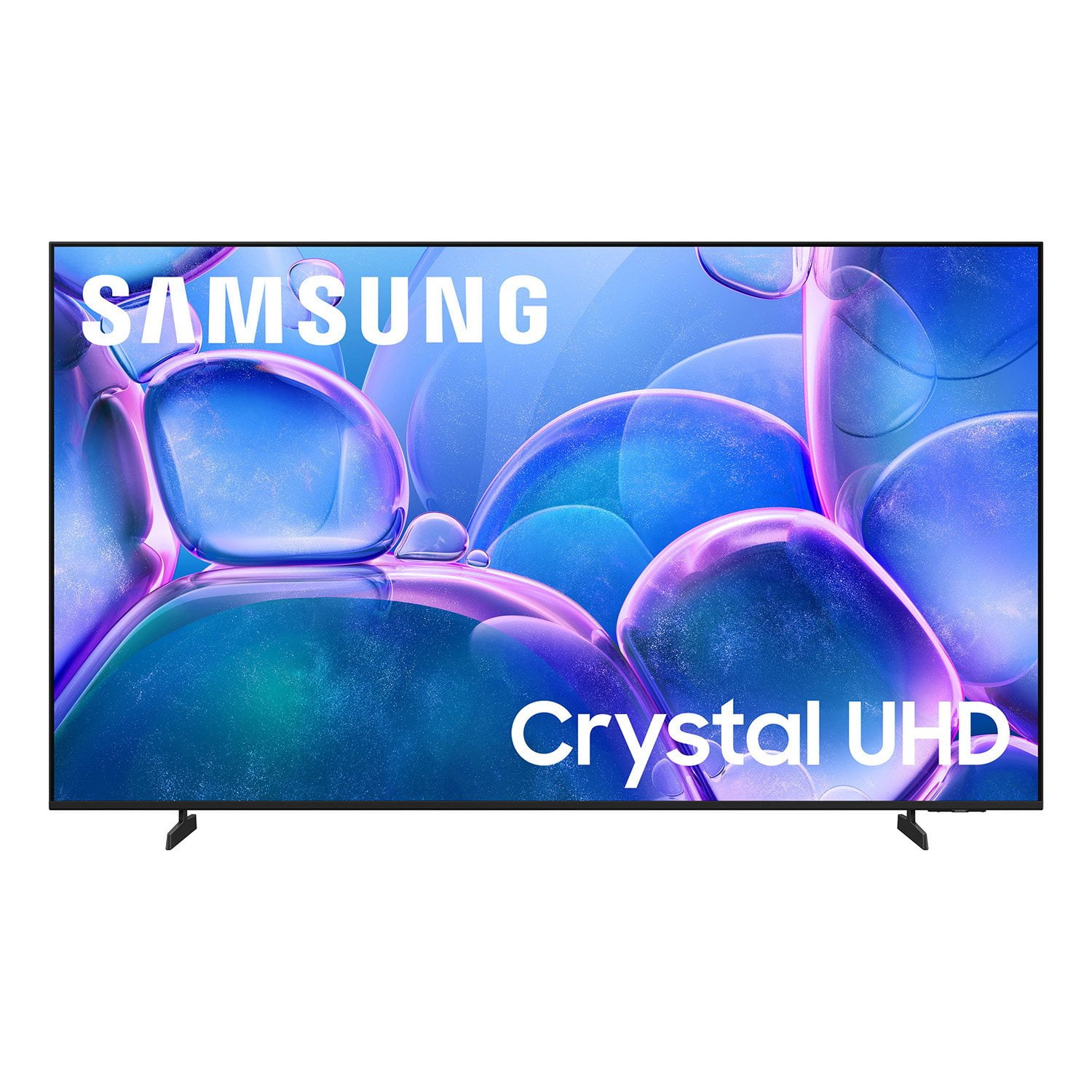
SAMSUNG 65" Class U7900F Series 4K Crystal UHD Smart TV
4.6 out of 5 stars
stars
3,256 ratings3,177 reviews
  1. 5 stars75% (2,434)
  2. 4 stars15% (479)
  3. 3 stars6% (180)
  4. 2 stars2% (66)
  5. 1 star3% (97)

Member photos

  • +1265 images
Sort by |
Showing 2,511-2,520 of 3,177 reviews
Jun 23, 2026
Nagen
4 out of 5 stars review

Great

So far it's doing good. May be I can give more info about this after some more time.

Review from Samsung US
Helpful?7052JBFI9KAV17348165019
Jun 20, 2026
Jay T
5 out of 5 stars review

Love it!

Picture is really nice. Sound is great! Colors are so vivid!

Review from Samsung US
Helpful?7052JBFI9KAV17348165019
Jun 20, 2026
Superdave
5 out of 5 stars review

Great screen

Only feature is the compatibility of the remote,had a little trouble on how to operate it.

Review from Samsung US
Helpful?7052JBFI9KAV17348165019
Jun 20, 2026
Kmac
3 out of 5 stars review

Tv keeps pausing

Love the picture but it keeps pausing which drives me nuts

Review from Samsung US
Helpful?7052JBFI9KAV17348165019
reply from Samsung Advisor

Hi Kmac, We appreciate your feedback regarding your U7900F TV’s performance. If you're experiencing freezing or lag in general response time, please try the following steps: 1. Check for firmware updates – Keeping your TV up to date can resolve many performance issues: Home > left directional key > Settings > Support > Software Update > Update Now 2. Run Device Care – This tool checks system memory, frees up cached data, and closes background apps that could be slowing things down: Home > left directional key > Settings > Support > Device Care > Start Device Care 3. Cold boot your TV – With the TV powered on, press and hold the Power button on your remote for 5+ seconds until the TV restarts. This helps refresh the system. If you're still noticing performance snags after these steps, please contact Samsung Support at 1-800-SAMSUNG (8AM – 9PM EST Mon – Fri, 8AM – 6PM Sat – Sun). You can also connect with a LiveChat agent via the ‘Support’ link on our website. ~ Samsung Advisor

Jun 22, 2026
jackpr
5 out of 5 stars review

resolution

i have diferent tv brand but the resolution for me this one its better

Review from Samsung US
Helpful?7052JBFI9KAV17348165019
Jun 22, 2026
Rhino
5 out of 5 stars review

Great features

Product has multiple uses and apps that are user friendly

Review from Samsung US
Helpful?7052JBFI9KAV17348165019
Jun 20, 2026
QWERTY
5 out of 5 stars review

awesome

awsome I love this TV and it's capability the price was great too cannot go wrong with Samsung.

Review from Samsung US
Helpful?7052JBFI9KAV17348165019
Jun 20, 2026
Float
4 out of 5 stars review

Excellent resolution and color

Excellent tv color and resolution. AI seems to work well

Review from Samsung US
Helpful?7052JBFI9KAV17348165019
Jun 23, 2026
Mike
5 out of 5 stars review

Great TV the picture quality is great

The TV is great, the picture quality is great for both gaming and movies.

Review from Samsung US
Helpful?7052JBFI9KAV17348165019
Jun 22, 2026
Jremmy
2 out of 5 stars review

Good size, good value, bad quality.

Nice size screen, good value, terrible display. Banding visible during viewing on bright scenes.

Review from Samsung US
Helpful?7052JBFI9KAV17348165019
reply from Samsung Advisor

Hi Jremmy, Thank you for sharing your thoughts on the picture quality of Samsung’s U7900F TV. If the image doesn’t look quite right to you, there are several adjustments that can help optimize performance for your space and preferences. First, make sure your TV is up to date. Firmware updates often include picture quality enhancements. To check for the latest version, go to: Home > Left directional button > Settings > Support > Software Update > Update Now Next, explore available Picture Modes under: Settings > All Settings > Picture > Picture Mode Each mode is tailored to a different viewing style: • Standard – Balanced settings for everyday use • Dynamic – Brighter and sharper for brightly lit rooms • Movie – Softer tones ideal for low-light viewing • Eco – Reduces power consumption by adjusting brightness • Filmmaker Mode – Preserves the creator’s original color, contrast, and motion settings You can also customize the image further under: Settings > All Settings > Picture > Expert Settings, where you’ll find detailed controls for Brightness & Contrast, Color & Tint, Sharpness, and more. If you’d like help fine-tuning your display or exploring these settings, please call Samsung Customer Support at 1-800-SAMSUNG (8AM – 9PM EST Mon – Fri, 8AM – 6PM Sat – Sun), or visit the ‘Support’ section on our website to LiveChat with an agent. ~ Samsung Advisor