Skip to Main Content
Sam's Club
Sam's Club
All Departments
All Services
Customer reviews for SAMSUNG 65" Class U7900F Series 4K Crystal UHD Smart TV for
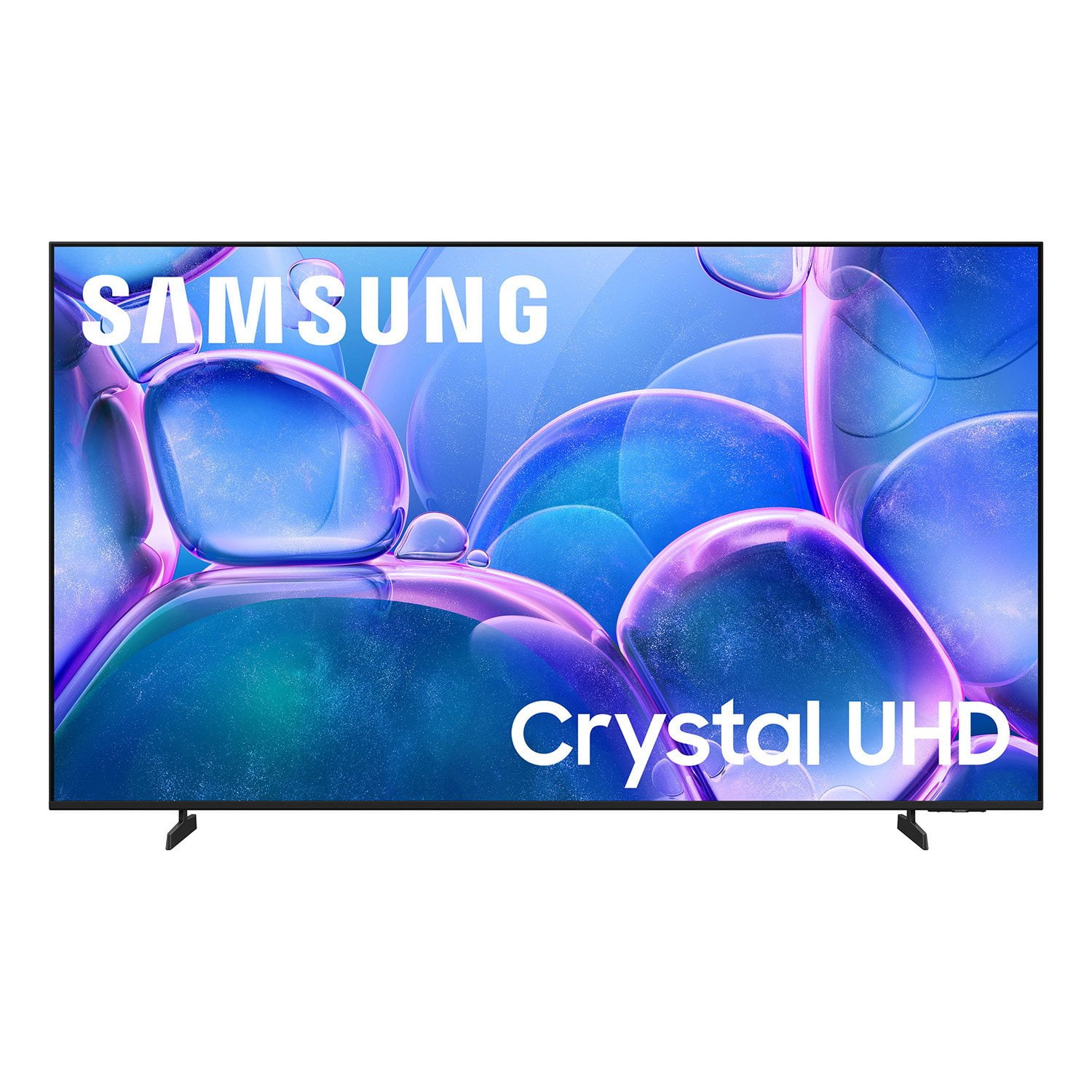
SAMSUNG 65" Class U7900F Series 4K Crystal UHD Smart TV
4.5 out of 5 stars
stars
4,222 ratings4,143 reviews
  1. 5 stars74% (3,105)
  2. 4 stars15% (631)
  3. 3 stars6% (256)
  4. 2 stars2% (103)
  5. 1 star3% (127)

Member photos

  • +1590 images
Sort by |
Showing 1,601-1,610 of 4,143 reviews
Aug 5, 2026
Reviewer name: Shopaholic
5 out of 5 stars
5 out of 5 stars review

Great features
[This review was collected as part of a promotion.] Great TV for the price, picture is clear, brightness is great, speakers work awesome, the apps it comes with and the speed is great

Review from Samsung US
Helpful?7052JBFI9KAV17348165019
Jun 21, 2026
Reviewer name: Myway82
5 out of 5 stars
5 out of 5 stars review

Great features
[This review was collected as part of a promotion.] I love this product has a really good picture. Really good resolution the sound on it. It’s amazing easy connective the easy to use.

Review from Samsung US
Helpful?7052JBFI9KAV17348165019
Jul 27, 2026
Reviewer name: Anonymous
5 out of 5 stars
5 out of 5 stars review

Great features
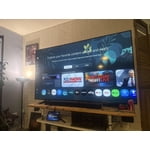
[This review was collected as part of a promotion.] The color on this TV just pops. I love the brightness adjustability, when watching movies It has nice contrast.

Review from Samsung US
Helpful?7052JBFI9KAV17348165019
Jun 20, 2026
Reviewer name: Szevhen77
5 out of 5 stars
5 out of 5 stars review

Best Tv I’ve Purchase So Far

[This review was collected as part of a promotion.] Great Quality , Easy Access & The Gaming Mode Tops It Off The Remote Is Unique & The Tv Is Definitely Smart

Review from Samsung US
Helpful?7052JBFI9KAV17348165019
Jul 5, 2026
Reviewer name: Pamela
1 out of 5 stars
1 out of 5 stars review

Regret!

[This review was collected as part of a promotion.] I regret buying this model. It's okay for an entry-level TV at this price point, but otherwise, the screen quality is very poor. I wish I could exchange or return it to get a better one.

Review from Samsung US
Helpful?7052JBFI9KAV17348165019
reply from Samsung Advisor

Hi Pamela, We appreciate your feedback on the picture quality of Samsung’s U7900F TV. If the image doesn’t quite match your preferences, there are several adjustments you can make to better suit your viewing environment and content type. First, please ensure your TV is running the latest firmware, as updates may include important picture quality enhancements. Go to: Home > Left directional button > Settings > Support > Software Update > Update Now To explore picture mode options, navigate to: Home > Left directional button > Settings > All Settings > Picture > Picture Mode. Options include: • Standard – Ideal for general viewing • Dynamic – Brighter and more vibrant for well-lit spaces • Eco – Optimized for energy efficiency • Movie – Best for viewing in low light • Filmmaker Mode – Preserves the content creator’s intent and disables motion smoothing for supported content You can further customize your image by going to: Settings > All Settings > Picture > Expert Settings, where you can adjust Brightness, Contrast, Color Tone, Sharpness, Contrast Enhancer and more. If you’d like help finding the best picture settings for your preferences, please don’t hesitate to contact Samsung Support at 1-800-SAMSUNG, available 8AM – 9PM EST Mon – Fri, 8AM – 6PM Sat – Sun. You can also LiveChat with an agent or explore additional resources on our website by clicking the ‘Support’ link. ~ Samsung Advisor

Jun 22, 2026
Reviewer name: MAGALLAN
5 out of 5 stars
5 out of 5 stars review

Perfect picture

[This review was collected as part of a promotion.] This is the best TV amazing. The picture is perfect. The volume is awesome. The contrast is amazing

Review from Samsung US
Helpful?7052JBFI9KAV17348165019
Jul 27, 2026
Reviewer name: AELBASHIR
4 out of 5 stars
4 out of 5 stars review

Perfect TV

[This review was collected as part of a promotion.] Everything about this TV is perfect! Picture quality and overall performance are great. The only downside was the difficulty in downloading and setting up my preferred IPTV app.

Review from Samsung US
Helpful?7052JBFI9KAV17348165019
Aug 5, 2026
Reviewer name: Moose
5 out of 5 stars
5 out of 5 stars review

We love everything about this TV! It’s wonderful!

[This review was collected as part of a promotion.] We are so happy with our Samsung TV. The picture is perfect, the sound quality is great, the lighting and colors are amazing! We love it and definitely recommend it for everyone!

Review from Samsung US
Helpful?7052JBFI9KAV17348165019
Jun 23, 2026
Reviewer name: Fuzz
5 out of 5 stars
5 out of 5 stars review

Compatible with all my devices

[This review was collected as part of a promotion.] I love it super nice easy to set up, compatibility is awesome. Works with all my devices its faster loading than my last TV. I just love it

Review from Samsung US
Helpful?7052JBFI9KAV17348165019
Aug 5, 2026
Reviewer name: camo63
2 out of 5 stars
2 out of 5 stars review

Horrible

[This review was collected as part of a promotion.] It’s slow, and it is not user friendly! To add or delete apps is almost impossible! I will NEVER buy another Samsung tv!

Review from Samsung US
Helpful?7052JBFI9KAV17348165019
reply from Samsung Advisor

Hi camo63, Thank you for your feedback. To manage the apps on your screen, please follow the below instructions: Searching for & Installing Apps 1. Press Home on your remote > left directional key, then scroll up to the magnifying (search) icon at the top of the screen. 2. Using the search bar, enter the content or app you’d like to find. 3. Navigate to and select the app you’d like to install, then select Install. Note: Previously installed apps can be accessed on the Settings screen. Moving Apps Already on Home Screen 1. From the For You Home Screen’s App List, scroll to the end of the list and select List Edit. 2. Find the app you’d like to relocate, then press select. 3. You can now use the left or right directional keys to reposition the app, then press select. Managing & Adding Apps on Home Screen 1. Go to App Settings (these can be found at the bottom of the Apps screen) and select the app you want to move. The following options will be available: a. Add to Home: Move the app to your desired location on the Home screen. b. Delete: Delete app (applicable for manually installed apps only) c. Lock/Unlock: Lock the app with a PIN so only you can use it. When the app is selected again, you will be prompted to enter the PIN to unlock it. d. Reinstall: Reinstall the app. e. View Details: View the app’s information and details. If you need more help with app management, please don’t hesitate to reach Samsung Support at 1-800-SAMSUNG (8AM – 9PM EST Mon – Fri, 8AM – 6PM Sat – Sun). LiveChat agents are also available through the ‘Support’ link on our website. ~ Samsung Advisor