Skip to Main Content
Sam's Club
Sam's Club
All Departments
All Services
Customer reviews for SAMSUNG 65" Class U7900F Series 4K Crystal UHD Smart TV for
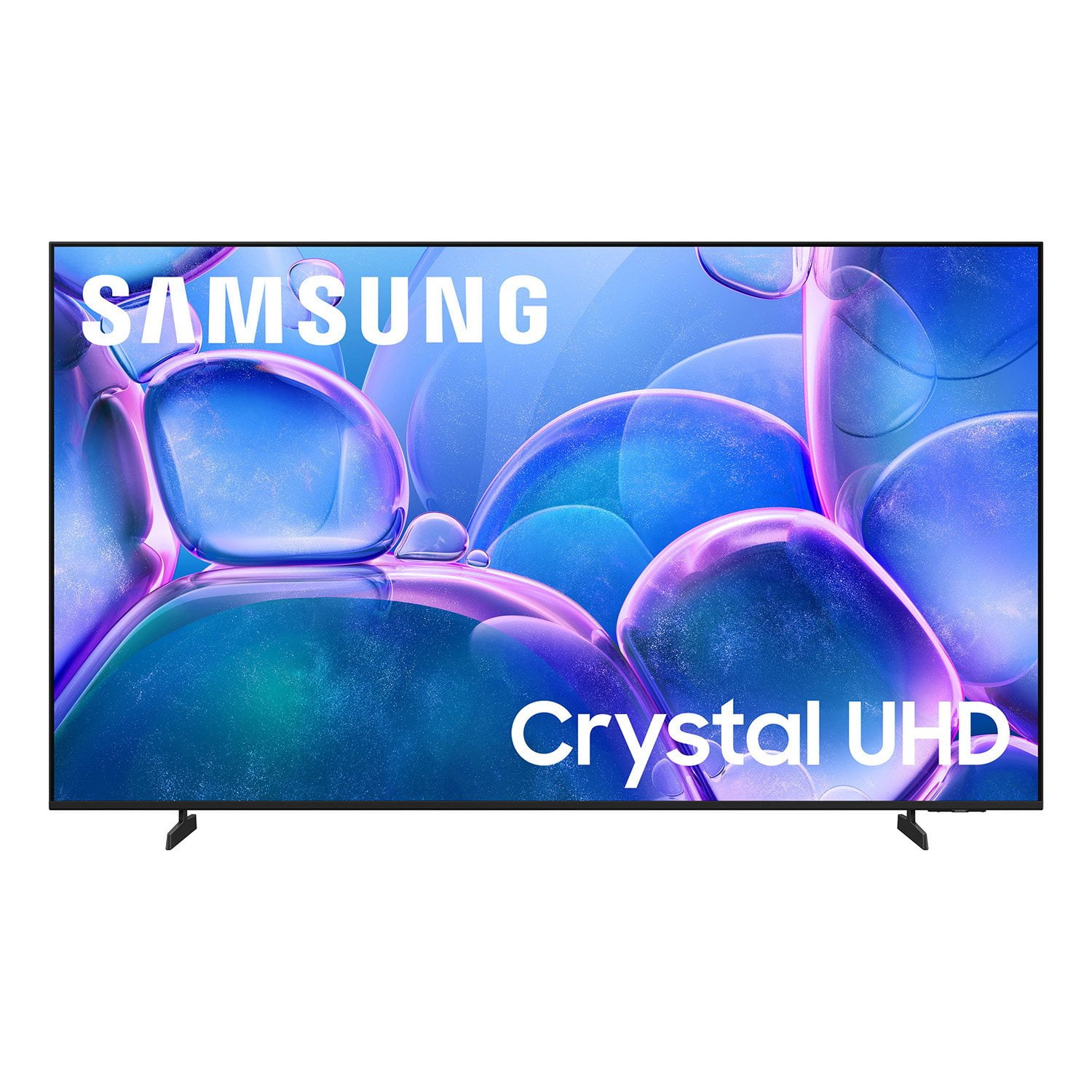
SAMSUNG 65" Class U7900F Series 4K Crystal UHD Smart TV
4.6 out of 5 stars
stars
3,256 ratings3,177 reviews
  1. 5 stars75% (2,434)
  2. 4 stars15% (479)
  3. 3 stars6% (180)
  4. 2 stars2% (66)
  5. 1 star3% (97)

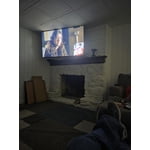
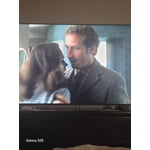
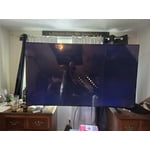
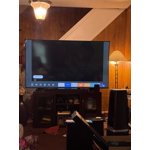
Member photos

  • +1265 images
Sort by |
Showing 1,441-1,450 of 3,177 reviews
Jun 8, 2026
Rooster
5 out of 5 stars review

Samsung TV

[This review was collected as part of a promotion.] I'm very pleased with the TV and the Samsung Channels

Review from Samsung US
Helpful?7052JBFI9KAV17348165019
Jun 22, 2026
MTG1
4 out of 5 stars review

Great image

The product is a great size with good visuals. The brightness really shows every image on the screen

Review from Samsung US
Helpful?7052JBFI9KAV17348165019
Jun 20, 2026
NYG4LIFE101
2 out of 5 stars review

Good picture quality

Unable to connect to the tv. Doesn't allow me to sign in. Tried several times. The only way I can use the unit is through firestick.

Review from Samsung US
Helpful?7052JBFI9KAV17348165019
reply from Samsung Advisor

Hi NYG4LIFE101, If your U7900F TV’s Smart Hub is freezing, lagging, or not loading properly: 1. Reset Smart Hub – Home > left directional key > Settings > Support > Device Care > Self Diagnosis > Reset Smart Hub (This will sign you out of apps and reset Smart Hub to factory default.) 2. Update firmware – Home > left directional key > Settings > Support > Software Update > Update Now 3. Run Device Care – Home > left directional key > Settings > Support > Device Care > Start Device Care If the issue persists, contact Samsung Support at 1-800-SAMSUNG (8AM – 9PM EST Mon – Fri, 8AM – 6PM Sat – Sun). LiveChat is available under the ‘Support’ link on our website. ~ Samsung Advisor

Jun 1, 2026
Amanda
5 out of 5 stars review

Great tv

[This review was collected as part of a promotion.] For the price great tv, I love how its user friendly. Easily to stream from my phone

Review from Samsung US
Helpful?7052JBFI9KAV17348165019
Jun 7, 2026
Hate this TV
1 out of 5 stars review

Not enough ports

[This review was collected as part of a promotion.] Hate this tv. Can't attach my tv antenna to view local stations and local news

Review from Samsung US
Helpful?7052JBFI9KAV17348165019
reply from Samsung Advisor

Hi Hate this TV, We're sorry you are experiencing issues connection your antenna to the U7900FD TV. Please know you can connect your antenna via HDMI or AUX cable. Then please try the following troubleshooting steps to resolve the issue: 1. Confirm external device setup: Make sure the external device (such as a cable box, game console, or Blu-ray player) is securely connected and powered on. On your TV, go to: Home > left directional key > Connected Devices > Sources, and confirm the correct input is selected. 2. Reconnect and test cables: Remove and firmly reconnect all HDMI or AV cables between your TV and the external device. Try using a different cable if possible. 3. Power cycle your equipment: Unplug the power cords to your TV and the connected devices. Wait 30 seconds, then plug them back in and power on each device. 4. Run a Picture or Sound Test: These tests help determine if the issue lies with the TV or the connected device. Go to: Home > left directional key > Settings > Support > Device Care > Self Diagnosis > Picture Test or Sound Test. 5. Use HDMI Troubleshooting: Home > left directional key > Connected Devices > Connection Guide > Video Device > HDMI Troubleshooting. This tool checks HDMI connections and helps identify potential issues. 6. Check signal strength (for antenna users). If you're using an antenna, go to: Settings > Support > Device Care > Self Diagnosis > Broadcast Signal. Here you can view signal strength and adjust the antenna position if needed for better reception. 7. Run Auto Program (if not using a cable box). If your TV is connected directly to a wall cable outlet or antenna, try running Auto Program to scan for available channels: Settings > All Settings > Broadcasting > Auto Program 8. Check network status (for streaming sources): Settings > All Settings > Connection > Network > Network Status, and make sure your TV is properly connected to the internet if you're using streaming services or apps. If you still see the “No Signal” message after trying the above, please call Samsung Support at 1-800-SAMSUNG ((8AM – 9PM EST Mon – Fri, 8AM – 6PM Sat – Sun)). Our LiveChat agents are also available through the Support link on our website. ~Samsung Advisor

Jun 1, 2026
Commodus
4 out of 5 stars review

Great features

[This review was collected as part of a promotion.] Nice TV for the price. Bought it 3 months ago and I'm very happy with it

Review from Samsung US
Helpful?7052JBFI9KAV17348165019
Jun 22, 2026
Samsung Lover
5 out of 5 stars review

Fabulous TV.

Absolutely beautiful. Looks like you could step right into the picture. Colors are vibrant and bright. We love it.

Review from Samsung US
Helpful?7052JBFI9KAV17348165019
Jun 20, 2026
Prilly
5 out of 5 stars review

I'm obsessed

The picture is absolutely beautiful I was completely floored and totally wasn't expecting to see how Crystal clearThe picture was. amazing

Review from Samsung US
Helpful?7052JBFI9KAV17348165019
Jun 15, 2026
Chillylime
5 out of 5 stars review

Old reliable

[This review was collected as part of a promotion.] Beautiful picture I hope to upgrade someday soon great software and reliable operation.

Review from Samsung US
Helpful?7052JBFI9KAV17348165019
Jun 1, 2026
Wuprophecy
5 out of 5 stars review

Amazing TV

[This review was collected as part of a promotion.] Super love this TV. Have always and will always be a Samsung guy!

Review from Samsung US
Helpful?7052JBFI9KAV17348165019