Skip to Main Content
Sam's Club
Sam's Club
Customer reviews for SAMSUNG 65" Class U7900F Series 4K Crystal UHD Smart TV for
SAMSUNG 65" Class U7900F Series 4K Crystal UHD Smart TV
4.6 out of 5 stars
stars2,414 ratings2,337 reviews
  1. 5 stars76% (1,843)
  2. 4 stars14% (347)
  3. 3 stars5% (118)
  4. 2 stars2% (44)
  5. 1 star3% (62)

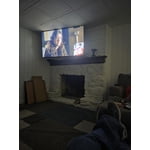
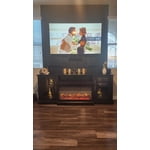
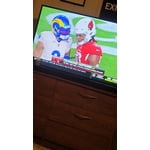
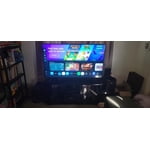
Member photos

  • +895 images
Sort by |
Showing 1,291-1,300 of 2,337 reviews
Jun 1, 2026
Jazzydk
4 out of 5 stars review

Love the size

[This review was collected as part of a promotion.] Details on a larger TV are very good. Color seems true to real.

Review from Samsung US
Helpful?7052JBFI9KAV17348165019
Jun 11, 2026
Juni
5 out of 5 stars review

Amazing

[This review was collected as part of a promotion.] Great quality nice to watch with my family, sports or movies

Review from Samsung US
Helpful?7052JBFI9KAV17348165019
Jun 5, 2026
BedRm
5 out of 5 stars review

Great features

[This review was collected as part of a promotion.] Bright! Easy to set up. Multiple apps and Samsung TV Plus.

Review from Samsung US
Helpful?7052JBFI9KAV17348165019
May 28, 2026
Duckie
5 out of 5 stars review

Good

[This review was collected as part of a promotion.] Good, good size. Clear image. I like that it is a realy goog product. Thanks.

Review from Samsung US
Helpful?7052JBFI9KAV17348165019
May 20, 2026
Chyyna
1 out of 5 stars review

My TV is not working properly I cannot get apps

[This review was collected as part of a promotion.] My Tv is not working and I can’t get into any of my apps

Review from Samsung US
Helpful?7052JBFI9KAV17348165019
reply from Samsung Advisor

Hi Chyyna, Thank you for reaching out to us. If your U7900F TV’s Smart Hub is freezing, lagging, or not loading properly: 1. Reset Smart Hub – Home > left directional key > Settings > Support > Device Care > Self Diagnosis > Reset Smart Hub (This will sign you out of apps and reset Smart Hub to factory default.) 2. Update firmware – Home > left directional key > Settings > Support > Software Update > Update Now 3. Run Device Care – Home > left directional key > Settings > Support > Device Care > Start Device Care If the issue persists, contact Samsung Support at 1-800-SAMSUNG, 8AM – 9PM EST Mon – Fri, 8AM – 6PM Sat – Sun seven days a week. You can also connect with a LiveChat agent by clicking the ‘Support’ link on our website. ~ Samsung Advisor

Jun 7, 2026
Hate this TV
1 out of 5 stars review

Not enough ports

[This review was collected as part of a promotion.] Hate this tv. Can't attach my tv antenna to view local stations and local news

Review from Samsung US
Helpful?7052JBFI9KAV17348165019
reply from Samsung Advisor

Hi Hate this TV, We're sorry you are experiencing issues connection your antenna to the U7900FD TV. Please know you can connect your antenna via HDMI or AUX cable. Then please try the following troubleshooting steps to resolve the issue: 1. Confirm external device setup: Make sure the external device (such as a cable box, game console, or Blu-ray player) is securely connected and powered on. On your TV, go to: Home > left directional key > Connected Devices > Sources, and confirm the correct input is selected. 2. Reconnect and test cables: Remove and firmly reconnect all HDMI or AV cables between your TV and the external device. Try using a different cable if possible. 3. Power cycle your equipment: Unplug the power cords to your TV and the connected devices. Wait 30 seconds, then plug them back in and power on each device. 4. Run a Picture or Sound Test: These tests help determine if the issue lies with the TV or the connected device. Go to: Home > left directional key > Settings > Support > Device Care > Self Diagnosis > Picture Test or Sound Test. 5. Use HDMI Troubleshooting: Home > left directional key > Connected Devices > Connection Guide > Video Device > HDMI Troubleshooting. This tool checks HDMI connections and helps identify potential issues. 6. Check signal strength (for antenna users). If you're using an antenna, go to: Settings > Support > Device Care > Self Diagnosis > Broadcast Signal. Here you can view signal strength and adjust the antenna position if needed for better reception. 7. Run Auto Program (if not using a cable box). If your TV is connected directly to a wall cable outlet or antenna, try running Auto Program to scan for available channels: Settings > All Settings > Broadcasting > Auto Program 8. Check network status (for streaming sources): Settings > All Settings > Connection > Network > Network Status, and make sure your TV is properly connected to the internet if you're using streaming services or apps. If you still see the “No Signal” message after trying the above, please call Samsung Support at 1-800-SAMSUNG ((8AM – 9PM EST Mon – Fri, 8AM – 6PM Sat – Sun)). Our LiveChat agents are also available through the Support link on our website. ~Samsung Advisor

May 20, 2026
Wookie1970
5 out of 5 stars review

Great quality

[This review was collected as part of a promotion.] The quality of samsung products is amazing. Picture quality, sound and streaming is top notch.

Review from Samsung US
Helpful?7052JBFI9KAV17348165019
May 20, 2026
Dmcquithy9518
5 out of 5 stars review

Great picture quality and sound

[This review was collected as part of a promotion.] Tv has great picture and sound quality i would definitely recommend

Review from Samsung US
Helpful?7052JBFI9KAV17348165019
Jun 5, 2026
Yodi
5 out of 5 stars review

Love it

[This review was collected as part of a promotion.] Love the view and the free live tv feature. The picture is very clear and clear.

Review from Samsung US
Helpful?7052JBFI9KAV17348165019
May 26, 2026
Ms T
5 out of 5 stars review

The view and clarity and sound is perfect

[This review was collected as part of a promotion.] I hate the fact I cant log into certain channels I already have a subscription to

Review from Samsung US
Helpful?7052JBFI9KAV17348165019