Skip to Main Content
Sam's Club
Sam's Club
All Departments
All Services
Customer reviews for SAMSUNG 75” Class U7900F Series 4K Crystal UHD Smart TV for
SAMSUNG 75” Class U7900F Series 4K Crystal UHD Smart TV
4.6 out of 5 stars
stars
3,311 ratings3,284 reviews
  1. 5 stars75% (2,472)
  2. 4 stars15% (501)
  3. 3 stars5% (179)
  4. 2 stars2% (66)
  5. 1 star3% (93)

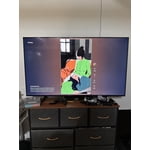
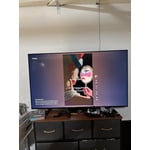
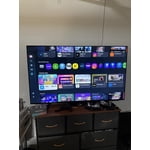
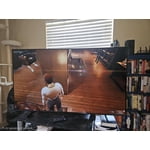
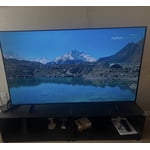
Member photos

  • +1328 images
Sort by |
Showing 2,151-2,160 of 3,284 reviews
Jul 5, 2026
Nansea
5 out of 5 stars review

Vibrant

Clear, vibrant picture. I love this TV. It is 65” and fits so well in my space.

Review from Samsung US
Helpful?5E42PT4DC65117304274207
Jul 5, 2026
South texas boy
5 out of 5 stars review

Great tvs

Great TVs , I have 2 Samsungs a 85 and a 70 inch great TVs .

Review from Samsung US
Helpful?5E42PT4DC65117304274207
Jul 5, 2026
JD1976
5 out of 5 stars review

Great TV

Picture is amazing. I love Samsung products. They are made with very high quality.

Review from Samsung US
Helpful?5E42PT4DC65117304274207
Jul 5, 2026
big screen tv
5 out of 5 stars review

Samsung 65" tv

great color, lots of options, work great, great price

Review from Samsung US
Helpful?5E42PT4DC65117304274207
Jul 5, 2026
bell
2 out of 5 stars review

bad features

The brightness and color are bad with this tv. Do not buy!

Review from Samsung US
Helpful?5E42PT4DC65117304274207
reply from Samsung Advisor

Hi bell, We’re sorry to hear you’re not fully satisfied with the picture quality on your Samsung U7900F TV. If the image appears too dark, we suggest disabling certain energy-saving features, which can automatically adjust brightness and affect how the screen looks. Go to: Settings > All Settings > General & Privacy > Power and Energy Saving, then turn off Brightness Optimization, Energy Saving Solution, Motion Lighting, and/or Contrast Enhancer. You can also adjust the Picture Mode to better suit your environment: Settings > All Settings > Picture > Picture Mode • Standard – Default mode for general viewing • Dynamic – Brighter and clearer, ideal for well-lit rooms • Movie – Best for dark room viewing • Eco – Energy-saving mode • Filmmaker Mode – Preserves content as intended by creators To fine-tune brightness, go to: Home > left directional key > Settings > All Settings > Picture > Expert Settings, then adjust the Brightness level (0–50) to your preference. Lastly, please make sure your TV is running the latest firmware: Home > Home > left directional key > Settings > Support > Software Update > Update Now We hope these tips help improve your viewing experience. If you need further support, feel free to contact us at 1-800-SAMSUNG, 8AM – 12AM EST, 7 days a week. LiveChat is also available via the ‘Support’ link on our website. ~ Samsung Advisor

Jul 20, 2026
Savvy
5 out of 5 stars review

A great tv

Picture is great. Setup was easy. I am very satisfied!

Review from Samsung US
Helpful?5E42PT4DC65117304274207
Jul 27, 2026
Jay91
5 out of 5 stars review

Excellent Quality

Responsiveness upscaling quality and very beautiful.

Review from Samsung US
Helpful?5E42PT4DC65117304274207
Jul 27, 2026
Glodene
5 out of 5 stars review

Exceptionally Great

I'm very satisfied with the picture quality, contrast and brightness.

Review from Samsung US
Helpful?5E42PT4DC65117304274207
Jul 6, 2026
deede2u
1 out of 5 stars review

Problem

TV keeps blacking out of and on when watching anything

Review from Samsung US
Helpful?5E42PT4DC65117304274207
reply from Samsung Advisor

Hi deede2u, Thanks for reaching out about the intermittent black screen issue. If you're not using any external devices and the TV randomly cuts to black, it’s usually related to settings, signal, or internal software. Here are a few steps to help narrow it down and get things stable again. 1. Start with Power & Source Checks • Confirm the source: Even without external devices, it's worth confirming the TV is on the correct internal source (like TV/Live TV or a streaming app). Go to: Home > Left directional key > Connected Devices > Sources • Power cycle the TV: Unplug the TV from the power outlet for at least 60 seconds, then plug it back in. This can help reset any temporary glitches. • Check the power outlet: If you're using a power strip or surge protector, try plugging the TV directly into the wall to rule out inconsistent power delivery. 2. Update Your TV Software: Software updates often resolve bugs that can cause screen flickers or blackouts • Make sure the TV has the latest firmware version installed: Home > Left directional key > Settings > Support > Software Update 3. Run Built-In Diagnostics • Perform a Picture Test: Home > Left directional key > Settings > Support > Device Care > Self Diagnosis > Picture Test. This helps determine if the issue is hardware- or software-related. • Run the HDMI Test (optional): Even without HDMI devices connected, this can help verify that internal ports are functioning properly: Home > Left directional key > Settings > Support > Device Care > Self Diagnosis > HDMI Test 4. Review Energy & Picture Settings • Turn off Power Saving Mode or Eco Solution settings—they can dim or turn off the screen during periods of inactivity: Settings > All Settings > General & Privacy > Power & Energy Saving • Turn off Auto Power Off (if enabled): Settings > All Settings > General & Privacy > System Manager > Auto Power Off • Adjust Picture Mode settings: If the current mode is overly dynamic (like “Dynamic” or “Vivid”), try switching to “Standard” or “Movie” and observe if the screen behavior changes. 5. Factory Reset (if needed): If the problem persists after all checks, consider resetting the TV to default settings. (Heads-up: this will erase your installed apps and personal settings.) If none of these steps resolve the intermittent blackout, please reach out to Samsung Support for further troubleshooting or possible service options at 1-800-SAMSUNG (8AM – 9PM EST Mon – Fri, 8AM – 6PM Sat – Sun), or reach us via text anytime. You can also visit ‘Support’ on our website for: • Live Chat • Manuals, Software, & Warranty Info ~ Samsung Advisor

Jul 4, 2026
Dmcquithy9518
5 out of 5 stars review

Great picture quality and sound

Great picture and sound quality bright and sharp colors

Review from Samsung US
Helpful?5E42PT4DC65117304274207