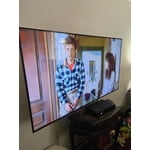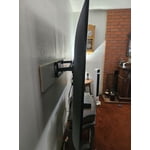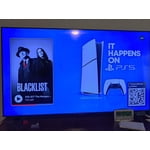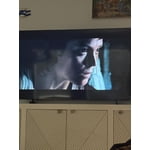
Constant Image Twitching “Critical Flaws”
[This review was collected as part of a promotion.] I love Samsung products but this tv isn't the best Constant Image Twitching Ruins the Experience
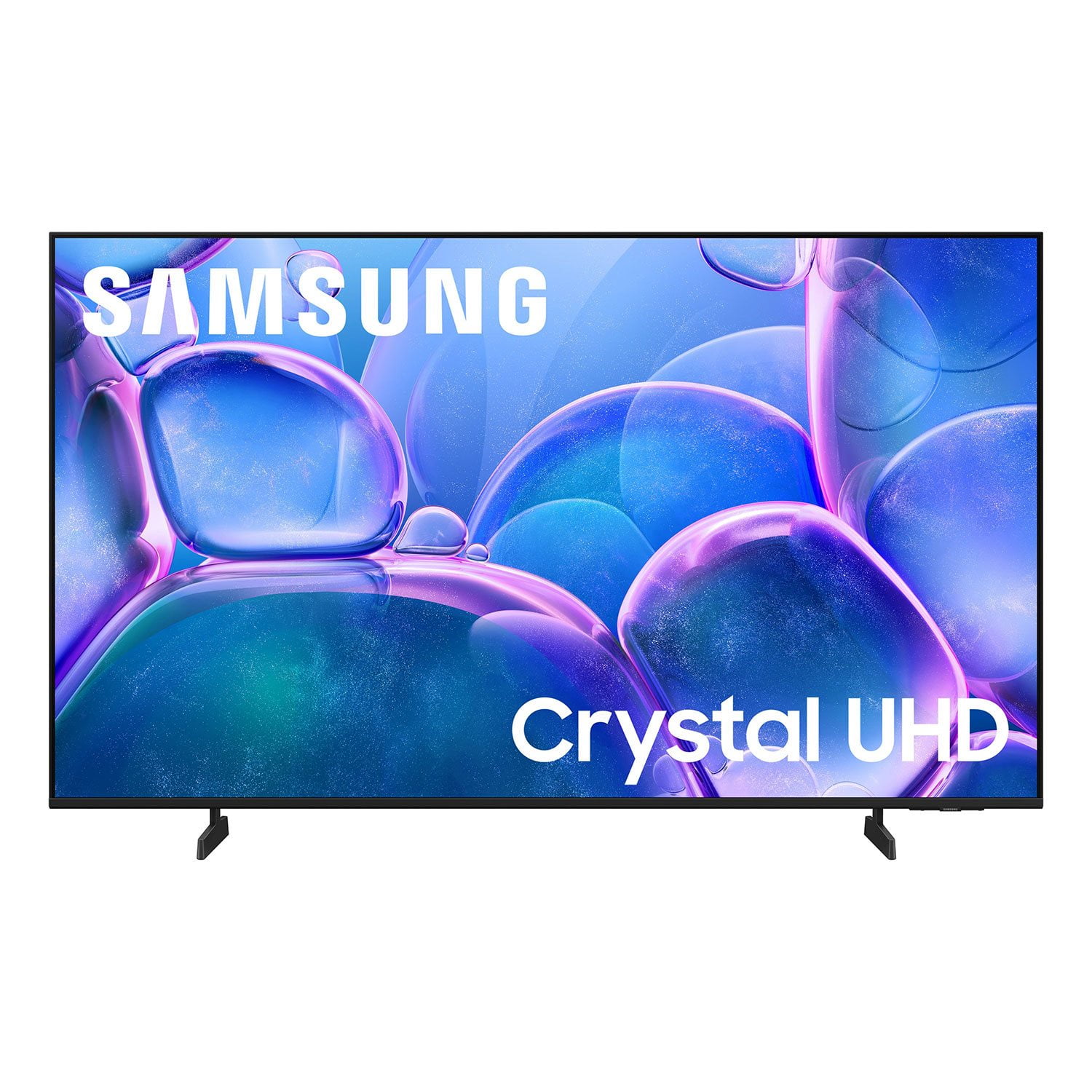
The Samsung U7900F is a disappointing TV overall. It's best suited for watching shows in a light-controlled room, yet it still struggles there. It isn't bright enough to handle glare, and its black levels are sub-par with no local dimming, so it also performs poorly in dark rooms.
Color performance is limited, as it can't display a wide color gamut, though its SDR accuracy out of the box is decent. Gamers may appreciate the low input lag, which allows for responsive gameplay, but motion handling is weak, with noticeable blur behind fast-moving objects.
On the plus side, its image processing is acceptable, meaning low-resolution and low-quality content is upscaled reasonably well. Unfortunately, this isn't enough to compensate for its major flaws, making the overall viewing experience underwhelming.
reply from Samsung Advisor
Hi Carter,
Thank you for your feedback regarding the twitching you're seeing on your TV. To help determine if the issue is related to the panel itself, we recommend starting with a Picture Test, which displays a high-definition image you can examine for flaws: Settings > Support > Device Care > Self Diagnosis > Picture Test
If the issue appears during the test and across all sources (built-in apps, HDMI devices, etc.), it may indicate a panel-related concern.
You can also try displaying solid-color test videos (red, green, blue, black, white) from a USB drive or YouTube. This can help you identify whether any pixels are stuck or not functioning properly.
In some cases, unplugging the TV for a few minutes and rebooting it can help resolve stuck pixels caused by temporary display behavior.
Please also ensure you are running the latest Firmware, version 1132.0. Go to Settings> Support> Software Update. If this firmware version is not yet available on your TV, you can download the update on a USB drive and manually update your TV:
1. On Samsung's website (upper right corner), go to: Support > Manual & Software > Find your TV model, and click on the Firmware – Upgrade File.
2. When the file has finished downloading, locate it and then unzip it. There is normally one folder inside but there may be multiple files.
3. Copy or move all of the files that were included in the zip file to a USB flash drive, but do not place them inside any other folders. If you place the software folders inside a folder on the USB flash drive, the TV or monitor will not find them.
4. Connect the USB drive containing the software upgrade into a USB port on your device.
5. Using your device's remote, navigate to and select Settings, then select All Settings, and then select Support. Select Software Update, select Update Now, and then select Yes if prompted.
Your device will search the USB drive for update files. Follow the on-screen instructions to install the updated software. Updates usually take a few minutes; please do not turn off the TV until the update is complete. When the update is finished, it will restart automatically.
If you need additional support, Samsung is here to help. Please call us at 1-800-SAMSUNG, available daily from 8AM - 12AM EST. You can also chat with a LiveChat agent by clicking the ‘Support’ link on our website.
~ Samsung Advisor