
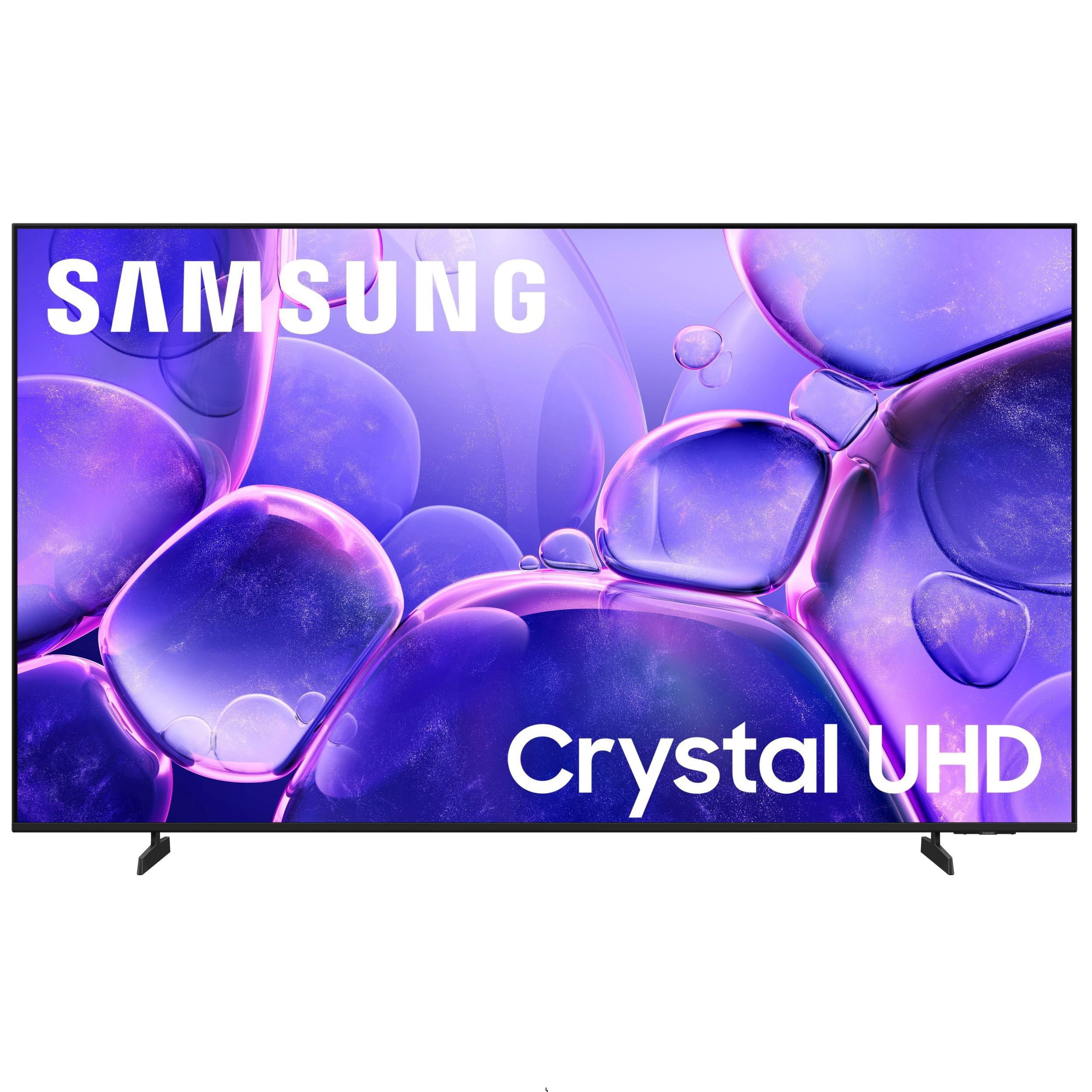
 Customer reviews for SAMSUNG 85" Class U8000F Series 4K Crystal UHD Smart TV for
Member photos

 +1030 images
BEST TELEVISIONS ON THE MARKET!!
[This review was collected as part of a promotion.] I switched to Samsung from Sony after buying Sony for decades and now I will never go back. My brother is a tech guy and always had Sony TV sets and I was very surprised to see a Samsung TV had taken the place of his former favorite brand. His Samsung really impressed me with the better quality and when asked he explained that Samsung flat screens had totally surpassed his old favorite brand by leaps and bounds. Higher quality in picture, sound, resolution and connectivity to the internet. He convinced me after his professional explanation, along with viewing his Samsung LED tv, to make Samsung my next TV purchase. I am so much more impressed with my Samsung over my Sony Bravia TV that I now have 3 Samsung LED televisions in my home. I sold the Bravia cheap to a gentleman looking for an inexpensive monitor. I am now COMPLETELY a loyal Samsung customer. The BEST television on the market and priced for regular working class heroes, like me.
Absolutely in love!!
[This review was collected as part of a promotion.] Honestly, this 65" Crystal UHD 4K TV made me realize my old TV was basically a toaster with a screen 😅 The picture is crazy sharp, like I can see every pore on someone's face kind of clear. Colors pop without looking weird,the contrast and brightness are amazing and movies feel way more cinematic. Even random YouTube videos look upgraded. Setup was super easy, no stress, no arguing with instructions,the smart features are actually fast for once. No waiting forever for apps to load, which is a win. Sound is decent, but if you really wanna feel like you're in a movie theater, a sound bar helps a lot, for everyday watching, it does the job. Also, it just looks nice, thin, sleek, and makes your living room feel a little more “put together” even if everything else isn't lol. Overall, for the price, this thing is 100% worth it. No regrets at all.
Bad remote
I purchased 2 Samsung 8000F 75 inch TV's. I'm giving a poor review because the remote control does not work on 1 of the TV's and I cannot seem to get any service from Samsung. I have been on the phone for hours with multiple people who keep transferring me and have been cut off twice. I just want a new remote control for my brand new TV that actually works. This seems like a simple request.
Hi Mike, Thank you for your feedback. We are sorry to hear about your experience. If your remote isn’t responding, here are a few quick steps to help determine if it’s working correctly: 1. Check the batteries: Remove the back cover of your remote and replace the batteries with a fresh set, ensuring they are inserted in the correct direction. 2. Test for infrared signal: Point the front of the remote at your smartphone camera. While holding down any button, you should see a flashing light through the camera screen. (For iPhone users, the front-facing camera works best.) If you see the light, your remote is working and may need to be re-paired with your TV. 3. Point the remote correctly: Try pointing the remote directly at the TV from about 5-6 feet away. This can help ensure a clearer signal between the remote and the TV. If you still need assistance, please contact Samsung Support at 1-800-SAMSUNG (8AM – 9PM EST Mon – Fri, 8AM – 6PM Sat – Sun), or visit the ‘Support’ link on our website to start a LiveChat session. ~Samsung Advisor
GREAT PICTURE QUALITY!!!
[This review was collected as part of a promotion.] The resolution on this TV is great. Very clear picture, details are clear. The TV also has a great scale for brightness. You can choose in the settings how bright you want it. Like at night we can Dim it and it doesn't effect resolution, or the contrast. It still gives out a great color all around. They're very vivid, which I was pleasantly surprised to find out. Between commercials is the only time I see a refresh on the TV and transition is smooth, not glitch or time consuming it is quick. All in all the Television puts out a great picture. Clear bright and colorful with a good co trast between colors.

Ultra HD, Ultra Vibrant
[This review was collected as part of a promotion.] This TV is a total game-changer if you love a bold, high-energy picture. The UHD clarity is incredibly sharp, but the real star is the color—vivid, saturated, and makes every scene come to life. Plus, the slick menus and easy controls make finding your favorite content a breeze.
Awesome tv
[This review was collected as part of a promotion.] Great great sound, great picture. Perfect for when I'm gaming. I love it! compatible with my phone so it's so much easier to use. best TV I've ever had. the picture quality is amazing. I have my account signed in which is great.
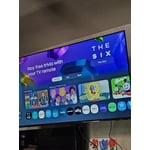
Great interface/design, but light blooming is baad
[This review was collected as part of a promotion.] I wanted this TV to be great. And it has great aspects, such as the UI, and response, the thinness of it, and the small wire and how it looks on a wall. However, the brightness is absolutely terrible, and the bloominig/bright spots on the screen are absolutely horrible, and this is after I exchanged for a new panel. It makes watching dark scenes impossible.
Hi jg8045, We’re sorry to hear you’re not fully satisfied with the picture quality on your Samsung U8000FD TV. If the image appears too dark, we suggest disabling certain energy-saving features, which can automatically adjust brightness and affect how the screen looks. Go to: Settings > All Settings > General & Privacy > Power and Energy Saving, then turn off Brightness Optimization, Energy Saving Solution, Motion Lighting, and/or Contrast Enhancer. You can also adjust the Picture Mode to better suit your environment: Settings > All Settings > Picture > Picture Mode • Standard – Default mode for general viewing • Dynamic – Brighter and clearer, ideal for well-lit rooms • Movie – Best for dark room viewing • Eco – Energy-saving mode • Filmmaker Mode – Preserves content as intended by creators To fine-tune brightness, go to: Home > left directional key > Settings > All Settings > Picture > Expert Settings, then adjust the Brightness level (0–50) to your preference. Lastly, please make sure your TV is running the latest firmware: Home > Home > left directional key > Settings > Support > Software Update > Update Now We hope these tips help improve your viewing experience. If you need further support, feel free to contact us at 1-800-SAMSUNG, 8AM – 12AM EST, 7 days a week. LiveChat is also available via the ‘Support’ link on our website. ~ Samsung Advisor
great t v!!!!
[This review was collected as part of a promotion.] I love my T. V. There is nothing wrong with it. So I will not be replacing it unless something happens to it. The viewing experience is amazing!!! The pictures are so crisp and bright. Watching movies on this t v is great!!! The resolution and the contrast for this t v is wonderful.It definitely makes a difference when watching movies and t v series. I just wish this t v had more features like the frame television. The only downside is this t v has not had an update available for it. The refresh rate is o k.
it's just OK
[This review was collected as part of a promotion.] No matter what settings we try, in dark scenes in movies you can't see well at all. Gamma is turned all the way up etc. Also, after a recent software update now when I turn on the TV it goes to the last station and starts to play, and then it freezes. To get it to work I have to go out of the menu and back in to get the channel I'm trying to watch to work. This is a very new TV and I've had several Sumsung TVs before, this is the only one with these problems. Otherwise it's a good TV, I really like Samsung TV overall.
Hi Alan, Thank you for your feedback. Please ensure your TV is running the latest Firmware, version 1132.0. Go to Settings> Support> Software Update. If this firmware version is not yet available on your TV, you can download the update on a USB drive and manually update your TV: 1. On Samsung's website (upper right corner), go to: Support > Manual & Software > Find your TV model, and click on the Firmware – Upgrade File. 2. When the file has finished downloading, locate it and then unzip it. There is normally one folder inside but there may be multiple files. 3. Copy or move all of the files that were included in the zip file to a USB flash drive, but do not place them inside any other folders. If you place the software folders inside a folder on the USB flash drive, the TV or monitor will not find them. 4. Connect the USB drive containing the software upgrade into a USB port on your device. 5. Using your device's remote, navigate to and select Settings, then select All Settings, and then select Support. Select Software Update, select Update Now, and then select Yes if prompted. Your device will search the USB drive for update files. Follow the on-screen instructions to install the updated software. Updates usually take a few minutes; please do not turn off the TV until the update is complete. When the update is finished, it will restart automatically. If you need additional support, Samsung is here to help. Please call us at 1-800-SAMSUNG, available 8AM – 9PM EST Mon – Fri, 8AM – 6PM Sat – Sun. You can also chat with a LiveChat agent by clicking the ‘Support’ link on our website. ~ Samsung Advisor
Great product with caveats
[This review was collected as part of a promotion.] Great picture. Remote is too small and does not have good range. I press on the buttons several times before the TV response. Feels like we are indirectly encouraged to use the smart things app. Certain apps are faster than others. Never had that problem with LG. Paramount+ and Disney+ for example are slower to load anything from main page to the site itself vs Netflix or YouTube are nice and smooth.
Hi Cortiz, We appreciate your feedback regarding remote performance. If your U8000F TV is responding slowly or inconsistently to the remote, try the following steps: 1. Re-pair the remote – Stand within 1 foot of your TV and press Return and Play/Pause simultaneously for at least 5 seconds. A message should appear confirming it's connected. 2. Check the battery level – Go to: Home > left directional key > Settings > All Settings > General & Privacy > Remote Control 3. Ensure proper charging – SolarCell Remotes can charge using: o Room light or direct sunlight (solar panel should face light source) o USB-C cable (preferably Samsung-branded) 4. Update your TV’s firmware – Go to: Settings > Support > Software Update > Update Now 5. Run Device Care to clear memory and close background apps that may slow performance: Settings > Support > Device Care > Start Device Care If these steps don’t resolve the issue, please contact Samsung Support at 1-800-SAMSUNG, 8AM – 12AM EST, 7 days a week. LiveChat is also available through the ‘Support’ link on our website. ~ Samsung Advisor