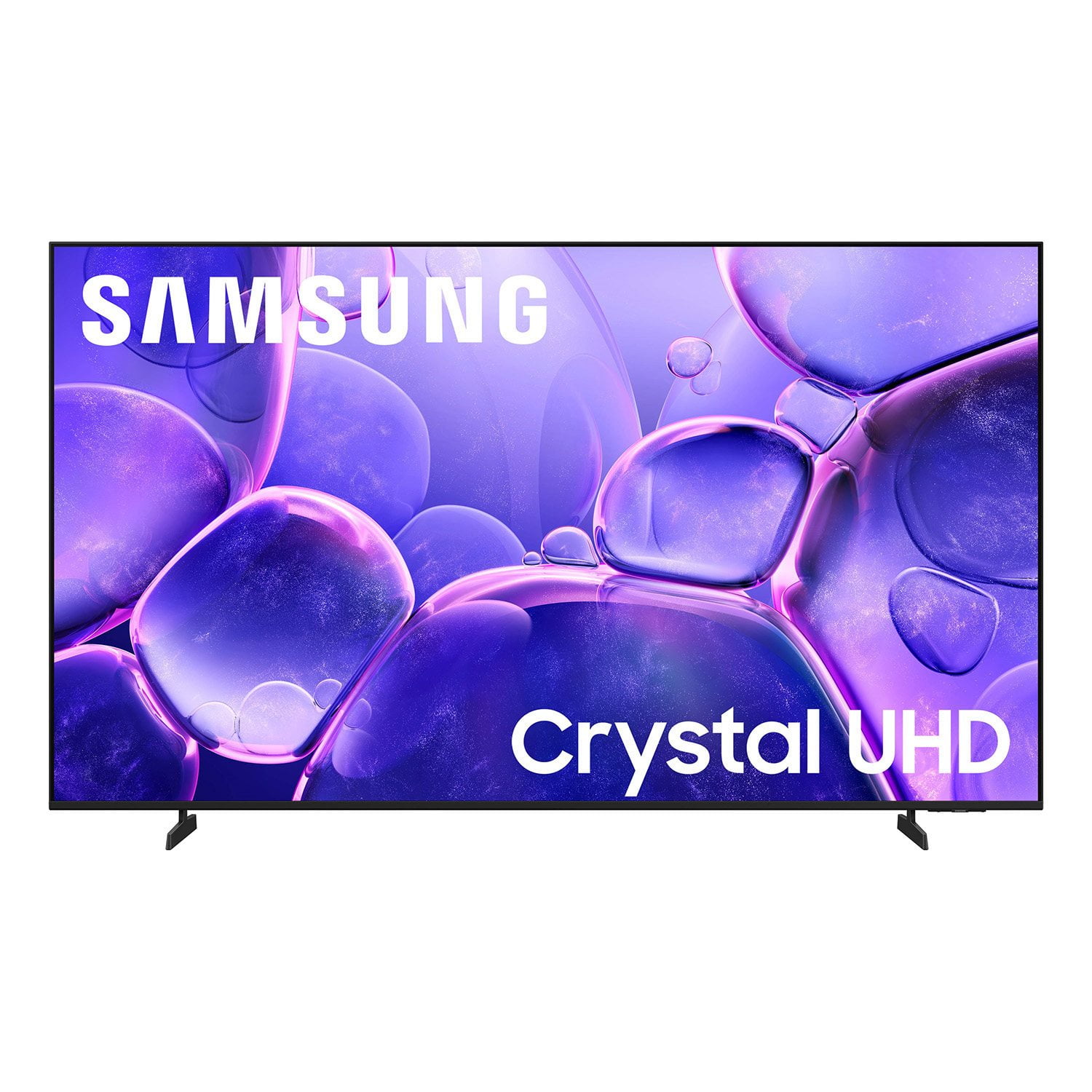
Customer reviews for SAMSUNG 58” Class U8000F Series 4K Crystal UHD Smart TV forMember photos


+366 images
Literally feels like a movie theater
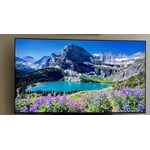
[This review was collected as part of a promotion.] "Upgraded to this monster and love it. The aesthetics are really sleek and it doesn't look bulky on the wall at all. Image resolution is perfect, everything looks sharp and the picture has awesome vibrancy and pop to the colors. Brightness is solid even with the lights on. Plus the tizen interface is simple enough for the kids to use without complaining. Great buy."
Bad remote
I purchased 2 Samsung 8000F 75 inch TV's. I'm giving a poor review because the remote control does not work on 1 of the TV's and I cannot seem to get any service from Samsung. I have been on the phone for hours with multiple people who keep transferring me and have been cut off twice. I just want a new remote control for my brand new TV that actually works. This seems like a simple request.
My first Samsung 4K Smart TV
[This review was collected as part of a promotion.] I purchased my first Samsung 4K Smart TV and it's better than I ever could have expected. The TV has excellent picture quality. I also bought my first Samsung sound bar with the TV. This brought my entertainment experience to much higher level. I was able to connect my TV to my cable box and my VCR/DVD player with ease. I was able to connect to my WIFI and quickly have access to all my streaming apps. Samsung TV and sound bar were both excellent choices.
ALMOST PERFECT
[This review was collected as part of a promotion.] Absolutely love my new TV the brightness and vibrancy of this greatest awesome the sound amazing I love all the features. The only bad thing I have to say about it is sometimes it's slow. I don't know if the system needs updating and also I constantly lose the remote control cause it's very skinny if it's gonna be skinny and that easily to lose, we should put a locator on it like a Roku remote where you can find it.
Continously poor glitchy functionality.
[This review was collected as part of a promotion.] The TV was a piece of junk. I returned it. The video would hang while the audio continued. The navigation was terrible. It would go to an app and just show a black screen. I had to back out and go back in to the app to get a picture. I repeatedly thought I could probably live with all the glitches but finally gave up and returned the TV.
Hi Fedup, We appreciate your feedback on the U8000F TV. If you choose to try another Samsung TV down the road, we’re ready to help with setup and support every step of the way. Call 1-800-SAMSUNG (8AM – 9PM EST Mon – Fri, 8AM – 6PM Sat – Sun), or visit our website and click ‘Support’ to connect with a LiveChat agent. ~Samsung Advisor
Difficult to navigate
[This review was collected as part of a promotion.] Not sure if my issue is with the tv itself or my streaming app. I watch only 2 channels. It's takes 5 min just to get to that channel. There are so many junk apps on the tv. I would like to just go back to cable but it's so expensive
Hi, Thank you for your review. While your U8000F TV may currently default to Samsung TV Plus when powered on, you can customize what your TV does at startup by adjusting the Start Screen Options. To do this, navigate to: Settings > All Settings > Advanced Features > Start Screen Option and choose from the following: 1. Start with Smart Hub Home – Automatically launches Smart Hub when the TV is turned on. You can enable or disable this option based on your preference. 2. Autorun Multi View Casting – If you cast YouTube content from your mobile device, the TV will automatically display the content using Multi View. 3. Autorun Multi View Mirroring – When you screen mirror your mobile device, Multi View will automatically open to show your device’s screen. If you need help adjusting these settings or have any other questions, please contact Samsung Support at 1-800-SAMSUNG, 8AM – 9PM EST Mon – Fri, 8AM – 6PM Sat – Sun. LiveChat agents are also available by clicking on the ‘Support’ link on our website. ~ Samsung Advisor
Great TV with an unbeatable price
[This review was collected as part of a promotion.] It is a great TV. The picture is wonderful. The clarity when watching newer programs is very bright, and vibrant. Although I do wish we had more control over the color. Fine tuning things would be awesome. I was surprised to see how many things you can't control in the system menu. The response time when going from screen to screen is quick. We don't have any lag at all. Over all we love the tv and everything it offers, the price was an awesome deal we just couldn't pass up.
Great picture but mechanical issues.
[This review was collected as part of a promotion.] I'm really not 100% satisfied with my new Samsung 43" Smart TV. The two major problems I'm seeing is that and it happened today actually, I was watching a TV sitcom and then all of a sudden, the picture was "frozen": stuck but the audio was still on talking about the next scene. So I pressed my remote control ( universal control because Samsung's is ridiculous) to the next channel and then back and that rectified the problem. The second problem is when I change apps from TV to YouTube, then back to TV app, the TV channel is not the same one I previously watched but a strange channel numbered 1134, usually a News channel. So, this new Samsung TV is quite different from my old Samsung Smart TV. Can the locking effect while watching sitcoms be repaired? Thanks for your concern. Hope to hear from you soon. Thanks , Jphn Baran
Hi luv2watch YouTube, We appreciate your feedback regarding your U8000F TV’s performance. If you're experiencing slow apps, freezing, or lag in general response time, try the following steps: 1. Check for firmware updates – Keeping your TV up to date can resolve many performance issues: Home > left directional key > Settings > Support > Software Update > Update Now 2. Run Device Care – This tool checks system memory, frees up cached data, and closes background apps that could be slowing things down: Home > left directional key > Settings > Support > Device Care > Start Device Care 3. Cold boot your TV – With the TV powered on, press and hold the Power button on your remote for 5+ seconds until the TV restarts. This helps refresh the system. If you're still noticing performance issues after these steps, please contact Samsung Support at 1-800-SAMSUNG, available from 8AM – 9PM EST Mon – Fri, 8AM – 6PM Sat – Sun. You can also visit the Samsung website and click on ‘Support’ for: • Live Chat • Manuals, Software, & Warranty Info ~ Samsung Advisor
Some issues I've found
[This review was collected as part of a promotion.] I like the tv, however it is difficult to set the tv's start up channel. I finally got it so I don't have to use 2 remotes to get to regular stations. I have Comcast remote & tv remote. Another issue is that every once in a 5, when I turn the tv on, there is no sound. It's a pain to get the tv remote and toggle through the options to get the sound back on. Outside of those flaws, the tv is ok.
Hi Evie, Thank you for your review and for sharing your experience with your U8000F TV. If you’re not hearing any sound, whether using TV speakers or an external audio device, here are several steps that can help get things working again. 1. Start with Basic Checks • Make sure the TV isn’t muted and the volume is turned up. • If using an external audio device, ensure it’s powered on, set to the correct source, and the volume is turned up there as well. • Unplug your TV for 30 seconds, then plug it back in and power it on. 2. HDMI ARC / eARC Connection • Use a certified High-Speed HDMI cable with Ethernet. Connect it to the HDMI eARC ports on both the TV and the soundbar/receiver. • Enable these settings: o Settings > All Settings > Sound > Expert Settings > HDMI eARC Mode = Auto o Settings > All Settings > General & Privacy > External Device Manager > Anynet+ (HDMI-CEC) = On • Check the digital audio format: Settings > All Settings > Sound > Expert Settings > Digital Output Audio Format o If you're not sure what your connected device supports, set it to Auto. 4. Bluetooth Audio Connection • Pair your Bluetooth device: Settings > All Settings > Sound > Sound Output > Bluetooth Speaker List • If your Bluetooth device doesn’t appear or won’t connect, move it closer to the TV, ensure it’s in pairing mode, and select Scan. • If paired but no sound, unpair the device and try reconnecting. 5. Wi-Fi / Wireless Speakers • Confirm the speakers and the TV are on the same Wi-Fi network. Use: Settings > All Settings > Sound > Sound Output > Wi-Fi Speaker Surround Setup • Reboot both the TV and the Wi-Fi speakers, and check your router for connection strength. 6. Other Helpful Tips • Run a Sound Test: Settings > Support > Device Care > Self Diagnosis > Sound Test • Update TV firmware to rule out compatibility issues: Settings > Support > Software Update > Update Now • If using a cable box or external streaming device, double-check that the device’s audio output settings are set to HDMI or the appropriate output. If you still don’t hear sound after following these steps, please don’t hesitate to reach out so we can assist further. You can call Samsung Support at 1-800-SAMSUNG, 8AM – 9PM EST Mon – Fri, 8AM – 6PM Sat – Sun. Our LiveChat agents are also available by clicking the ‘Support’ link at Samsung.com. ~ Samsung Advisor
Terrible Connectivity
[This review was collected as part of a promotion.] This is the worst TV I ever had. You cannot maneuver it very well. You're continuously pushing. Something you can't even feel because the buttons are so small. Very poor buy even though it was for the bedroom.
Hi Care, Thank you for sharing your experience. Samsung remotes are designed to offer convenient control, but we understand if you’d prefer to use a universal remote. Many third-party remotes work well with Samsung TVs, though setup steps may vary by brand and model. To get started, we recommend checking the manufacturer’s instructions for programming codes and pairing methods. If you run into any trouble or have compatibility questions, Samsung Support is happy to help. You can reach us at 1-800-SAMSUNG, available from 8AM – 9PM EST Mon – Fri, 8AM – 6PM Sat – Sun. You can also visit the Samsung website and click on ‘Support’ for: • Live Chat • Manuals, Software, & Warranty Info ~ Samsung Advisor