Skip to Main Content
Sam's Club
Sam's Club
All Departments
All Services
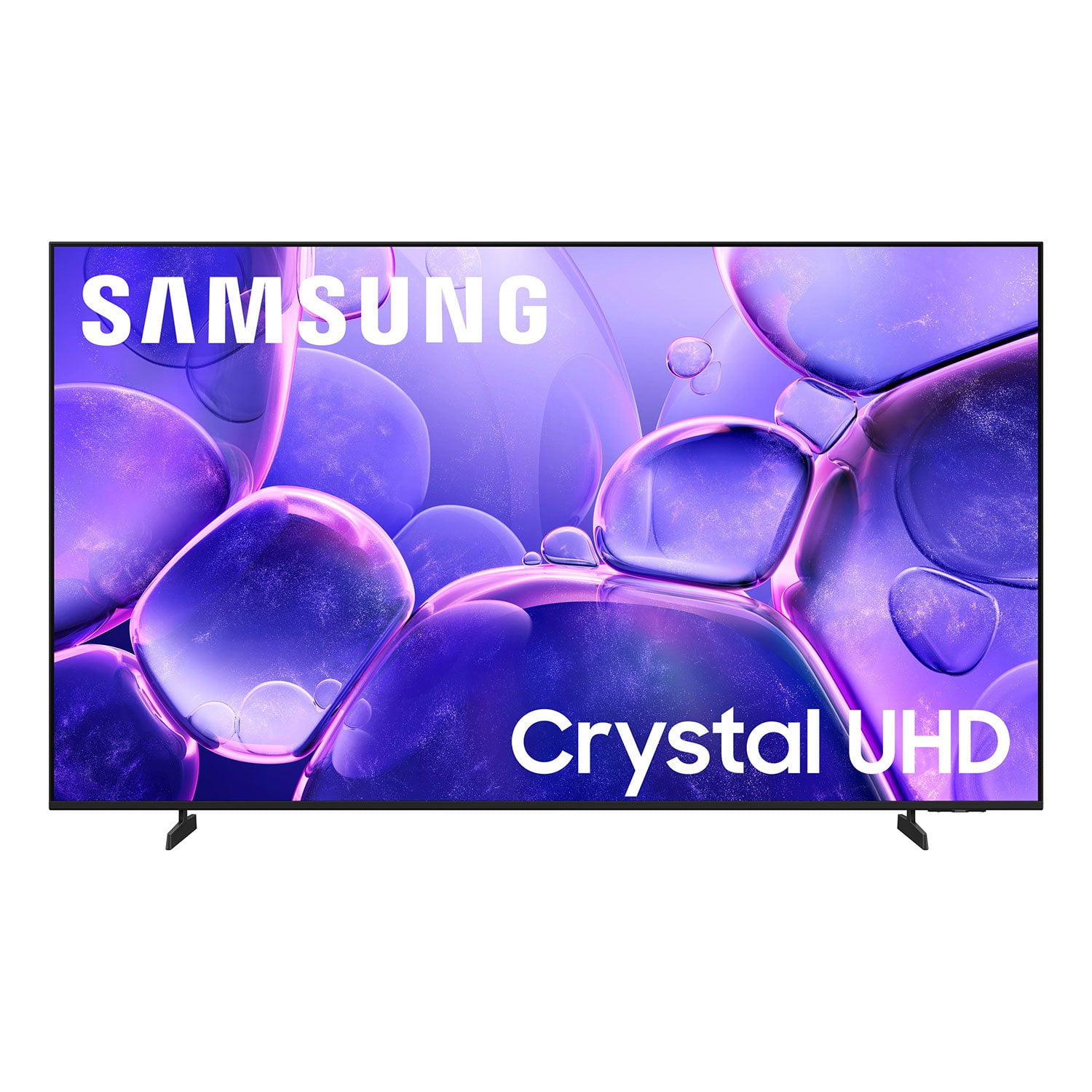
Customer reviews for SAMSUNG 50" Class U8000F Series 4K Crystal UHD Smart TV for
SAMSUNG 50" Class U8000F Series 4K Crystal UHD Smart TV
4.6 out of 5 stars
stars
1,445 ratings1,393 reviews
  1. 5 stars74% (1,073)
  2. 4 stars15% (217)
  3. 3 stars5% (76)
  4. 2 stars3% (44)
  5. 1 star2% (35)

Member photos

  • +368 images
Sort by |
Showing 601-610 of 1,393 reviews
Jun 5, 2026
Disappointed
3 out of 5 stars review

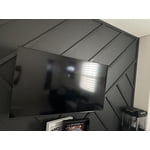
Dark screen

[This review was collected as part of a promotion.] Started out with great pictures, now the screen goes dark and freezes.

Review from Samsung US
Helpful?0U87HKRK7K5R15580452247
reply from Samsung Advisor

Hi Disappointed, We appreciate your feedback regarding your U8000F TV’s performance. If you're experiencing slow apps, freezing, or lag in general response time, try the following steps: 1. Check for firmware updates – Keeping your TV up to date can resolve many performance issues: Home > left directional key > Settings > Support > Software Update > Update Now 2. Run Device Care – This tool checks system memory, frees up cached data, and closes background apps that could be slowing things down: Home > left directional key > Settings > Support > Device Care > Start Device Care 3. Cold boot your TV – With the TV powered on, press and hold the Power button on your remote for 5+ seconds until the TV restarts. This helps refresh the system. If you're still noticing performance issues after these steps, please contact Samsung Support at 1-800-SAMSUNG (8AM – 9PM EST Mon – Fri, 8AM – 6PM Sat – Sun). You can also connect with a LiveChat agent via the ‘Support’ link on our website. ~ Samsung Advisor

Jun 1, 2026
Carlap143
5 out of 5 stars review

The look

[This review was collected as part of a promotion.] I love my product and will be getting more samsung items.

Review from Samsung US
Helpful?0U87HKRK7K5R15580452247
Jun 28, 2026
Montana4980
5 out of 5 stars review

Great

[This review was collected as part of a promotion.] what a great TV to have is very smart I have to do very little kind of like it's reading my mind

Review from Samsung US
Helpful?0U87HKRK7K5R15580452247
Jun 3, 2026
Howb2
5 out of 5 stars review

Amazing TV for a great price

[This review was collected as part of a promotion.] Great TV no issues and works great with my new samsung sound systems.

Review from Samsung US
Helpful?0U87HKRK7K5R15580452247
Jun 2, 2026
Movie night
5 out of 5 stars review

Great picture

[This review was collected as part of a promotion.] The resolution on this TV is great whether watching sports, current/older movies.

Review from Samsung US
Helpful?0U87HKRK7K5R15580452247
Jun 2, 2026
The Briscoes24
5 out of 5 stars review

Amazing TV. Love all features

[This review was collected as part of a promotion.] I purchase nothing but Samsung products such as Samsung Cellular phones, DVD players and TV's

Review from Samsung US
Helpful?0U87HKRK7K5R15580452247
Jun 6, 2026
TV Nut
5 out of 5 stars review

Great TV

[This review was collected as part of a promotion.] Excellent resolution and picture quality. Samsung program options are also conveninet/

Review from Samsung US
Helpful?0U87HKRK7K5R15580452247
Jun 1, 2026
Television
3 out of 5 stars review

Samsung

[This review was collected as part of a promotion.] It was easy to connect to my phone. I wish it could have been more voice activated

Review from Samsung US
Helpful?0U87HKRK7K5R15580452247
reply from Samsung Advisor

Hi Television, Thank you for sharing your review. Your TV Works With Alexa, meaning you’ll need to connect a standalone Alexa device such as an Echo speaker, to control compatible smart home devices and some experiences on your TV. Here are the steps: 1. Download both the Amazon Alexa and Samsung SmartThings apps, if you don't already have them. Both are available for iOS or Android devices. 2. Make sure your Alexa device and TV are both connected to the same Wi-Fi network. 3. Your TV must be enabled within the SmartThings app. If not, make sure you are signed in with your Samsung account on the TV: Settings > All Settings > Samsung Account 4. Log in to the SmartThings app with the same Samsung account. Tap Devices, and if your TV isn’t already shown, tap + to add it to the app. 5. In the Alexa app, enable the SmartThings skill and sign into your Samsung account. This will automatically connect your Samsung TV to Alexa and let you use voice commands to control your television. If you need more help, we’re here. Give us a call at 1-800-SAMSUNG, available daily from 8AM - 9PM EST Monday - Friday, and 8AM - 6PM Saturday and Sunday. You can also visit the Samsung website and click on ‘Support’ for: • Live Chat • Manuals, Software, & Warranty Info ~Samsung Advisor

Jun 1, 2026
Ramon
5 out of 5 stars review

Blown pixle

[This review was collected as part of a promotion.] Picture is great however one of the pixels has gone black

Review from Samsung US
Helpful?0U87HKRK7K5R15580452247
Jun 22, 2026
Apremodeling
5 out of 5 stars review

Great feactures

[This review was collected as part of a promotion.] Best quality and good price can't complaint at all thank you

Review from Samsung US
Helpful?0U87HKRK7K5R15580452247