Skip to Main Content
Sam's Club
Sam's Club
Customer reviews for SAMSUNG 65" Class Q7FD Series 4K QLED Smart TV for
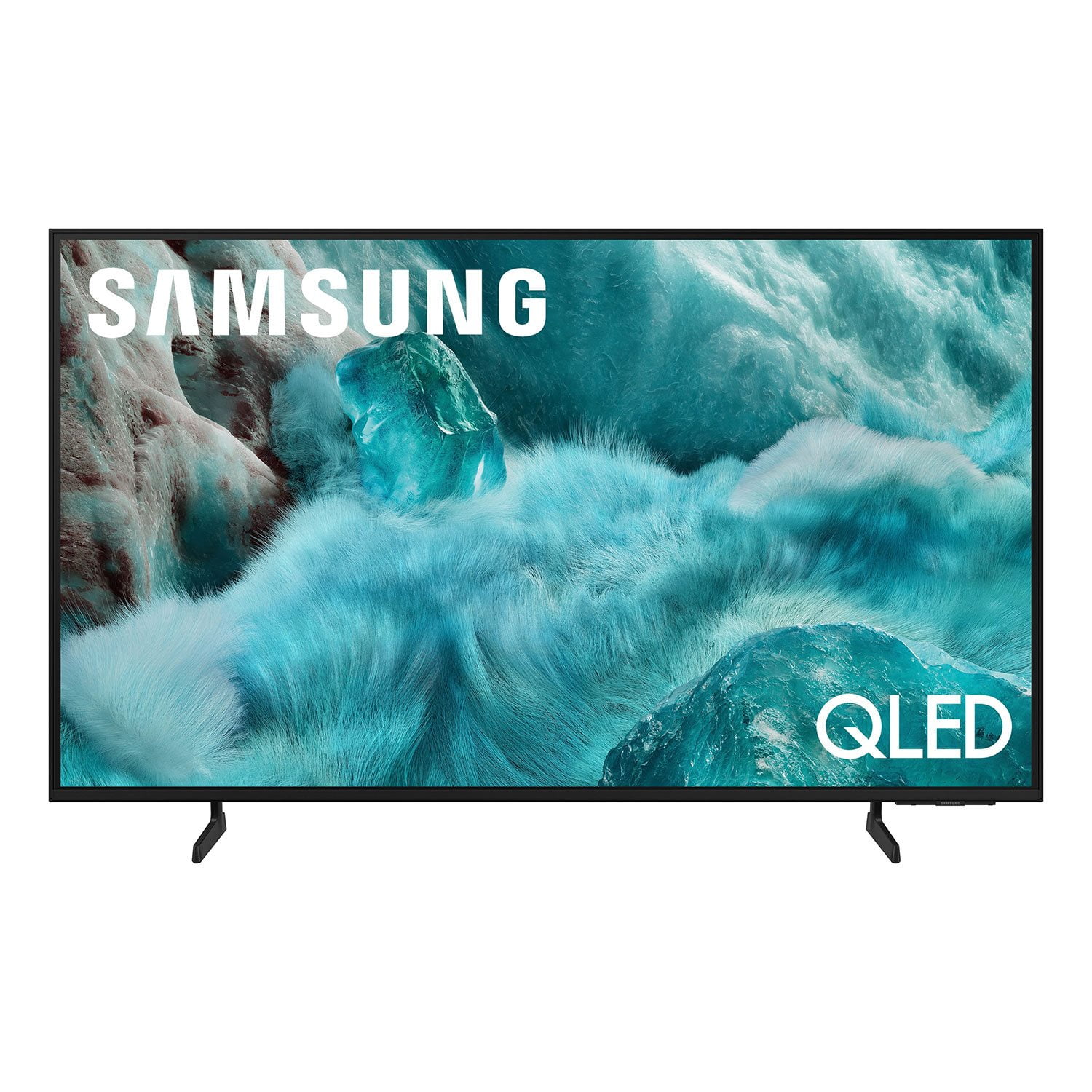
SAMSUNG 65" Class Q7FD Series 4K QLED Smart TV
4.7 out of 5 stars
stars2,127 ratings2,060 reviews
  1. 5 stars80% (1,709)
  2. 4 stars14% (298)
  3. 3 stars3% (64)
  4. 2 stars1% (17)
  5. 1 star2% (39)

Member photos

  • +615 images
Sort by |
Showing 11-20 of 2,060 reviews
Nov 19, 2025
Ben
5 out of 5 stars review

Verified Purchase

Excellent picture

Picture is very sharp and clear, like looking through a picture window. I also love the many channel choices available.

Helpful?1EU281TBRNQA15567708318
Feb 25, 2026
Billy D
5 out of 5 stars review

Verified Purchase

excellent

This is a really nice television couldn't be happier

Helpful?1EU281TBRNQA15567708318
May 6, 2026
Na
5 out of 5 stars review

Verified Purchase

Samsung 65”

I'm loving my purchase

Helpful?1EU281TBRNQA15567708318
Sep 29, 2025
Techlove23
5 out of 5 stars review

Q7F QLED 4K TV (2025)

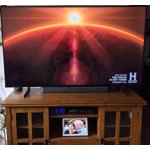
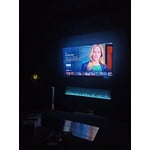
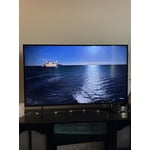
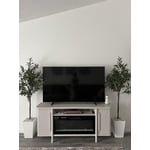
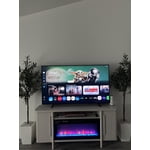
[This review was collected as part of a promotion.] I use my Samsung TV daily for streaming movies, gaming with friends, and catching live sports. Its vibrant display and smart features make switching between apps seamless, and the sound quality brings every scene to life. Whether I'm relaxing after work or hosting a game night, it fits perfectly into my routine. Here's a photo of it in action—definitely one of my favorite tech investments!

Review from Samsung US
Helpful?1EU281TBRNQA15567708318
May 23, 2026
Jmh26
5 out of 5 stars review

Awesome picture and sound

[This review was collected as part of a promotion.] Easy to surf my favorite channels with the voice remote.clear colorful picture and sound quality doesn't require adding a sound bar. The contrast is perfect and allows the perfect interface with the resolution settings. The brightness is automatically set to fit the room lighting and mood of the evening

Review from Samsung US
Helpful?1EU281TBRNQA15567708318
Sep 1, 2025
Seward Mende
5 out of 5 stars review

Verified Purchase

Value

Excellent picture and value.

Helpful?1EU281TBRNQA15567708318
Sep 19, 2025
Mary
5 out of 5 stars review

Verified Purchase

Perfect tv for us

Love this tv. Easy set up. Loving the 5 year guarantee that came this purchase.

Helpful?1EU281TBRNQA15567708318
Dec 31, 2025
Bill B
5 out of 5 stars review

Verified Purchase

Great bang for the buck

Great TV for the price easy set up and easy to navigate

Helpful?1EU281TBRNQA15567708318
Aug 21, 2025
Mike
5 out of 5 stars review

Verified Purchase

Samsung 65"

Seems to be working very well, very fast compared to a roku.

Helpful?1EU281TBRNQA15567708318
Jan 16, 2026
Crix20001
1 out of 5 stars review

Failed in a week.

Top edge of screen had a dark spot which is now turning into 4 dark spots and the entire screen is wavy. I have samsung phones, head phones 4 other Samsung tvs Samsung appliances but this is the largest TV I ever bought and its already failing in a week highly disappointing hopefully the service tech can replace this for a better model after all the other bad reviews.

Review from Samsung US
Helpful?1EU281TBRNQA15567708318
reply from Samsung Specialist

Crix20001, We appreciate your feedback on the picture quality of Samsung’s Q7F TV. Please ensure your TV is running the latest firmware (Version 1131.0), as updates include important picture quality enhancements. Go to: Home > Left directional button > Settings > Support > Software Update > Update Now If this firmware version is not yet available on your TV, you can download the update on a USB drive and manually update your TV: 1. On Samsung's website (upper right corner), go to: Support > Manual & Software > Find your TV model, and click on the Firmware – Upgrade File. 2. When the file has finished downloading, locate it and then unzip it. There is normally one folder inside but there may be multiple files. 3. Copy or move all of the files that were included in the zip file to a USB flash drive, but do not place them inside any other folders. If you place the software folders inside a folder on the USB flash drive, the TV or monitor will not find them. 4. Connect the USB drive containing the software upgrade into a USB port on your device. 5. Using your device's remote, navigate to and select Settings, then select All Settings, and then select Support. Select Software Update, select Update Now, and then select Yes if prompted. Your device will search the USB drive for update files. Follow the on-screen instructions to install the updated software. Updates usually take a few minutes; please do not turn off the TV until the update is complete. When the update is finished, it will restart automatically. For further assistance, please contact Samsung Customer Support at 1-800-SAMSUNG, available 8AM – 12AM EST, 7 days a week. LiveChat agents are also available on the ‘Support’ link at samsung.com. ~ Samsung Specialist