Disappointed
[This review was collected as part of a promotion.] I watch movies, sports, soaps.
The features are difficult to operate. Its definitely not user friendly. I still cannot figure it out. Very difficult. There is a pop ad from AI wanting me to do somwthing. I dont even understand what it wants me to do. I have to wait for it to clear to continue seeing the tv. I dont need that!
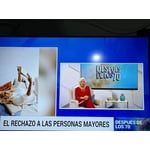
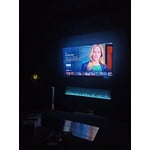
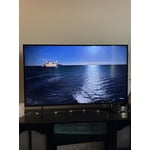
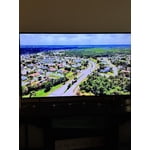
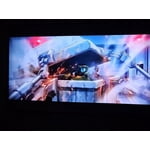
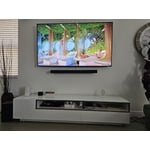
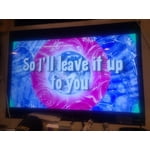
I had a smart samsung tv and the picture was great. This tv has an awful picture quality. The images appear olive tone, there are shadows. Sometimes the background is bluish. I get some red freckles sometimes that ruin the vision. The face colors are weird, sometimes olive, sometimes very red.
I tried to adjust the picture to no avail. I wish I would have known it was going to be so bad, I would have bought something else.
Oh well, live and learn. Will definitely NOT RECOMEND THIS TV TO ANYONE.
reply from Samsung Brand Ambassador
Hiker4,
Thank you for sharing your feedback with us. To help you get the most from your TV, you can download the full e-Manual and more by visiting Samsung’s website, then navigating to: Support > Manual & Software > TVs & Home Theater. From there, you can search for and select your TV model to view or download the available guides.
The e-Manual & User Guide are also conveniently built into your TV: Settings > Support > Tips and User Guides.
Your TV includes Learn Menu Screen, an accessibility feature that provides audio guidance for on-screen menus. When enabled, your TV will announce the name and function of each menu item as you scroll, without making any changes. This feature is particularly helpful for users who are visually impaired or new to Smart TV menus. To enable, go to: Settings > All Settings > General & Privacy > Accessibility > Learn Menu Screen. To exit, press the Return key twice.
If the image isn’t meeting your expectations, there are several adjustments you can make to improve your viewing experience.
First, please ensure your TV is running the latest firmware, as updates may include important picture quality enhancements. Go to: Home > Left directional button > Settings > Support > Software Update > Update Now
Then, select a Picture Mode that best fits your environment: Home > Home > left directional key > Settings > All Settings > Picture > Picture Mode
1. Standard – Default mode for general viewing
2. Dynamic – Brighter and clearer in well-lit rooms
3. Eco – Optimized for energy saving
4. Movie – Best for watching in dark environments
5. Filmmaker Mode – Preserves content exactly as intended by creators
You can also enhance your experience by enabling AI Mode, which automatically adjusts picture and sound based on your surroundings and usage patterns: Settings > All Settings > Advanced Features > AI Mode Settings > AI Mode
If these adjustments don’t improve your picture quality, feel free to contact Samsung Customer Support at 1-800-SAMSUNG, available 8AM – 12AM EST, 7 days a week. You can also LiveChat with an agent or find helpful guides by visiting the ‘Support’ section of our website.
~ Samsung Pro

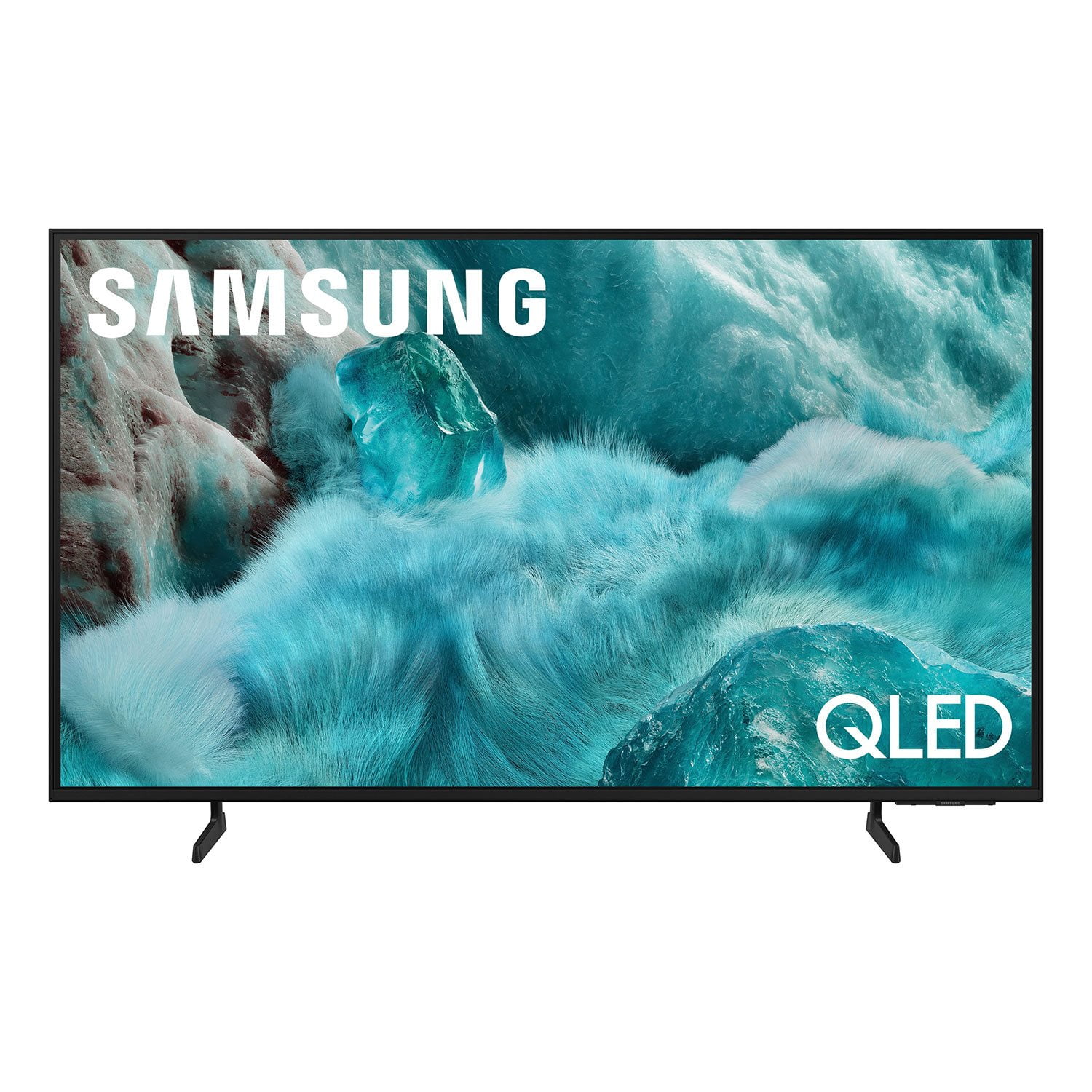 Customer reviews for SAMSUNG 65" Class Q7FD Series 4K QLED Smart TV for