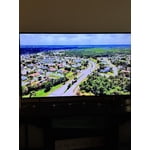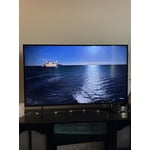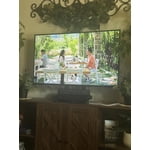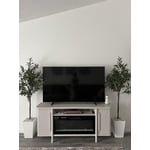
Customer reviews for SAMSUNG 55” Class Q7FD Series 4K QLED Smart TV forThis TV is exactly what was described/advertised
[This review was collected as part of a promotion.] Our old TV was a 65-inch Samsung we bought back in 2016, which is still working fantastic (which we are still using in the basement). Therefore, we are confident that our new Samsung will perform like and last as long as the old one. So far, the TV is fantastic, it is exactly what was described/advertised. It has a great picture and responds almost immediately when using the remote. Again, we couldn't be happier with our old and our new Samsung TV's.
Great picture and sound
[This review was collected as part of a promotion.] Super easy to set up. 11on the bad side, not enough memory for streaming content. Have to reset on the regular or it ceases to work. Slow on connecting to the internet. Good as an alternative room TV, but not as a main room tv. There are better Samsung devices out there.
Veronica, We value your feedback regarding the response time of your TV. For the best performance, please ensure the latest firmware version is installed: Home > left directional key > Settings > Support > Software Update You can also improve responsiveness by running the built-in Device Care tool, which checks system memory, clears cached data, and closes background apps: Home > left directional key > Settings > Support > Device Care > Start Device Care If you need further assistance, please contact Samsung Support at 1-800-SAMSUNG, available 8AM – 12AM EST, 7 days a week. LiveChat is also available through the ‘Support’ link on our website. ~ Samsung Specialist
Samsung has outdone themselves with few exceptions
[This review was collected as part of a promotion.] When I purchased my 43" smart t.v., its was actually at the recommendation of my neighbors stating that Samsung had finally grown into its previous reputation of being a reliable brand when it came to the stream ability and ease of use with its casting features. I was kinda reluctant to take my neighbor at his recommended word, but, after having it for only 3 weeks, im glad I did. Getting use to everything its capable of doing has been so easy to figure out and remember that I now doubt that I'll ever settle for any other brand t.v. except for Samsung. Thank you Samsung for proving my doubts to be those made out of ignorance. Im glad you could finally prove my fears to be irrational.
This is a great value TV. Samsung is 2nd to none.
[This review was collected as part of a promotion.] The ease of use , and features, plus the affordability of this TV only make this Samsung TV stand out more from the crowd. The picture quality is astounding, I have guests commenting about it all the time. This makes my 5th Samsung tv and would not own anything else. I currently own 3 and I am still using my first one which is 17 years old. You just can’t go wrong this brand. Love my Samsung TV’s .
The future
[This review was collected as part of a promotion.] This TV is amazing. I have a 75 inch, and it's a totally different experience. It's way better than watching a movie at the theater. The picture is so good I can see some actors' pores. I highly recommend this TV if you want to step into the future.
This product is one of my favorite
[This review was collected as part of a promotion.] I use my Q7f TV mainly for watching Netflix and YouTube its featers are awesome its got amazing color and screen settings verry simple menu format and a the subtitles are perfect I like how you can change to rate of speech im very impressed with this television
Excellent
[This review was collected as part of a promotion.] This product is an amazing addition to your home theater setup. I personally cant get enough of how clear and crisp the video quality is not to mention the beautiful color spectrum. Definitely would recommend this to any movie buff or gamer.
Disappointed
[This review was collected as part of a promotion.] I watch movies, sports, soaps. The features are difficult to operate. Its definitely not user friendly. I still cannot figure it out. Very difficult. There is a pop ad from AI wanting me to do somwthing. I dont even understand what it wants me to do. I have to wait for it to clear to continue seeing the tv. I dont need that! I had a smart samsung tv and the picture was great. This tv has an awful picture quality. The images appear olive tone, there are shadows. Sometimes the background is bluish. I get some red freckles sometimes that ruin the vision. The face colors are weird, sometimes olive, sometimes very red. I tried to adjust the picture to no avail. I wish I would have known it was going to be so bad, I would have bought something else. Oh well, live and learn. Will definitely NOT RECOMEND THIS TV TO ANYONE.
Hiker4, Thank you for sharing your feedback with us. To help you get the most from your TV, you can download the full e-Manual and more by visiting Samsung’s website, then navigating to: Support > Manual & Software > TVs & Home Theater. From there, you can search for and select your TV model to view or download the available guides. The e-Manual & User Guide are also conveniently built into your TV: Settings > Support > Tips and User Guides. Your TV includes Learn Menu Screen, an accessibility feature that provides audio guidance for on-screen menus. When enabled, your TV will announce the name and function of each menu item as you scroll, without making any changes. This feature is particularly helpful for users who are visually impaired or new to Smart TV menus. To enable, go to: Settings > All Settings > General & Privacy > Accessibility > Learn Menu Screen. To exit, press the Return key twice. If the image isn’t meeting your expectations, there are several adjustments you can make to improve your viewing experience. First, please ensure your TV is running the latest firmware, as updates may include important picture quality enhancements. Go to: Home > Left directional button > Settings > Support > Software Update > Update Now Then, select a Picture Mode that best fits your environment: Home > Home > left directional key > Settings > All Settings > Picture > Picture Mode 1. Standard – Default mode for general viewing 2. Dynamic – Brighter and clearer in well-lit rooms 3. Eco – Optimized for energy saving 4. Movie – Best for watching in dark environments 5. Filmmaker Mode – Preserves content exactly as intended by creators You can also enhance your experience by enabling AI Mode, which automatically adjusts picture and sound based on your surroundings and usage patterns: Settings > All Settings > Advanced Features > AI Mode Settings > AI Mode If these adjustments don’t improve your picture quality, feel free to contact Samsung Customer Support at 1-800-SAMSUNG, available 8AM – 12AM EST, 7 days a week. You can also LiveChat with an agent or find helpful guides by visiting the ‘Support’ section of our website. ~ Samsung Pro
Mancavefanatic
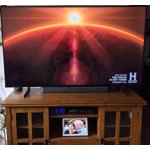
[This review was collected as part of a promotion.] I love the clean edges on the big screen. I love how you can add photos of family to be displayed when the TV is off.. I love the brightness of color and the darkness of the black space which makes the pictures almost look like 3-D display. I look forward to watching my favorite movies over again just like they looked in the movies theater. Suddenly, TV is exciting again.
TV is smarter than me!
[This review was collected as part of a promotion.] All we wanted is a new TV that supplies the channels offered by our local cable company. I was on the phone with the cable company 45 minutes getting it set up. Now, it takes several buttons to get to their streaming app, which often doesn't connect, causing us to unplug, wait, then plug back in. There are many icons for other streaming apps. So far, each wants me to register and pay a monthly subscription. Why can't I get the local channels for free, at an easy to locate location on the TV?!!! Makes me want to go back to an antenna!
Hi, We appreciate you sharing your experience. To help you get the most from your TV and remote functions, you can download the full e-Manual and more by visiting Samsung’s website then navigating to: Support > Manual & Software > TVs & Home Theater. From there, you can search for and select your Q7FB TV model to view or download the available guides. The e-Manual & Remote Control Guide are also conveniently built into your TV: Settings > Support > Tips and User Guides. For additional guidance, your TV also includes Accessibility features designed to assist with navigation and remote use. • Learn Menu Screen provides audio guidance for on-screen menus by announcing the name and function of each item as you scroll – without making any changes. This is especially helpful for users who are visually impaired or new to Smart TV menus. Enable via: Settings > All Settings > General & Privacy > Accessibility > Learn Menu Screen. To exit, press the Return key twice. • Learn TV Remote helps users become familiar with the layout and function of each button on the Samsung remote. Pressing a button (other than Power) will prompt the TV to announce its name and purpose, again without affecting TV operation. Enable via: Settings > All Settings > General & Privacy > Accessibility > Learn TV Remote. To exit, press the Return key twice. If you’d like more assistance with these features, please reach Samsung Support at 1-800-SAMSUNG, available 8AM – 12AM EST, 7 days a week. LiveChat agents are also available through the ‘Support’ link on our website. ~ Samsung Specialist