Skip to Main Content
Sam's Club
Sam's Club
All Departments
All Services
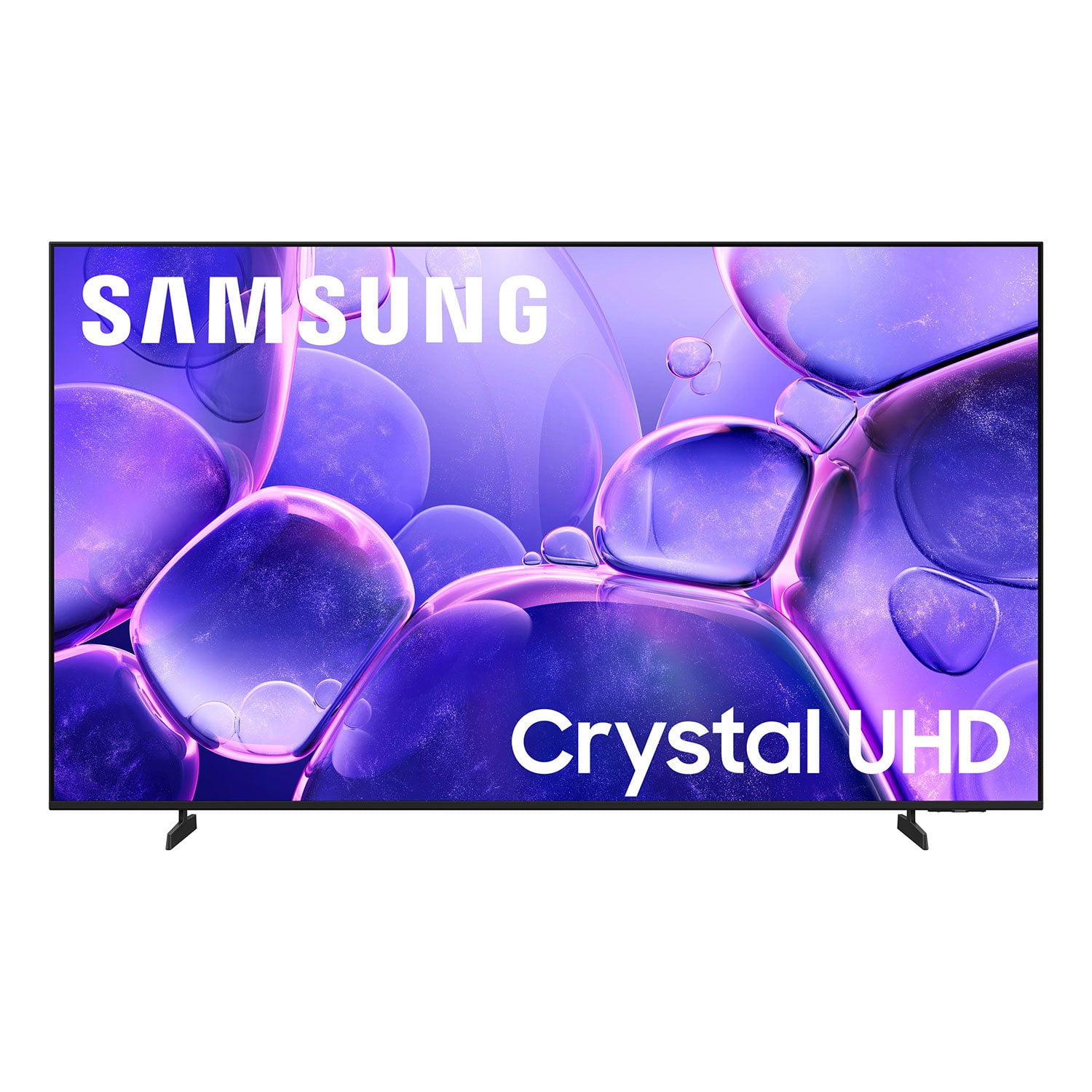
Customer reviews for SAMSUNG 55" Class U8000F Series 4K Crystal UHD Smart TV for
SAMSUNG 55" Class U8000F Series 4K Crystal UHD Smart TV
4.5 out of 5 stars
stars
1,260 ratings1,191 reviews
  1. 5 stars73% (921)
  2. 4 stars15% (194)
  3. 3 stars5% (68)
  4. 2 stars3% (38)
  5. 1 star3% (39)

Member photos

  • +126 images
Sort by |
Showing 71-80 of 1,191 reviews
Jun 22, 2026
Hoskat
5 out of 5 stars review

Samsung or nothing

Its Samsung or nothing when it comes to phones,TVS or any general product Samsung makes. You cannot go wrong when choosing Samsung for all of your entertainment needs. The clarity, the color the response time as well as updates and easily accessible features. Samsung is always the right product for my family & my home and should be for whom it may concern!

Review from Samsung US
Helpful?43WYLKDSIONN15546751433
Jun 6, 2026
Nisey
2 out of 5 stars review

Good features poor connectivity

[This review was collected as part of a promotion.] The picture quality is terrific and the Samsung television channels do provide some good viewing programs. My biggest complaint is its inability to sync properly with my cable box and the television will not allow me to connect my Roku streaming device. If I could return this television for another I would, but I've held on to it too long.

Review from Samsung US
Helpful?43WYLKDSIONN15546751433
reply from Samsung Advisor

Hi Nisey, We appreciate you sharing the issues you’re experiencing when connecting your U8000FD TV to your cable box. To ensure everything is set up correctly, we recommend using the Connection Guide, which provides step-by-step instructions for connecting external devices. Navigate to: Home > left directional key > Connected Devices > Connection Guide Also, please double-check that your cable box is powered on and that the HDMI cable is securely connected. To change input sources, go to: Connected Devices > Sources You can also run HDMI Troubleshooting, which checks the connection between your TV, HDMI cable, and external device. This takes approximately 2 minutes and can be found under: Connected Devices > Connection Guide > Video Device > HDMI Troubleshooting Finally, please ensure that the broadcast signal or network your cable box is connected to is functioning properly. If you continue to experience issues, don’t hesitate to reach out to Samsung Support at 1-800-SAMSUNG (8AM – 9PM EST Mon – Fri, 8AM – 6PM Sat – Sun), or reach us via text 24/7. You can also visit ‘Support’ on our website for: • Live Chat • Manuals, Software, & Warranty Info ~ Samsung Advisor

Jun 5, 2026
Albie3
5 out of 5 stars review

Great purchase.so happy!

[This review was collected as part of a promotion.] Actually I'm kinda old school so I have a outdoor antenna which takes care of my local stations. But with my new Samsung crystal I also use the Samsung plus For a variety of different stations and movies . I also mirror Different Programs off my cell phone. Using all three of this Type Of broadcast The brightness And color Is absolutely perfect.

Review from Samsung US
Helpful?43WYLKDSIONN15546751433
Jun 21, 2026
Dave
2 out of 5 stars review

Dysfunctional tv.

Tv is very difficult to work. It takes forever to get to the tv mode and once you hit the channel button it takes even,or time to locate the show currently on. If you tap the channel too quickly you have to go through a three step process again to watch your show. And sometimes you have to go through that three step process several times to get the tv show. Also the volume and mute button is combined on the controller so when you want to change the volume the mute turns on and vise versa. The entire tv is dysfunctional.

Review from Samsung US
Helpful?43WYLKDSIONN15546751433
reply from Samsung Advisor

Hi Dave, Thank you for your feedback. If your remote isn’t responding, here are a few quick steps to help determine if it’s working correctly: 1. Check the batteries: Remove the back cover of your remote and replace the batteries with a fresh set, ensuring they are inserted in the correct direction. 2. Test for infrared signal: Point the front of the remote at your smartphone camera. While holding down any button, you should see a flashing light through the camera screen. (For iPhone users, the front-facing camera works best.) If you see the light, your remote is working and may need to be re-paired with your TV. 3. Point the remote correctly: Try pointing the remote directly at the TV from about 5-6 feet away. This can help ensure a clearer signal between the remote and the TV. If you still need assistance, please contact Samsung Support at 1-800-SAMSUNG (8AM – 9PM EST Mon – Fri, 8AM – 6PM Sat – Sun), or visit the ‘Support’ link on our website to start a LiveChat session. ~ Samsung Advisor

Jun 19, 2026
Kevin
4 out of 5 stars review

Good tv software glitchy sometimes

The tv is fairly bright and picture looks good. Its resolution is sharp and has good darkness and black that is true dark in color. The refresh rate is good for high motion video and sports and action events look good on the tv. It’s a good tv only thing is it has had a few software glitches that required a restart to clear

Review from Samsung US
Helpful?43WYLKDSIONN15546751433
Jun 15, 2026
Happy
1 out of 5 stars review

I hate this TV. It’s horrible.

[This review was collected as part of a promotion.] I hate this TV. I hate it. I hate it. I hate it. It always freezes it locks my cable box so it won’t change channels. I have to turn off the TV and the cable box regardless of what I was watching lose everything I was watching. I hate it I hate it. I hate it.

Review from Samsung US
Helpful?43WYLKDSIONN15546751433
reply from Samsung Advisor

Hi Happy, We appreciate you sharing the issues you’re experiencing when connecting your U8000F TV to your cable box. To ensure everything is set up correctly, we recommend using the Connection Guide, which provides step-by-step instructions for connecting external devices. Navigate to: Home > left directional key > Connected Devices > Connection Guide Also, please double-check that your cable box is powered on and that the HDMI cable is securely connected. To change input sources, go to: Connected Devices > Sources You can also run HDMI Troubleshooting, which checks the connection between your TV, HDMI cable, and external device. This takes approximately 2 minutes and can be found under: Connected Devices > Connection Guide > Video Device > HDMI Troubleshooting Finally, please ensure that the broadcast signal or network your cable box is connected to is functioning properly. If you continue to experience issues, don’t hesitate to reach out to Samsung Support at 1-800-SAMSUNG (8AM – 9PM EST Mon – Fri, 8AM – 6PM Sat – Sun), or reach us via text anytime. You can also visit ‘Support’ on our website for: • Live Chat • Manuals, Software, & Warranty Info ~ Samsung Advisor

Jun 5, 2026
Jays
5 out of 5 stars review

Great Viewing

[This review was collected as part of a promotion.] I would start by saying I love this set. I mostly watch sports on this television and let me tell you about the clarity. Get in your settings and play around for some of the best picture I've seen with a set in a while. Bright background light not a problem same clarity as if you're in pitch black room.

Review from Samsung US
Helpful?43WYLKDSIONN15546751433
Jun 5, 2026
TheBoz
4 out of 5 stars review

I have to reboot the tv

[This review was collected as part of a promotion.] There are times when I have to reboot the tv (unplug from power for 15 seconds) because youtube tv won't load at all. This does not happen on other tv's in the home, only this Samsung. Otherwise, the picture and sound is great.

Review from Samsung US
Helpful?43WYLKDSIONN15546751433
Jun 5, 2026
Anonymous
3 out of 5 stars review

My experience, just so-so

[This review was collected as part of a promotion.] A really nice picture and easy setup. But, the volume of commercials increases to an unbearable degree on some channels and there seems to be an over abundance of incidents of program buffering or freezing

Review from Samsung US
Helpful?43WYLKDSIONN15546751433
reply from Samsung Advisor

Hi, Thank you for sharing your experience with volume fluctuations on your Samsung U8000FD TV. Sudden changes in volume can often be related to audio settings or content differences between sources or apps. Please try the following adjustments to help stabilize your TV's audio: 1. Enable Auto Volume. Go to: Settings > All Settings > Sound > Expert Settings > Auto Volume. This feature helps maintain a consistent volume level when switching channels or apps. 2. Change 3. . Try a different sound mode to see if one offers a more stable output: Settings > All Settings > Sound > Sound Mode (We recommend Standard or Amplify for more even performance.) 4. Check External Devices. If you're using a soundbar, receiver, or other audio device, check that its volume leveling or dynamic range settings aren’t interfering with the TV’s audio. 5. Update Firmware. Ensure your TV is running the latest software, as updates may include audio improvements: Settings > Support > Software Update > Update Now If the issue persists after these steps, please don’t hesitate to reach Samsung Customer Support at 1-800-SAMSUNG (8AM – 9PM EST Mon – Fri, 8AM – 6PM Sat – Sun). LiveChat is also available via the ‘Support’ link on our website. ~ Samsung Advisor

Jun 1, 2026
Nikkip
5 out of 5 stars review

Great quality.

[This review was collected as part of a promotion.] The visual clarity of this television is exceptional, positioning it among the finest I have encountered to date. My personal ecosystem is entirely comprised of Samsung products, ranging from mobile devices and audio peripherals to wearables and home appliances. Samsung consistently delivers products of superior quality across its diverse portfolio.

Review from Samsung US
Helpful?43WYLKDSIONN15546751433