Skip to Main Content
Sams Club
Sams Club
Customer reviews for SAMSUNG 55" Class U8000F Series 4K Crystal UHD Smart TV for
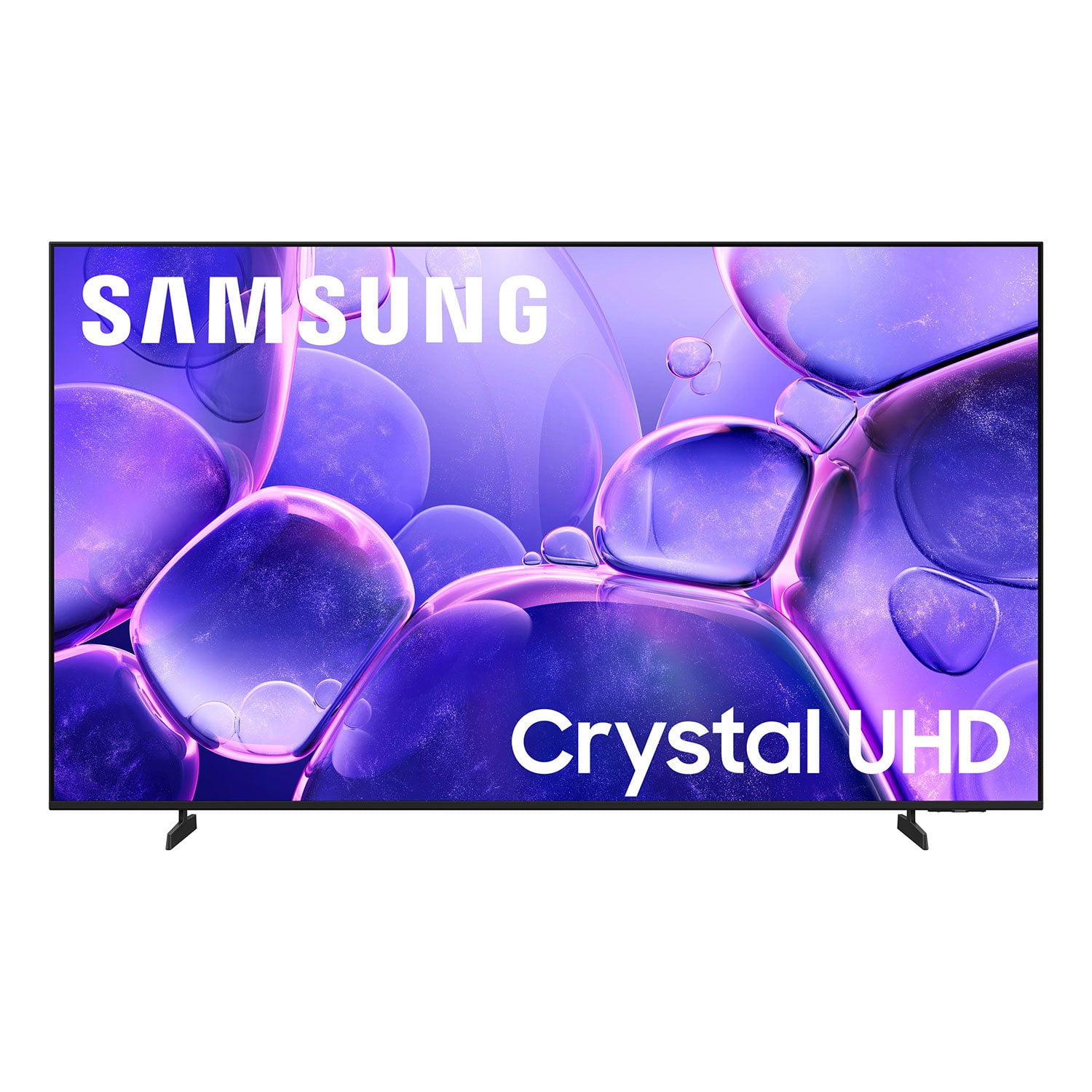
SAMSUNG 55" Class U8000F Series 4K Crystal UHD Smart TV
4.7 out of 5 stars
stars898 ratings834 reviews
  1. 5 stars79% (712)
  2. 4 stars14% (130)
  3. 3 stars3% (29)
  4. 2 stars1% (12)
  5. 1 star2% (15)

Member photos

  • +235 images
Sort by |
Showing 441-450 of 834 reviews
May 14, 2026
loanbehold
5 out of 5 stars review

great tv

[This review was collected as part of a promotion.] Really liked this TV. Does everything I need and then some

Review from Samsung US
Helpful?43WYLKDSIONN15546751433
May 11, 2026
Jeremiah49
5 out of 5 stars review

Great tv

[This review was collected as part of a promotion.] Great picture and sound crystal clear resolution bright colors fast refresh rate

Review from Samsung US
Helpful?43WYLKDSIONN15546751433
Apr 22, 2026
Andy
1 out of 5 stars review

Great TV

[This review was collected as part of a promotion.] Everything is fine except the internet not working in this TV!?

Review from Samsung US
Helpful?43WYLKDSIONN15546751433
reply from Samsung Advisor

Hi Andy, Thank you for sharing your experience with the internet connection on your Samsung U8000F TV. Whether you're using Wi-Fi or a wired (LAN) connection, there are a few steps you can take to help resolve the issue: 1. Power Cycle Your Equipment. Unplug both your TV and router/modem from the wall outlet. Wait at least 30 seconds, then plug them back in and allow both devices to fully restart. 2. Check the Network Status. On your TV, go to: Home > left directional key > Settings > All Settings > Connection > Network > Network Status. This will help determine if the issue lies with the network or the TV. 3. Try a Different Connection Type. If you're using Wi-Fi, try connecting an Ethernet (LAN) cable directly from your router to the TV to test the connection. If you're using a wired connection, try switching to Wi-Fi to see if the issue persists. 4. Reestablish the Network Connection. Go to: Settings > All Settings > Connection > Network > Open Network Settings, and follow the prompts to reconnect to your Wi-Fi or wired network. 5. Update Firmware. Software updates can often resolve network bugs. To check for the latest version: Settings > Support > Software Update > Update Now If these steps don't resolve the issue, we’d be happy to provide further assistance. Please call Samsung Support at 1-800-SAMSUNG, 8AM – 9PM EST Mon – Fri, 8AM – 6PM Sat – Sun. LiveChat is also available at the ‘Support’ link on our website. ~ Samsung Advisor

May 20, 2026
Pka516
5 out of 5 stars review

Great features, easy setup

[This review was collected as part of a promotion.] The sound, just from the TV is outstanding. The picture is bright and clear.

Review from Samsung US
Helpful?43WYLKDSIONN15546751433
Apr 20, 2026
Hyde
5 out of 5 stars review

Amazing TV

[This review was collected as part of a promotion.] Perfect screen and perfect for gaming. I love this TV so much. Well worth it.

Review from Samsung US
Helpful?43WYLKDSIONN15546751433
May 11, 2026
James
3 out of 5 stars review

So quiet

[This review was collected as part of a promotion.] The tv works great except I have to have the sound to 90 to hear anything

Review from Samsung US
Helpful?43WYLKDSIONN15546751433
reply from Samsung Advisor

Hi James, Thank you for purchasing Samsung’s U8000F TV and for sharing your feedback regarding low volume. To start, we recommend making sure your TV is running the latest firmware, as updates can include improvements to sound performance: Home > left directional key > Settings > Support > Software Update If volume levels still seem too low, you can improve sound performance by adjusting a few key settings: Sound Mode: Navigate to: Settings > All Settings > Sound > Sound Mode Auto Volume: This feature helps maintain consistent volume levels across content and input sources. Turn it on under: Settings > All Settings > Sound > Expert Settings > Auto Volume = On You can also explore Expert Settings to fine-tune sound output with adjustments for Balance, Equalizer, and more. If you’re considering enhancing your setup, Samsung’s Q- and S-Series Soundbars feature Q-Symphony, which syncs your TV and soundbar speakers for a fuller, more immersive sound experience. For personalized support with these settings or selecting a soundbar to complement your setup, contact Samsung Support at 1-800-SAMSUNG (8AM – 9PM EST Mon – Fri, 8AM – 6PM Sat – Sun) or use LiveChat via the ‘Support’ link on our website. ~ Samsung Advisor

May 19, 2026
Temp
5 out of 5 stars review

Great Purchase and quality

[This review was collected as part of a promotion.] Great purchase and quality presentation. String visibility and easy to assemble.

Review from Samsung US
Helpful?43WYLKDSIONN15546751433
May 11, 2026
Coronakid26
5 out of 5 stars review

Love clarity

[This review was collected as part of a promotion.] Love this product. I only do Samsung all across the board

Review from Samsung US
Helpful?43WYLKDSIONN15546751433
May 11, 2026
Boot
5 out of 5 stars review

Awesome TV

[This review was collected as part of a promotion.] Its a great TV. I have no issues with it and my picture is amazing

Review from Samsung US
Helpful?43WYLKDSIONN15546751433
Apr 20, 2026
Miky
5 out of 5 stars review

The best ever

[This review was collected as part of a promotion.] This is by far the best tv I have ever owned and im the only one to turn it on mine all mine

Review from Samsung US
Helpful?43WYLKDSIONN15546751433