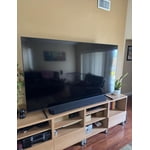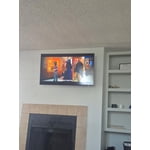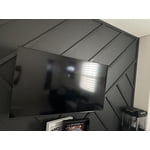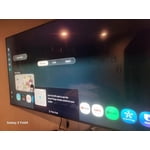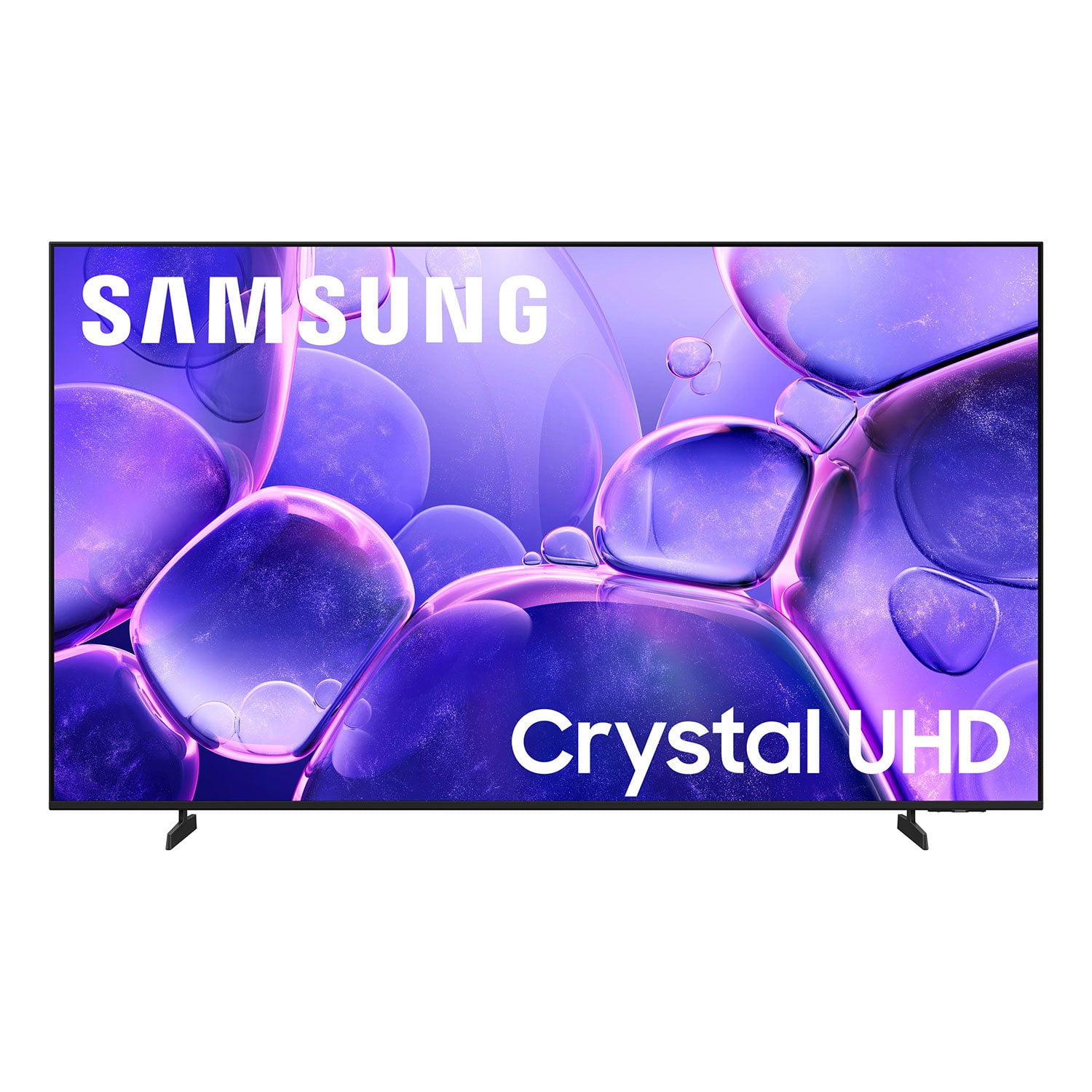
Customer reviews for SAMSUNG 55" Class U8000F Series 4K Crystal UHD Smart TV forGreat low Price large screen
[This review was collected as part of a promotion.] The pictures are clear, bright and awesome. It was easy to unbox and set up. The Turning on and setting up the tv was also very easy. It guides you along the way to make the remote from my cable box work on the tv. There are so many preinstalled tv apps
Visually stunning!
[This review was collected as part of a promotion.] This model has excellent quality in what the screen displays. It is very vivid and crystal clear. Didnt have to adjust any of the settings on this model. It was already to go once plugged in and turned on. Oh ya I can't forget the amazing audio quality. The colors and sounds really cant get much better in my opinion. The speakers are so crystal clear on how they sound even with the TV turned down on the volume. It's got to be one of the most amazing models of TV Samsung has ever made.
Just get it!
[This review was collected as part of a promotion.] Great TV. Super light weight and thin for a 65" but still has great clarity and visual. Easy to connect samsung to samsung mobile device. In the market for another TV also and wil be getting a Samsung!
Great interface/design, but light blooming is baad
[This review was collected as part of a promotion.] I wanted this TV to be great. And it has great aspects, such as the UI, and response, the thinness of it, and the small wire and how it looks on a wall. However, the brightness is absolutely terrible, and the bloominig/bright spots on the screen are absolutely horrible, and this is after I exchanged for a new panel. It makes watching dark scenes impossible.
Hi jg8045, We’re sorry to hear you’re not fully satisfied with the picture quality on your Samsung U8000FD TV. If the image appears too dark, we suggest disabling certain energy-saving features, which can automatically adjust brightness and affect how the screen looks. Go to: Settings > All Settings > General & Privacy > Power and Energy Saving, then turn off Brightness Optimization, Energy Saving Solution, Motion Lighting, and/or Contrast Enhancer. You can also adjust the Picture Mode to better suit your environment: Settings > All Settings > Picture > Picture Mode • Standard – Default mode for general viewing • Dynamic – Brighter and clearer, ideal for well-lit rooms • Movie – Best for dark room viewing • Eco – Energy-saving mode • Filmmaker Mode – Preserves content as intended by creators To fine-tune brightness, go to: Home > left directional key > Settings > All Settings > Picture > Expert Settings, then adjust the Brightness level (0–50) to your preference. Lastly, please make sure your TV is running the latest firmware: Home > Home > left directional key > Settings > Support > Software Update > Update Now We hope these tips help improve your viewing experience. If you need further support, feel free to contact us at 1-800-SAMSUNG, 8AM – 12AM EST, 7 days a week. LiveChat is also available via the ‘Support’ link on our website. ~ Samsung Advisor
Beautiful Color
[This review was collected as part of a promotion.] This TV has a gorgeous picture, all the apps are included, my phone is a remote, its super cool and I was a long time LG fan, but samsung has won me over. The resolution is amazing has beautiful brightness and the perfect amount of contrast. The interface is easy to navigate and has helpful hints.
Great picture!
[This review was collected as part of a promotion.] I've had this TV for some time now and I absolutely love it. It's the perfect size for my living room and the picture quality is by far the best ive ever had in a TV. Samsung yet again deivers a quality product
sync issues
[This review was collected as part of a promotion.] I called customer service to have them assist me to sync my Amazon Firestick. After several tries they couldn't get it to work either. They also assisted me to sync my surround sound. The remote would turn the surround sound on but wouldn't adjust the volume. I took the TV back to the store and bought a LG works great no issues.
Hi, We are sorry to hear about the issues you experienced that resulted in a return. Should you give Samsung another look in the future, we’d be glad to assist with setup, settings, or features. You can contact us at 1-800-SAMSUNG, 8AM – 12AM EST daily, or LiveChat with a representative at the ‘Support’ link on our website. ~ Samsung Advisor
Screensaver
I would like to have the screensaver adjustable for time out because there are many times when you don't want to turn off the TV, but you do not want the distraction of everything of the screen. On my model TV, the screensaver only kicks in only after two hours of non-activity.
Picture is great, but . . .
I love the picture and the price on this TV, but overall, it has several faults. The "smart" menu system on this TV SUCKS, and the remote is worthless. This is the sixth Samsung TV that I've owned, but it may be my last. The remote that comes with the TV is worthless. I've already replaced the remote that came with the TV through customer service, because it was dead on arrival. No problem, except it took over two weeks for the replacement to arrive. The replacement works most of the time, but I've found that one of the old non-smart remotes I have from a previous Samsung TV works much better than the new smart one. I also downloaded the Samsung TV app for my phone, and I've found it works better than either remote. The second major problem I have is the menu system on the TV. I have the TV hooked up to an antenna in my office, and it takes about six clicks and several minutes, yes, minutes, to navigate to the over-the-air channel I want when I initially turn the TV on in the morning. This is ridiculous. It usually takes at least three attempts through the menu to get the channel to play on the TV. The last problem is in trying to add apps. I've added the Xfinity Stream app three times, but it does not appear on the list of possible "channels" to navigate to. There are at least ten different choices of "channels", two or possibly three that I will use, but Xfinity does not appear. It does appear in the APP section if I search for it. Overall, the TV works great. I'll be replacing our main large screen TV in the Family Room in the near future, but I'm really not sure if I'll get another Samsung or change to a different brand. My son purchased a 65 inch LG that has a menu system that is efficient and works and the picture is amazing. Of course it was about $500 more than this TV. But price should not have anything to do with functionality.
OrygunDuck, Thank you for sharing your feedback with us. To help you get the most from your TV, you can download the full e-Manual and more by visiting Samsung’s website, then navigating to: Support > Manual & Software > TVs & Home Theater. From there, you can search for and select your U8000FD TV model to view or download the available guides. The e-Manual & User Guide are also conveniently built into your TV: Settings > Support > Tips and User Guides. Your TV includes Learn Menu Screen, an accessibility feature that provides audio guidance for on-screen menus. When enabled, your TV will announce the name and function of each menu item as you scroll, without making any changes. This feature is particularly helpful for users who are visually impaired or new to Smart TV menus. To enable, go to: Settings > All Settings > General & Privacy > Accessibility > Learn Menu Screen. To exit, press the Return key twice. If you're experiencing freezing or lag in general response time, please try the following steps: 1. Check for firmware updates – Keeping your TV up to date can resolve many performance issues: Home > left directional key > Settings > Support > Software Update > Update Now 2. Run Device Care – This tool checks system memory, frees up cached data, and closes background apps that could be slowing things down: Home > left directional key > Settings > Support > Device Care > Start Device Care 3. Cold boot your TV – With the TV powered on, press and hold the Power button on your remote for 5+ seconds until the TV restarts. This helps refresh the system. If you’d like more assistance, please reach Samsung Support at 1-800-SAMSUNG, available 8AM – 12AM EST, 7 days a week. LiveChat agents are also available through the ‘Support’ link on our website. ~ Samsung Specialist
Fantastic Picture
I upgraded from a 50” Seiki TV that I received for Christmas a number of years ago. It had the worst sound quality, and I could never get a bright enough picture. With this years Christmas money and purchased a 65” Samsung. The picture quality is amazing, but the sound is not as good as I expected. The primary reason I am giving a 4 star is what I went through to connect my Bose Soundbar. Samsung is one of the companies who has opted to eliminate the Optical connection for an HDMI eArc only connection, and my older Bose soundbar, which sounds awesome, and I have no reason to replace it, does not have an HDMI connection. After trial & error, I found the correct adapter